Introducció
This manual provides comprehensive instructions for the setup, operation, and maintenance of your Cisco 8800 Series Key Expansion Module (KEM) with MPP Firmware. The KEM is designed to enhance the functionality of compatible Cisco IP Phones by providing additional programmable line and feature buttons, ideal for administrative assistants, call center agents, and users who manage multiple lines.
Contingut del paquet
Comproveu que el vostre paquet contingui els elements següents:
- Mòdul d'expansió de claus de la sèrie Cisco 8800
- Connecting Cable (for attachment to compatible IP Phone)
- Documentació (aquest manual d'usuari)
Si falta algun article o està malmès, contacteu immediatament amb el vostre venedor.
Configuració
The Cisco KEM 8800 Series is designed to be connected to a compatible Cisco IP Phone. Ensure your IP Phone is powered off before beginning the setup process.
Compatibilitat
This Key Expansion Module is compatible with the following Cisco IP Phone models:
- Telèfon IP Cisco 8851
- Cisco IP Phone 8851NR
- Telèfon IP Cisco 8861
Connexió física
- Position the KEM next to your compatible Cisco IP Phone, typically on the right side.
- Locate the KEM connection port on the back or side of your IP Phone.
- Connect one end of the provided connecting cable to the KEM and the other end to the designated port on the IP Phone. Ensure the connection is secure.
- Once connected, power on your Cisco IP Phone. The KEM will draw power directly from the phone and should initialize automatically.
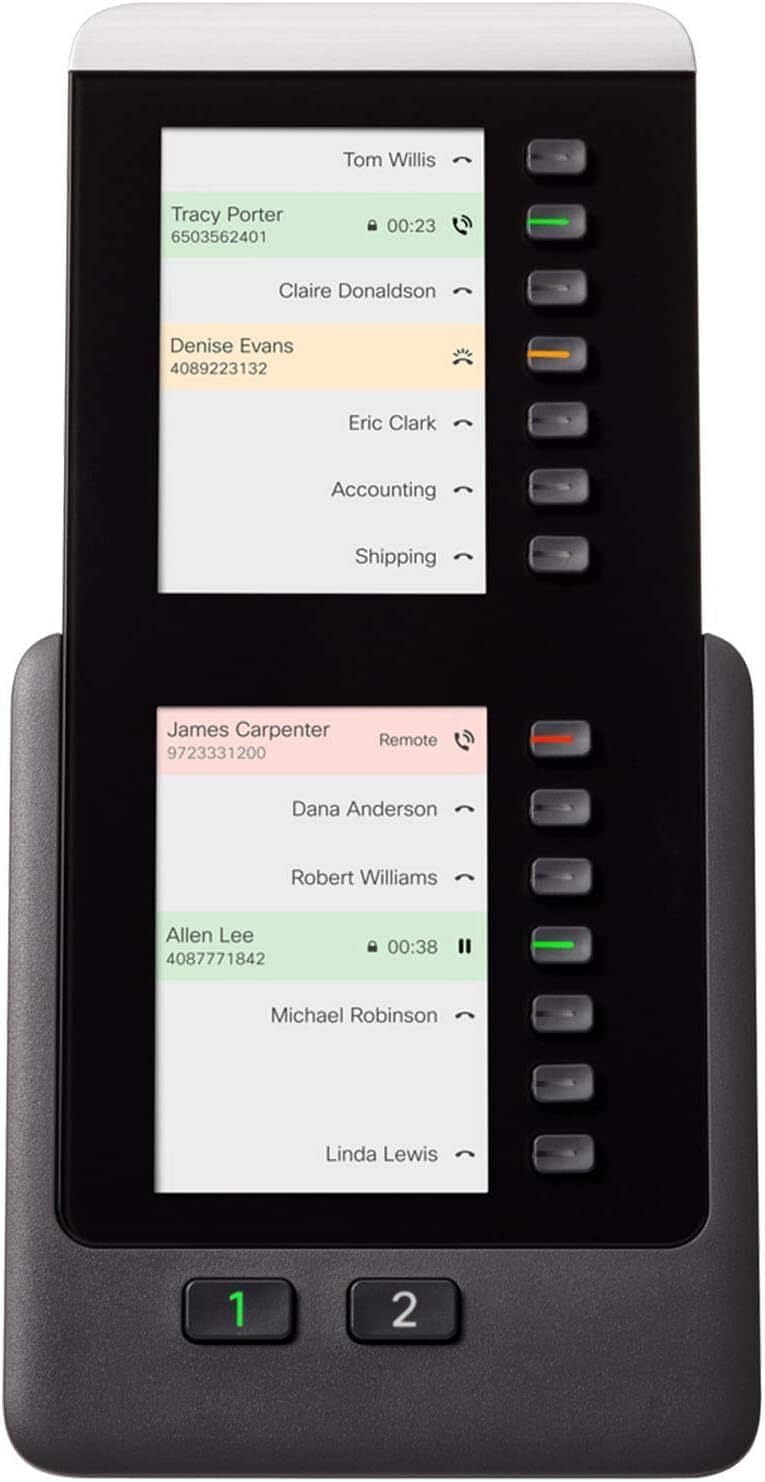
Figure 1: Cisco 8800 Series Key Expansion Module (KEM) connected to a compatible IP Phone. The KEM features a large display screen showing multiple line appearances or contacts, such as "Tracy Porter" and "James Carpenter," along with their status (e.g., call duration, remote status). To the right of the display, there are multiple physical buttons, each with an associated LED indicator (green for active, orange for hold, red for busy). At the bottom, two larger buttons labeled "1" and "2" are visible, likely for page navigation or additional functions.
Operating the Key Expansion Module
The KEM provides additional programmable buttons to extend the functionality of your Cisco IP Phone. These buttons can be configured to represent additional lines, speed dials, or other features as defined by your system administrator.
Understanding the Display and Buttons
Refer to Figure 1 for a visual representation of the KEM's components.
- Pantalla de visualització: Shows the status of programmed lines or features. This includes names (e.g., Tracy Porter, Denise Evans, James Carpenter, Allen Lee), associated numbers, and call status indicators (e.g., call duration like "00:23", "Remote" status, or hold/active icons).
- Programmable Line/Feature Buttons: Located to the right of the display. Each button has an associated LED indicator that changes color to reflect the status of the line or feature:
- LED verd: Indicates an active line or available feature.
- Orange/Amber LED: Typically indicates a line on hold or a feature in use.
- LED vermell: Often indicates a busy line or an unavailable feature.
- Page Navigation Buttons (1 and 2): Located at the bottom of the KEM. These buttons allow you to switch between different pages of programmed lines or features if more are configured than can be displayed on a single screen. The active page button may illuminate (e.g., green for page 1).
Funcionament bàsic
- Accessing Lines/Features: Press the physical button next to the desired line or feature displayed on the screen.
- Switching Pages: If your KEM has multiple pages of lines/features, press the "1" or "2" button at the bottom to navigate between them.
- Gestió de trucades: When a call is active on a line associated with the KEM, the corresponding LED will illuminate. You can typically use the KEM button to switch to that line, place it on hold, or perform other call actions as configured.
For specific button configurations and advanced features, consult your system administrator or the documentation for your primary Cisco IP Phone.
Manteniment
Proper maintenance ensures the longevity and optimal performance of your Cisco KEM.
Neteja
- Disconnect the KEM from the IP Phone before cleaning.
- Utilitzeu un drap suau i sense pelusa lleugerament dampnetejat amb aigua o un netejador suau i no abrasiu.
- Do not spray cleaners directly onto the KEM.
- Avoid using harsh chemicals, abrasive pads, or solvents, as these can damage the surface and display.
Emmagatzematge
If storing the KEM for an extended period, ensure it is disconnected from the IP Phone and stored in a cool, dry place away from direct sunlight and extreme temperatures.
Resolució de problemes
This section addresses common issues you might encounter with your KEM.
| Problema | Causa possible | Solució |
|---|---|---|
| KEM display is blank or not powering on. |
|
|
| Els botons no responen. |
|
|
| Display shows incorrect information. |
|
|
If you encounter issues not listed here, or if the suggested solutions do not resolve the problem, please contact your IT support or system administrator.
Especificacions
| Número de model | CP-8800-A-KEM-3PC= |
| Marca | Cisco |
| Dimensions del producte (L x A x A) | 7.75 x 4.25 x 0.75 polzades |
| Pes de l'article | 1.32 lliures (aproximadament 600 grams) |
| Color | Negre |
| Material | Plàstic |
| Tipus de telèfon | Phone Expansion Module |
| Font d'alimentació | AC adapter (via connected IP Phone) |
| Dispositius compatibles | Cisco IP Phone 8851, 8851NR, 8861 |
Garantia i Suport
For information regarding product warranty, technical support, or service, please refer to the official Cisco website or contact your authorized Cisco reseller or system administrator. Warranty terms and support options may vary based on region and purchase agreement.


