1. Introducció
This manual provides detailed instructions for the setup, operation, and maintenance of your HENEX HC-3208 2D Barcode Scanner. This device is a versatile USB wired scanner capable of reading both 1D and 2D barcodes, including those displayed on screens. It features both manual and automatic induction scanning modes, offering flexibility for various business environments.
2. Producte acabatview
The HENEX HC-3208 is designed for efficient and accurate barcode scanning. Key features include:
- Induction Scanning Mode: Supports both manual trigger and automatic induction scanning.
- Plug & Play: No software or driver installation required; simply connect via USB.
- Alta compatibilitat: Works with Windows, Linux, and MAC operating systems, and common software like Word and Excel.
- Screen Scanning: Capable of reading barcodes from labels, paper, mobile phones, or computer displays, including dirty or incomplete codes.
- Strong Decode Capability: Utilizes advanced decoding algorithms for various 1D and 2D codes (DataMatrix (ECC 200), QR Code, PDF417, UPC-A, UPC-E, EAN-8, EAN-13, Code 39, Code 93, Code 32, Code39 (ASCII), etc.).

Figure 2.1: HENEX HC-3208 2D Barcode Scanner demonstrating its ability to scan various 1D and 2D QR codes, including blurry and long barcodes, and codes from screens. Sample barcode data shown: QR Code, 0076950450479, 110120102011.

Figure 2.2: The HENEX HC-3208 2D Barcode Scanner with its main unit, USB cable, and flexible stand. A caution is displayed regarding the scanner laser beam.
3. Configuració
The HENEX HC-3208 barcode scanner is designed for easy setup with its plug-and-play functionality. Follow these steps to get started:
- Desempaquetar components: Carefully remove all items from the packaging: the barcode scanner unit, the USB cable, and the adjustable stand.
- Muntar el suport: Insert the flexible arm of the stand into the base, ensuring it is securely fastened. Then, attach the scanner holder to the top of the flexible arm.
- Connecteu el cable USB: Plug the USB cable into the port at the base of the scanner unit.
- Connexió a l'ordinador: Insert the other end of the USB cable into an available USB port on your computer (Laptop or Desktop).
- Reconeixement del sistema: Your computer should automatically detect and install the necessary drivers. No additional software installation is typically required.

Figure 3.1: The USB wired connection of the HENEX HC-3208 scanner, emphasizing its simple plug-and-play setup without the need for drivers.

Figure 3.2: The main scanner unit and the components of the adjustable stand, showing how they fit together for desktop use.
4. Instruccions de funcionament
The HENEX HC-3208 offers flexible scanning modes to suit various operational needs.
4.1. Manual Scanning Mode
In manual mode, you activate the scanner by pressing the trigger button. This mode is ideal for precise scanning of individual items.
- Subjecteu l'escàner còmodament a la mà.
- Point the scanner's light beam at the barcode you wish to scan.
- Press and hold the trigger button. The scanner will emit a light and a beep upon successful scan.
- Release the trigger button after the scan is complete.
4.2. Automatic Induction Scanning Mode
In automatic induction mode, the scanner will automatically detect a barcode placed within its scanning field and initiate a scan without needing to press the trigger. This mode is convenient for hands-free operation, especially when using the stand.
- Place the scanner on its stand.
- To activate automatic mode, scan the 'Automatic Mode' barcode from the provided setup sheet (refer to the video for demonstration).
- Present the barcode to the scanner's window. The scanner will automatically activate its light and scan the barcode.
- Un so indicarà un escaneig correcte.
4.3. Scanning Various Barcode Types
The HC-3208 is capable of scanning a wide range of 1D and 2D barcodes, including those on physical labels, mobile phone screens, and computer monitors. It can also read dirty or incomplete codes due to its advanced decoding technology.

Figure 4.1: The scanner positioned on its stand, actively scanning a QR code from a mobile phone, showcasing its screen scanning capability. Sample barcode data shown: 134818719994658501.
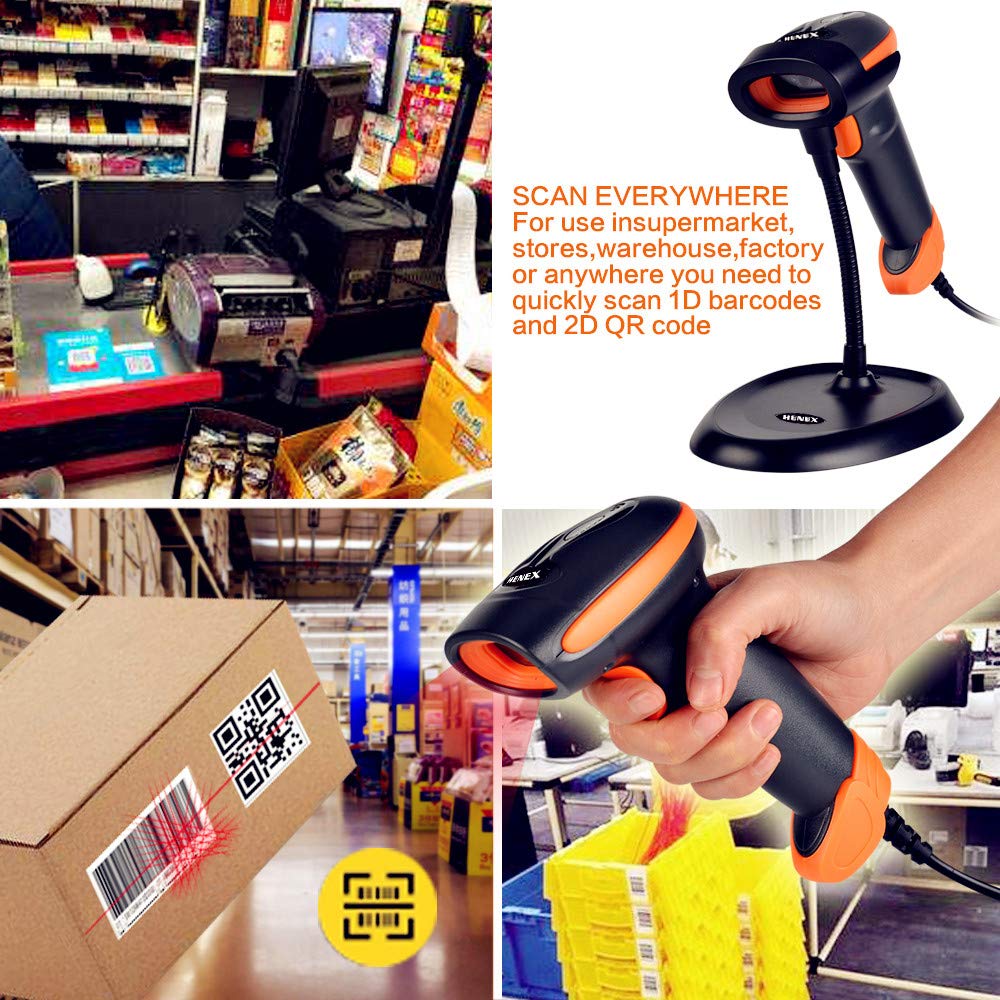
Figura 4.2: Examples of the scanner's application in various settings, including supermarket checkout, warehouse inventory, and handheld scanning of a QR code on a package. Sample barcode data shown: 01234567891011121314151617181920.
5. Manteniment
Proper maintenance ensures the longevity and optimal performance of your HENEX HC-3208 barcode scanner.
- Neteja: Regularly clean the scanner's window and exterior with a soft, lint-free cloth. For stubborn dirt, dampen the cloth with a mild, non-abrasive cleaning solution. Avoid harsh chemicals or abrasive materials that could scratch the scanning window.
- Cura del cable: Ensure the USB cable is not bent sharply, twisted, or subjected to excessive pulling, which can damage internal wires.
- Emmagatzematge: When not in use, store the scanner in a clean, dry environment, away from direct sunlight, extreme temperatures, and excessive dust.
- Manipulació: Eviteu deixar caure l'escàner ni sotmetre'l a impactes forts, ja que això pot danyar els components interns.
6. Solució De Problemes
If you encounter issues with your HENEX HC-3208 scanner, refer to the following common troubleshooting steps:
- L'escàner no respon:
- Check if the USB cable is securely connected to both the scanner and the computer.
- Prova de connectar el cable USB a un port USB diferent de l'ordinador.
- Reinicieu l'ordinador.
- No es poden escanejar codis de barres:
- Ensure the scanner's light beam is correctly aimed at the barcode.
- Verify that the barcode is not excessively damaged, smudged, or poorly printed.
- Check if the correct scanning mode (manual or automatic) is selected. Refer to the operating instructions for switching modes.
- Ensure the barcode type is supported by the scanner (e.g., 1D or 2D).
- Sortida de dades incorrecta:
- Confirm that your computer's keyboard layout matches the scanner's default settings.
- If scanning specific types of barcodes results in incorrect data, you may need to adjust advanced settings using the programming barcodes in the full user manual (available for download).
- No Beep or Light:
- This usually indicates a power or connection issue. Recheck the USB connection.
- Si el problema persisteix, poseu-vos en contacte amb el servei d'atenció al client.
For more detailed troubleshooting or advanced configuration, please refer to the complete user manual available for download from the manufacturer's webo poseu-vos en contacte amb el vostre distribuïdor.
7. Especificacions
Below are the technical specifications for the HENEX HC-3208 2D Barcode Scanner:
| Característica | Especificació |
|---|---|
| Marca | HENEX |
| Model | HC-3208 |
| Tecnologia de connectivitat | Cable USB (amb cable) |
| Modes d'escaneig | Manual, Automatic Induction |
| Codis de barres compatibles | 1D and 2D codes (DataMatrix (ECC 200), QR Code, PDF417, UPC-A, UPC-E, EAN-8, EAN-13, Code 39, Code 93, Code 32, Code39 (ASCII), etc.) |
| Compatibilitat | Windows, Linux, MAC, Android |
| Característiques especials | Automatic induction reading and handheld scanning (2-in-1), Screen scanning, Plug and Play (no driver needed) |
| Dimensions del producte | 17.3 x 6.7 x 9.4 cm |
| Pes de l'article | 300 g |
| Font d'alimentació | Cordat |
| Piles necessàries | No |
| Temperatura màxima d'emmagatzematge | 70 graus centígrads |

Figura 7.1: Dimensional view of the scanner stand, indicating its height (7.87 inches / 20 cm) and base dimensions (6.69 inches / 17 cm by 4.92 inches / 12.5 cm).
8. Garantia i Suport
Your HENEX HC-3208 2D Barcode Scanner comes with a standard warranty. For specific details regarding the warranty period and coverage, please refer to the warranty policy provided at the time of purchase or contact your retailer.
For technical support, service, or further inquiries, please reach out to your product vendor or the official HENEX customer service channels. Keep your purchase receipt or proof of purchase handy when contacting support.


