1. Introducció
The Apple Smart Keyboard is a versatile accessory designed to enhance your iPad experience by providing a comfortable typing solution and protective cover. It connects seamlessly to your compatible iPad without the need for charging or Bluetooth pairing, utilizing the Smart Connector for power and data.
2. Compatibilitat
This Smart Keyboard is compatible with the following iPad models:
- iPad (7a generació)
- iPad (8a generació)
- iPad (9a generació)
- iPad Air (3rd Generation)
- iPad Pro d'10.5 polzades
Ensure your iPad model is listed above for proper functionality.
3. Configuració
Setting up your Apple Smart Keyboard is straightforward:
- Align the Smart Connector: Locate the three small magnetic contacts on the side of your iPad (usually the long edge). Align these contacts with the Smart Connector on the Smart Keyboard.
- Attach the Keyboard: The magnets will automatically snap the keyboard into place, establishing a secure connection.
- Position for Typing: Fold the keyboard into the triangular stand position to prop up your iPad. The keyboard will automatically activate, and you can begin typing immediately.

Image: The Smart Connector on the side of a compatible iPad, used for connecting the Smart Keyboard.

Imatge: Un costat view of an iPad securely attached to the Smart Keyboard, folded into the typing stand configuration.
4. Funcionament
The Smart Keyboard offers two primary modes of operation:
4.1 Typing Mode
Once attached and folded into the typing stand, the keyboard functions like a traditional physical keyboard. There is no power switch or pairing process required; it draws power directly from the iPad via the Smart Connector.
- Mecanografia: Simply open any app that supports text input and begin typing.
- Dreceres de teclat: The Smart Keyboard supports various iOS keyboard shortcuts for enhanced productivity. For a list of common shortcuts, refer to your iPad's user guide or Apple's support documentation.
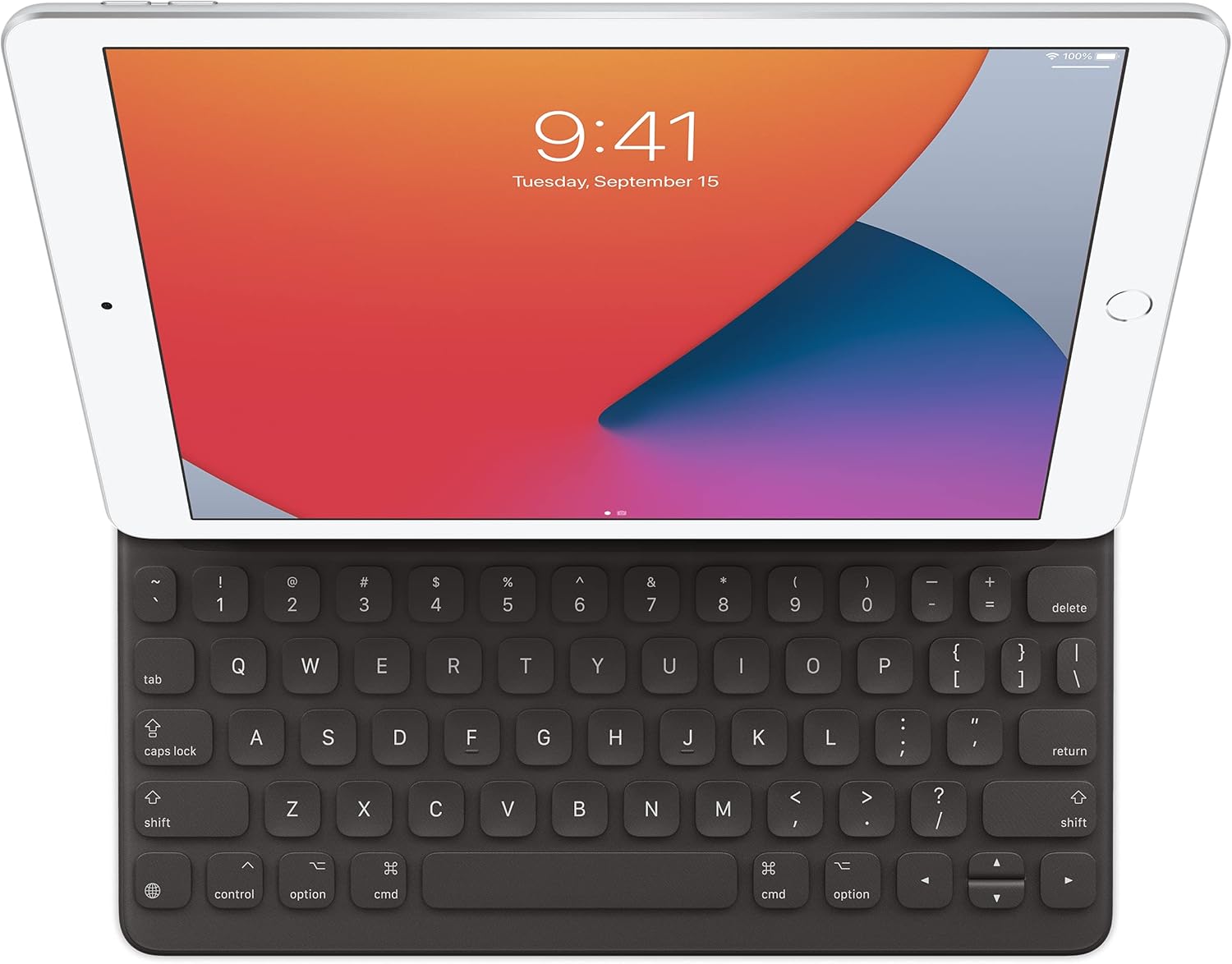
Imatge: Un front view of an iPad displaying its screen, with the Smart Keyboard attached and ready for typing.
4.2 Viewing Mode / Protective Cover
When you are not typing, the Smart Keyboard can be folded to serve as a protective cover or a stand for viewing contingut.
- Portada: Fold the keyboard flat against the iPad screen to protect it from scratches and minor impacts.
- ViewStand d'ing: The flexible design allows you to fold the keyboard into a stand that props up the iPad at an optimal angle for watching videos or making video calls.
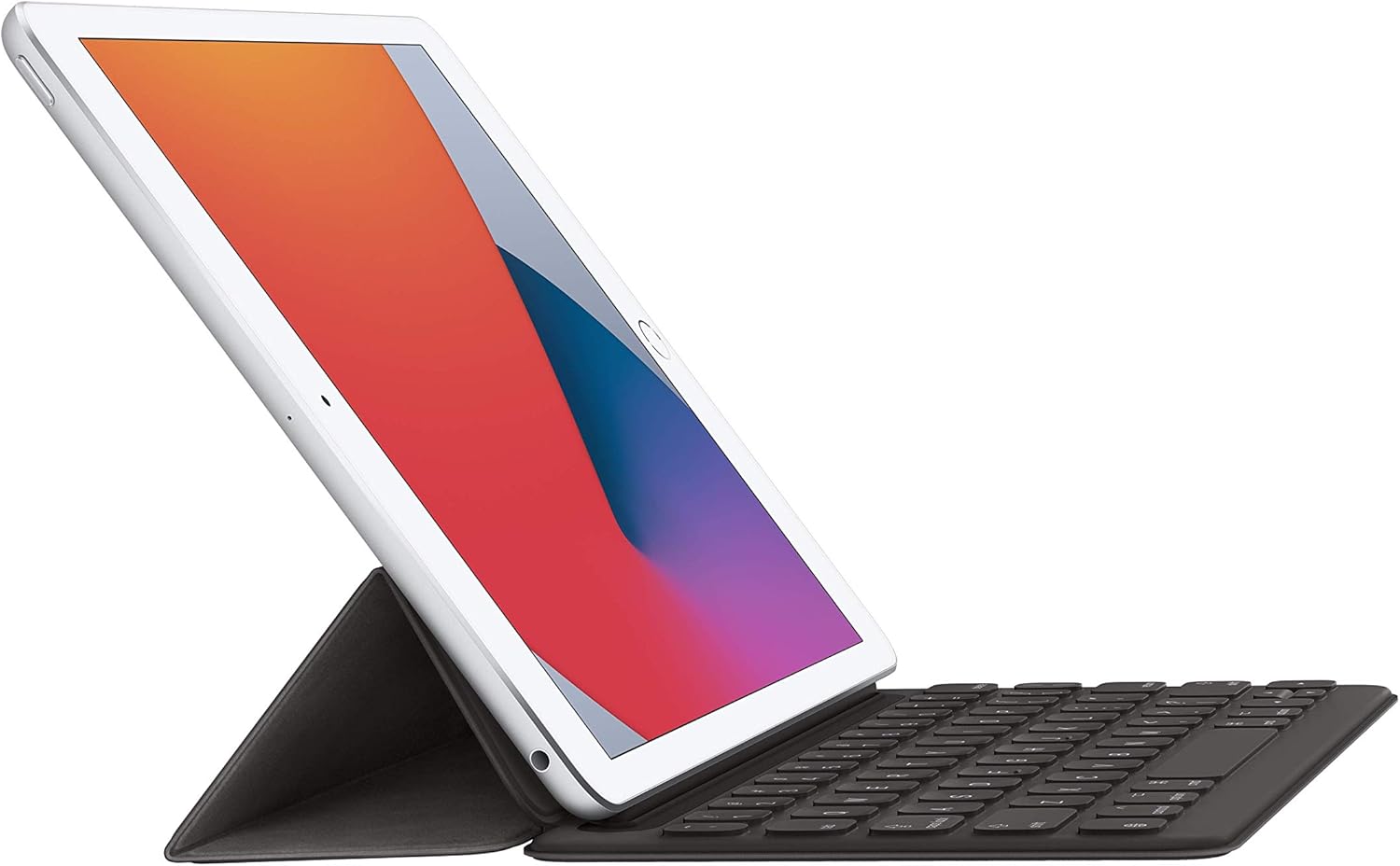
Image: An iPad positioned in a viewing stand configuration, with the Smart Keyboard folded behind it to support the screen.
5. Manteniment
To ensure the longevity and optimal performance of your Smart Keyboard:
- Neteja: Gently wipe the keyboard surface with a soft, damp, lint-free cloth. Avoid using harsh chemicals or abrasive materials.
- Emmagatzematge: When not in use, keep the keyboard attached to your iPad as a protective cover or store it in a clean, dry environment.
- Eviteu líquids: While the keyboard material is resistant to minor spills, avoid submerging it in liquids or exposing it to excessive moisture.
6. Solució De Problemes
If you encounter issues with your Smart Keyboard, consider the following steps:
- El teclat no respon:
- Ensure the Smart Keyboard is securely connected to the iPad's Smart Connector. Detach and reattach it.
- Clean the Smart Connector on both the iPad and the keyboard with a soft, dry, lint-free cloth to remove any debris.
- Reinicieu el vostre iPad.
- Verify your iPad's software is up to date.
- Les tecles no funcionen correctament:
- Comproveu si hi ha obstruccions físiques sota les tecles.
- Test the keyboard in different applications to determine if the issue is app-specific.
- Teclat no reconegut:
- Confirm your iPad model is listed as compatible (see Section 2).
- Ensure the iPad is not in a case that obstructs the Smart Connector.
Si els problemes persisteixen, poseu-vos en contacte amb el suport tècnic d'Apple per obtenir més ajuda.
7. Especificacions
| Característica | Detall |
|---|---|
| Número de model | MX3L2LL/A |
| Marca | Apple |
| Connectivitat | Connector intel·ligent |
| Descripció del teclat | Multi Funcional |
| Característiques especials | Ergonòmic, plegable |
| Color | Carbó vegetal |
| Llengua | Anglès dels EUA |
| Dimensions del producte | 10.31 x 7.64 x 0.55 polzades (26.19 x 19.41 x 1.4 cm) |
| Pes de l'article | 1.06 lliures (0.48 kg) |
| Fabricant | Apple |
| Primera data disponible | 18 de març de 2020 |
8. Garantia i Suport
For detailed warranty information and technical support, please refer to the official Apple website or contact Apple Support directly. Apple provides comprehensive support resources, including online documentation, troubleshooting guides, and customer service contact options.
You can visit the official Apple Support page for your region or the Suport d'Apple weblloc per a més informació.


