1. Introducció
This manual provides essential information for the installation, operation, and maintenance of your NVIDIA Quadro K4200 4GB GDDR5 Graphics Card. The NVIDIA Quadro K4200 is a professional graphics processing unit (GPU) designed for demanding visual computing workflows, offering advanced features for design, animation, and video applications. This specific unit is a renewed product, ensuring functionality and performance.
Please read this manual thoroughly before installing and using the graphics card to ensure proper setup and optimal performance.
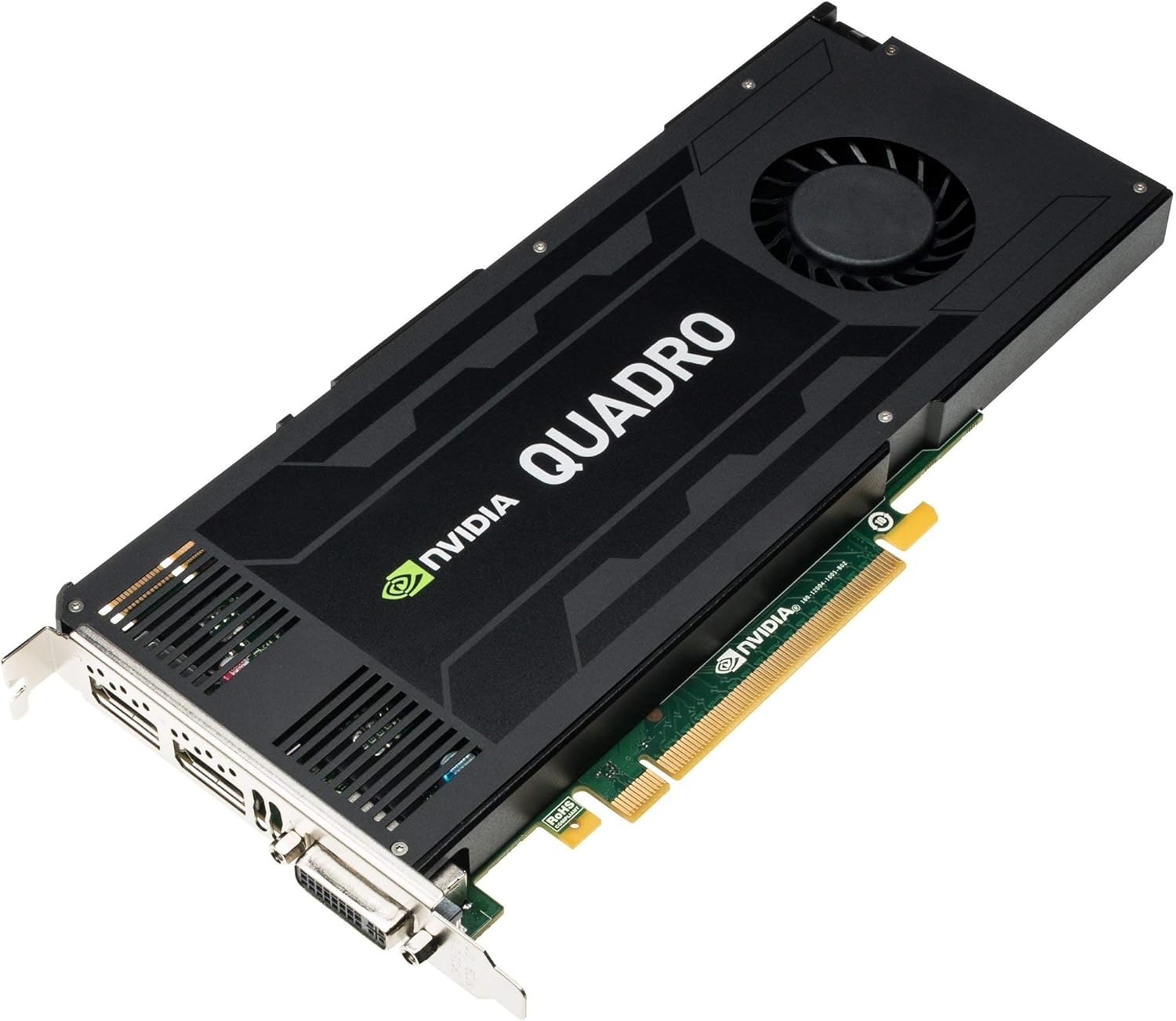
Figure 1: NVIDIA Quadro K4200 Graphics Card. This image displays the full graphics card, highlighting its cooling fan, heatsink, and various output ports including DisplayPort and DVI.
2. Especificacions tècniques
The following table details the technical specifications of the NVIDIA Quadro K4200 graphics card:
| Característica | Especificació |
|---|---|
| Processador gràfic | NVIDIA Quadro K4200 |
| Mida de la RAM gràfica | 4 GB GDDR5 |
| Interfície de sortida de vídeo | DisplayPort + DVI |
| Dimensions del producte | 9.49 x 0.79 x 4.41 polzades |
| Pes de l'article | 2.2 lliures |
| Fabricant | HP ISS BTO |
| Número de model de l'article | 764900-001 |
| ASIN | B086WNXKR4 |
| Data de primera disponibilitat | 8 d'abril de 2020 |
3. Guia d'instal·lació
Follow these steps to properly install your NVIDIA Quadro K4200 graphics card into your computer system. Ensure your system is powered off and unplugged before beginning the installation process.
- Prepareu el vostre sistema: Power down your computer completely and unplug the power cord from the wall outlet. Disconnect all peripherals.
- Obriu la caixa de l'ordinador: Traieu el panell lateral de la carcassa de l'ordinador per accedir als components interns.
- Localitzeu una ranura PCIe disponible: Identify an available PCI Express x16 slot on your motherboard. This is typically the longest slot. If replacing an existing graphics card, carefully remove it first.
- Treure la coberta de la ranura: Traieu la coberta metàl·lica de la ranura de la part posterior de la carcassa de l'ordinador corresponent a la ranura PCIe escollida.
- Inseriu la targeta gràfica: Align the NVIDIA Quadro K4200 with the PCIe slot. Apply even, firm pressure to push the card straight down into the slot until it is fully seated. You should hear a click as the retention clip engages.
- Assegureu la targeta: Use a screw or the case's retention mechanism to secure the graphics card bracket to the computer case.
- Connecteu l'alimentació (si escau): The Quadro K4200 typically requires supplementary power. Connect the appropriate PCIe power connector(s) from your power supply unit (PSU) to the power input(s) on the graphics card. Refer to your PSU manual for connector types.
- Tanqueu la carcassa de l'ordinador: Substitueix el panell lateral de la caixa de l'ordinador.
- Connecteu els cables de la pantalla: Connect your monitor(s) to the DisplayPort or DVI outputs on the graphics card.
- Encès: Torneu a connectar el cable d'alimentació a la presa de corrent i engegueu l'ordinador.

Figure 2: NVIDIA Quadro K4200 Output Ports. This image shows a close-up of the card's output bracket, featuring DisplayPort and DVI connectors, which are used to connect to monitors.
4. Instruccions de funcionament
4.1 Instal·lació del controlador
After physical installation, it is crucial to install the correct drivers for your NVIDIA Quadro K4200 graphics card to ensure full functionality and optimal performance.
- Descarrega els controladors: Visita la pàgina oficial d'NVIDIA weblloc (www.nvidia.com/drivers) and navigate to the driver download section.
- Seleccioneu producte: Choose "Quadro" for the product type, "Quadro K Series" for the product series, and "Quadro K4200" for the product. Select your operating system.
- Descarrega i instal·la: Download the recommended driver package. Once downloaded, run the installer and follow the on-screen prompts. A system restart may be required.
4.2 Configuració de la pantalla
Once drivers are installed, you can configure your display settings through your operating system's display settings or the NVIDIA Control Panel.
- Windows: Right-click on the desktop and select "Display settings" or "NVIDIA Control Panel" to adjust resolution, refresh rate, and multi-monitor setups.
- Linux: Use your desktop environment's display settings or the NVIDIA X Server Settings utility.
5. Manteniment
Un manteniment adequat pot allargar la vida útil i garantir un rendiment constant de la targeta gràfica.
- Eliminació de pols: Periodically (e.g., every 3-6 months), power down and unplug your computer. Open the case and use compressed air to gently clear dust from the graphics card's heatsink and fan. Hold the fan blades to prevent them from spinning excessively during cleaning.
- Assegureu-vos el flux d'aire: Ensure that your computer case has adequate airflow. Keep vents clear and avoid placing the computer in enclosed spaces that restrict air circulation.
- Actualitzacions de controladors: Revisa regularment l'NVIDIA weblloc web per a controladors actualitzats. Els controladors més nous sovint inclouen millores de rendiment, correccions d'errors i millores de compatibilitat.
6. Solució De Problemes
Aquesta secció tracta problemes comuns que podeu trobar amb la vostra targeta gràfica.
6.1 Sense sortida de pantalla
- Comproveu els cables: Ensure all display cables (DisplayPort, DVI) are securely connected to both the graphics card and the monitor.
- Connexió d'alimentació: Verify that the supplementary PCIe power connector(s) are firmly attached to the graphics card.
- Seients amb targeta: Power off and unplug the PC, then re-seat the graphics card firmly in its PCIe slot.
- Entrada del monitor: Assegureu-vos que el monitor estigui configurat a la font d'entrada correcta.
- Configuració de la BIOS/UEFI: Check your motherboard's BIOS/UEFI settings to ensure the primary display output is set to PCIe/discrete graphics.
6.2 Driver Installation Issues
- Previous Drivers: Uninstall any previous graphics drivers (especially from a different manufacturer) using a utility like Display Driver Uninstaller (DDU) in Safe Mode before installing new NVIDIA drivers.
- Correct Driver: Double-check that you have downloaded the correct driver for the Quadro K4200 and your operating system from the NVIDIA weblloc.
- Privilegis d'administrador: Run the driver installer as an administrator.
6.3 Performance Problems or Instability
- Sobreescalfament: Monitor GPU temperatures using software. Ensure proper case airflow and clean the card's heatsink/fan if necessary.
- Font d'alimentació: Verify that your power supply unit (PSU) has sufficient wattage and stable power delivery for all system components, including the graphics card.
- Driver Corruption: Torneu a instal·lar els controladors gràfics.
- Actualitzacions del sistema: Ensure your operating system is fully updated.
7. Informació de la garantia
As this is a renewed product, warranty terms are typically provided by the seller or refurbisher. According to the product listing, a Política de reemborsament/substitució de 90 dies is offered. Please retain your proof of purchase for any warranty claims.
For specific details regarding your renewed product's warranty, please refer to the documentation provided by the seller (Compeve) at the time of purchase or contact them directly.
8. Atenció al client
For technical assistance, driver downloads, or further information regarding your NVIDIA Quadro K4200 graphics card, please refer to the following resources:
- NVIDIA Official Weblloc: www.nvidia.com/support (for driver downloads and general product information)
- Suport al venedor: For issues related to the renewed product's condition, return policy, or specific purchase details, please contact the seller (Compeve) directly through your purchase platform.


