1. Producte acabatview
The Phomemo M110 is a versatile thermal label printer designed for both smartphone and PC use. It supports various label types for applications such as mailing addresses, price tags, food labeling, package shipping, DIY projects, and organization. This compact and portable device offers efficient printing for both personal and business needs.
1.1 Contingut del paquet
Si us plau, verifiqueu que tots els elements siguin presents al vostre paquet:
- Phomemo M110 Printer Unit
- 40*30mm Samprotlle d'etiquetes
- Cable de càrrega tipus C.
- Manual d'usuari (aquest document)

Image: Phomemo M110 printer, sample label roll, and charging cable.
1.2 Components del producte
Familiarize yourself with the different parts of your Phomemo M110 printer:
- Portada superior: Protects the label compartment.
- Visualització: Shows printer status and information.
- Botó d'engegada/menú: Turns the printer on/off and navigates menus.
- Paper Feed/Select Button: Feeds labels or confirms selections.
- Label Output Slot: Where printed labels exit.
- Type-C Cable Connection Port: Per a la càrrega i la connexió a l'ordinador.
- Restableix el forat: Per restablir les dades de fàbrica (feu servir un PIN).

Imatge: Detallada view of the Phomemo M110 printer with labels indicating its various parts.
2. Configuració
2.1 Preparació inicial
- Remove any protective films from the printer.
- Press and hold the Power button for 3 seconds until the display lights up.
- La impressora ja està a punt per al seu ús.
2.2 Càrrega d'etiquetes
The M110 printer supports die-cut labels with widths ranging from 20mm to 50mm. Ensure the labels are thermal-sensitive and have a protective coating for water, oil, and durability.
- Obriu la coberta superior de la impressora.
- Place the label roll into the paper cassette, ensuring the printing side faces upwards.
- Tanqueu la coberta superior.
- Press the paper feed button to automatically position the label.

Image: The Phomemo M110 printer with the top cover open, showing how to insert a label roll.
2.3 Mobile App Installation (Print Master)
The 'Print Master' app is required for smartphone and tablet operation. It offers various frames, fonts, templates, and icons for label customization.
- Cerca 'Print Master' on the App Store (iOS) or Google Play (Android).
- Baixeu i instal·leu l'aplicació.
- Open the 'Print Master' app.
- Tap 'Auto Connect' and allow necessary permissions. The app will automatically search for and connect to your M110 printer.
Video: Phomemo M110 Quick Start Guide, demonstrating initial setup and mobile app connection.
2.4 PC Software Installation (Labelife)
For PC connectivity, the M110 supports Mac OS and Windows 10 via USB. (Note: Linux and Chromebook systems are not supported).
- Visita el lloc web oficial de Phomemo website, navigate to 'Support' -> 'Download Center', and select M110 to download the driver. Alternatively, visit labelife.net.
- Download the appropriate 'Labelife' software for your operating system (Windows or Mac).
- Instal·leu el programari seguint les instruccions a la pantalla.
Video: Guide on downloading and installing the PC application for the Phomemo M110 printer.
3. Instruccions de funcionament
3.1 Connecting to a Smartphone/Tablet (Bluetooth)
- Assegureu-vos que el Bluetooth estigui habilitat al vostre telèfon intel·ligent o tauleta.
- Open the 'Print Master' app.
- The app will automatically detect and connect to your M110 printer. If not, tap 'Auto Connect' or manually select your printer from the device list.

Image: Visual guide for connecting the M110 printer to a smartphone or tablet via Bluetooth.
3.2 Connecting to a PC (USB)
- Connect the M110 printer to your PC using the provided Type-C USB cable.
- Open the 'Labelife' software on your PC.
- The software should automatically detect and connect to the printer. If not, follow the software's prompts to add a printer.

Image: Visual guide for connecting the M110 printer to a PC via USB cable.
3.3 Creació i impressió d'etiquetes
Both the 'Print Master' app and 'Labelife' software offer extensive customization options for your labels, including text, QR codes, barcodes, images, and various templates.
- Select your desired label size within the app/software.
- Design your label using the available tools (text, icons, barcodes, etc.).
- Preview your label to ensure accuracy.
- Click the 'Print' button to send the label to the printer.
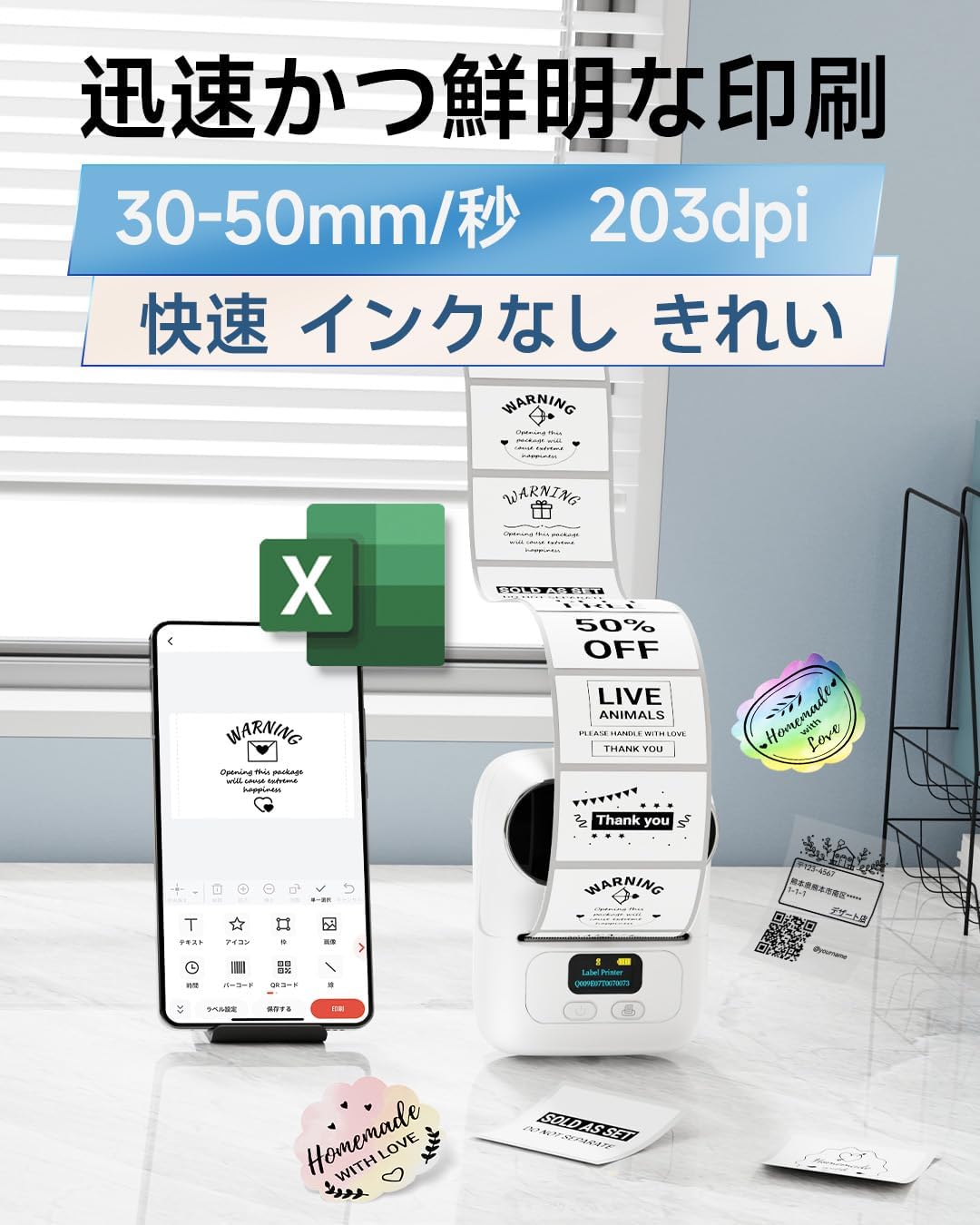
Image: A smartphone displaying the 'Print Master' app interface for designing labels.

Imatge: Més deview of additional app functions including voice-to-text, barcode/QR code recognition, OCR, and PDF/Excel printing.
4. Manteniment
To ensure optimal performance and longevity of your Phomemo M110 printer, regular maintenance is recommended.
- Neteja del capçal d'impressió: Utilitzeu un drap suau i sense pelusa dampened with isopropyl alcohol to gently wipe the print head. Ensure the printer is off and cool before cleaning.
- Neteja de l'exterior: Netegeu l'exterior de la impressora amb un drap suau i sec. Eviteu utilitzar productes químics agressius o materials abrasius.
- Emmagatzematge: Store the printer in a cool, dry place away from direct sunlight and extreme temperatures. Remove the label roll if storing for an extended period.
- Cura de la bateria: For optimal battery life, avoid fully discharging the battery frequently. Charge the printer regularly, even if not in use, to maintain battery health.
5. Solució De Problemes
If you encounter issues with your Phomemo M110 printer, refer to the following common troubleshooting steps:
| Problema | Causa possible | Solució |
|---|---|---|
| La impressora no s'encén | Bateria baixa; el botó d'engegada no s'ha premut prou estona | Charge the printer; Press and hold the Power button for 3 seconds. |
| No es pot connectar mitjançant Bluetooth | Bluetooth off on device; Printer not discoverable; App permissions denied | Ensure Bluetooth is on; Restart printer; Grant app location/Bluetooth permissions. |
| Poca qualitat d'impressió | Dirty print head; Incorrect label type; Low battery | Clean print head; Use genuine Phomemo thermal labels; Charge printer. |
| Etiquetes que no s'alimenten correctament | Label roll incorrectly inserted; Labels jammed | Re-insert label roll correctly; Clear any jammed labels. |
If the issue persists after trying these steps, please contact Phomemo customer support.
6. Especificacions
| Característica | Especificació |
|---|---|
| Dimensions del producte | 11.4 x 6.3 x 8.7 cm (profunditat x amplada x alçada) |
| Mida màxima del suport (paper) | 50 mm |
| Components inclosos | 40*30mm Sample Label Roll, Type-C Charging Cable, M110 Printer Unit, User Manual |
| Mitjans impresos | Etiquetes |
| Tipus d'escàner | Portàtil |
| Capacitat màxima de fulls | 100 |
| Velocitat màxima de còpia (blanc i negre) | 45 pàgines/minut |
| Dispositius compatibles | Smartphones, Tablets, Desktop PCs, Laptops |
| Mida del full | 20 ~ 50 mm |
| Resolució màxima d'impressió (monocrom) | 300 ppp |
| Impressió dúplex | No |
| Bateries | 1 bateria de ions de liti (inclosa) |
| Color | Blanc |
| Factor de forma | Impressora |
| Tecnologia de connectivitat | Bluetooth, USB |
| OS | Android, iOS |
| Contingut d'energia de la bateria de liti | 8.88 watts-hora |
| Embalatge de bateries de liti | Bateries contingudes en l'equip |
| Lithium Ion Cell Count | 2 |
| Pes de l'article | 228 g |
7. Garantia i Suport
Phomemo products are designed for reliability and performance. For warranty information and customer support, please refer to the following:
- Garantia: Please consult the warranty card included in your product packaging for specific terms and conditions.
- Atenció al client: For technical assistance, troubleshooting, or any product-related inquiries, please visit the official Phomemo weblloc a www.phomemo.com or contact their customer service team directly.


