1. Introducció
This manual provides detailed instructions for the proper use and maintenance of your MOZA Mini MX 3-Axis Mobile Handheld Stabilizer. Please read this manual thoroughly before operating the device to ensure optimal performance and longevity. The MOZA Mini MX is designed to provide smooth, stable footage for smartphone videography, enhancing your creative capabilities.
2. Informació de seguretat
- No exposeu el dispositiu a aigua o altres líquids.
- Avoid disassembling or modifying the device, as this may void the warranty and cause damage.
- Mantingueu el dispositiu allunyat de temperatures extremes i de la llum solar directa.
- Feu servir només el cable de càrrega i l'adaptador especificats.
- Ensure the smartphone is securely mounted before powering on the gimbal.
3. Contingut del paquet
Verifiqueu que tots els elements siguin presents al vostre paquet:
- MOZA Mini MX Gimbal Stabilizer
- Mini trípode
- Cable de càrrega
- Bossa d'emmagatzematge
- Manual d'usuari
4. Producte acabatview
Familiarize yourself with the components of your MOZA Mini MX gimbal.

Image 4.1: The MOZA Mini MX Gimbal Stabilizer in both extended (with phone and tripod) and folded configurations. This image illustrates the compact design and readiness for use.
The gimbal features a foldable design for portability, intuitive controls, and a robust smartphone clamp.
5. Configuració
5.1 Càrrega del cardan
Before first use, fully charge the gimbal using the provided USB cable. Connect the cable to the charging port on the gimbal and a USB power source. The indicator lights will show charging status.
5.2 Muntatge del telèfon intel·ligent
- Unfold the gimbal to its operational position.
- Gently pull open the smartphone clamp.
- Introduïu el vostre telèfon intel·ligent al clamp, ensuring it is centered and secure. For optimal balance, place the phone as close to the tilt motor as possible.
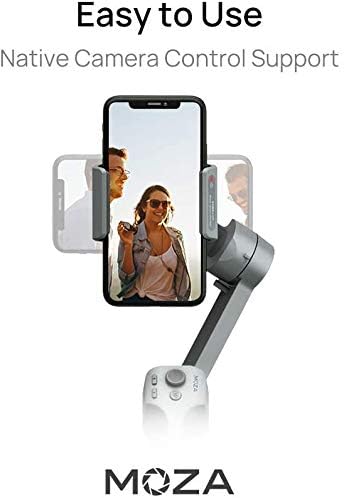
Image 5.1: A smartphone securely mounted on the MOZA Mini MX gimbal, highlighting the straightforward mounting process and the device's native camera control capabilities.
5.3 Balancing the Smartphone
The MOZA Mini MX features an automatic balancing system. Once the smartphone is mounted, the gimbal will attempt to balance itself upon power-on. Ensure the phone is centered in the clamp to assist this process.
5.4 Engegada/apagada
- Encès: Manteniu premut el botó d'encesa durant 3 segons.
- Apagar: Manteniu premut el botó d'encesa durant 3 segons.
5.5 Connexió Bluetooth
- Assegureu-vos que el Bluetooth estigui habilitat al vostre telèfon intel·ligent.
- Power on the MOZA Mini MX.
- Open the MOZA Genie app (see section 5.6). The app will automatically search for and connect to the gimbal.
5.6 MOZA Genie App Installation
Download the 'MOZA Genie' app from your smartphone's app store (iOS App Store or Google Play Store). This app unlocks advanced features and shooting modes for your gimbal.

Image 5.2: The MOZA Genie app interface, demonstrating the 'Magic Mode' which offers various creative shooting templates to simplify video creation.
6. Instruccions de funcionament
6.1 Controls bàsics
The integrated button panel allows for intuitive one-handed operation:
- Palanca de control: Controls pan and tilt movements.
- Botó d'encesa: Power on/off (long press), switch modes (single/double press, refer to app for specific functions).
- Botó de gravació: Start/stop video recording or take a photo.
6.2 Portrait and Landscape Transition
To switch between portrait and landscape filming modes, triple-press the power button. This allows for quick adaptation to different shooting scenarios.
6.3 Modes de tret avançats
Utilize the MOZA Genie app to access a variety of advanced shooting modes:

Image 6.1: A visual comparison demonstrating the superior stabilization provided by the MOZA Mini MX gimbal, resulting in clear and steady video footage.
- Lapse de temps: Capture changes over time by compressing long periods into short videos.
- càmera lenta: Record high-speed actions in slow motion for dramatic effect.
- Fast Tracking: Automatically follow a subject with precision and speed.
- Vertigo Mode: Create a dolly zoom effect where the background appears to move away from the subject.
- Sport Gear Mode: Provides enhanced motor response for fast-moving scenes.
- Mode inicial: Rotates the smartphone 360 degrees along the roll axis, creating a spinning shot.
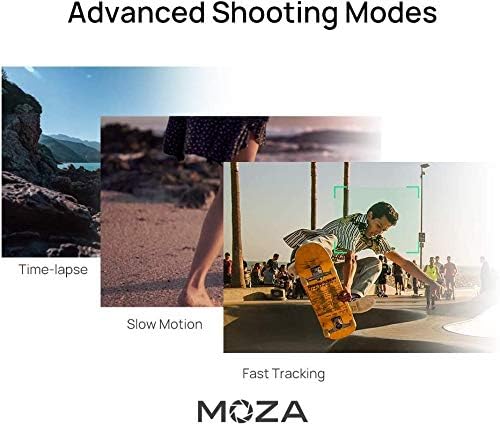
Image 6.2: Visual representations of Time-lapse, Slow Motion, and Fast Tracking modes, showcasing their application in different filming environments.
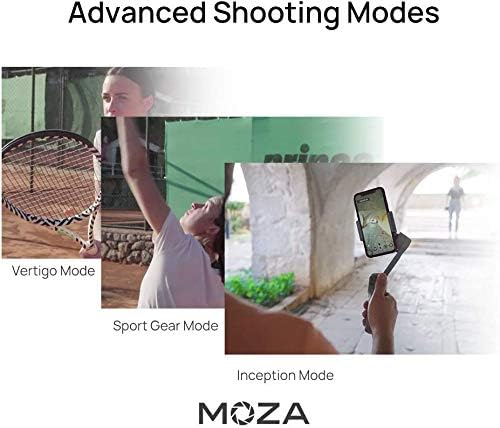
Image 6.3: Illustrations of Vertigo Mode, Sport Gear Mode, and Inception Mode, demonstrating the creative possibilities for capturing unique video sequences.
7. Manteniment
7.1 Neteja
Wipe the gimbal with a soft, dry cloth. Do not use liquid cleaners or solvents.
7.2 Emmagatzematge
When not in use, fold the gimbal and store it in the provided pouch in a cool, dry place. Avoid placing heavy objects on top of the gimbal.

Image 7.1: The MOZA Mini MX gimbal in its folded state, demonstrating its compact form factor suitable for easy storage and transport.
7.3 Cura de la bateria
To prolong battery life, charge the gimbal at least once every three months if not in regular use. Avoid fully discharging the battery frequently.
8. Solució De Problemes
- El gimbal no s'encén: Assegureu-vos que la bateria estigui carregada. Connecteu-la a una font d'alimentació i torneu-ho a provar.
- Menjar inestabletage: Verify the smartphone is correctly balanced and securely clamped. Ensure the gimbal is powered on and connected to the app.
- Problemes de connexió Bluetooth: Restart both the gimbal and your smartphone. Ensure no other devices are interfering with the Bluetooth signal. Reinstall the MOZA Genie app if necessary.
- Els botons no responen: Check if the gimbal is properly connected to the MOZA Genie app. Ensure the firmware is up to date.
9. Especificacions
| Característica | Especificació |
|---|---|
| Dimensions del producte | 4.72 x 4.72 x 10.43 polzades |
| Pes de l'article | 14.8 unces (420 grams) |
| Número de model | Moza Mini MX |
| Bateries | 1 bateria de ions de liti (inclosa) |
| Fabricant | Gudsen |
| Dispositius compatibles | Camera, Cellphone |
| Mida plegada | 145 x 50 x 180 mil·límetres |
| UPC | 191171646149 |
10. Garantia i Suport
For warranty information and technical support, please refer to the official MOZA weblloc web o poseu-vos en contacte amb el vostre distribuïdor local. Conserveu el rebut de compra per a reclamacions de garantia.


