1. Introducció
This manual provides essential information for the proper setup, operation, and maintenance of your Elo 2402L 24-inch Touchscreen Monitor. The Elo 02-Series of Touchscreen Monitors are designed for various applications including point-of-sale, point of information, signage, and hospitality. This model features a 24-inch wide aspect ratio display with a 1920 x 1080 resolution and 10-point multi-touch capability.

2. Configuració
2.1 Desembalatge
Carefully remove the monitor and all accessories from the packaging. Inspect for any signs of damage. Retain the packaging for future transport or storage.
2.2 Instal·lació física
The Elo 2402L monitor is designed for flexible mounting. It does not include a stand and is compatible with standard VESA mounts for integration into various environments.
- Muntatge VESA: Utilize the VESA mounting holes on the rear of the monitor to attach it to a compatible wall mount, pole mount, or other VESA-compliant fixture. Ensure the mounting solution can support the monitor's weight of approximately 14.73 pounds (6.68 kg).

2.3 Cables de connexió
Connect the necessary cables to the monitor and your host system.
- Cable de corrent: Connect the power adapter to the monitor's power input and then to an appropriate power outlet.
- Cable de vídeo: Connect a video cable (e.g., HDMI, DisplayPort, VGA) from your computer's video output to the corresponding input on the monitor.
- USB Cable (for Touch Functionality): Connect a USB cable from the monitor's USB port to an available USB port on your computer. This connection enables the touch functionality. The monitor features two total USB ports.
3. Instruccions de funcionament
3.1 Engegada/apagada
Press the power button, typically located on the side or rear of the monitor, to turn the device on or off. The power indicator light will illuminate when the monitor is active.
3.2 Funcionament de la pantalla tàctil
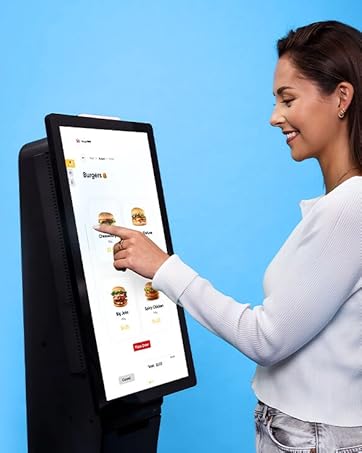
The Elo 2402L features TouchPro PCAP technology, supporting up to 10 simultaneous touches for a tablet-like experience.
- Un sol toc: Tap the screen to select items or activate functions.
- Gestos multitàctils: Use gestures such as pinch-to-zoom, two-finger scrolling, and rotation, depending on the operating system and application support.
3.3 Elo Edge Connect Peripherals
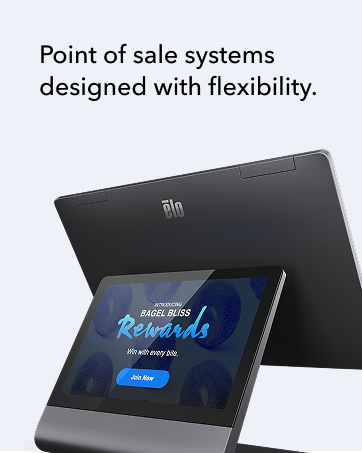
The monitor is designed to integrate with Elo Edge Connect peripherals, allowing for customization with accessories such as fingerprint readers, MSR (Magnetic Stripe Reader) payment terminals, barcode scanners, and NFC (Near Field Communication) adapters. These peripherals are sold separately and can be attached to the edge of the touchscreen to create a bespoke solution.
4. Manteniment
4.1 Neteja de la pantalla
To clean the screen, power off the monitor and disconnect it from the power source. Use a soft, lint-free cloth lightly dampened with a non-abrasive, ammonia-free glass cleaner. Do not spray cleaner directly onto the screen. Avoid using harsh chemicals or abrasive materials that could damage the screen surface.
4.2 Atenció general
- Keep the monitor in a well-ventilated area to prevent overheating.
- Eviteu exposar el monitor a la llum solar directa o a temperatures extremes.
- Do not place heavy objects on the monitor.
5. Solució De Problemes
5.1 Sense pantalla
- Assegureu-vos que el cable d'alimentació estigui connectat correctament tant al monitor com a la presa de corrent.
- Verify the video cable is properly connected to both the monitor and the computer.
- Check if the monitor is powered on (power indicator light should be active).
- Confirm the correct input source is selected on the monitor (if applicable).
5.2 Touch Functionality Not Working
- Ensure the USB cable for touch functionality is securely connected between the monitor and the computer.
- Restart your computer and the monitor.
- Check your operating system's device manager to ensure the touch driver is installed and functioning correctly.
- Calibrate the touchscreen if necessary through your operating system settings.
5.3 Problemes de qualitat d'imatge
- Adjust display settings (brightness, contrast, resolution) through your computer's display settings.
- Ensure the monitor's native resolution (1920 x 1080) is selected in your computer's display settings.
- Check for any physical damage to the screen or video cable.
6. Especificacions
| Característica | Detall |
|---|---|
| Marca | Elo |
| Número de model | E126288 |
| Mida de la pantalla | 24 polzades |
| Mida de la pantalla de peu | 24 polzades |
| Resolució | 1920 x 1080 píxels (FHD 1080p) |
| Relació d'aspecte | 16:9 |
| Descripció de la superfície de la pantalla | brillant |
| Brillantor de la imatge | 856.5 |
| Ports USB totals | 2 |
| Dimensions del producte | 1.7 x 22.6 x 13.3 polzades (4.3 x 57.4 x 33.8 cm) |
| Pes de l'article | 14.73 lliures (6.68 kg) |
| Fabricant | Elo Touch Solutions, Inc. |
| Data de primera disponibilitat | 1 de juliol de 2020 |
7. Garantia i Suport
7.1 Informació de la garantia
The Elo 2402L Touchscreen Monitor comes with a Garantia estàndard de 3 anys. An optional extension to 5-years may be available. Please refer to your purchase documentation or contact Elo customer service for specific warranty terms and conditions.
7.2 Atenció al client
For technical assistance, troubleshooting beyond this manual, or warranty claims, please contact Elo Touch Solutions customer support. Visit the official Elo website for contact information, drivers, and additional resources.


