Introducció
This manual provides comprehensive instructions for the setup, operation, maintenance, and troubleshooting of your i-tec USB C Triple Display Metal Docking Station. This ergonomic docking station is designed to expand the connectivity of your USB-C or Thunderbolt 3 enabled laptop or tablet, allowing for multiple external displays, additional USB ports, network connectivity, and power delivery.
The i-tec C31FLATDOCKPDPRO is a versatile solution for enhancing your workspace, offering a robust metal design that can also serve as a laptop stand.
Contingut del paquet
Abans de començar, assegureu-vos que tots els elements estiguin presents al paquet:
- i-tec USB C Triple Display Metal Docking Station (Model: C31FLATDOCKPDPRO)
- Guia d'inici ràpid
- Anti-slip pads (typically included for stability)

Image: The i-tec USB-C Metal Low Profile 3x Display Docking Station box, the quick start guide, and the docking station itself, along with anti-slip pads.
Configuració
Segueix aquests passos per configurar la teva estació d'acoblament i-tec:
- Connect the Docking Station to your Laptop: Connect the integrated USB-C cable from the docking station to an available USB-C or Thunderbolt 3 port on your laptop or tablet. The cable length is approximately 60 cm, suitable for laptops up to 15 inches.
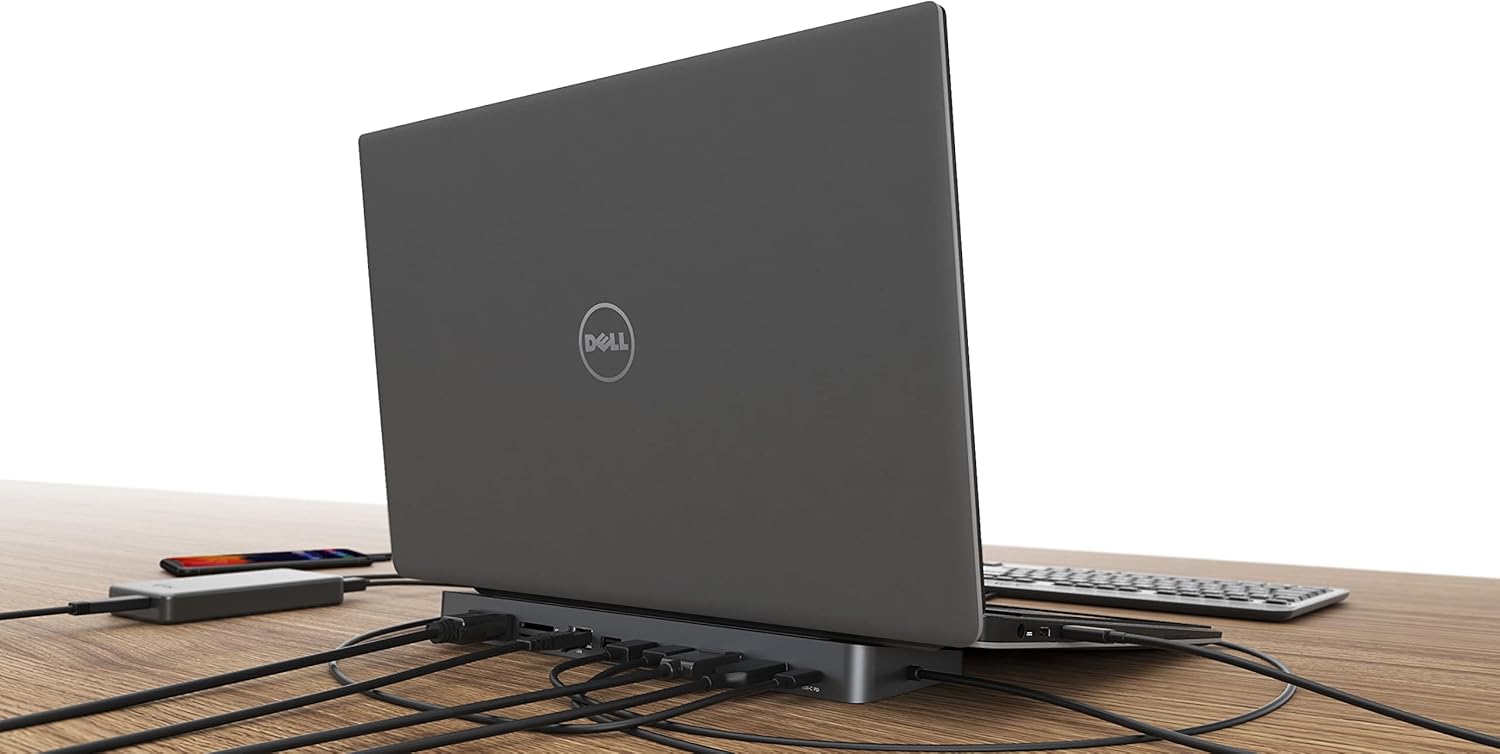
Image: A laptop positioned on the docking station, illustrating the USB-C connection to the laptop.
- Connecteu pantalles externes: Connect your monitors to the available video ports on the docking station. The station provides 1x DisplayPort, 1x HDMI, and 1x VGA port.
- For optimal resolution, use DisplayPort or HDMI for up to 4K/30 Hz with a single monitor.
- VGA supports up to 1080p/60 Hz.
- For two monitors, connect via any combination of DP, HDMI, or VGA for up to 2x 1080p/60 Hz.
- For three monitors (Windows environment only), connect via 1x DisplayPort + 1x HDMI + 1x VGA for up to 1x 1080p/60 Hz + 2x 720p/60 Hz.
Nota important per als usuaris de macOS:
macOS does not support Multi Stream Transport (MST) technology. When connected to a device running macOS, all connected monitors will display the same mirrored image. Only one external screen can be used effectively as an extended display; others will mirror it. For multiple extended monitors on macOS, a different i-tec docking station supporting alternative display technologies would be required.

Image: Visual representation of multi-monitor support, highlighting the difference between Windows/Linux/ChromeOS (up to 3 monitors) and macOS/Android (1 extended monitor, others mirrored).

Image: An illustration of the docking station connected to three external monitors, showcasing its multi-display capability.
- Connecteu els perifèrics: Utilize the 2x USB 3.0 and 2x USB 2.0 ports to connect your USB devices such as keyboards, mice, external hard drives, or weblleves.

Imatge: Un cop mésview of the docking station and various compatible peripherals such as external storage, input devices, and cameras.
- Connecteu-vos a la xarxa: For a stable and high-speed internet connection, connect an Ethernet cable to the Gigabit Ethernet RJ-45 port on the docking station. This supports 10/100/1000 Mbps speeds.
- Connexió d'àudio: Use the combined audio jack on the front panel for connecting a headset (headphones and microphone).
- SD/microSD Card Readers: Insert your SD or microSD cards into the dedicated slots for data transfer.
- Subministrament d'energia: The docking station supports USB-C Power Delivery up to 85W. To utilize this feature, connect your laptop's original USB-C AC adapter (a 100W USB-C power adapter is needed for 85W power delivery) to the USB-C PD port on the docking station. This will charge your connected laptop or tablet.

Image: Illustration showing the docking station's capability to charge a notebook via its USB-C port with 85W power delivery.

Image: Detailed diagram illustrating the various ports and their functions on the i-tec docking station.
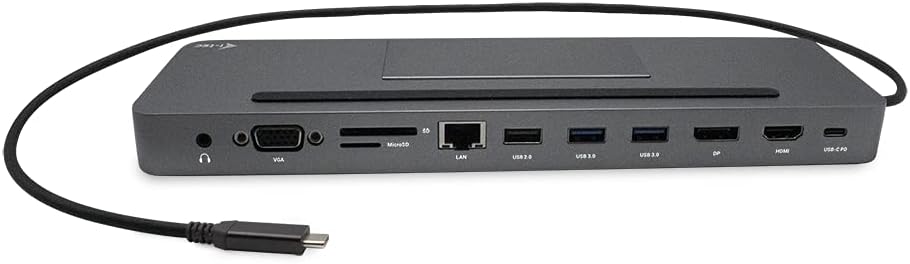
Imatge: Un primer pla view of the docking station's ports from the front, including audio, VGA, card readers, LAN, USB, DisplayPort, HDMI, and USB-C PD.
Instruccions de funcionament
Once set up, the i-tec docking station operates automatically with compatible devices. It is compatible with any laptop or tablet equipped with a USB-C or Thunderbolt 3 port running Windows, macOS, Linux, ChromeOS, or Android.

Image: Devices compatible with the docking station, including laptops and tablets running Android, ChromeOS, Windows, Linux, and macOS.
Using as a Laptop Stand
The ergonomic metal design of the docking station allows it to be used as a stand for your laptop, promoting better airflow and a more comfortable typing angle.

Image: The docking station featuring an integrated slot, demonstrating its use as a stand for a smartphone or business card.
Manteniment
To ensure the longevity and optimal performance of your i-tec docking station, follow these simple maintenance guidelines:
- Neteja: Use a soft, dry cloth to wipe the surface of the docking station. Avoid using liquid cleaners or abrasive materials, as they may damage the finish.
- Emmagatzematge: Quan no l'utilitzeu durant períodes prolongats, guardeu l'estació d'acoblament en un lloc fresc i sec, allunyat de la llum solar directa i de temperatures extremes.
- Manipulació: Manipuleu l'estació d'acoblament amb cura. Eviteu que la deixeu caure ni que la sotmeti a impactes forts.
- Ventilació: Ensure the docking station has adequate ventilation, especially when used as a laptop stand, to prevent overheating.
Resolució de problemes
If you encounter issues with your i-tec docking station, please refer to the following common problems and solutions:
| Problema | Possible causa/solució |
|---|---|
| No es mostra en monitors externs |
|
| USB devices are not recognized |
|
| No network connection via Ethernet |
|
| Laptop is not charging (Power Delivery) |
|
| Audio issues (no sound or microphone not working) |
|
Especificacions
| Característica | Detall |
|---|---|
| Marca | i-tec |
| Número de model | C31FLATDOCKPDPRO |
| Dimensions (LxWxH) | 10.59 x 3.31 x 0.91 polzades (26.9 x 8.4 x 2.3 cm) |
| Pes | 11.4 unces (324 grams) |
| Color | USB-C Dock (Metal Grey) |
| Connexió de l’amfitrió | Integrated USB-C cable (60 cm) for connection to USB-C or Thunderbolt 3 port |
| Ports de vídeo | 1x DisplayPort, 1x HDMI, 1x VGA |
| Max Resolution (Single Monitor) | DisplayPort/HDMI: up to 4K/30 Hz; VGA: up to 1080p/60 Hz |
| Max Resolution (Dual Monitors) | Up to 2x 1080p/60 Hz (any combination of DP, HDMI, VGA) |
| Max Resolution (Triple Monitors - Windows) | 1x 1080p/60 Hz (DP) + 2x 720p/60 Hz (HDMI + VGA) |
| Ports USB | 2x USB 3.0, 2x USB 2.0 |
| Ethernet | Gigabit Ethernet RJ-45 (10/100/1000 Mbps) |
| Lectors de targetes | SD, microSD |
| Àudio | 1x Combined audio jack (headset) |
| Lliurament d'energia | Up to 85W (requires external 100W USB-C AC adapter) |
| Sistemes operatius compatibles | Windows, macOS, Linux, ChromeOS, Android |
| Característiques addicionals | Ergonomic design, can be used as a laptop stand, metal body |
Garantia
i-tec products typically come with a standard manufacturer's warranty. Please refer to the warranty card or documentation included with your purchase for specific terms and conditions, including the warranty period and coverage details. Retain your proof of purchase for warranty claims.
Suport
For further assistance, technical support, or driver downloads, please visit the official i-tec website or contact their customer service. You can often find support resources, FAQs, and contact information on the brand's dedicated support pages.
Visit the i-tec Store for more information: i-tec Official Store


