1. Introducció
This manual provides detailed instructions for setting up, operating, and maintaining your D-Link COVR 1100 AC1200 Whole Home EasyMesh Wi-Fi Router. The COVR-1100 is designed to provide seamless, high-speed Wi-Fi coverage throughout your home.
Característiques principals:
- AC1200 Mbps WAVE 2 Dual Band Wi-Fi
- Certified EasyMesh for whole-home coverage
- Supports 802.11 a/b/g/n/ac standards
- Speeds of 300 Mbps on 2.4 GHz and 867 Mbps on 5 GHz
- Triple Play VLAN for multiple service support
- Single SSID for a unified Wi-Fi network
- Two Gigabit Ethernet ports per unit
- Voice assistant compatibility (Google Assistant & Alexa)
- Easy setup via D-Link Wi-Fi Mobile App or Web GUI
- Profile-based parental controls
- Expandable mesh network with additional COVR-1100 units
2. Contingut del paquet
Comproveu que el vostre paquet contingui els elements següents:
- 1 x D-Link COVR-1100 Router Unit
- 1 x adaptador de corrent
- 1 x cable Ethernet
- 1 x targeta d'instal·lació ràpida
- Device Setup Information
- Voice Control Information
3. Sobrecàrrega físicaview
The D-Link COVR-1100 unit features a compact design with essential ports and indicators for network connectivity.

Figura 1: Frontal view of the D-Link COVR-1100 router, showcasing el seu disseny blanc minimalista.
Ports i indicadors:
- Port d'alimentació: Es connecta a l'adaptador de corrent inclòs.
- WAN/LAN Gigabit Ethernet Ports: Two ports for connecting to your modem or wired devices. These ports automatically detect WAN or LAN function.
- Botó de restabliment: S'utilitza per restaurar el dispositiu a la configuració de fàbrica.
- Indicador LED: Provides status information (e.g., power, internet connectivity, mesh status).
4. Instruccions de configuració
Follow these steps to set up your D-Link COVR-1100 router.
4.1 Initial Setup (Single Unit)
- Desembalar: Traieu amb cura tots els articles de l'embalatge.
- Posició: Place the COVR-1100 unit in a central location within your home, away from obstructions and other electronic devices that may cause interference.
- Connectar l'alimentació: Connect the power adapter to the COVR-1100's power port and plug it into a power outlet. Wait for the LED indicator to turn solid white (or blue, depending on the specific model's indicator behavior, refer to Quick Install Card).
- Connectar-se al mòdem: Connect one end of the included Ethernet cable to the WAN/LAN port on the COVR-1100 and the other end to your internet modem's LAN port.
- Descarregar l'aplicació: Download the D-Link Wi-Fi app from your mobile device's app store (App Store for iOS, Google Play Store for Android).
- Launch App & Follow Prompts: Open the D-Link Wi-Fi app and follow the on-screen instructions to set up your new Wi-Fi network, including creating a Wi-Fi name (SSID) and password.
- Alternativa Web Configuració: If you prefer, you can connect a computer to the COVR-1100 via Ethernet or its default Wi-Fi network (details on Quick Install Card) and navigate to
http://covr.local./or the IP address provided in the Quick Install Card to access the webassistent de configuració basat en -.
4.2 Expanding Your Mesh Network (Multiple Units)
The COVR-1100 supports EasyMesh, allowing you to add additional units to expand your Wi-Fi coverage. You can add up to 4 COVR-1100 units to create a seamless whole-home mesh network.

Figure 2: Illustration of multiple D-Link COVR-1100 units deployed to create a whole-home mesh Wi-Fi network.
- Encès: Place the additional COVR-1100 unit(s) in areas requiring extended coverage and connect them to power outlets.
- Add via App: Open the D-Link Wi-Fi app, navigate to the mesh network settings, and follow the instructions to add new COVR units to your existing mesh network. The app will guide you through the pairing process.
- Col·locació: Ensure optimal placement of additional units to maintain strong signal strength between them and the primary COVR unit for seamless roaming.
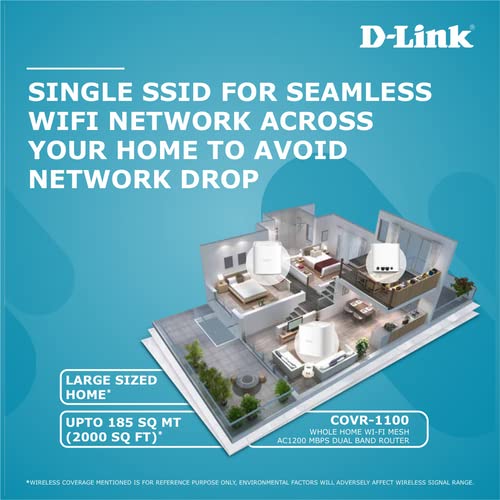
Figure 3: A diagram illustrating how a single COVR-1100 unit provides Wi-Fi coverage across a large area, and how multiple units can extend this coverage throughout a multi-story home.
5. Instruccions de funcionament
5.1 Connexió de dispositius
- Dispositius sense fil: Cerca your Wi-Fi network name (SSID) on your smartphone, tablet, or computer and enter the password you created during setup.
- Dispositius amb cable: Connect devices such as smart TVs, gaming consoles, or desktop computers to the available Gigabit Ethernet ports on the COVR-1100 unit using an Ethernet cable.
5.2 Controls parentals
The D-Link Wi-Fi app allows you to set up profile-based parental controls to manage internet access for specific devices or users. This includes scheduling internet access and blocking certain webllocs.
- Open the D-Link Wi-Fi app.
- Navigate to the Parental Controls section.
- Crea professionalsfiles for family members and assign devices.
- Configure access schedules and content filters as needed.
5.3 Control de veu
The COVR-1100 is compatible with Google Assistant and Amazon Alexa. You can use voice commands to manage certain router functions.
- Ensure your voice assistant device is set up and connected to your COVR Wi-Fi network.
- Enable the D-Link skill/action in your Google Home or Amazon Alexa app.
- Follow the app instructions to link your D-Link account.
- Refer to the voice control information provided in your package for specific commands.
6. Manteniment
6.1 actualitzacions de microprogramari
D-Link regularly releases firmware updates to improve performance, add features, and enhance security. It is recommended to keep your router's firmware up to date.
- Check for updates via the D-Link Wi-Fi app or the webinterfície de gestió basada en
- Follow the on-screen instructions to perform firmware updates. Do not power off the device during an update.
6.2 Restabliment de fàbrica
A factory reset will erase all custom settings and restore the router to its original factory defaults. This can be useful for troubleshooting persistent issues or when reconfiguring the device.
- With the router powered on, use a paperclip or similar pointed object to press and hold the Reset button (usually located on the back or bottom of the unit) for approximately 10 seconds.
- Release the button when the LED indicator changes color or flashes.
- The router will restart with factory default settings. You will need to reconfigure it as if it were a new device.
7. Solució De Problemes
This section addresses common issues you might encounter with your COVR-1100 router.
7.1 Sense connexió a Internet
- Comproveu els cables: Ensure all Ethernet cables are securely connected to the COVR-1100 and your modem.
- Estat del mòdem: Verify that your internet modem is working correctly and has an active internet connection.
- Reinicieu els dispositius: Power cycle your modem, then your COVR-1100 router. Wait a few minutes for each device to fully boot up.
- Configuració del proveïdor d'Internet: Confirm that your Internet Service Provider (ISP) settings (e.g., PPPoE username/password, DHCP) are correctly configured in the router.
7.2 Senyal Wi-Fi feble o zones mortes
- Col·locació del router: Relocate the COVR-1100 to a more central location, away from walls, large metal objects, and other electronics that may cause interference.
- Add COVR Units: If you have a large home, consider adding additional COVR-1100 units to expand your mesh network coverage.
- Interferència: Avoid placing the router near microwave ovens, cordless phones, or Bluetooth devices.
7.3 No puc accedir a la configuració del router
- Adreça correcta: Assegureu-vos que feu servir el correcte web adreça (
http://covr.local./) o adreça IP. - Connexió de xarxa: Verify your device is connected to the COVR-1100's Wi-Fi network or via an Ethernet cable.
- Memòria cau del navegador: Esborra el teu web la memòria cau i les galetes del navegador o proveu un altre navegador.
- Restabliment de fàbrica: If all else fails, perform a factory reset (see Section 6.2) and reconfigure the router.
8. Especificacions
| Característica | Detall |
|---|---|
| Marca | D-Link |
| Número de model | COVR-1100 |
| Estàndard sense fils | 802.11a/b/g/n/ac |
| Classe de banda de freqüència | Doble banda (2.4 GHz i 5 GHz) |
| Velocitat sense fil | AC1200 (300 Mbps a 2.4 GHz, 867 Mbps a 5 GHz) |
| Ports Ethernet | 2 x Gigabit WAN/LAN Auto-Sensing Ports |
| Antenes | 2 Internal Antennas |
| Dimensions (LxWxH) | 11.8 x 12.1 x 17 cm |
| Pes de l'article | 470 g |
| Tipus de connectivitat | Wi-Fi |
| Característiques especials | EasyMesh, MU-MIMO, Voice Control Compatible (Google Assistant & Alexa), Parental Controls, Access Point Mode |
| Compatibilitat de sistemes operatius | Windows (for web interface access), iOS/Android (for D-Link Wi-Fi App) |
9. Garantia i Suport
9.1 Informació de la garantia
The D-Link COVR-1100 router comes with a Garantia de marca d'3 any des de la data de compra. Si us plau, conserveu el comprovant de compra per a reclamacions de garantia. La garantia cobreix defectes de fabricació en condicions d'ús normals.
9.2 Suport tècnic
For further assistance, technical support, or to report issues not covered in this manual, please visit the official D-Link support website or contact their customer service. Contact details can typically be found on the D-Link weblloc web o a l'embalatge del producte.
Suport de D-Link Weblloc: www.dlink.com/support (Please replace with the specific regional support link if available)


