1. Introducció
Thank you for choosing the Brydge SPX+ Wireless Keyboard with Precision Touchpad. This manual provides detailed instructions for setting up, operating, and maintaining your keyboard, designed specifically for seamless integration with your Microsoft Surface Pro X. Enjoy a full laptop experience with enhanced productivity and comfort.
2. Què hi ha a la caixa
- Brydge SPX+ Wireless Keyboard
- Cable de càrrega USB-C
- Guia de l'usuari (aquest document)
3. Configuració
3.1 Càrrega inicial
Before first use, fully charge your Brydge SPX+ keyboard. Connect the supplied USB-C charging cable to the keyboard's charging port and to a USB power source. The charging indicator light will show the charging status.
3.2 Attaching Your Surface Pro X
Align your Microsoft Surface Pro X with the Brydge SPX+ keyboard's hinges. Gently push the Surface Pro X into the hinges until it is securely seated. The keyboard is designed to hold your device firmly, transforming it into a functional laptop.
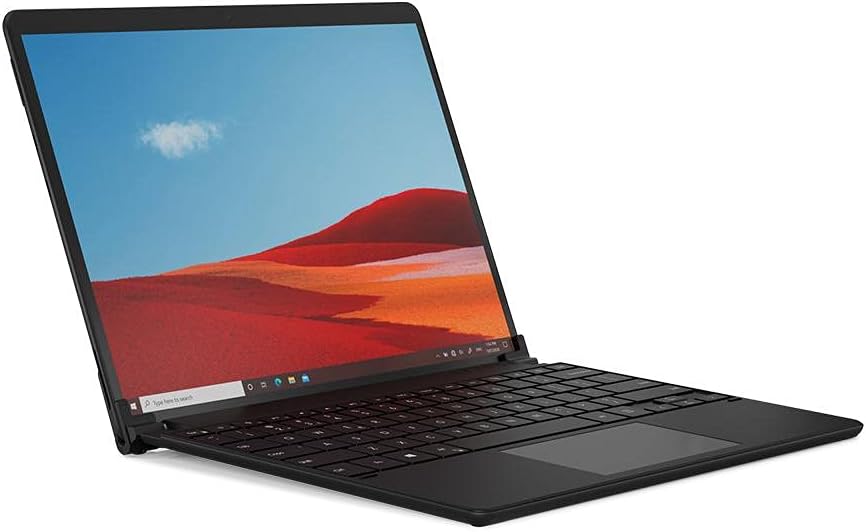
Image: Brydge SPX+ Wireless Keyboard attached to a Microsoft Surface Pro X, forming a laptop-like setup.

Image: The Brydge SPX+ Wireless Keyboard separated from the Microsoft Surface Pro X, showing the hinge mechanism.
3.3 Vinculació Bluetooth
- Ensure your Brydge SPX+ keyboard is charged and turned on.
- On your Surface Pro X, go to Configuració > Dispositius > Bluetooth i altres dispositius.
- Activa el Bluetooth.
- On the keyboard, press and hold the Bluetooth pairing key (often indicated by a Bluetooth symbol) until the indicator light flashes, signifying it's in pairing mode.
- On your Surface Pro X, click Afegeix Bluetooth o un altre dispositiu > Bluetooth.
- Select "Brydge SPX+" from the list of available devices.
- Follow any on-screen prompts to complete the pairing process. The indicator light on the keyboard will turn solid when successfully paired.
Video: Official product video demonstrating the Brydge SPX+ Wireless Keyboard's features and integration with the Surface Pro X.
4. Instruccions de funcionament
4.1 Funcions del teclat
The Brydge SPX+ features a full QWERTY layout with dedicated function keys for quick access to common commands. These include media controls, screen brightness, and Windows-specific functions.

Imatge: De dalt a baix view of the Brydge SPX+ Wireless Keyboard, highlighting the key layout and precision touchpad.
Control de retroiluminació 4.2
The keyboard features adjustable backlighting. Use the dedicated backlight keys (often F10/F11 or similar, check keyboard legends) to cycle through brightness levels or turn the backlight off.
4.3 Precision Touchpad Gestures
The integrated precision touchpad supports multi-touch gestures for enhanced navigation:
- Toc amb un dit: Feu clic amb el botó esquerre
- Toc amb dos dits: Feu clic amb el botó dret
- Desplaçament de dos dits: Scroll up/down or left/right
- Pessigueu per ampliar: Apropar/reduir
- Lliscament cap amunt amb tres dits: Tasca View
- Lliscament cap avall amb tres dits: Mostra l'escriptori
- Llisca amb tres dits cap a l'esquerra/dreta: Canvia entre finestres obertes
5. Manteniment
To ensure the longevity and optimal performance of your Brydge SPX+ keyboard, follow these maintenance guidelines:
- Neteja: Use a soft, lint-free cloth to wipe down the keyboard and touchpad. For stubborn marks, slightly dampNetegeu el drap amb aigua o un netejador suau i no abrasiu. Eviteu la humitat excessiva.
- Cura de la bateria: For best battery health, avoid fully discharging the keyboard frequently. If storing for an extended period, charge the battery to about 50% before storage.
- Emmagatzematge: Guardeu el teclat en un lloc fresc i sec, allunyat de la llum solar directa i de temperatures extremes.
6. Solució De Problemes
6.1 Keyboard Not Pairing/Connecting
- Assegureu-vos que el teclat estigui carregat i encès.
- Verify Bluetooth is enabled on your Surface Pro X.
- Put the keyboard into pairing mode by pressing and holding the Bluetooth pairing key.
- Remove any previous "Brydge SPX+" entries from your Surface's Bluetooth devices list and attempt to re-pair.
- Restart both your Surface Pro X and the keyboard.
6.2 Les tecles no responen
- Comproveu el nivell de la bateria i carregueu-la si cal.
- Assegureu-vos que el teclat estigui connectat correctament mitjançant Bluetooth.
- Restart the keyboard and your Surface Pro X.
6.3 Touchpad Issues
- Ensure the touchpad surface is clean and free of debris.
- Comproveu l'estabilitat de la connexió Bluetooth.
- Verify touchpad settings in Windows (Settings > Devices > Touchpad).
6.4 Durada de la bateria deficient
- Reduce backlight brightness or turn it off when not needed.
- Assegureu-vos que el teclat estigui completament carregat abans d'utilitzar-lo.
- Apagueu el teclat quan no l'utilitzeu durant períodes prolongats.
7. Especificacions
| Número de model | BRY7032 |
| Dimensions del producte | 11.32 x 8.2 x 0.28 polzades |
| Pes de l'article | 2.44 lliures |
| Connectivitat | Bluetooth |
| Dispositius compatibles | Microsoft Surface Pro X |
| Tipus de bateria | 1 bateria de polímer de liti (inclosa) |
| Material | Alumini |
8. Garantia i Suport
Your Brydge SPX+ Wireless Keyboard comes with a manufacturer's warranty. For detailed warranty information, product support, or to register your product, please visit the official Brydge weblloc web o poseu-vos en contacte amb el servei d'atenció al client. Conserveu el comprovant de compra per a reclamacions de garantia.


