Introducció
The Microsoft Designer Compact Keyboard is engineered for exceptional comfort and a streamlined workspace. Its sleek, low-profile design complements any setup, offering optimized key travel for fast, fluid typing. This wireless Bluetooth keyboard is compatible with Bluetooth-enabled PCs and Macs, providing a versatile and efficient input solution.
Key features include a built-in expressive input (emoji) key and a dedicated Screen snipping key for quick capture, copy, paste, and sharing. It is designed to connect with up to three devices, allowing seamless switching between them.
Què hi ha a la caixa
- Microsoft Designer Compact Keyboard
- 4 x DL2032 Lithium Metal Batteries (pre-installed)
- Guia d'inici ràpid i informació de garantia
Configuració
1. Instal·lació de la bateria
Your Microsoft Designer Compact Keyboard comes with four DL2032 Lithium Metal Batteries pre-installed. Before first use, you may need to remove a protective pull tab from the battery compartment to activate the batteries. If the keyboard does not power on, ensure the batteries are correctly oriented according to the polarity indicators (+/-) inside the compartment.
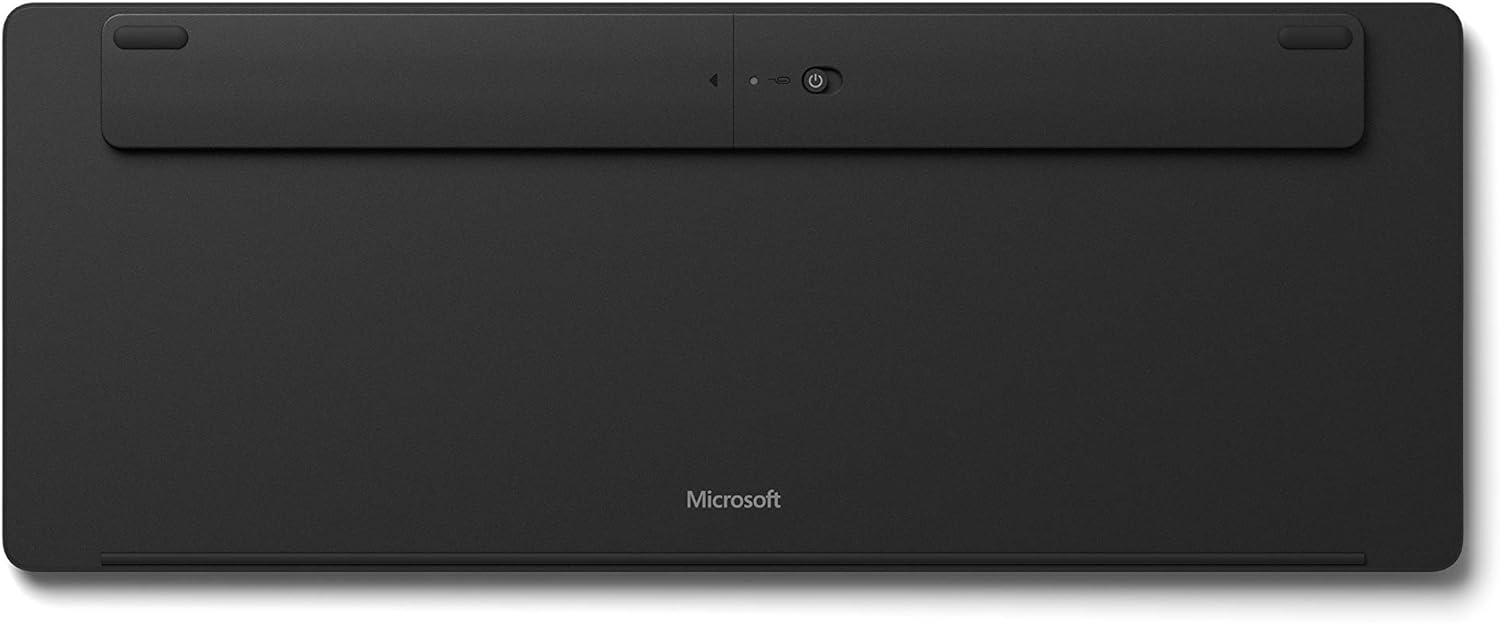
Figura 1: A baix view of the keyboard, highlighting the battery compartment and power switch.
To access the battery compartment, locate the small hole near the power switch on the underside of the keyboard. Insert a paperclip into this hole and gently press to release the battery tray. Replace batteries as needed, ensuring correct polarity, then slide the tray back into place until it clicks securely.
2. Encès
Locate the power switch on the underside of the keyboard. Slide the switch to the 'On' position. A small LED indicator on the Caps Lock key may briefly illuminate to confirm power.
3. Emparellament Bluetooth
The Microsoft Designer Compact Keyboard can be paired with up to three different Bluetooth-enabled devices. Follow these steps to pair your keyboard:
- Assegureu-vos que el Bluetooth estigui habilitat a l'ordinador o al dispositiu.
- On the keyboard, press and hold one of the Bluetooth keys (F1, F2, or F3) for approximately 3-5 seconds until the LED above the key begins to flash. This indicates the keyboard is in pairing mode.
- On your device, navigate to Bluetooth settings and select "Microsoft Designer Compact Keyboard" from the list of available devices.
- Segueix les instruccions que apareixen a la pantalla per completar el procés d'emparellament. És possible que se't demani que introdueixis un codi que es mostra a la pantalla amb el teclat.
- Once successfully paired, the LED will stop flashing and remain solid for a few seconds before turning off.
To switch between paired devices, simply press the corresponding Bluetooth key (F1, F2, or F3) for the desired device. The keyboard will automatically connect to that device.
Funcionament del teclat
The Microsoft Designer Compact Keyboard offers a range of features designed to enhance your productivity and comfort.
Característiques principals:
- Disseny compacte: Saves desktop space and allows for a comfortable mouse position.
- Optimized Key Travel: Provides a responsive and comfortable typing experience.
- Expressive Input Key: Quickly access emojis, symbols, and more (located near the right Alt key).
- Screen Snipping Key: Instantly capture, copy, paste, and share screenshots.
- Connectivitat multidispositiu: Connect and seamlessly switch between up to 3 devices using dedicated Bluetooth keys (F1, F2, F3).
- Media Playback Keys: Dedicated keys for controlling media (play/pause, volume up/down, mute).
- Clau de cerca: Quick access to search functions on your operating system.
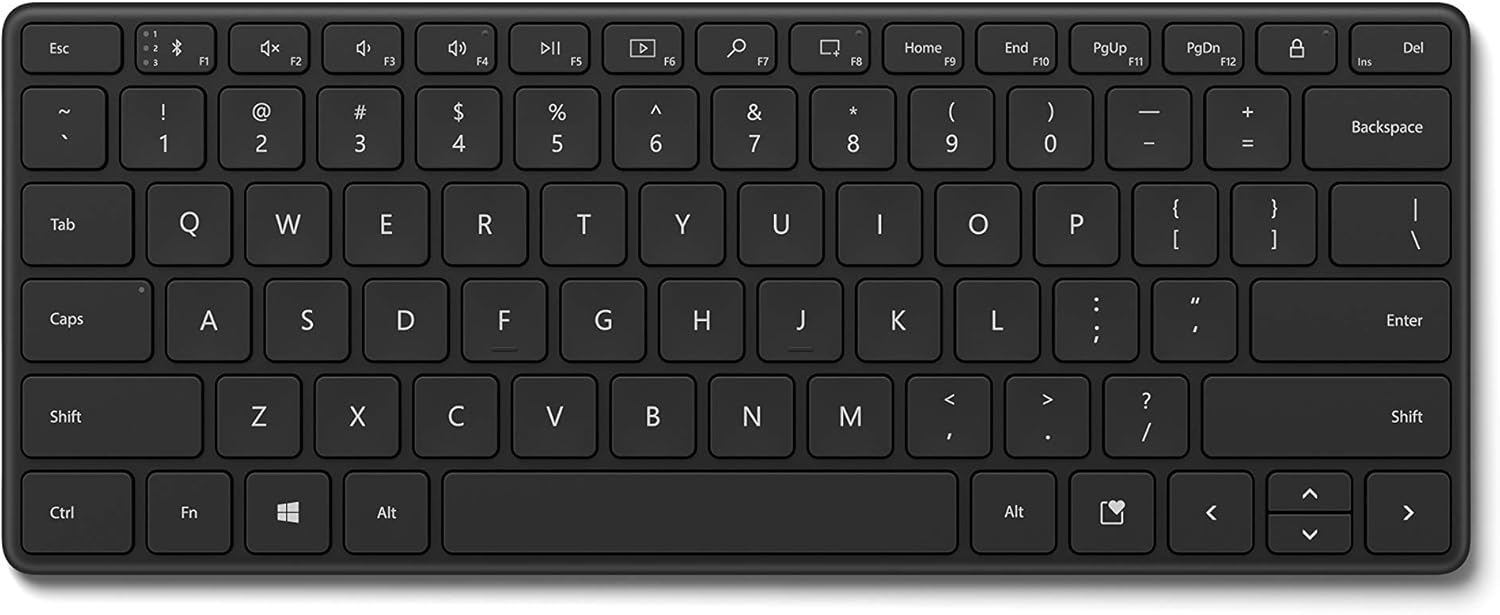
Figura 2: De dalt a baix view of the keyboard, illustrating the key layout and special function keys.

Figura 3: Angle view del teclat, mostraasing its compact size and low profile.
Manteniment
To ensure the longevity and optimal performance of your Microsoft Designer Compact Keyboard, follow these maintenance guidelines:
- Neteja: Utilitzeu un drap suau i sense pelusa lleugerament dampened with water or a mild cleaning solution to wipe down the keys and surface. Avoid abrasive cleaners or solvents.
- Eliminació de pols: Feu servir aire comprimit per eliminar la pols i les restes que hi ha entre les tecles.
- Eviteu els vessaments: Keep liquids away from the keyboard to prevent damage to internal components. In case of a spill, immediately power off the keyboard and allow it to dry completely before attempting to use it again.
- Emmagatzematge: When not in use for extended periods, turn off the keyboard to conserve battery life. Store it in a cool, dry place away from direct sunlight.
Resolució de problemes
If you encounter issues with your Microsoft Designer Compact Keyboard, refer to the following common solutions:
- Keyboard not connecting or frequently disconnecting:
- Ensure the keyboard is powered on and within range of your device (typically up to 33 feet or 10 meters).
- Check the battery level. Replace batteries if they are low.
- Try re-pairing the keyboard with your device. Go to your device's Bluetooth settings, remove the keyboard, and then re-add it.
- Assegureu-vos que els controladors Bluetooth del vostre dispositiu estiguin actualitzats.
- If the keyboard enters standby and takes a moment to wake up, this is normal behavior designed to conserve battery life.
- Les tecles no responen o s'escriuen incorrectament:
- Netegeu el teclat per eliminar qualsevol residu que pugui estar obstruint les tecles.
- Verify that the batteries are installed correctly and have sufficient charge.
- Prova el teclat amb un altre dispositiu per determinar si el problema és del teclat o del dispositiu original.
- Accidental F1 key presses (Bluetooth pairing button):
- Be mindful of the F1 key's function as a Bluetooth pairing button. Avoid resting fingers or objects on it during normal use.
- If accidentally pressed, the keyboard may enter pairing mode. Wait for the pairing function to time out, or re-select your desired paired device using F1, F2, or F3.
- No backlight:
- The Microsoft Designer Compact Keyboard does not feature a backlight. This is by design to maximize battery life.
Especificacions
| Característica | Detall |
|---|---|
| Marca | Microsoft |
| Número de model | 21Y-00001 |
| Tecnologia de connectivitat | Sense fil (Bluetooth) |
| Dispositius compatibles | PC (Windows 10 with latest updates), Mac (Bluetooth Enabled) |
| Color | Negre mat |
| Pes de l'article | 15.2 unces |
| Dimensions del producte (LxWxH) | 11.18 x 4.36 x 0.38 polzades |
| Font d'alimentació | Funciona amb bateria |
| Piles necessàries | 4 Lithium Metal (DL2032) |
| Durada de la bateria | Up to 36 months (approximate, varies with usage) |
| Nombre de claus | 78 |
| Característica especial | Portable, Multi-device support |
Garantia i Suport
This product is covered by Microsoft's standard limited warranty. For detailed warranty information, please refer to the warranty card included in your product packaging or visit the official Microsoft support weblloc.
For technical support, troubleshooting assistance, or to register your product, please visit the official Microsoft Support page:
You can also find additional resources and FAQs on the Microsoft weblloc.


