Introducció
The Lenovo 530 Wireless Mouse is designed for reliable and convenient navigation. Featuring 2.4 GHz wireless technology and a nano USB receiver, it offers a plug-and-play experience without the need for complex installations. Its ergonomic and contoured design ensures comfort for extended use, making it suitable for various computing tasks.
Acabatview of the Lenovo 530 Wireless Mouse, highlighting its features and design.
Configuració
Follow these steps to set up your Lenovo 530 Wireless Mouse:
- Introduïu la bateria: Open the battery compartment located on the underside of the mouse. Insert one AA battery, ensuring correct polarity. The mouse comes with an included AA battery.
- Localitza el receptor Nano USB: The nano USB receiver is typically stored inside the battery compartment for safekeeping during transport. Remove it from its storage slot.
- Connecteu el receptor: Plug the nano USB receiver into an available USB port on your computer (PC).
- Encès: Turn on the mouse using the power switch, usually located on the bottom of the mouse.
- Connexió automàtica: The mouse should automatically connect to your computer. No additional drivers are typically required for Windows 7, 8, 8.1, 10, or 11.

Image showing the battery compartment and nano USB receiver storage on the underside of the mouse.

The Lenovo 530 Wireless Mouse connected wirelessly to a laptop via its 2.4 GHz nano USB receiver.
Instruccions de funcionament
The Lenovo 530 Wireless Mouse features a standard three-button design with a scroll wheel for intuitive control.
- Clic esquerre: Use the left button for selecting items, opening applications, and confirming actions.
- Clic dret: Feu servir el botó dret per accedir als menús contextuals i a les opcions addicionals.
- Roda de desplaçament: Rotate the scroll wheel to navigate vertically through documents and web pages. The scroll wheel also functions as a middle button when pressed.
- Sensor òptic: The 1200 DPI optical sensor provides precise and responsive tracking on various surfaces.

The mouse features a 1200 DPI optical sensor for smooth navigation and is compatible with Windows operating systems.
Ergonomia i confort
The mouse is designed for ambidextrous use, accommodating both left-handed and right-handed users comfortably. Its contoured shape provides a natural grip for extended periods.

The ambidextrous design ensures comfortable use for both left and right-handed individuals.
Manteniment
- Substitució de la bateria: When the mouse performance degrades or stops responding, replace the AA battery. Open the battery compartment on the underside, remove the old battery, and insert a new AA battery with correct polarity. The mouse offers up to 12 months of battery life, which may vary based on usage.
- Neteja: Feu servir un drap suau i sec per netejar l'exterior del ratolí. Per al sensor òptic, feu servir un bastonet de cotó lleugerament humit.amphumitejat amb alcohol isopropílic, assegurant-se que no entri líquid al ratolí.
- Emmagatzematge del receptor: When not in use or during travel, store the nano USB receiver in its dedicated slot within the battery compartment to prevent loss.

The mouse is lightweight and designed for portability, offering up to 12 months of battery life.
Resolució de problemes
- El ratolí no respon:
- Assegureu-vos que el ratolí estigui encès.
- Check if the battery is correctly inserted and has sufficient charge. Replace if necessary.
- Verify the nano USB receiver is securely plugged into a working USB port on your computer. Try a different USB port.
- Move the mouse closer to the USB receiver to rule out interference or range issues.
- Moviment erràtic del cursor:
- Netegeu el sensor òptic de la part inferior del ratolí.
- Assegureu-vos que feu servir el ratolí sobre una superfície adequada. Les superfícies molt reflectants o transparents poden afectar el seguiment. Es recomana una estora de ratolí.
- Problemes de connectivitat:
- If the connection is lost, try unplugging and re-plugging the nano USB receiver.
- Reinicieu l'ordinador.
Especificacions
| Característica | Detall |
|---|---|
| Número de model | GY50Z18988 |
| Connectivitat | Sense fil de 2.4 GHz (receptor nano USB) |
| La tecnologia de sensors | Òptic |
| DPI (punts per polzada) | 1200 DPI |
| Botons | Left, Right, Scroll Wheel (Middle Click) |
| Vida útil del botó | Up to 8 million clicks (Left/Right buttons) |
| Tipus de bateria | 1 bateries AA (incloses) |
| Durada de la bateria | Up to 12 months (actual duration may vary based on usage) |
| Compatibilitat de sistemes operatius | Windows 7, Windows 8, Windows 8.1, Windows 10, Windows 11 |
| Dimensions (L x A x A) | 4.17 x 2.48 x 1.46 polzades (10.6 x 6.3 x 3.7 cm) |
| Pes | 2.24 unces (65 g) |
| Característiques especials | Lightweight, Ambidextrous Design, Nano USB Receiver Storage |
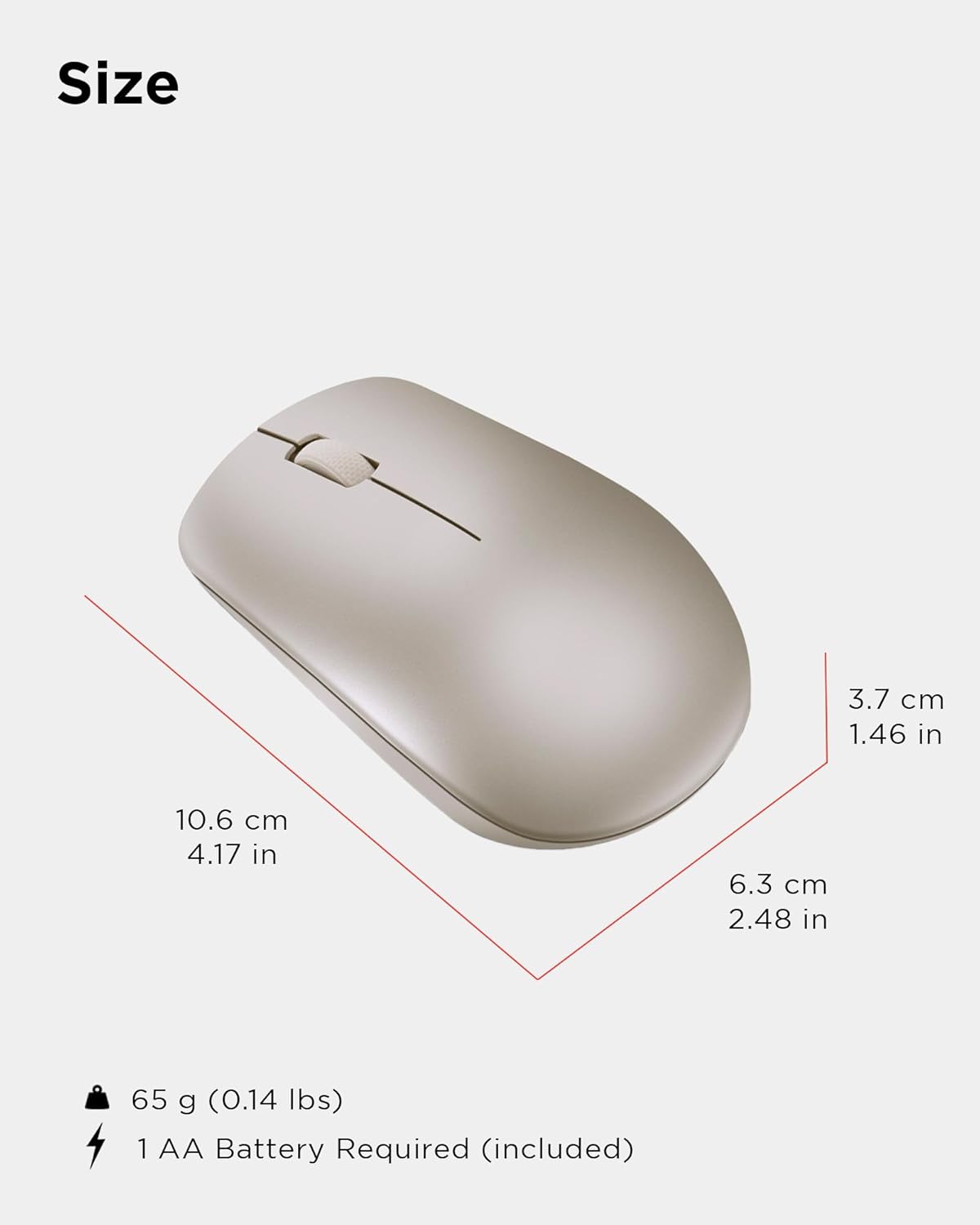
Physical dimensions and weight of the Lenovo 530 Wireless Mouse.
Garantia i Suport
Per obtenir informació sobre la garantia i assistència tècnica, consulteu la documentació inclosa amb l'embalatge del producte o visiteu el lloc web oficial d'assistència de Lenovo. weblloc web. El període i els termes de la garantia poden variar segons la regió i el distribuïdor.
Assistència en línia: Visita support.lenovo.com per a controladors, manuals i guies de resolució de problemes.
Contacte amb l'assistència: Refer to your product's warranty card or the Lenovo support website for regional contact numbers and service options.