Introducció
This manual provides detailed instructions for the setup, operation, maintenance, and troubleshooting of your Accezz Bluetooth QWERTY Keyboard Folio Case. Please read this manual thoroughly before using the product to ensure proper function and longevity.
Configuració
1. Desembalatge i inspecció inicial
Carefully remove all components from the packaging. Verify that all items are present and undamaged. The package should contain the Bluetooth keyboard and the folio case.
2. Càrrega del teclat
Before first use, fully charge the keyboard. Locate the charging port on the keyboard (typically a Micro USB or USB-C port). Connect the provided charging cable to the keyboard and a compatible USB power source. The charging indicator light will illuminate during charging and turn off or change color when fully charged.
3. Inserting Your Tablet into the Case
- Open the folio case.
- Align your Samsung Galaxy Tab A7 with the case's frame, ensuring all ports and buttons are accessible through the designated cutouts.
- Gently press the tablet into the case until it is securely seated. The case is designed to protect your tablet while providing access to all functions.

Image: Close-up of the tablet slot in the folio case, showing a honeycomb texture for shock absorption. This design helps protect the tablet from impacts.
4. Pairing the Keyboard via Bluetooth
- Ensure the keyboard is charged and turned on. Locate the power switch (usually labeled 'ON/OFF') on the keyboard and slide it to the 'ON' position.
- Press the 'Connect' or 'Pair' button on the keyboard. A Bluetooth indicator light (often blue and blinking) will activate, indicating the keyboard is in pairing mode.
- On your Samsung Galaxy Tab A7, go to Configuració > Connexions > Bluetooth.
- Ensure Bluetooth is enabled on your tablet.
- Your tablet will scan for available devices. Select 'Bluetooth Keyboard' (or a similar name) from the list of found devices.
- If prompted, enter the displayed code on the Bluetooth keyboard and press 'Enter'.
- Once paired, the Bluetooth indicator light on the keyboard will turn off or stop blinking, and your tablet will show the keyboard as 'Connected'.

Image: A Samsung Galaxy Tab A7 tablet is shown securely placed within the open folio case, with the Bluetooth keyboard positioned in front, ready for typing. The case provides a stable stand for the tablet.
Instruccions de funcionament
1. Keyboard Layout and Function Keys
The keyboard features a standard QWERTY layout with 78 keys, including dedicated function keys for various tablet operations. These function keys are typically accessed by pressing the 'Fn' key in combination with the desired function key (e.g., Fn + F1 for home, Fn + F2 for brightness down).

Image: A top-down perspective of the Bluetooth keyboard and the Samsung Galaxy Tab A7, which is housed within the folio case. The image highlights the full QWERTY keyboard layout and the tablet's display.
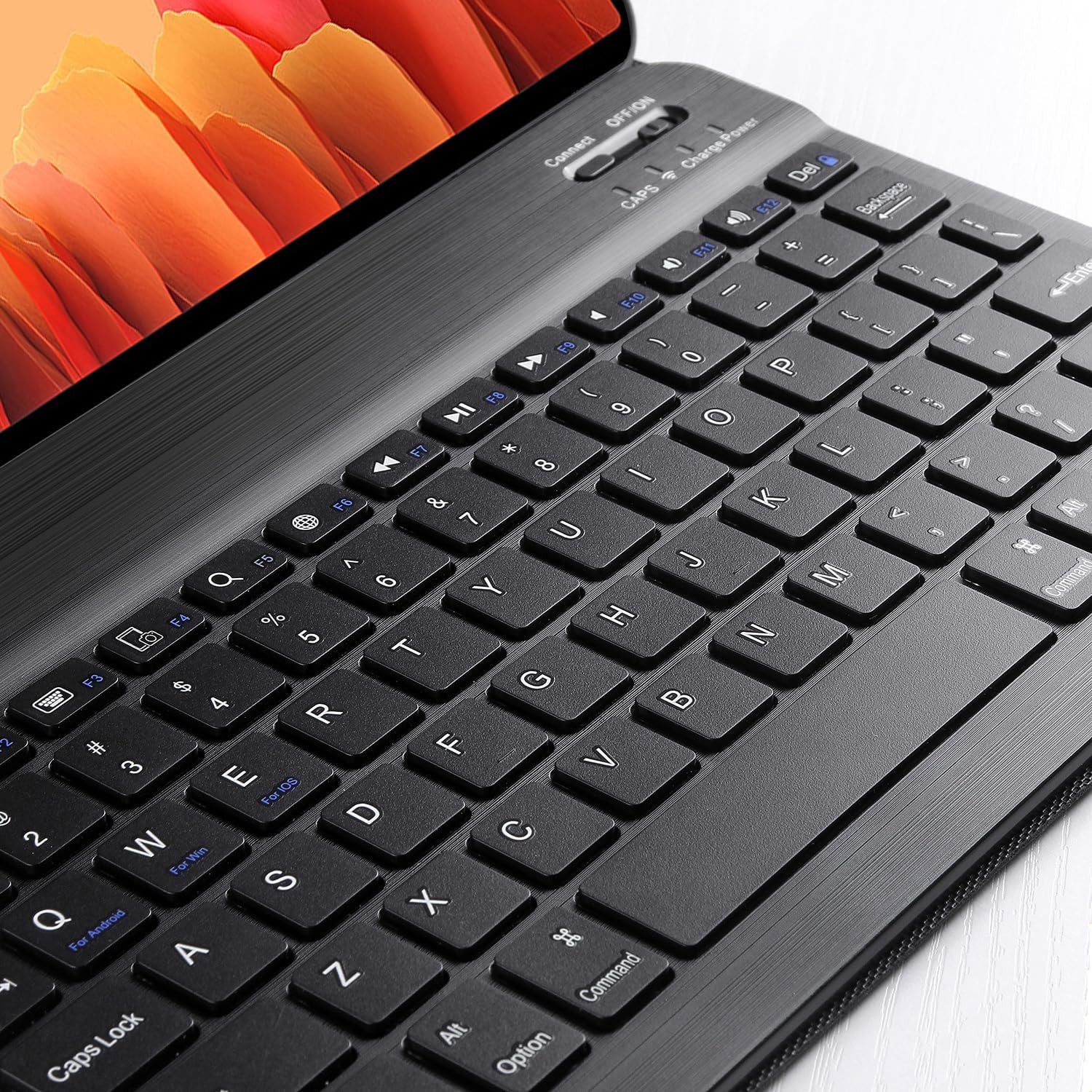
Image: An angled close-up of the Bluetooth keyboard, emphasizing the QWERTY key arrangement and the various function keys (F1-F12) which provide shortcuts for tablet operations.
2. Using the Folio Case as a Stand
The folio case is designed to provide multiple viewing angles for your tablet. Adjust the tablet's position within the case to achieve the desired angle for typing, viewing media, or browsing.

Image: The Samsung Galaxy Tab A7, housed in its folio case with the Bluetooth keyboard, is shown adjusted to provide multiple stable viewing angles, enhancing user comfort and versatility.
3. Detachable Keyboard Feature
The keyboard is magnetically detachable from the folio case, allowing for flexible use. You can use the keyboard separately from the case or remove it when only the tablet and case are needed.

Image: The Bluetooth keyboard is shown detached from the folio case, illustrating its magnetic attachment capability. This feature allows for greater flexibility in how the keyboard and tablet are used.
Manteniment
1. Neteja
To clean the keyboard and case, use a soft, lint-free cloth. For stubborn dirt, slightly dampen the cloth with water or a mild, non-abrasive cleaning solution. Avoid using harsh chemicals, solvents, or abrasive materials, as these can damage the product.
2. Cura de la bateria
- Avoid fully discharging the keyboard battery frequently.
- If storing the keyboard for an extended period, charge it to approximately 50% and store it in a cool, dry place.
- Recharge the keyboard every few months during storage to prevent deep discharge.
3. Emmagatzematge
When not in use, keep the keyboard and case in a clean, dry environment, away from extreme temperatures and direct sunlight. The folio case provides protection for the tablet and keyboard when closed.

Image: The closed black folio case is presented, emphasizing its sleek design and protective qualities. This compact form factor is ideal for storage and transport.
Resolució de problemes
El teclat no es connecta/s'emparella
- Comproveu la bateria: Ensure the keyboard is sufficiently charged.
- Encès: Verifiqueu que l'interruptor d'alimentació del teclat estigui en la posició "ON".
- Bluetooth activat: Confirm Bluetooth is enabled on your Samsung Galaxy Tab A7.
- Torna a emparellar: Delete the keyboard from your tablet's Bluetooth device list and attempt to pair it again.
- Distància: Ensure the keyboard is within the effective range (typically 10 meters) of your tablet.
- Interferència: Allunyeu-vos d'altres dispositius sense fil que puguin causar interferències.
Les claus no responen
- Recàrrega: The battery might be low. Charge the keyboard.
- Torna a connectar: Turn the keyboard off and on, then check the Bluetooth connection on your tablet.
- Neteja: Assegureu-vos que no hi hagi deixalles enganxades sota les claus.
Comportament inesperat
- Reinicieu els dispositius: Try restarting both your tablet and the keyboard.
- Restabliment de fàbrica (si escau): Some keyboards have a reset function. Refer to specific product documentation if available.
Especificacions
- Marca: ACCÈS
- Número de model: T50542560401
- Dimensions del producte: 29.9 x 3.1 x 21 cm
- Pes: 610 g
- Font d'alimentació: Bateria
- Tecnologia de connectivitat: Bluetooth
- Disseny del teclat: QWERTY
- Nombre de claus: 78
- Dispositius compatibles: Samsung Galaxy Tab A7, Laptop, Tablet
- Plataforma de maquinari: Ordinador portàtil, tauleta
- Bateries incloses: No
Garantia i Suport
For warranty information and customer support, please refer to the documentation provided at the time of purchase or contact your retailer. Specific warranty terms and support channels may vary by region and seller.

