1. Introducció
Aquest manual proporciona instruccions detallades per a la configuració, el funcionament, el manteniment i la resolució de problemes de la tauleta gràfica VEIKK Sketchpad Pro. Llegiu atentament aquest manual abans d'utilitzar el dispositiu per garantir un rendiment i una longevitat òptims.

Figura 1: Tauleta gràfica i llapis òptic VEIKK Sketchpad Pro.
2. Contingut del paquet
Verifiqueu que tots els elements siguin presents al paquet:
- Tauleta gràfica VEIKK Sketchpad Pro
- Stylus
- Cable USB (per a la connexió)
- Guia d'inici ràpid (pot incloure's)
Nota: Els accessoris addicionals es poden vendre per separat.
3. Instruccions de configuració
3.1 Requisits del sistema
- Sistema operatiu: Windows 7 o posterior, macOS 10.12 o posterior, Android 6.0 o posterior.
- Connectivitat: Port USB.
3.2 Instal·lació del controlador (per a Windows/macOS)
- Desconnecteu la tauleta: Assegureu-vos que el VEIKK Sketchpad Pro no estigui connectat a l'ordinador.
- Descarrega els controladors: Visita el VEIKK oficial weblloc (per exemple, www.veikk.com) i descarregueu els controladors més recents per al vostre sistema operatiu i model específics.
- Instal·leu els controladors: Executeu l'instal·lador descarregat i seguiu les instruccions que apareixen a la pantalla. Es recomana tancar totes les altres aplicacions durant la instal·lació.
- Reinicieu l'ordinador: Després de la instal·lació, reinicieu l'ordinador si se us demana.
- Connecta la tauleta: Connecteu el VEIKK Sketchpad Pro a l'ordinador amb el cable USB proporcionat. El sistema hauria de reconèixer automàticament el dispositiu.

Figura 2: El VEIKK Sketchpad Pro inclou un llapis passiu sense bateria amb 8192 nivells de sensibilitat a la pressió, una resolució de 5080 LPI i una velocitat d'informe de dades de 250 PPS. El llapis permet canviar entre les funcions de llapis i goma d'esborrar i inclou un botó de clic dret.
3.3 Connexió de dispositius Android
Per a dispositius Android (Android 6.0 o posterior), la tauleta es pot connectar mitjançant un connector OTG (no inclòs). Assegureu-vos que el vostre dispositiu Android admeti la funcionalitat OTG.
- Connecteu el VEIKK Sketchpad Pro al connector OTG.
- Connecta el connector OTG al teu dispositiu Android.
- La tauleta hauria de ser reconeguda automàticament.

Figura 3: El VEIKK Sketchpad Pro admet la connexió tant a dispositius Android (mitjançant un connector OTG) com a ordinadors d'escriptori/portàtils (Windows 7+ i macOS 10.12+).
4. Instruccions de funcionament
4.1 Ús del llapis òptic
- El llapis òptic no requereix bateria i no cal carregar-lo.
- Compta amb 8192 nivells de sensibilitat a la pressió per a un control precís.
- Els botons del llapis es poden personalitzar mitjançant el programari del controlador per canviar entre llapis/goma d'esborrar o realitzar altres funcions (per exemple, fer clic amb el botó dret).
- Passeu el llapis òptic per sobre de la superfície de la tauleta sense tocar-la per moure el cursor.
- Toqueu el llapis òptic a la superfície de la tauleta per fer clic o dibuixar.
4.2 Personalització de la configuració
Després de la instal·lació del controlador, podeu accedir al tauler del controlador VEIKK des de la safata del sistema o la carpeta d'aplicacions de l'ordinador. Aquí podeu:
- Ajusta la sensibilitat a la pressió.
- Personalitza les funcions del botó del llapis òptic.
- Assigna l'àrea activa de la tauleta a la pantalla.
- Configura per a ús amb mà esquerra o dretana.

Figura 4: El VEIKK Sketchpad Pro es pot configurar per adaptar-se tant a usuaris esquerrans com dretans, cosa que permet uns hàbits de dibuix còmodes.
5. Manteniment
- Neteja: Feu servir un drap suau i sec per netejar la superfície de la tauleta i el llapis òptic. Eviteu l'ús de productes químics agressius o materials abrasius.
- Emmagatzematge: Guardeu la tauleta en un lloc fresc i sec, allunyat de la llum solar directa i de temperatures extremes.
- Puntes de llapis: Comproveu regularment si la punta del llapis òptic està desgastada. Substituïu les puntes gastades per unes de noves que es proporcionen amb la tauleta o que es compren per separat per mantenir un rendiment de dibuix òptim.
- Cura del cable: Eviteu doblegar o girar excessivament el cable USB per evitar danys.
6. Solució De Problemes
6.1 Sense moviment del cursor
- Assegureu-vos que el cable USB estigui connectat correctament tant a la tauleta com a l'ordinador.
- Verifiqueu que els controladors estiguin instal·lats correctament. Torneu-los a instal·lar si cal.
- Prova de connectar la tauleta a un port USB diferent.
- Reinicieu l'ordinador.
6.2 La sensibilitat a la pressió no funciona
- Confirmeu que els controladors estiguin instal·lats i en funcionament.
- Comproveu la configuració de pressió al panell del controlador VEIKK.
- Assegureu-vos que l'aplicació que feu servir admeti la sensibilitat a la pressió.
- Prova amb una altra aplicació de dibuix.
6.3 Els botons del llapis òptic no responen
- Comproveu les assignacions dels botons al panell del controlador VEIKK.
- Assegureu-vos que el llapis òptic estigui dins de l'àrea activa de la tauleta.
7. Especificacions
| Característica | Detall |
|---|---|
| Marca | VEIKK |
| Sèrie Model | Bloc de dibuix Pro |
| Tecnologia de connectivitat | USB |
| Sensibilitat a la pressió | 8192 nivells |
| Resolució | 5080 LPI |
| Taxa d'informe de dades | 250 PSP |
| Suport del sistema operatiu | Windows 7+, macOS 10.12+, Android 6.0+ |
| Pes de l'article | 11.3 unces (aprox. 320 g) |
| Dimensions del producte (LxWxH) | 9.06 x 6.69 x 1.18 polzades (aprox. 230 x 170 x 30 mm) |
| Color | Negre |
| Característica especial | Bolígraf passiu portàtil i sense bateria |

Figura 5: Dimensions físiques del VEIKK Sketchpad Pro, destacant la seva mida compacta i el seu disseny prim.file.
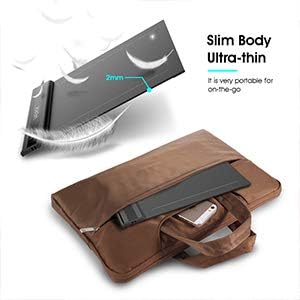
Figura 6: El disseny ultraprim i esvelt del VEIKK Sketchpad Pro el fa molt portàtil per a ús en moviment.
8. Garantia i Suport
8.1 Informació de la garantia
Per obtenir detalls específics de la garantia, consulteu la targeta de garantia inclosa amb el producte o visiteu el lloc web oficial de VEIKK. weblloc. Els termes de la garantia solen cobrir els defectes de fabricació durant un període especificat a partir de la data de compra.
8.2 Atenció al client
Si trobeu algun problema que no es tracta en aquest manual o necessiteu més ajuda, poseu-vos en contacte amb el servei d'atenció al client de VEIKK a través del seu servei oficial. weblloc:
- Weblloc: www.veikk.com/support (exampl'enllaç, l'enllaç real pot variar)
- Consulteu l'embalatge del producte o la fitxa oficial weblloc web per obtenir la informació de contacte més actualitzada.


