1. Introducció
This manual provides detailed instructions for the setup, operation, maintenance, and troubleshooting of your HP Sprocket Studio Plus 4x6 Instant Photo Printer. Please read this manual thoroughly before using the device to ensure optimal performance and longevity.
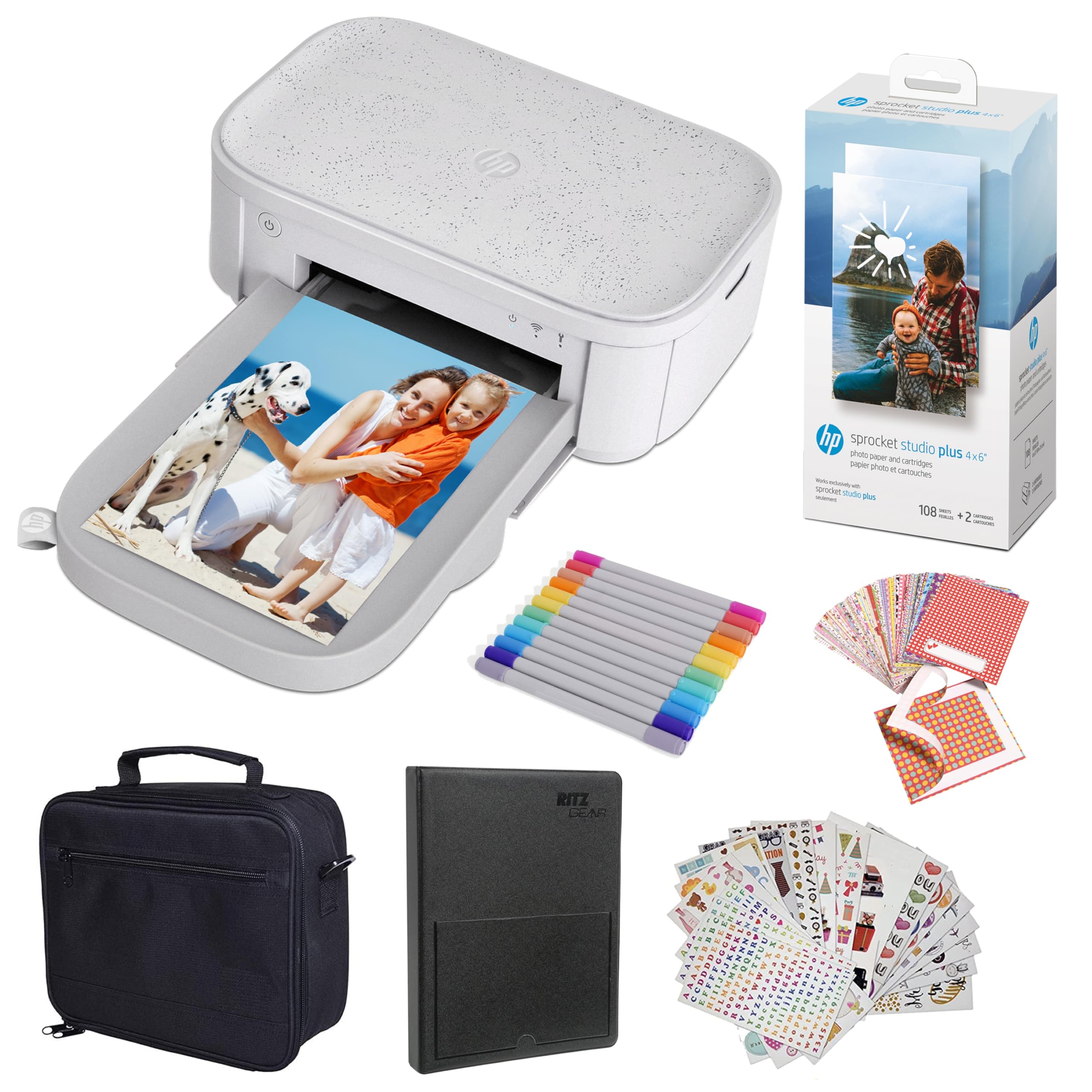
Image: The HP Sprocket Studio Plus 4x6 Instant Photo Printer, shown in white, with a smartphone displaying an image and a printed photo emerging from the printer.
2. Què hi ha a la caixa
Verifiqueu que tots els elements siguin presents al paquet:
- HP Sprocket Studio Plus 4x6 Instant Photo Printer
- Àlbum de fotos
- Cas
- Photo paper and cartridges
- Marcadors
- Sticker sets
- Adaptador de corrent

Image: A pack of HP Sprocket Studio Plus 4x6 photo paper and two ink cartridges, ready for installation.
3. Guia de configuració
3.1 Encès inicial
- Connect the power adapter to the printer and a power outlet.
- Press and hold the power button on the printer to turn it on.
- Wait for the indicator lights to stabilize, indicating the printer is ready.
3.2 Loading Photo Paper and Cartridge
- Obriu la coberta de la safata de paper.
- Insert the photo paper stack into the tray, glossy side up. Ensure the paper is aligned correctly.
- Open the cartridge compartment.
- Insert the ink cartridge until it clicks into place.
- Tanqueu les dues cobertes amb seguretat.

Imatge: Un primer pla view demonstrating the correct way to insert the ink cartridge (1) and load photo paper (2) into the HP Sprocket Studio Plus printer.
3.3 Installing the HP Sprocket App
The HP Sprocket app is required to operate your printer. Download it from your device's app store (iOS or Android).
- Per a dispositius iOS: Cerca "HP Sprocket" in the Apple App Store.
- Per a dispositius Android: Cerca "HP Sprocket" in the Google Play Store.
- Install the app and follow the on-screen prompts.
3.4 Connecting Your Printer
Your HP Sprocket Studio Plus printer can connect via Wi-Fi or Hotspot mode. Refer to the video below for a visual guide on connecting your printer.
Video: This video demonstrates how to connect the HP Sprocket Studio Plus printer to your mobile device via Wi-Fi and Hotspot mode using the HP Sprocket app. It covers turning on the printer, navigating the app's printer management settings, and entering Wi-Fi credentials or the default hotspot password.
3.4.1 Connexió Wi-Fi
- Assegureu-vos que la impressora estigui engegada.
- Open the HP Sprocket app on your mobile device.
- Navigate to the main menu (usually a hamburger icon).
- Select "Manage Printers".
- Tap "Add New Printer".
- Select your printer from the list of available printers (e.g., "HP Sprocket Studio Plus OB78").
- The app will prompt you to connect the printer to your Wi-Fi network. Enter your Wi-Fi credentials (network name and password).
- Confirm the setup is complete.
3.4.2 Hotspot Mode Connection
Use Hotspot Mode if a Wi-Fi network is not available or for direct connection.
- Assegureu-vos que la impressora estigui engegada.
- Open the HP Sprocket app on your mobile device.
- Navegueu fins al menú principal.
- Select "Manage Printers".
- Tap "Add New Printer".
- Select your printer from the list.
- When prompted to connect to Wi-Fi, select "No network available" or similar option to initiate Hotspot Mode.
- Go to your mobile device's Wi-Fi settings.
- Select the printer's direct Wi-Fi network (e.g., "DIRECT-6C-HPISPS").
- Introduïu la contrasenya predeterminada: 12345678.
- Return to the HP Sprocket app and confirm the connection.
4. Funcionament de la impressora
4.1 Impressió de fotos
- Open the HP Sprocket app.
- Select the photo(s) you wish to print from your gallery or social media accounts.
- Use the in-app editing tools to customize your photos (see section 4.2).
- Toqueu la icona d'impressió.
- Confirm print settings (e.g., number of copies).
- The printer will begin printing your photo(s).

Image: A smartphone screen showing the HP Sprocket app interface with a photo selected for printing, next to the HP Sprocket Studio Plus printer.
4.2 Customization Features
The HP Sprocket app offers various tools to enhance your photos before printing:
- Filtres: Apply different visual effects to your photos.
- Marcs: Add decorative borders around your images.
- Adhesius: Place digital stickers on your photos for a personalized touch.
- Collages: Combina diverses fotos en una sola impressió.
- Photo IDs: Create passport-style photos.

Image: The HP Sprocket app displaying a collage feature, allowing users to arrange multiple photos into a single layout for printing.

Image: The HP Sprocket app interface showing options for creating photo IDs, with a portrait photo displayed on the screen.
4.3 Multi-User Support
Multiple users can connect to the HP Sprocket Studio Plus printer simultaneously, allowing for shared printing experiences.
5. Manteniment
5.1 Replacing Ink Cartridges and Photo Paper
The HP Sprocket Studio Plus uses dye-sublimation technology, requiring specific photo paper and cartridges. It is recommended to replace both the paper and cartridge at the same time, as they are designed to run out concurrently (approximately 108 sheets per cartridge).
- When the printer indicates low ink or paper, open the paper tray and cartridge compartment.
- Remove the used ink cartridge and empty paper stack.
- Insert a new HP Sprocket Studio Plus ink cartridge and a fresh stack of 4x6 photo paper.
- Tanqueu les cobertes de manera segura.

Image: A package of HP Sprocket Studio Plus 4x6 photo paper and cartridges, indicating it includes 108 sheets and 2 cartridges.
5.2 Neteja de la impressora
To maintain print quality, periodically clean the exterior of the printer with a soft, dry cloth. Avoid using liquid cleaners directly on the printer.
6. Solució De Problemes
6.1 Problemes comuns i solucions
- Printer Not Connecting to Wi-Fi:
- Ensure your Wi-Fi network is 2.4GHz, as the printer may not be compatible with 5GHz networks.
- Verifiqueu que la contrasenya del Wi-Fi s'hagi introduït correctament.
- Restart both your printer and mobile device.
- Try connecting using Hotspot Mode as an alternative.
- Embussos de paper:
- Turn off the printer and carefully open the paper tray.
- Gently remove any jammed paper. Do not force it.
- Assegureu-vos que el paper estigui carregat correctament i que no estigui massa ple.
- Reinicieu la impressora.
- Mala qualitat d'impressió:
- Check if the ink cartridge and photo paper are correctly installed and not expired.
- Ensure you are using genuine HP Sprocket Studio Plus photo paper and cartridges.
- Netegeu la impressora tal com es descriu a la secció de manteniment.
- La impressora no respon:
- Assegureu-vos que la impressora estigui engegada i connectada a una font d'alimentació.
- Reinicieu la impressora.
- Check the app for any error messages or connection issues.
7. Especificacions
| Característica | Especificació |
|---|---|
| Dimensions del producte | 6.65 "P x 10.75" W x 2.68" H |
| Tipus de controlador | Android, iOS |
| Mida màxima del suport | 4 x 6 polzades |
| Mitjans impresos | Paper fotogràfic brillant |
| Capacitat màxima del full d'entrada | 80 fulls |
| Dispositius compatibles | Telèfons intel·ligents |
| Resolució màxima d'impressió en color | [ALT] |
| Resolució màxima d'impressió en blanc i negre | 1200 ppp |
| Impressió a doble cara | No |
| Interfície del maquinari | Bluetooth |
| Color de tinta | Tot Color |
| Mètode de control | App |
| Sèrie Model | Sprocket Studio Plus |
| Tipus de tinta de la impressora | Cartutx de tinta de color |
| Pes de l'article | 1 lliures |
| Tecnologia de connectivitat | Bluetooth |
| Tecnologia d'impressió | Sublimació de tint |
| Característica especial | Network-Ready, Portable |
| Color | Blanc |
| Velocitat màxima d'impressió (color) | 1 ppm |
8. Garantia i Suport
8.1 Informació de la garantia
The HP Sprocket Studio Plus 4x6 Instant Photo Printer comes with a Garantia limitada d'1 anyPer conèixer els termes i condicions específics, consulteu la documentació de la garantia inclosa amb el producte o visiteu el lloc web d'assistència oficial d'HP. weblloc.
8.2 Atenció al client
For further assistance, technical support, or to purchase replacement supplies, please visit the official HP support website or contact HP customer service. You can find contact information on the HP weblloc web o a l'embalatge del producte.
- Suport d'HP Weblloc: www.hp.com/support