1. Introducció
The IOGEAR GCS1932H is a 4-Port 4K KVMP Switch designed to provide seamless control of two computers from a single console. This device integrates a keyboard, mouse, and 4K HDMI monitor, along with a 2-Port USB 3.1 Gen1 Hub and audio support, enhancing productivity and workspace efficiency. It supports superior video quality up to Cinema 4K (4096 x 2160 @60Hz) and is HDCP 2.2 compliant with HDR support.
This manual provides detailed instructions for setting up, operating, and maintaining your IOGEAR GCS1932H KVMP Switch, along with troubleshooting tips and product specifications.

Figura 1: Angle view of the IOGEAR GCS1932H KVMP Switch.
2. Contingut del paquet
Si us plau, comproveu que tots els articles estiguin presents i en bon estat en obrir el paquet:
- 1 x IOGEAR GCS1932H 4-Port 4K KVMP Switch
- 2 x cables HDMI
- 2 x cables USB 3.0
- 2 x Audio Cables
- 1 x adaptador de corrent
- 1 x cable d'alimentació

Figure 2: Package contents of the IOGEAR GCS1932H.
3. Configuració i instal·lació
Follow these steps to connect your IOGEAR GCS1932H KVMP Switch to your computers and peripherals.
3.1 Panell posterior per sobreview

Figura 3: Connexions del panell posterior.
3.2 Passos de connexió
- Power Off Computers: Ensure both computers you intend to connect are powered off before beginning the installation.
- Connect Console Devices:
- Connecteu el monitor HDMI a la HDMI Console Out port on the rear of the KVMP switch.
- Connect your USB keyboard and mouse to the dedicated Consola USB ports (marked with keyboard and mouse icons) on the rear of the KVMP switch.
- If using external speakers or headphones, connect them to the Sortida d'àudio port on the rear of the KVMP switch.
- Connect Computers to KVMP Switch: For each computer (CPU 1 and CPU 2):
- Connect one end of an HDMI cable to the computer's HDMI output and the other end to the corresponding Entrada HDMI port (CPU 1 or CPU 2) on the KVMP switch.
- Connect one end of a USB 3.0 cable to a USB port on the computer and the other end to the corresponding Entrada USB port (CPU 1 or CPU 2) on the KVMP switch.
- If using audio, connect one end of an audio cable to the computer's audio output and the other end to the corresponding Entrada d'àudio port (CPU 1 or CPU 2) on the KVMP switch.
- Connectar l'alimentació: Connecteu l'adaptador de corrent proporcionat a DC5V port on the rear of the KVMP switch, then plug the power adapter into a power outlet.
- Encès: Power on the KVMP switch, then power on your connected computers.
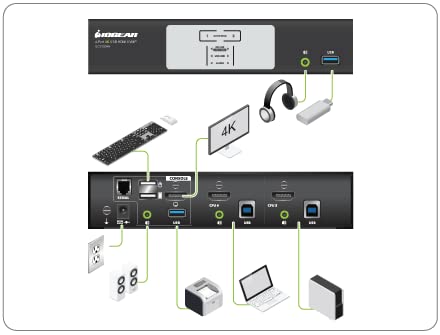
Figure 4: Typical connection diagram.
4. Instruccions de funcionament
The IOGEAR GCS1932H offers multiple methods for switching between connected computers.
4.1 Tauler frontal sobreview

Figura 5: Controls i indicadors del panell frontal.
4.2 Canviar entre ordinadors
- Front Panel Pushbuttons: Press the corresponding numbered button (1 or 2) on the front panel to switch to the desired computer. The "Selected" LED will illuminate for the active port.
- Tecles d'accés directe: Use specific keyboard hotkey combinations to switch between computers. Refer to the full product manual (usually available on the manufacturer's website) for a complete list of hotkey commands. A common hotkey sequence involves pressing the Scroll Lock key twice, followed by the port number.
- Canvi del ratolí: Some configurations allow switching by double-clicking the middle mouse button. This feature may need to be enabled or configured.
- Comandament RS-232: For advanced users, the switch can be controlled via RS-232 commands. Consult the detailed technical manual for programming instructions.
4.3 USB 3.1 Gen1 Hub
The KVMP switch includes a 2-Port USB 3.1 Gen1 Hub with SuperSpeed 5Gbps transfer rate. These ports are located on the rear panel (next to the console USB ports) and one on the front panel. You can connect USB peripherals such as printers, external hard drives, or webcams to these ports, and they will be shared between the connected computers.
4.4 Audio Functionality
The switch supports audio pass-through, allowing you to share speakers or headphones between the connected computers. Ensure audio cables are properly connected from your computers to the switch, and your speakers/headphones are connected to the audio output on the switch.
5. Manteniment
Proper maintenance ensures the longevity and optimal performance of your IOGEAR GCS1932H KVMP Switch.
- Neteja: Use a soft, dry cloth to clean the exterior of the device. Do not use liquid or aerosol cleaners, as they may damage the unit.
- Ventilació: Assegureu-vos que l'interruptor estigui col·locat en una zona ben ventilada per evitar el sobreescalfament. No bloquegeu cap obertura de ventilació.
- Condicions ambientals: Eviteu exposar el dispositiu a temperatures extremes, humitat o llum solar directa.
- Gestió de cables: Keep cables organized and free from kinks or excessive bending to prevent damage and ensure reliable connections.
6. Solució De Problemes
If you encounter issues with your IOGEAR GCS1932H, refer to the following common problems and solutions:
| Problema | Possible causa/solució |
|---|---|
| No video display or flickering after switching. |
|
| Keyboard/Mouse not responding after switching. |
|
| Audio is too quiet or not working. |
|
| Monitor does not go to sleep or wakes up immediately. |
|
| Switching takes too long (e.g., 5-6 seconds). |
|
If the problem persists, consult the full product manual or contact IOGEAR technical support.
7. Especificacions
| Característica | Detall |
|---|---|
| Número de model | GCS1932H |
| Marca | IOGEAR |
| Protocol de connectivitat | USB |
| Qualitat de vídeo | Cinema 4K (4096 x 2160 @60Hz) |
| Compliment HDCP | HDCP 2.2 compliant; HDR Support |
| Hub USB | 2-Port USB 3.1 Gen1 Hub (SuperSpeed 5Gbps) |
| Computer Selection | Front panel pushbuttons, hotkeys, mouse, RS-232 command |
| Dimensions (L x A x A) | 19.99 x 7.47 x 4.29 cm (7.87 x 2.94 x 1.69 polzades) |
| Pes | 1.63 kg (3.59 lliures) |
| Color | Negre |
| Consum d'energia | 1.78 watts |
8. Garantia i Suport
For detailed warranty information, please refer to the warranty card included with your product or visit the official IOGEAR weblloc web. Els termes i condicions de la garantia poden variar segons la regió i el producte.
For technical support, product registration, or to download the latest drivers and full user manuals, please visit the IOGEAR support page:
When contacting support, please have your product model number (GCS1932H) and serial number ready.


