1. Introducció
This manual provides detailed instructions for the Waveshare 2.13-inch E-Paper E-Ink Display Module (Model: Pico-ePaper-2.13). This module is designed for use with the Raspberry Pi Pico, offering a low-power, partial refresh display solution. E-paper displays are known for their paper-like effect and ability to retain content without continuous power.

Figure 1: Waveshare 2.13-inch E-Paper Display Module displaying exampel contingut.
2. Característiques clau
- Sense llum de fons: The display retains its content indefinitely without power, making it highly energy-efficient.
- Ultra-Low Power Consumption: Power is primarily required only during content refresh cycles.
- Interfície SPI: Utilizes a Serial Peripheral Interface, requiring minimal I/O pins for communication.
- Recursos de desenvolupament: Includes comprehensive development resources and a manual with Raspberry Pi Pico C/C++ and MicroPython examples.
- Direct Raspberry Pi Pico Attachment: Features an onboard female pin header for direct connection to a Raspberry Pi Pico.

Figura 2: Mésview of the 2.13-inch E-Paper Module's features and specifications.
3. Especificacions tècniques
| Característica | Valor |
|---|---|
| Vol. Operatiutage | 3.3 V |
| Escala de grisos | 2 |
| Interfície | SPI de 3 fils, SPI de 4 fils |
| Partial Refresh Time | 0.3 s |
| Dimensions del contorn | 65.00 × 30.50 mm |
| Full Refresh Time | 2s |
| Mida de la pantalla | 48.55 × 23.70 mm |
| Refresh Power | 26.4 mW (típ.) |
| Mida de punt | 0.194 × 0.194 mm |
| Corrent d'espera | <0.01uA (almost none) |
| Resolució | 250×122 píxels |
| Viewangle ing | >170° |
| Color de la pantalla | Negre, Blanc |

Figure 3: Detailed technical specifications of the E-Paper module.

Figure 4: Outline dimensions of the 2.13-inch E-Paper module in millimeters.
4. Configuració i connexió
The Waveshare Pico-ePaper-2.13 module is designed for direct attachment to a Raspberry Pi Pico. Follow these steps for proper setup:
- Prepare Raspberry Pi Pico: Ensure your Raspberry Pi Pico is ready for use, with necessary firmware or operating system installed if required for your project.
- Alinear i connectar: Carefully align the female pin header on the E-Paper module with the male pins on your Raspberry Pi Pico. Gently press them together until fully seated. Ensure correct orientation to prevent damage.
- Font d'alimentació: Once connected, power the Raspberry Pi Pico via its USB port or other designated power input. The E-Paper module draws power directly from the Pico.
- Configuració del programari: Refer to the provided development resources for specific C/C++ or MicroPython examples to initialize and control the display. This typically involves configuring the SPI interface on the Pico.

Figure 5: Raspberry Pi Pico securely connected to the E-Paper module. Note: Raspberry Pi Pico is not included with the display module.
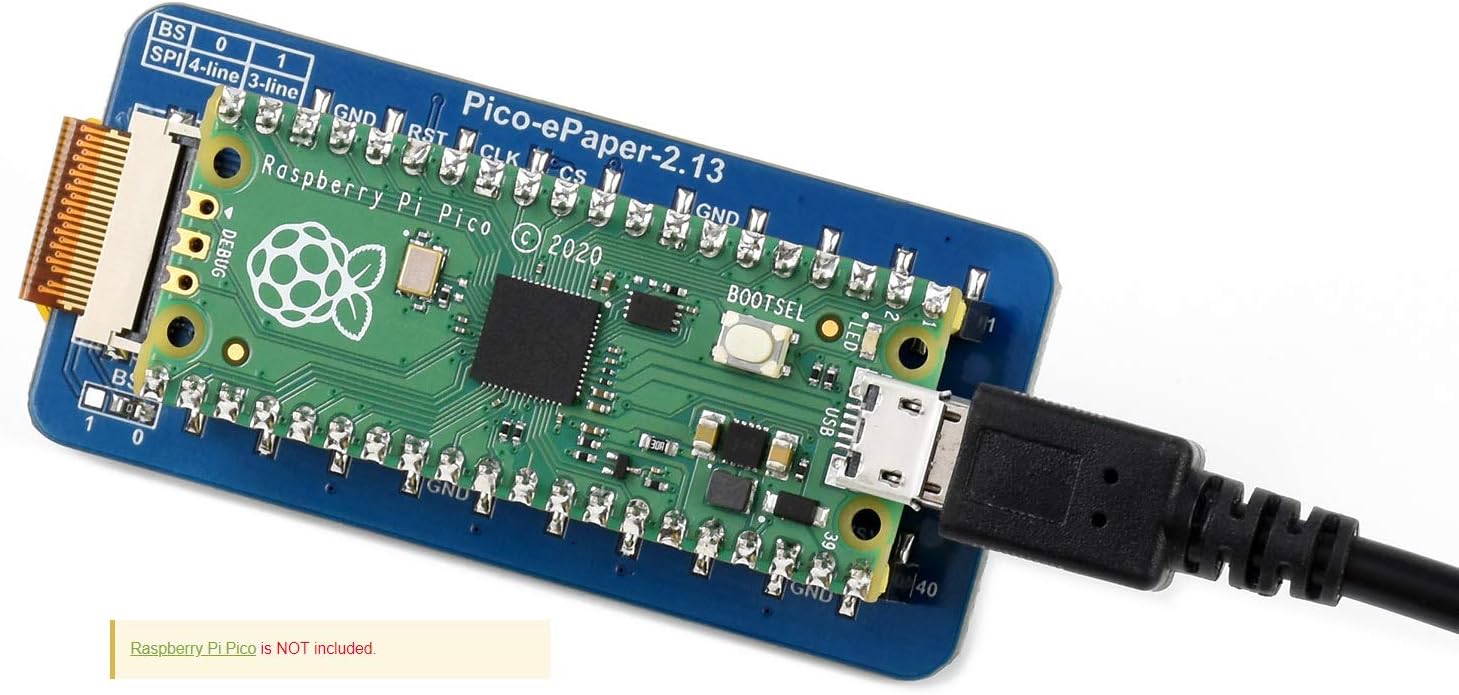
Figure 6: Raspberry Pi Pico with E-Paper module connected and powered via USB. Note: Raspberry Pi Pico is not included with the display module.
4.1 Pinout Definition
Understanding the pinout is crucial for advanced configurations or troubleshooting. The module uses an SPI interface.
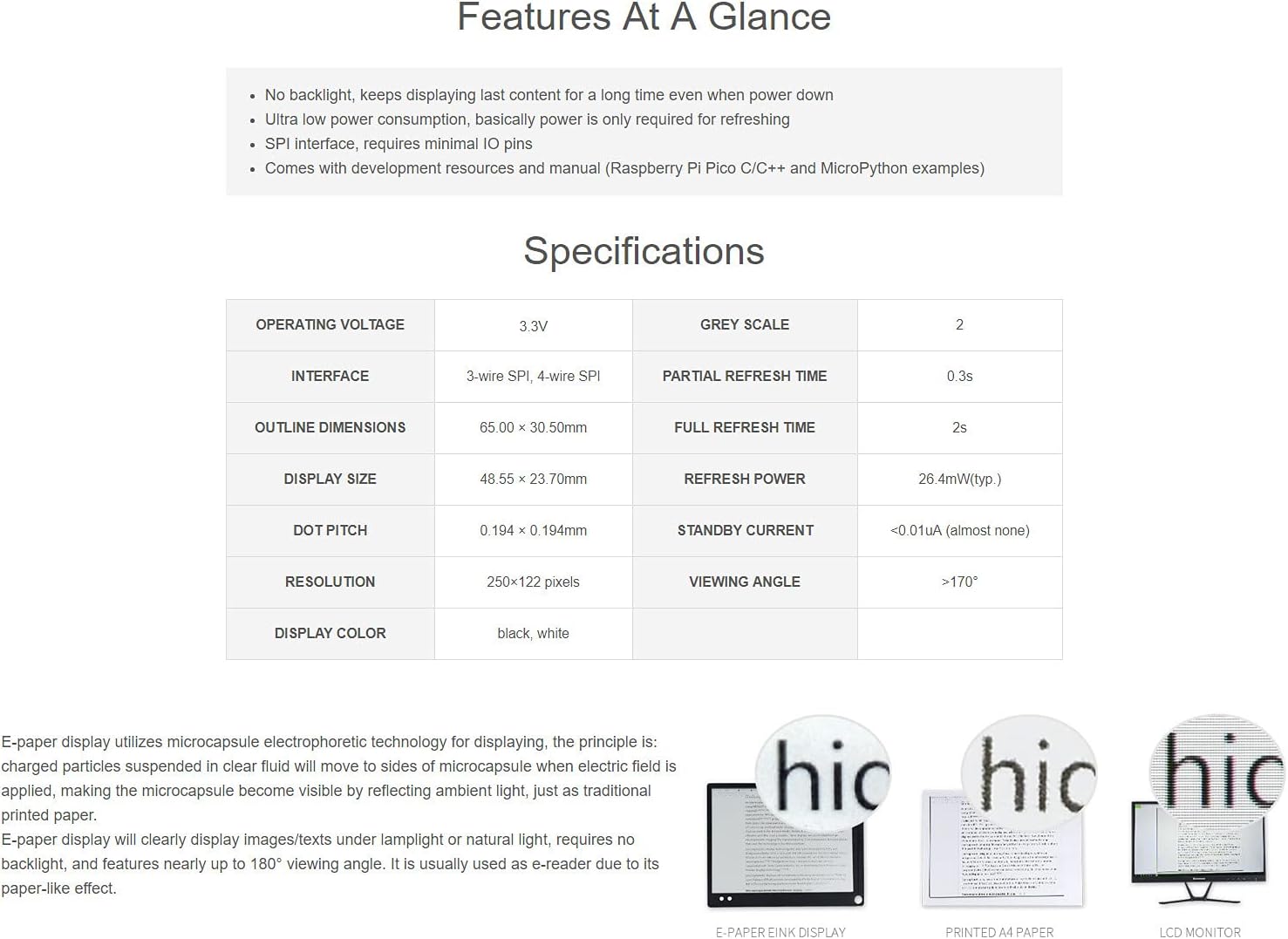
Figure 7: Pinout definition for the Waveshare Pico-ePaper-2.13 module, showing connections for SPI, power, and control pins.
| Nom del pin | Descripció |
|---|---|
| VSYS | Entrada de potència |
| GND | Terra |
| e-Paper_DC | Pin de control de dades/comandes (alt per a dades, baix per a comandes) |
| e-Paper_CS | SPI chip select (low active) |
| e-Paper_CLK | Pin SPI SCK |
| e-Paper_DIN | Pin SPI MOSI |
| e-Paper_RST | External reset (low active) |
| e-Paper_BUSY | Busy status output |
5. Guia de funcionament
Operating the Waveshare 2.13-inch E-Paper module involves programming your Raspberry Pi Pico to send display data via the SPI interface. Waveshare provides example code and libraries to facilitate this process.
5.1 Programming the Display
- Access Development Resources: Visit the official Waveshare product page or documentation portal for the Pico-ePaper-2.13 module. Here you will find example code in C/C++ and MicroPython.
- Instal·lar biblioteques: Download and install any necessary libraries or drivers for your chosen programming language (e.g., MicroPython libraries for e-paper displays).
- Carrega Exampel codi: Upload the provided example code to your Raspberry Pi Pico. These examples typically demonstrate basic functions like displaying text, images, or performing partial/full refreshes.
- Personalitza el contingut: Modify the example code to display your desired content. Pay attention to the display resolution (250x122 pixels) and color depth (black/white, 2 grey scales).
- Refresh Cycles: Understand the difference between full refresh (approx. 2 seconds) and partial refresh (approx. 0.3 seconds). Partial refresh is faster and consumes less power but may leave ghosting artifacts over time, requiring an occasional full refresh.
5.2 Aplicació Examples
The E-Paper module is versatile and suitable for various applications due to its low power consumption and persistent display capabilities.

Figura 8: Examples of potential applications for the E-Paper module, such as price tags, shelf labels, and information displays in various environments.
6. Cura i Manteniment
To ensure the longevity and optimal performance of your Waveshare E-Paper display module, follow these maintenance guidelines:
- Manejar amb cura: E-paper displays are delicate. Avoid applying excessive pressure or bending the module, especially the flexible FPC cable.
- Neteja: Use a soft, dry, lint-free cloth to gently wipe the display surface. Do not use liquid cleaners, solvents, or abrasive materials, as these can damage the screen.
- Condicions ambientals: Operate and store the module within its specified temperature and humidity ranges. Avoid extreme temperatures, direct sunlight for prolonged periods, and high humidity.
- Gestió d'energia: While the display retains content without power, ensure proper power-down sequences for the Raspberry Pi Pico to prevent data corruption or unexpected behavior.
- Electricitat estàtica: Take precautions against electrostatic discharge (ESD) when handling the module, as electronic components can be sensitive to static.
7. Solució De Problemes
If you encounter issues with your E-Paper display module, consider the following troubleshooting steps:
- Display Not Refreshing/Blank:
- Check all connections between the E-Paper module and the Raspberry Pi Pico. Ensure they are secure and correctly oriented.
- Verify the power supply to the Raspberry Pi Pico.
- Review your code for display initialization and refresh commands. Ensure the SPI interface is correctly configured.
- Confirm that the correct libraries for the Pico-ePaper-2.13 are installed and imported in your code.
- Ghosting or Image Retention:
- Ghosting is common with partial refreshes. Perform a full refresh periodically to clear the display completely.
- Ensure your refresh cycles are correctly implemented in your code.
- Incorrect Display Orientation:
- The display typically operates in portrait mode by default. If you require landscape orientation, check if your chosen library or example code supports rotation and how to implement it.
- Module Not Detected by Pico:
- Double-check the pin connections against the pinout diagram (Figure 7).
- Ensure the Raspberry Pi Pico is functioning correctly independently.
For further assistance, refer to the official Waveshare documentation and community forums.
8. Assistència i garantia
For technical support, additional resources, and the latest documentation, please visit the official Waveshare website. You can typically find detailed product wikis, example code, and community forums there.
Fabricant: Waveshare
Weblloc: www.waveshare.com
Information regarding product warranty is typically available on the Waveshare website or included with your purchase documentation. Please retain your proof of purchase for warranty claims.


