1. Introducció
This manual provides essential instructions for setting up, operating, maintaining, and troubleshooting your EPSON EcoTank M3140 A4 4-in-1 Monochrome Printer. Please read this manual thoroughly before using the product to ensure correct and safe operation.
2. Producte acabatview
The EPSON EcoTank M3140 is a versatile 4-in-1 monochrome printer designed for efficient document printing. It features an integrated ink tank system, Wi-Fi connectivity, an LCD screen, and an Automatic Document Feeder (ADF) for enhanced productivity.
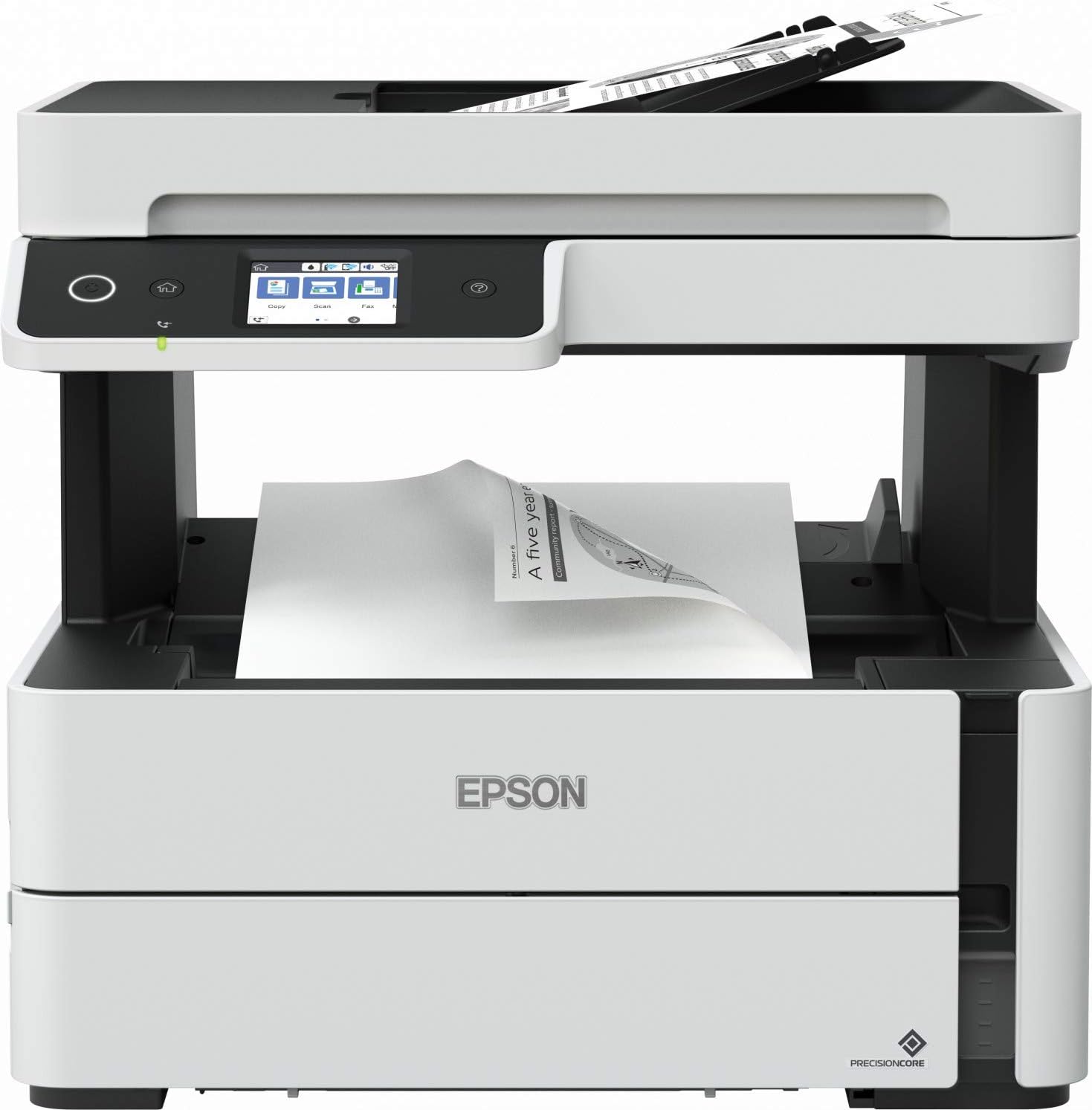
Figura 2.1: Davant view of the EPSON EcoTank M3140 printer, showing the control panel, ADF, and paper output tray.
3. Configuració
3.1 Desembalatge
- Traieu la impressora del seu embalatge.
- Traieu totes les cintes protectores i els materials d'embalatge de l'exterior i l'interior de la impressora.
- Col·loqueu la impressora sobre una superfície estable i plana.
3.2 Connexió d'alimentació
- Connecteu el cable d'alimentació a l'entrada d'alimentació de la impressora.
- Connecteu l'altre extrem del cable d'alimentació a una presa de corrent amb connexió a terra.
- Premeu el botó d'engegada per encendre la impressora.
3.3 Ompliment de tinta
The EcoTank M3140 uses an integrated ink tank system. Follow these steps to fill the ink tank:
- Obriu la tapa del dipòsit de tinta de la impressora.
- Uncap the black ink bottle.
- Insert the ink bottle into the corresponding ink tank opening. The ink will automatically fill the tank.
- Once the tank is full, remove the bottle and recap it. Close the ink tank cover.

Figura 3.1: Illustration of the ink refilling process for the EcoTank system.
3.4 Instal·lació del programari
- Insert the software CD-ROM into your computer's drive, or download the latest drivers and utilities from the official Epson support weblloc.
- Seguiu les instruccions que apareixen a la pantalla per instal·lar els controladors de la impressora i el programari d'utilitats.
3.5 Connexió de xarxa (Wi-Fi)
- A la pantalla LCD de la impressora, navegueu fins al menú de configuració del Wi-Fi.
- Seleccioneu la vostra xarxa sense fil (SSID) de la llista.
- Enter your network password (WPA/WPA2 key) using the on-screen keyboard.
- Confirmeu la connexió. L'indicador Wi-Fi de la impressora hauria d'il·luminar-se fixament un cop connectada.
4. Instruccions de funcionament
4.1 Càrrega de paper
The printer supports various paper sizes, including A4. To load paper:
- Traieu el calaix de paper de la part frontal de la impressora.
- Ajusteu les guies del paper perquè coincideixin amb l'amplada del paper.
- Load the paper stack print-side down into the cassette. Do not overload.
- Gently push the paper cassette back into the printer until it clicks into place.

Figura 4.1: Proper loading of paper into the printer's paper cassette.
4.2 Impressió bàsica
- Assegureu-vos que la impressora estigui engegada i connectada a l'ordinador o a la xarxa.
- Obriu el document que voleu imprimir a l'ordinador.
- Seleccioneu "Imprimir" al menú de l'aplicació.
- Choose the EPSON M3140 as your printer and adjust settings (e.g., paper size, number of copies).
- Feu clic a "Imprimeix".
4.3 Còpia
The M3140 can copy documents using either the flatbed scanner or the Automatic Document Feeder (ADF).
- Ús de la plataforma plana: Place the document face-down on the scanner glass, aligning it with the corner mark.
- Ús de l'ADF: Load multiple pages face-up into the ADF input tray.
- On the printer's LCD screen, select 'Copy'.
- Adjust copy settings such as number of copies, paper type, and quality.
- Premeu el botó "Inici" per començar a copiar.

Figura 4.2: The printer's LCD control panel, used for selecting functions like Copy, Scan, and Fax.
4.4 Escaneig
- Col·loqueu el document al vidre de l'escàner o a l'ADF.
- On the printer's LCD screen, select 'Scan'.
- Choose your scan destination (e.g., computer, cloud service) and adjust scan settings.
- Premeu el botó "Inici" per començar l'escaneig.
4.5 Enviament de faxos
- Load the document(s) into the ADF or place a single document on the scanner glass.
- On the printer's LCD screen, select 'Fax'.
- Introduïu el número de fax del destinatari.
- Premeu el botó «Inici» per enviar el fax.
4.6 Impressió a doble cara
The M3140 supports automatic double-sided printing. To use this feature, select the duplex printing option in your printer driver settings before sending a print job.
5. Manteniment
5.1 Reompliment de tinta
When the ink level is low, the printer will notify you. Refer to Section 3.3 for detailed ink refilling instructions. Use only genuine EPSON ink bottles for optimal performance and to prevent damage.
5.2 Neteja del capçal d'impressió
If print quality declines (e.g., missing lines, streaking), perform a print head cleaning:
- Des del tauler de control de la impressora, navegueu fins a "Manteniment" o "Configuració".
- Select 'Print Head Cleaning' or 'Nozzle Check'.
- Follow the on-screen prompts. You may need to perform this process multiple times.
5.3 Neteja del vidre de l'escàner
Dust or smudges on the scanner glass can affect scan and copy quality. Wipe the scanner glass and the ADF glass strip with a soft, lint-free cloth dampNetegeu amb un netejador de vidres suau. No ruixeu el netejador directament sobre el vidre.
5.4 Resolució d'encallaments de paper
If a paper jam occurs, the printer's LCD screen will display an error message. Carefully open the printer covers and remove any jammed paper, pulling it gently in the direction of the paper path. Ensure no torn pieces of paper remain inside the printer.
6. Solució De Problemes
This section addresses common issues you might encounter with your EPSON EcoTank M3140.
6.1 La impressora no respon
- Check if the printer is powered on and properly connected to the computer or network.
- Verifiqueu que la impressora correcta estigui seleccionada al quadre de diàleg d'impressió de l'aplicació.
- Reinicieu tant la impressora com l'ordinador.
6.2 Mala qualitat d'impressió
- Comproveu els nivells de tinta i torneu-ho a omplir si cal.
- Perform a print head cleaning and nozzle check (refer to Section 5.2).
- Assegureu-vos que feu servir la configuració de paper adequada per a la feina d'impressió.
6.3 Problemes de connectivitat Wi-Fi
- Ensure your Wi-Fi router is functioning correctly.
- Re-enter your Wi-Fi password on the printer's control panel.
- Move the printer closer to the wireless router to improve signal strength.
For more detailed troubleshooting, refer to the comprehensive online support resources available on the official Epson weblloc.
7. Especificacions
| Característica | Especificació |
|---|---|
| Mitjans impresos | Paper (comú) |
| Tipus d'escàner | Llit pla |
| Capacitat màxima de fulls | 100 |
| Dispositius compatibles | Telèfons intel·ligents (Android, iOS) |
| Mida del paper | A4 |
| Resolució màxima d'impressió en blanc i negre | 200 dpi (implied from context, often higher for actual print) |
| Impressió a doble cara | Sí (dúplex automàtic) |
| Dimensions del producte | 41 x 41 x 43.2 cm |
| Pes de l'article | 9.13 quilos |
| Tecnologia de connectivitat | Wi-Fi |
| Tecnologia d'impressora | dipòsit de tinta |
| Característiques especials | Auto-Duplex, ADF, LCD Screen |
| Sortida de la impressora | Monocrom |
8. Garantia i Suport
8.1 Informació de la garantia
The EPSON EcoTank M3140 comes with a one-year or 100,000-page warranty, whichever comes first. Please retain your proof of purchase for warranty claims. The warranty covers defects in materials and workmanship under normal use.
8.2 Atenció al client
For technical assistance, product registration, or to find authorized service centers, please visit the official Epson support website or contact Epson customer service in your region. Support resources often include FAQs, driver downloads, and troubleshooting guides.


