1. Introducció
Gràcies per la compraasing the SKYBASIC Wireless Digital Microscope. This portable handheld microscope offers 50X-1000X magnification, allowing for detailed observation of various objects. It features WiFi connectivity for smartphones and tablets, and USB connectivity for Windows and Mac computers. Equipped with 8 adjustable LED lights, it provides clear imaging in diverse lighting conditions. This manual provides comprehensive instructions for setup, operation, maintenance, and troubleshooting to ensure optimal performance and longevity of your device.
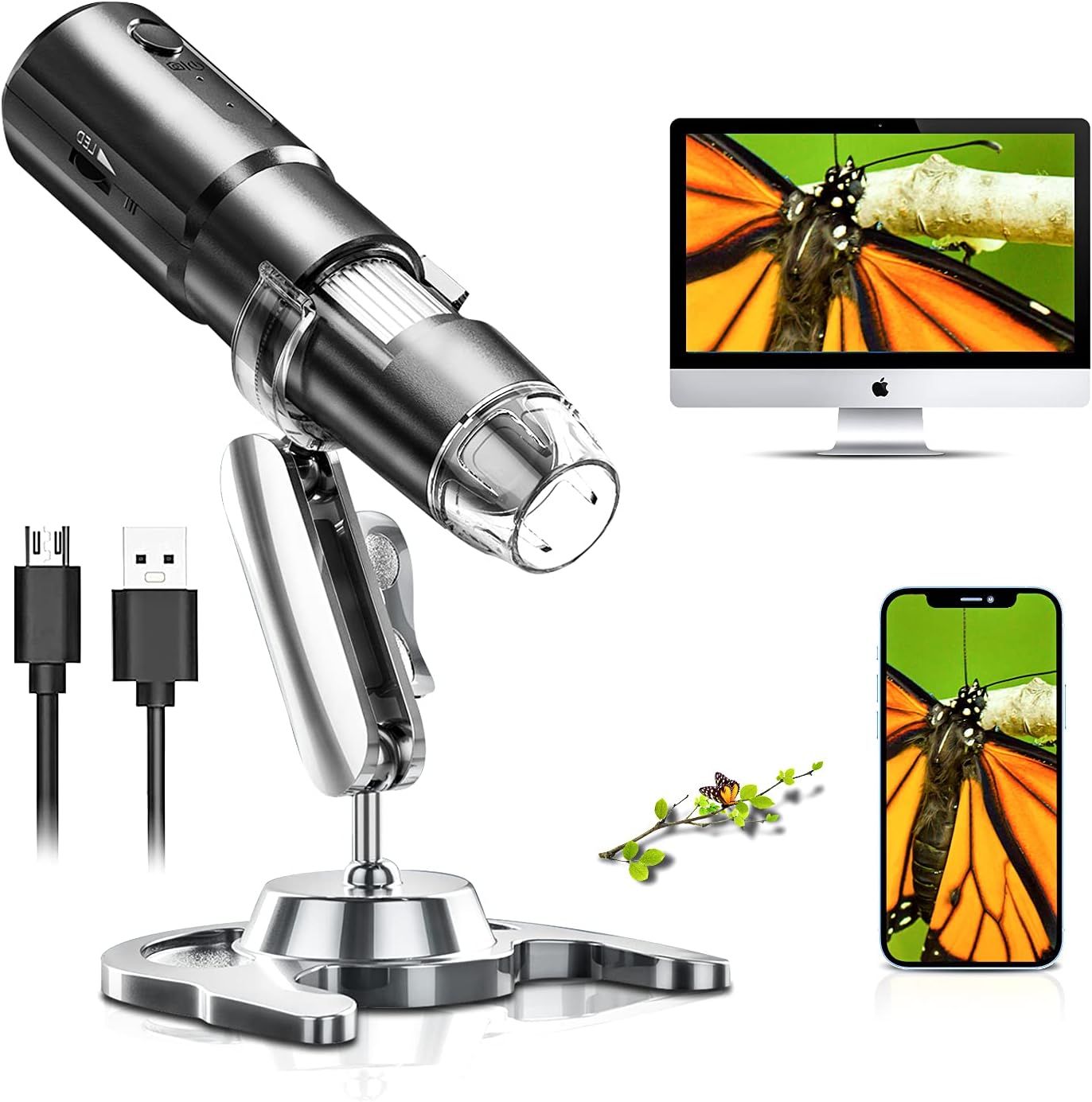
Figure 1.1: SKYBASIC Wireless Digital Microscope in use, showing connectivity options.
2. Contingut del paquet
Si us plau, verifiqueu que tots els articles que s'enumeren a continuació s'inclouen al vostre paquet. Si falta algun article o hi ha algun malmès, poseu-vos en contacte amb el servei d'atenció al client.
- 1x SKYBASIC Wireless Digital Microscope
- 1x USB Charging Cable (adapter not included)
- 1x Adjustable Stand Bracket
- 1x Base de suport
- 1 x manual d'usuari
3. Producte acabatview
Familiarize yourself with the components of your SKYBASIC Wireless Digital Microscope.

Figure 3.1: Main components of the Wireless Digital Microscope.
- Microscope Body: Contains the lens, LED lights, and internal electronics.
- Roda de focus: Used to adjust the focus for clear images.
- Llums LED: 8 built-in adjustable LED lights for illumination.
- LED Brightness +/-: Buttons to control the intensity of the LED lights.
- Botó d'encesa: Turns the microscope on/off and can also function as a photo/video capture button.
- Indicador de treball: Light indicating the device's operational status.
- Indicador de càrrega: Llum que indica l'estat de càrrega.
- Port USB: Per carregar i connectar a un ordinador.
- Funda antipols: Protegeix la lent quan no s'utilitza.
- Suport ajustable: Allows for stable positioning and observation at various angles and heights.
4. Configuració
4.1 Càrrega del microscopi
Before first use, fully charge the microscope. A full charge provides approximately 2 hours of continuous use.
- Connect the small end of the USB charging cable to the microscope's USB port.
- Connecteu l'altre extrem del cable USB a un adaptador de corrent USB estàndard (no inclòs) o al port USB d'un ordinador.
- El llum indicador de càrrega s'il·luminarà durant la càrrega i s'apagarà quan estigui completament carregat.

Figure 4.1: The microscope features a USB rechargeable design for portability.
4.2 Muntatge del suport
The adjustable stand provides stability and allows for precise positioning of the microscope.
- Insert the adjustable bracket into the stand base.
- Secure the microscope into the bracket. Ensure it is firmly seated.
- Adjust the height and angle using the rotating joints and stand lock as needed for your observation.

Figure 4.2: The 360° rotating stand allows for flexible observation.
5. Instruccions de funcionament
5.1 Connecting to a Mobile Device (iOS/Android) via WiFi
This method allows you to view images and videos on your smartphone or tablet.
- Descarrega l'aplicació: Cerca "Max-see" in the Apple App Store (for iOS) or Google Play Store (for Android) and install it.
- Power On Microscope: Long press the power button on the microscope for 3 seconds to turn it on. The work indicator light will illuminate.
- Connecteu-vos a WiFi: On your mobile device, go to Wi-Fi settings and connect to the Wi-Fi network named "Max-see_xxxx" (where xxxx is a unique identifier). No password is required.
- Obre l'aplicació: Launch the "Max-see" app. The microscope's live view should appear on your screen.
- Treure la coberta antipols: Before observing, remove the transparent dust cover from the microscope lens.
- Adjust Focus and LED Lights: Use the focus wheel on the microscope to achieve a clear image. Adjust the LED brightness using the +/- buttons on the microscope body to optimize illumination.

Figure 5.1: Mobile device connection steps.
5.2 Connecting to a Computer (Windows/Mac) via USB
This method allows you to use the microscope with your desktop or laptop computer.
- Per a usuaris de Windows: Download and install the "Smart Camera" software. The download link is typically provided in the physical user manual or can be found on the manufacturer's support weblloc (per exemple, www.linskam.com/download/camera.zip).
- Per a usuaris de Mac: Use the pre-installed applications "Photo Booth" or "QuickTime Player" directly.
- Power On Microscope: Long press the power button on the microscope for 3 seconds to turn it on.
- Connexió mitjançant USB: Connecteu el microscopi a l'ordinador mitjançant el cable USB proporcionat.
- Programari de llançament:
- For Windows: Open the "Smart Camera" software.
- For Mac: Open "Photo Booth" or "QuickTime Player".
- Seleccioneu el dispositiu: In the software, select the microscope as the video input device (it may appear as "GENERAL-UVC" or similar).
- Treure la coberta antipols: Before observing, remove the transparent dust cover from the microscope lens.
- Adjust Focus and LED Lights: Use the focus wheel on the microscope to achieve a clear image. Adjust the LED brightness using the +/- buttons on the microscope body to optimize illumination.

Figure 5.2: Computer connection steps.
5.3 Adjusting Magnification and LED Lights
The microscope offers 50X-1000X magnification and adjustable illumination.
- Ampliació: The magnification level is primarily controlled by the distance between the microscope lens and the object, and by the focus wheel. Move the microscope closer to the object for higher magnification and further away for lower magnification. Then, fine-tune the image clarity using the focus wheel.
- Llums LED: The 8 built-in LED lights ensure proper illumination. Use the LED brightness +/- buttons on the microscope body to increase or decrease the light intensity. This is crucial for obtaining clear images, especially in dark environments or when observing reflective surfaces.

Figure 5.3: Magnification and focusing capabilities.

Figure 5.4: Adjustable LED illumination for optimal viewing.
5.4 Capturing Images and Recording Videos
Once connected, you can capture still images and record videos through the "Max-see" app or "Smart Camera" software.
- Using the App/Software: Look for dedicated buttons within the application interface for "Take Photo" or "Record Video".
- Using the Microscope Button: The power button on the microscope can often be used as a quick capture button. A short press typically takes a photo, while a long press might start/stop video recording (refer to app/software specific settings for confirmation).
- Captured media will be saved to your device's gallery or the software's designated folder.
6. Manteniment
Proper care and maintenance will extend the life of your digital microscope.
- Neteja de la lent: Use a soft, lint-free cloth specifically designed for optical lenses to gently wipe the microscope lens. Do not use abrasive cleaners or solvents.
- Neteja del cos: Netegeu el cos del microscopi amb un drap suau i sec. Si cal, netegeu lleugeramentamp Es pot fer servir un drap, però assegureu-vos que no entri humitat a l'aparell.
- Emmagatzematge: Store the microscope in a cool, dry place away from direct sunlight and extreme temperatures. Always replace the dust cover on the lens when not in use to prevent dust accumulation.
- Cura de la bateria: Per mantenir la bateria en bon estat, eviteu descarregar-la completament amb freqüència. Si la guardeu durant un període llarg, carregueu-la fins a un 50% aproximadament cada pocs mesos.
7. Solució De Problemes
If you encounter issues with your microscope, refer to the following common problems and solutions.
| Problema | Causa possible | Solució |
|---|---|---|
| El microscopi no s'encén. | Bateria baixa; el botó d'engegada no s'ha premut prou estona. | Charge the microscope fully. Press and hold the power button for at least 3 seconds. |
| Cannot connect to Wi-Fi (mobile device). | Microscope not powered on; Incorrect Wi-Fi network selected; App not launched. | Ensure microscope is on. Select "Max-see_xxxx" network. Open the "Max-see" app after connecting Wi-Fi. |
| No image on computer (USB connection). | Microscope not powered on; USB cable faulty; Software not installed/launched; Incorrect device selected in software. | Ensure microscope is on. Try a different USB port/cable. Install/launch "Smart Camera" (Windows) or "Photo Booth/QuickTime Player" (Mac). Select "GENERAL-UVC" or similar as the camera source. |
| La imatge està borrosa o desenfocada. | Focus wheel not adjusted; Lens dust cover still on; Incorrect distance to object. | Rotate the focus wheel until the image is clear. Remove the transparent dust cover from the lens. Adjust the distance between the microscope and the object. |
| La imatge és massa fosca o massa brillant. | Brillantor del LED no ajustada. | Use the LED brightness +/- buttons on the microscope to adjust illumination. |
8. Especificacions
| Característica | Detall |
|---|---|
| Marca | SKYBASIC |
| Model | B08YJ5RQJK |
| Interval d'ampliació | 50X - 1000X |
| Font de llum | 8 llums LED ajustables |
| Connectivitat | WiFi (for iOS/Android), USB (for Windows/Mac) |
| Dispositius compatibles | Ordinador personal, telèfon intel·ligent, tauleta |
| Tipus de bateria | 1 bateria de polímer de liti (inclosa) |
| Durada de la bateria | Approx. 2 hours continuous use (fully charged) |
| Pes de l'article | 10.2 unces |
| Dimensions del paquet | 6.46 x 4.61 x 1.93 polzades |
| Color | Negre-2 |
| Data de primera disponibilitat | 10 de març de 2021 |
9. Garantia i Suport
SKYBASIC offers a worry-free guarantee and a 1-year replacement or return service for this product. If you have any questions regarding your digital microscope camera or require technical support, please do not hesitate to contact SKYBASIC customer service. They are available to assist you 24/7.
For support, please refer to the contact information provided on the product packaging or the official SKYBASIC weblloc.


