Producte acabatview
The AirTies Air 4920 SmartMesh Wi-Fi Extender is designed to expand your home Wi-Fi network, providing enhanced coverage and reducing network congestion. It utilizes advanced mesh technology to ensure seamless and fast Wi-Fi connectivity for all your devices.


Contingut del paquet
Abans de començar, assegureu-vos que tots els elements estiguin presents al paquet:
- AirTies Air 4920 SmartMesh Wi-Fi Extender
- Adaptador de corrent
Configuració i instal·lació
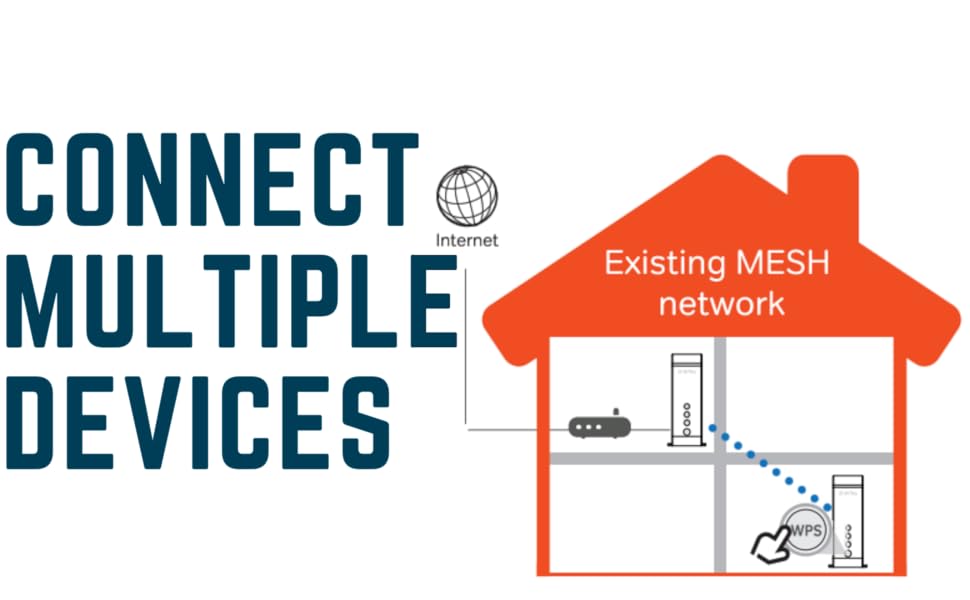
Follow these steps to set up your AirTies Air 4920 SmartMesh Wi-Fi Extender. For optimal performance, it is recommended to use two or more extenders to create a robust mesh network.

- Col·locació: Choose a central location in your home, ideally between your existing router/modem and the area where you need improved Wi-Fi coverage. Avoid placing the extender near large metal objects, concrete walls, or other electronic devices that may cause interference.
- Connexió d'alimentació: Connect the provided power adapter to the extender's power input port (7) and plug it into a standard electrical outlet. The Power LED (3) will illuminate.
- Initial Connection (WPS Method):
- Press the WPS button (4) on the front of the AirTies Air 4920 extender. The WPS LED will start blinking.
- Within two minutes, press the WPS button on your existing Wi-Fi router or modem.
- Wait for the WPS LED on the extender to turn solid, indicating a successful connection. The 2.4 GHz (2) and 5 GHz (1) LEDs will also illuminate, showing active Wi-Fi bands.
- Connexió Ethernet (opcional): If you wish to connect a wired device, use an Ethernet cable to connect it to one of the RJ45 Ethernet ports (5) on the back of the extender.
Instruccions de funcionament
Once installed, the AirTies Air 4920 operates automatically to extend your Wi-Fi coverage. It intelligently selects the best and fastest connection for your devices.
Comprensió dels indicadors LED
| Indicador | Estat | Descripció |
|---|---|---|
| 5 GHz LED (1) | Verd sòlid | 5 GHz Wi-Fi band is active and operating normally. |
| Apagat | 5 GHz Wi-Fi band is inactive. | |
| 2.4 GHz LED (2) | Verd sòlid | 2.4 GHz Wi-Fi band is active and operating normally. |
| Apagat | 2.4 GHz Wi-Fi band is inactive. | |
| LED d'alimentació (3) | Verd sòlid | El dispositiu està encès i funciona normalment. |
| Apagat | El dispositiu està apagat. | |
| WPS LED (4) | Parpellejant | WPS pairing mode is active. |
| Verd sòlid | WPS pairing successful. | |
| Apagat | WPS is inactive or pairing failed. |
Smart Home Manager Integration
The AirTies Air 4920 can be managed through the Smart Home Manager app. This application allows you to:
- Personalize and manage your home network.
- View dispositius connectats.
- Canvia el nom i la contrasenya de la xarxa.
- Invite guests to your network.
- Access support resources.
Manteniment
To ensure the longevity and optimal performance of your AirTies Air 4920 SmartMesh Wi-Fi Extender, consider the following maintenance tips:
- Neteja: Netegeu suaument l'exterior del dispositiu amb un drap suau i sec. No utilitzeu netejadors líquids ni aerosols.
- Ventilació: Assegureu-vos que les ranures de ventilació del dispositiu no estiguin bloquejades per evitar el sobreescalfament.
- Actualitzacions de firmware: Periodically check for firmware updates through the Smart Home Manager app or the official AirTies support website to ensure your device has the latest features and security enhancements.
- Cicle d'alimentació: If you experience minor connectivity issues, try power cycling the device by unplugging it from the power outlet for 10 seconds and then plugging it back in.
Resolució de problemes
If you encounter issues with your AirTies Air 4920, refer to the following common troubleshooting steps:
| Problema | Causa possible | Solució |
|---|---|---|
| Sense LED d'alimentació | El dispositiu no rep energia. | Ensure the power adapter is securely connected to the extender and the electrical outlet. Try a different outlet. |
| WPS LED not solid after pairing | Pairing failed or timed out. | Ensure you pressed the WPS button on both the extender and your router within the 2-minute window. Try repeating the WPS pairing process. Move the extender closer to the router during pairing. |
| Weak Wi-Fi signal or dead zones persist | Suboptimal placement or interference. | Relocate the extender to a more central position, away from obstructions and interference sources. Consider adding additional AirTies extenders for larger homes. |
| Devices not connecting to the extended network | Network configuration issue. | Ensure the extender is successfully paired with your main router. Restart the extender and the client device. Check your router's settings to ensure it allows new devices to connect. |
| Forgot network password | Contrasenya oblidada. | Use the Smart Home Manager app to retrieve or change your network password. If unable to access the app, you may need to reset the extender to factory defaults (see below). |
Restabliment de fàbrica
If you experience persistent issues or wish to clear all settings, you can perform a factory reset:
- With the extender powered on, use a paperclip or a similar pointed object to press and hold the Botó de reinici (8) on the back of the device for approximately 10 seconds.
- Release the button when the LEDs on the front of the device flash or turn off, indicating the reset process has begun.
- The extender will restart with factory default settings. You will need to reconfigure it as per the "Setup and Installation" section.
Especificacions
| Característica | Detall |
|---|---|
| Model | Aire 4920 |
| Marca | AirTies |
| Estàndard sense fils | 802.11a/g/n |
| Banda de freqüència | Doble banda (2.4 GHz i 5 GHz) |
| Característiques especials | Smart Mesh Technology, Smart Home Manager Integration |
| Tipus de connector | Ethernet RJ45 |
| Dimensions (L x A x A) | 9.17 x 6.3 x 3.11 polzades (dimensions del paquet) |
| Pes | 15 unces |
Garantia i Suport
For warranty information, technical support, or additional resources, please refer to the official AirTies weblloc o poseu-vos en contacte amb el seu servei d'atenció al client.
- Manual d'usuari oficial (PDF): Descarregar PDF
- Suport del fabricant: Visita el AirTies official weblloc per a assistència, preguntes freqüents i informació de contacte.


