1. Introducció
This manual provides essential information for setting up, operating, and maintaining your Microsoft Bluetooth Mouse - Forest Camo. Designed for precise scrolling and navigation, this compact and modern mouse offers wireless convenience for various computing platforms.
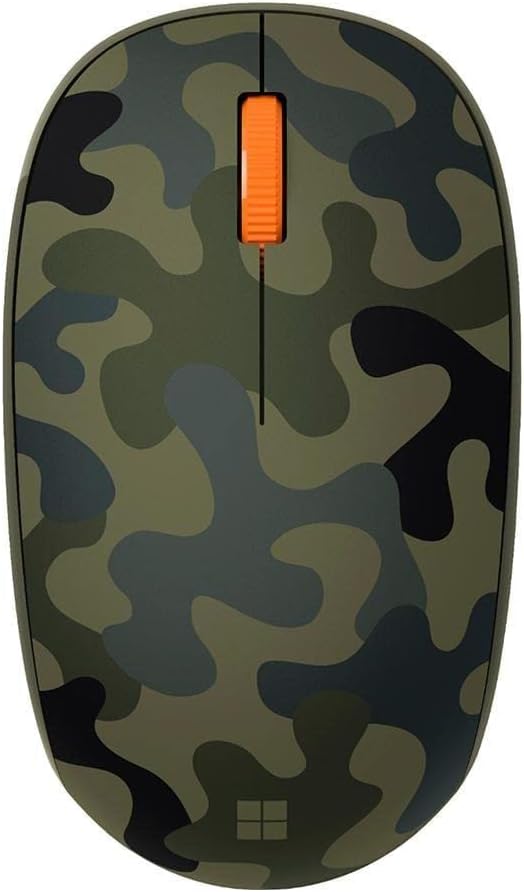
Figure 1: Microsoft Bluetooth Mouse - Forest Camo
2. Contingut del paquet
- Microsoft Bluetooth Mouse - Forest Camo
- 1 AA Alkaline Battery (pre-installed)
3. Configuració i emparellament
3.1. Instal·lació de la bateria
The mouse comes with a pre-installed AA battery. To activate the mouse, locate the battery compartment on the underside of the mouse. Remove any protective pull-tab if present. Ensure the battery is correctly seated according to the polarity indicators.

Figure 2: Underside of the mouse with battery compartment
3.2. Emparellament Bluetooth
- Turn on the mouse by sliding the power switch (usually located on the underside) to the 'On' position. A small LED indicator may light up.
- On your computer (PC or Mac), open your Bluetooth settings.
- Select 'Add Bluetooth or other device' (Windows) or 'Bluetooth Preferences' (Mac).
- The computer should detect 'Microsoft Bluetooth Mouse'. Select it from the list of available devices.
- Follow any on-screen prompts to complete the pairing process. The LED on the mouse may change from flashing to solid to indicate a successful connection.
The mouse is compatible with Windows 10, Windows 8.1, and Mac operating systems.
4. Instruccions de funcionament
The Microsoft Bluetooth Mouse features a standard three-button design with a scroll wheel for intuitive navigation.
- Botó esquerre del clic: S'utilitza per seleccionar elements, obrir files, i activant funcions.
- Botó del botó dret: S'utilitza per accedir als menús contextuals i a opcions addicionals.
- Roda de desplaçament: Desplaceu-vos amunt o avall per desplaçar-vos pels documents i web pages. The scroll wheel can also be pressed down for a middle-click function, depending on your software settings.
Per estalviar bateria, apagueu el ratolí quan no l'utilitzeu durant períodes prolongats.
5. Característiques
- Compact and modern design for comfortable use.
- Wireless Bluetooth connectivity, eliminating the need for a USB dongle.
- Fast tracking sensor for precise navigation.
- Up to 12 months of battery life on a single AA battery.
- Designed for both right and left-hand use.
6. Especificacions
| Característica | Detall |
|---|---|
| Número de model | 8KX-00003 |
| Marca | Microsoft |
| Color | Forest Camo |
| Tecnologia de connectivitat | Bluetooth |
| Detecció de moviment | Òptic |
| Plataforma de maquinari | Portàtil, PC |
| Sistema operatiu | Windows 10, Windows 8.1 |
| Pes de l'article | 3.84 unces |
| Dimensions del producte (LxWxH) | 3.11 x 5.83 x 2.01 polzades |
| Durada mitjana de la bateria | 12 mesos |
| Piles necessàries | 1 AA (inclosos) |

Figure 3: Mouse dimensions
7. Solució De Problemes
7.1. Mouse Not Connecting
- Ensure the mouse is turned on and the battery is correctly installed.
- Check your computer's Bluetooth settings to confirm Bluetooth is enabled.
- Try re-pairing the mouse by removing it from your device list and adding it again.
- Ensure the mouse is within range of your computer (typically up to 10 meters).
7.2. Connexió intermitent o retard
- Substituïu la bateria AA per una de nova.
- Minimitzar les interferències d'altres dispositius sense fil que funcionen a la mateixa freqüència.
- Ensure your computer's Bluetooth drivers are up to date.
8. Manteniment
8.1. Neteja
Per netejar el ratolí, utilitzeu un drap suau i sense borrissol, humitegeu-lo lleugerament.ampened with water or a mild cleaning solution. Avoid harsh chemicals or abrasive materials. Do not allow moisture to enter any openings.
8.2. Substitució de la bateria
When the mouse's performance degrades or the LED indicator suggests low battery, replace the AA battery. Open the battery compartment on the underside, remove the old battery, and insert a new AA battery, observing correct polarity.
9. Garantia i Suport
Per obtenir informació sobre la garantia, assistència tècnica o més ajuda, consulteu el suport oficial de Microsoft. website or contact Microsoft customer service. Keep your proof of purchase for warranty claims.
Visita el Microsoft Store per obtenir informació i recursos addicionals sobre el producte.


