1. Producte acabatview
The Yealink WH66 Wireless DECT Headset is a Teams-certified, single-ear (mono) headset designed for office use, offering versatile connectivity and advanced audio features. It connects to PCs, desk VoIP phones via USB, and smartphones via Bluetooth. Key features include a 4.0-inch touch screen, a full-duplex speakerphone, and a noise-canceling dual microphone with Acoustic Shield Technology for clear communication.

Image: The Yealink WH66 Wireless DECT Headset with its workstation base, featuring a touch screen and a mono headset.
Característiques principals:
- Teams Certified: Seamless integration with Microsoft Teams for call control, muting, and answering calls directly from the headset, base touch screen, or computer.
- 3-Way Connectivity: Connects to PC, desk VoIP phones (via USB), and smartphones (via Bluetooth) for flexible call management.
- Crystal Speakerphone: Integrated full-duplex speakerphone on the base for hands-free communication, ideal for home office environments.
- Comfortable & Extended Range: Lightweight design (80g) with an adjustable headband and soft ear cushion for all-day comfort. Offers a roaming range of up to 525 ft.
- Micròfon amb cancel·lació de soroll: Dual-mic setup with Acoustic Shield Technology effectively blocks background noise, ensuring clear voice transmission.
2. Contingut del paquet
Assegureu-vos que tots els elements estiguin presents al vostre paquet:
- Yealink WH66 Wireless DECT Headset (Mono)
- Headset Base with 4.0-inch Touch Screen
- Cable USB
- Manual d'usuari
3. Guia de configuració
3.1 Connexió a un ordinador
To connect your Yealink WH66 headset base to a PC:
- Locate the USB port on the headset base labeled "PC".
- Connect one end of the provided USB cable to the "PC" port on the base.
- Connecteu l'altre extrem del cable USB a un port USB disponible de l'ordinador.
- The PC button LED on the base will illuminate, indicating a successful connection.
- Ensure the headset is set as the default audio device in your computer's sound settings and your preferred softphone application (e.g., Microsoft Teams).

Image: The Yealink WH66 headset base connected to a laptop via USB cable.
3.2 Connecting to a Desk Phone
To connect your Yealink WH66 headset base to a desk VoIP phone:
- Locate the USB port on the headset base labeled with a phone icon.
- Connect one end of the provided USB cable to this phone port on the base.
- Connect the other end of the USB cable to an available USB port on your desk phone.
- Alternatively, for certain Yealink desk phones (e.g., T3 series), an EHS35 adapter may be required for remote call control. Connect the EHS35 adapter to the headset port on the desk phone and then to the base.
- The Phone button LED on the base will illuminate, indicating a successful connection.
- Ensure the desk phone's settings are configured to use the headset for ringing and audio.
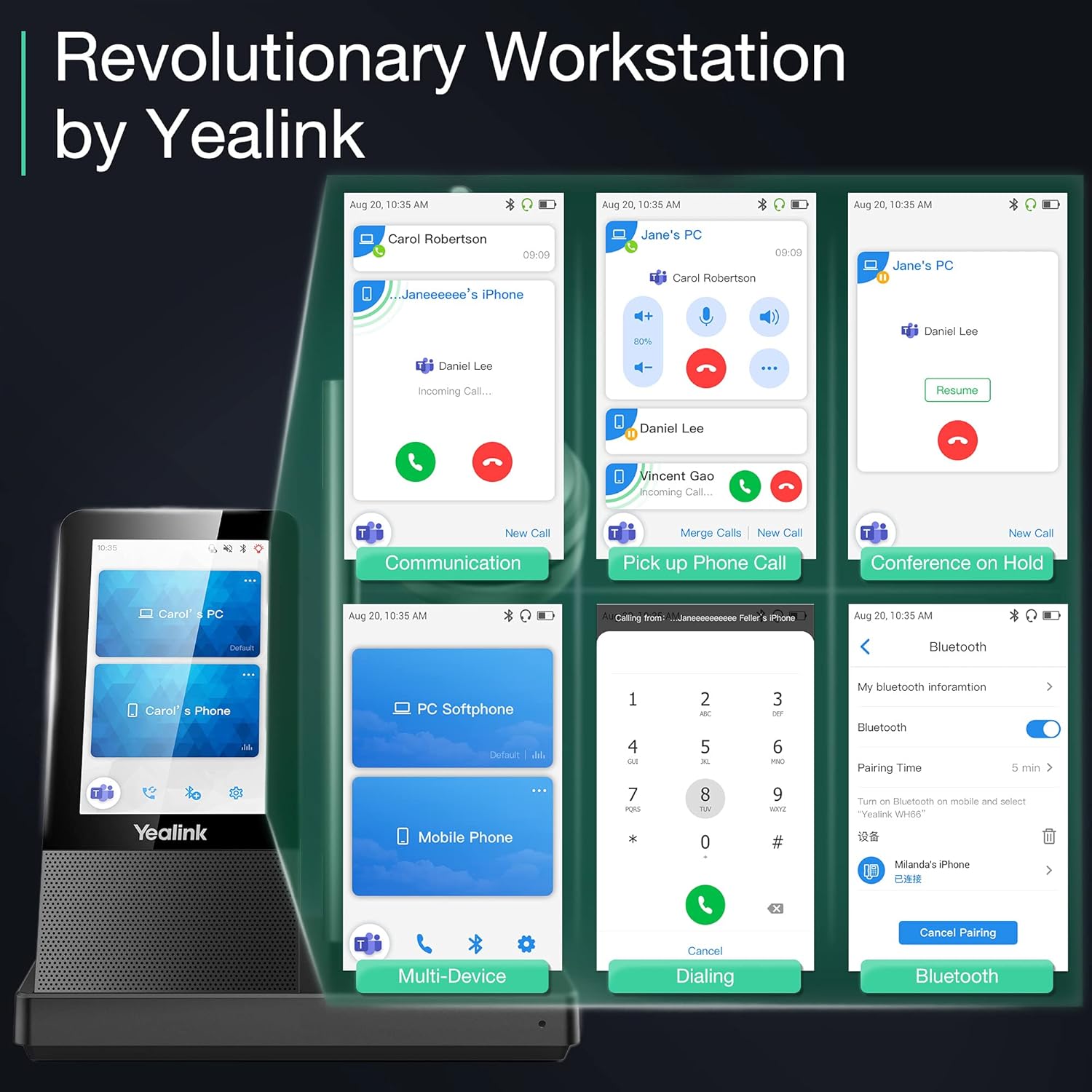
Image: The Yealink WH66 headset base connected to a desk phone.
3.3 Emparellament amb un dispositiu mòbil
The headset base supports Bluetooth connectivity for mobile devices:
- On the headset base's touch screen, navigate to the Bluetooth settings.
- Ensure Bluetooth is enabled on the headset base. You may also modify the device name for easy identification.
- Al dispositiu mòbil, activeu el Bluetooth i cerqueu els dispositius disponibles.
- Select the Yealink WH66 from the list of available devices to pair.
- Once paired, a mobile phone card will appear on the headset base's touch screen, indicating successful connection.

Image: The Yealink WH66 headset base with a mobile phone placed on an optional wireless charger.
3.4 Estils de vestir
The WH66 headset is designed for comfort and can be adjusted to fit your preference:
- Adjust the headband to ensure a snug yet comfortable fit over your head.
- Position the microphone boom arm so that it points towards your mouth, approximately 0.5 inches away, for optimal voice pickup.
- The microphone boom is bendable, allowing you to fine-tune its position.

Image: A woman wearing the Yealink WH66 headset, demonstrating proper microphone positioning.
4. Instruccions de funcionament
4.1 Gestió de trucades
The WH66 offers multiple ways to manage your calls:
- Respondre/rebutjar trucades: You can answer or reject incoming calls directly from the headset's button, the base's touch screen, or your connected PC/desk phone interface.
- Silenciar: Flip the microphone boom up to automatically mute, or use the dedicated mute button on the headset or the touch screen.
- Multi-way Calls: Manage multiple calls simultaneously, including answering new calls while holding current ones, or merging calls for conferencing.
- Remarcació: Quickly redial the last number from the touch screen or headset.
4.2 Operacions de la pantalla tàctil
The 4.0-inch touch screen on the base provides intuitive control over your headset and calls:
- Teclat de marcatge: Use the on-screen dial pad to make calls directly.
- Control de trucades: Answer, end, hold, mute, and switch calls with a tap.
- Configuració: Access basic and advanced settings to customize your headset experience, including wireless range, voice announcements, and auto-answer features.
- Gestió de dispositius: View connected devices (PC, mobile, desk phone) and switch between them.

Imatge: Un primer pla view of the Yealink WH66 headset base's touch screen interface.
4.3 Indicadors LED
The headset and base feature LED indicators to communicate status:
- Sonorització: El LED parpelleja de vermell.
- En una trucada: Busylight (if connected) glows red.
- Estat de la bateria: Red flashing LED for low battery (0-19%), green flashing for charging (20-100%), solid green for fully charged.
- Teams Connection: LED glows purple when connected to Teams. Flashes purple for missed calls/voice messages.
- Fora de rang: El LED parpelleja taronja.
5. Manteniment
5.1 Replacing Ear Cushions
To maintain hygiene and comfort, ear cushions can be replaced:
- Gently pull off the old ear cushion from the headset.
- Align the new ear cushion with the headset and press firmly to secure it.
5.2 actualitzacions de microprogramari
Keep your headset updated for optimal performance and new features:
- Download the Yealink USB Connect client from the official Yealink support weblloc.
- Connect your headset base to your PC via USB.
- Launch the Yealink USB Connect client. It will detect your device and show its current firmware version.
- You can check for updates automatically or manually upload firmware files downloaded from the Yealink support site.
- The headset will automatically update firmware when docked in the base. The LED will flash red and green alternatively during the update process.
6. Solució De Problemes
If you encounter issues with your Yealink WH66 headset, consider the following general troubleshooting steps:
- No Audio/Microphone Issues: Ensure the headset is selected as the default audio device in your computer's sound settings and softphone application. Check all cable connections.
- Problemes de vinculació de Bluetooth: Ensure Bluetooth is enabled on both the headset base and your mobile device. Try unpairing and re-pairing the device.
- Interval limitat: Ensure there are no major obstructions (e.g., thick walls, metal objects) between the headset and the base. Avoid interference from other wireless devices.
- Call Control Not Working: Verify that the headset is properly integrated with your softphone (e.g., Teams certified). Check for firmware updates.
- Els auriculars no s'estan carregant: Ensure the headset is correctly docked in the base and the base is powered. Check the charging contacts.
For more detailed troubleshooting guides and FAQs, please visit the official Yealink support weblloc.
7. Especificacions del producte
| Característica | Especificació |
|---|---|
| Nom del model | Yealink WH66 Mono Teams |
| Tecnologia de connectivitat | DECT Wireless & Bluetooth |
| Tecnologia de comunicació sense fils | Bluetooth |
| Conector d'auriculars | USB |
| Pes de l'article | 1.05 lliures (478 grams) |
| Dimensions del producte | 5.91 x 7.09 x 3.94 polzades |
| Durada de la bateria | 8 Hours (Talktime: 13H) |
| Roaming Range | Fins a 525 peus |
| Control de soroll | Cancel·lació activa del soroll |
| Mètode de control | Toca |
| Característica especial | Lleuger |
8. Garantia i Suport
Your Yealink WH66 Wireless DECT Headset comes with a manufacturer's warranty. For warranty claims, technical support, or to find answers to frequently asked questions, please refer to the official Yealink support resources.
- Assistència en línia: Visita el Suport de Yealink Weblloc for knowledge base articles, FAQs, and troubleshooting guides.
- Actualitzacions de firmware: Regularly check the support website for the latest firmware updates to ensure optimal performance and access to new features.
Video: Frequently Asked Questions on Yealink WH series headsets, provided by Yealink Direct Store.


