1. Introducció
This manual provides detailed instructions for the installation, configuration, and operation of your MERCUSYS MW306R 300 Mbps Wireless N Router. Please read this manual carefully before using the device to ensure proper setup and optimal performance. Keep this manual for future reference.
2. Producte acabatview
2.1 Contingut del paquet
- MERCUSYS MW306R Wireless N Router
- Adaptador d'alimentació
- Cable Ethernet
- Guia d'instal·lació ràpida (aquest manual)
2.2 Característiques del maquinari
The MW306R router features three 5dBi antennas for enhanced wireless signal strength and stability. It supports 300 Mbps wireless speed, suitable for HD streaming, online gaming, and large file descàrregues
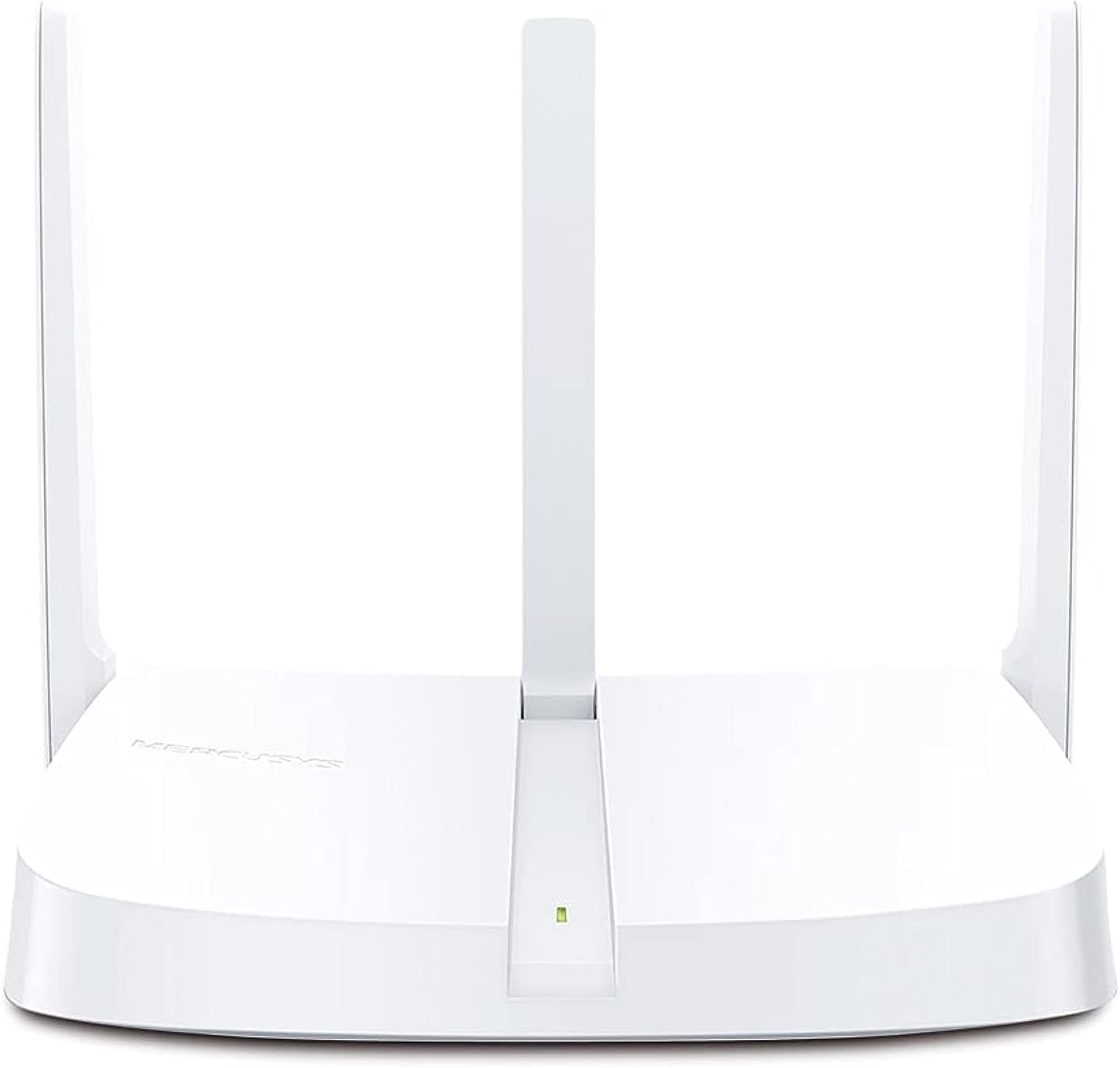
Figura 2.2.1: Davant view of the MW306R Router. Shows the device with its three fixed antennas and a status LED.

Figura 2.2.2: posterior view of the MW306R Router. Displays the WAN port (orange), three LAN ports (yellow), power input, and the Reset/WPS button.
2.3 Indicadors LED
- LED del sistema: Indicates the router's operational status.
2.4 Ports i botons
- Port WAN: Connects to your modem or the internet.
- Ports LAN (x3): Connects to wired devices like computers or gaming consoles.
- Port d'alimentació: Es connecta a l'adaptador de corrent proporcionat.
- Botó de restabliment/WPS: Press and hold for 5 seconds to reset the router to factory defaults. Press briefly to activate WPS (Wi-Fi Protected Setup).
3. Guia de configuració
3.1 Connexió de maquinari
- Apagar: Desconnecteu l'alimentació del mòdem i del router (si escau).
- Connecta a la WAN: Connect the Ethernet cable from your modem's LAN port to the MW306R's orange WAN port.
- Connect LAN (Optional): If you have wired devices, connect them to the yellow LAN ports on the MW306R using Ethernet cables.
- Encès: Connect the power adapter to the MW306R's power port and plug it into a power outlet. Power on your modem.
- Espera: Wait for the router's System LED to turn solid green, indicating it is ready.
3.2 Configuració inicial
The MW306R features an intuitive webpage for quick setup.
- Connecteu-vos al router: Connect your computer or mobile device to the router's Wi-Fi network (SSID and password are on the label at the bottom of the router) or via an Ethernet cable to a LAN port.
- Accés Web Interfície: Obre a web navegador i tipus
mwlogin.netor192.168.1.1a la barra d'adreces. Premeu Intro. - Crea una contrasenya d'inici de sessió: You will be prompted to create a login password for the router's management page.
- Segueix l'Auxiliar de configuració: The intuitive setup wizard will guide you through configuring your internet connection type and wireless settings (Wi-Fi name and password).
- Desa la configuració: Once completed, save your settings. Your router is now configured.

Figura 3.2.1: Example of the intuitive web-based setup interface for the MW306R.
4. Modes de funcionament
The MERCUSYS MW306R supports multiple operating modes to suit various network requirements.

Figura 4.0.1: Multi-Mode functionality of the MW306R Router.
4.1 Mode d'encaminador
This is the default mode. The router connects to the internet via a modem and shares the internet connection wirelessly or through its LAN ports to multiple devices.
4.2 Mode d'extensor d'abast
In this mode, the MW306R extends the coverage of an existing wireless network. It connects wirelessly to your main router and rebroadcasts the signal, eliminating Wi-Fi dead zones.
4.3 Mode de punt d'accés
The router transforms into a wireless access point, converting a wired network connection into a wireless one. It connects to an existing wired router via an Ethernet cable and provides Wi-Fi access.
4.4 Mode WISP
Wireless Internet Service Provider (WISP) mode allows the router to connect wirelessly to a WISP access point and share the internet connection with local wired and wireless clients.
To change operating modes, access the router's web management interface and navigate to the operating mode settings.
5. Manteniment
5.1 Actualització del microprogramari
Regularly check the MERCUSYS official website for firmware updates. Updating the firmware can improve performance, add new features, and fix bugs. Download the latest firmware for your MW306R model and follow the instructions provided on the website for a safe update process.
5.2 Restabliment de l'encaminador
If the router is not functioning correctly, or if you forget your login password, you may need to reset it to factory default settings. With the router powered on, press and hold the Reset/WPS button on the back panel for approximately 5 seconds until the System LED blinks rapidly. Release the button and wait for the router to restart.
5.3 Security Practices
- Change the default login password for the router's web interfície de gestió.
- Use a strong, unique password for your Wi-Fi network.
- Enable WPA2-PSK (AES) encryption for your wireless network.
- Consider disabling WPS if not actively used.
6. Solució De Problemes
6.1 Sense accés a Internet
- Check all cable connections. Ensure the WAN port is securely connected to the modem.
- Verifiqueu que el mòdem funciona correctament i que té una connexió a Internet activa.
- Restart both your modem and the MW306R router.
- Inicia la sessió al router web management page and check the WAN status. Ensure your internet connection type is correctly configured.
6.2 Senyal Wi-Fi feble o connexions perdudes
- Recol·loca el router en una ubicació central, allunyat d'obstacles i fonts d'interferències (per exemple, telèfons sense fil, microones).
- Assegureu-vos que les antenes del router estiguin col·locades verticalment per obtenir un senyal òptim.
- Update the wireless adapter drivers on your devices.
- Consider adjusting the wireless channel in the router's settings to avoid interference from neighboring networks.
6.3 No es pot accedir als encaminadors Web Pàgina de gestió
- Assegureu-vos que el dispositiu estigui connectat a la xarxa del router (amb cable o sense fil).
- Verifiqueu que esteu escrivint l'adreça correcta (
mwlogin.netor192.168.1.1) in your browser. - Esborra la memòria cau i les galetes del navegador o prova un altre navegador.
- Desactiveu temporalment qualsevol tallafocs o programari antivirus del vostre ordinador.
- Si heu oblidat la contrasenya d'inici de sessió, realitzeu un restabliment de fàbrica (consulteu la secció 5.2).
7. Especificacions
| Característica | Detall |
|---|---|
| Dimensions del producte | 11.5 x 14.7 x 3.4 cm |
| Pes de l'article | 150 g |
| Fabricant | MERCUSI |
| Número de model de l'article | MW306R |
| Nom de marca | MERCUSI |
| Nom del model | 306r |
| Característiques especials | Sense fil |
| Classe de banda de freqüència | Banda única (2.4 GHz) |
| Comunicació sense fils estàndard | 802.11b, 802.11g, 802.11n |
| Dispositius compatibles | Gaming Console, Personal Computer, Smartphone, Tablet, TV |
| Usos recomanats per al producte | Casa |
| Components inclosos | Router, Manual |
| Tecnologia de connectivitat | Ethernet, Wi-Fi |
| Color | Blanc |
8. Garantia i Suport
8.1 Informació de la garantia
For detailed warranty information, please refer to the warranty card included with your product or visit the official MERCUSYS weblloc. Els termes i condicions de la garantia poden variar segons la regió.
8.2 Suport tècnic
If you encounter any issues that cannot be resolved using this manual, please visit the MERCUSYS support website for FAQs, firmware downloads, and contact information for technical assistance.
Oficial Weblloc: www.mercusys.com


