1. Introducció
This manual provides detailed instructions for the installation, operation, and maintenance of your EDUP EP-3536 USB Bluetooth 5.1 Adapter. Please read this manual thoroughly before using the product to ensure proper functionality and to maximize its performance.

Image: The EDUP EP-3536 USB Bluetooth 5.1 Adapter, featuring a compact USB dongle connected to an external high-gain antenna, with a blue indicator light illuminated.
2. Contingut del paquet
Verifiqueu que tots els elements siguin presents al vostre paquet:
- EDUP EP-3536 USB Bluetooth 5.1 Adapter
- External High-Gain Antenna
- Driver CD (may be included, or drivers available for download)
- Manual d'usuari (aquest document)
3. Requisits del sistema
- Sistema operatiu: Windows 11/10/8.1/8/7
- Port USB: Available USB 2.0 or 3.0 port
Note: This adapter does not support Mac OS, Linux, Car stereo systems, Xbox, PS4, or TVs.

Image: Visual representation of supported operating systems, showing Windows 7, Windows 8/8.1, and Windows 10 logos, indicating compatibility with these Windows versions.
4. Setup and Driver Installation
- Connecteu l'antena: Carefully screw the external high-gain antenna onto the adapter's connector. Ensure it is securely fastened but do not overtighten.
- Inseriu l'adaptador: Plug the EDUP EP-3536 USB Bluetooth 5.1 Adapter into an available USB port on your desktop computer or laptop.
- Instal·lació del controlador:
- Option 1 (Using Driver CD): If a driver CD is included, insert it into your computer's CD/DVD drive and follow the on-screen instructions to install the drivers.
- Option 2 (Downloading Drivers): If no CD is provided or your computer lacks a CD/DVD drive, visit the official EDUP website (refer to product packaging or manufacturer's support page for the exact URL) to download the latest drivers for the EP-3536 model. Run the downloaded installer and follow the prompts.
- Verificació: After installation, restart your computer if prompted. Check Device Manager (Windows) to confirm that the Bluetooth adapter is recognized and functioning correctly. Look for "Bluetooth" and ensure no error symbols are present.
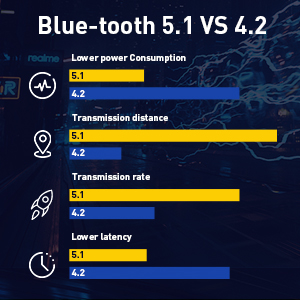
Image: Diagram illustrating two methods for driver installation: either by using a physical CD or by downloading drivers from the internet.
5. Instruccions de funcionament
5.1 Emparellament de dispositius Bluetooth
Once the adapter is installed and drivers are functioning, you can connect your Bluetooth-enabled devices:
- Ensure the Bluetooth adapter is plugged into your computer.
- Enable Bluetooth on your computer: Go to Configuració > Dispositius > Bluetooth i altres dispositius (Windows 10/11) o Tauler de control > Maquinari i so > Dispositius i impressores (Windows 7/8/8.1).
- Turn on your Bluetooth device (e.g., headphones, mouse, keyboard, speaker) and put it into pairing mode. Refer to your device's manual for specific pairing instructions.
- On your computer, click "Add Bluetooth or other device" and select "Bluetooth".
- Select your device from the list of available devices and follow any on-screen prompts to complete the pairing process.

Image: A computer with the EDUP Bluetooth adapter connected, showing examples of various Bluetooth devices it can connect to, including speakers, Android phones/tablets, keyboards/mice, and headphones.
5.2 Bluetooth 5.1 Advantages
The EDUP EP-3536 utilizes Bluetooth 5.1 technology, offering several improvements over older versions:
- Menor consum d'energia: More energy-efficient operation for connected devices.
- Increased Transmission Distance: Extended range for connecting devices, up to 100 meters in open areas.
- Higher Transmission Rate: Faster data transfer speeds.
- Latència més baixa: Reduced delay, ideal for audio and gaming.

Image: A bar chart comparing Bluetooth 5.1 and Bluetooth 4.2 across metrics like lower power consumption, transmission distance, transmission rate, and lower latency, highlighting the superior performance of Bluetooth 5.1.

Image: An illustration demonstrating the long-distance operating range of the EDUP Bluetooth adapter, showing a connection up to 100 meters in an open office environment compared to a shorter range of 10 meters for a standard adapter.
6. Manteniment
To ensure the longevity and optimal performance of your EDUP EP-3536 USB Bluetooth 5.1 Adapter, consider the following maintenance tips:
- Mantenir net: Periodically wipe the adapter and antenna with a soft, dry cloth to remove dust.
- Eviteu danys físics: Handle the adapter carefully. Avoid dropping it or exposing it to excessive force.
- Protegir de la humitat: Keep the adapter away from liquids and high humidity environments.
- Emmagatzematge adequat: Quan no l'utilitzeu durant períodes prolongats, guardeu l'adaptador en un lloc fresc i sec.
7. Solució De Problemes
If you encounter issues with your EDUP EP-3536 USB Bluetooth 5.1 Adapter, refer to the following common problems and solutions:
| Problema | Causa possible | Solució |
|---|---|---|
| Adapter not recognized / Bluetooth not appearing in Device Manager. | Controladors no instal·lats o danyats. | Reinstall drivers using the provided CD or by downloading the latest version from the EDUP website. Ensure the adapter is firmly plugged into the USB port. Try a different USB port. |
| No es pot emparellar amb un dispositiu Bluetooth. | Device not in pairing mode, out of range, or incompatible. | Ensure your Bluetooth device is in pairing mode. Move the device closer to the adapter. Verify device compatibility with Bluetooth 5.1. Check if other Bluetooth devices are interfering. |
| Poor signal quality or frequent disconnections. | Obstructions, interference, or device too far. | Ensure the antenna is properly attached and oriented. Reduce physical obstructions between the adapter and the device. Move away from sources of interference (e.g., Wi-Fi routers, microwaves). Move the device closer to the adapter. |
| Adapter not working on Mac OS/Linux. | Incompatible operating system. | The EDUP EP-3536 adapter is designed for Windows operating systems only and does not support Mac OS or Linux. |

Image: A diagram illustrating the benefit of a high-gain antenna design for stronger signal transmission and connection compared to a mini adapter, showing extended range and improved signal coverage.
8. Especificacions
| Característica | Detall |
|---|---|
| Marca | EDUP |
| Número de model | EP-3536 |
| Versió Bluetooth | 5.1 |
| Interfície | USB |
| Velocitat de transferència de dades | Fins a 3 Mbps |
| Suport del sistema operatiu | Windows 11/10/8.1/8/7 |
| Antena | External High-Gain Antenna |
| UPC | 793420187276 |
9. Garantia i Suport
For information regarding product warranty, technical support, or customer service, please refer to the official EDUP website or the contact information provided on the product packaging. Keep your purchase receipt for warranty claims.


