1. Introducció
This manual provides comprehensive instructions for the JOYACCESS Multi-Device Wireless Bluetooth Keyboard (Model KB2US). This keyboard is designed for versatile use across multiple operating systems and devices, offering both 2.4G wireless and Bluetooth connectivity options.
Característiques principals:
- Connectivitat multidispositiu: Supports simultaneous connection to up to three devices via 2.4G wireless (using a USB receiver) and two Bluetooth channels (BT3.0 + BT5.0). Easily switch between connected devices.
- Àmplia compatibilitat: Compatible with various operating systems including Windows, Mac, iOS, and Android, making it suitable for laptops, PCs, smartphones, and tablets.
- Disseny ergonòmic i prim: Features a thin profile and an ergonomic back stand to reduce wrist pressure during extended typing sessions.
- Quiet Scissor-Switch Keys: Utilizes scissor-switch technology for a quiet typing experience and comfortable key response.
- Mode de repòs automàtic: Automatically enters a power-saving sleep mode after 30 minutes of inactivity to conserve battery life.

Figure 1: JOYACCESS Multi-Device Wireless Bluetooth Keyboard (Wine Red)

Figura 2: Mésview of JOYACCESS Multi-Device Wireless Keyboard features, highlighting 2.4G wireless connection, Bluetooth connection, 3 devices connection, multi-system compatibility, scissor-switch design, and long battery life.
Video 1: Demonstrates the multi-device switching capabilities and quiet typing of the JOYACCESS wireless Bluetooth keyboard.
2. Configuració
2.1. Instal·lació de la bateria
- Localitzeu el compartiment de la bateria a la part inferior del teclat.
- Insert two AA batteries (not included), ensuring correct polarity.
- Engegueu el teclat amb l'interruptor d'engegada, que normalment es troba a la part posterior o lateral.
2.2. Connexió mitjançant un receptor USB de 2.4G
- Ensure batteries are installed and the keyboard is powered on.
- Locate the USB receiver, typically stored in the battery compartment of the keyboard.
- Connecteu el receptor USB a un port USB disponible de l'ordinador o dispositiu.
- The keyboard should automatically connect. To select 2.4G mode, press Fn + 3.

Figure 3: Keyboard connected to a laptop using the 2.4G stable wireless mode via a USB receiver.
2.3. Connexió mitjançant Bluetooth
- Ensure batteries are installed and the keyboard is powered on.
- Mantén premut Fn + 1 (per a BT1) o Fn + 2 (for BT2) for 5 seconds. The corresponding LED indicator will blink, indicating pairing mode.
- On your Bluetooth-enabled device (computer, tablet, smartphone), search for Bluetooth devices. You should find "BT3.0 Keyboard" or "BT5.0 Keyboard". Select the appropriate option to pair.
- Once paired, select the correct operating system mode by pressing and holding the following key combinations for 3 seconds:
- Fn + Q per a dispositius iOS
- Fn + W for Mac devices
- Fn + E for Windows devices

Figure 4: Keyboard demonstrating connection to two devices via Bluetooth.
3. Instruccions de funcionament
3.1. Canviar entre dispositius
To switch between your connected devices, use the following key combinations:
- Premeu Fn + 1 to switch to Bluetooth Device 1.
- Premeu Fn + 2 to switch to Bluetooth Device 2.
- Premeu Fn + 3 to switch to 2.4G Wireless Device.
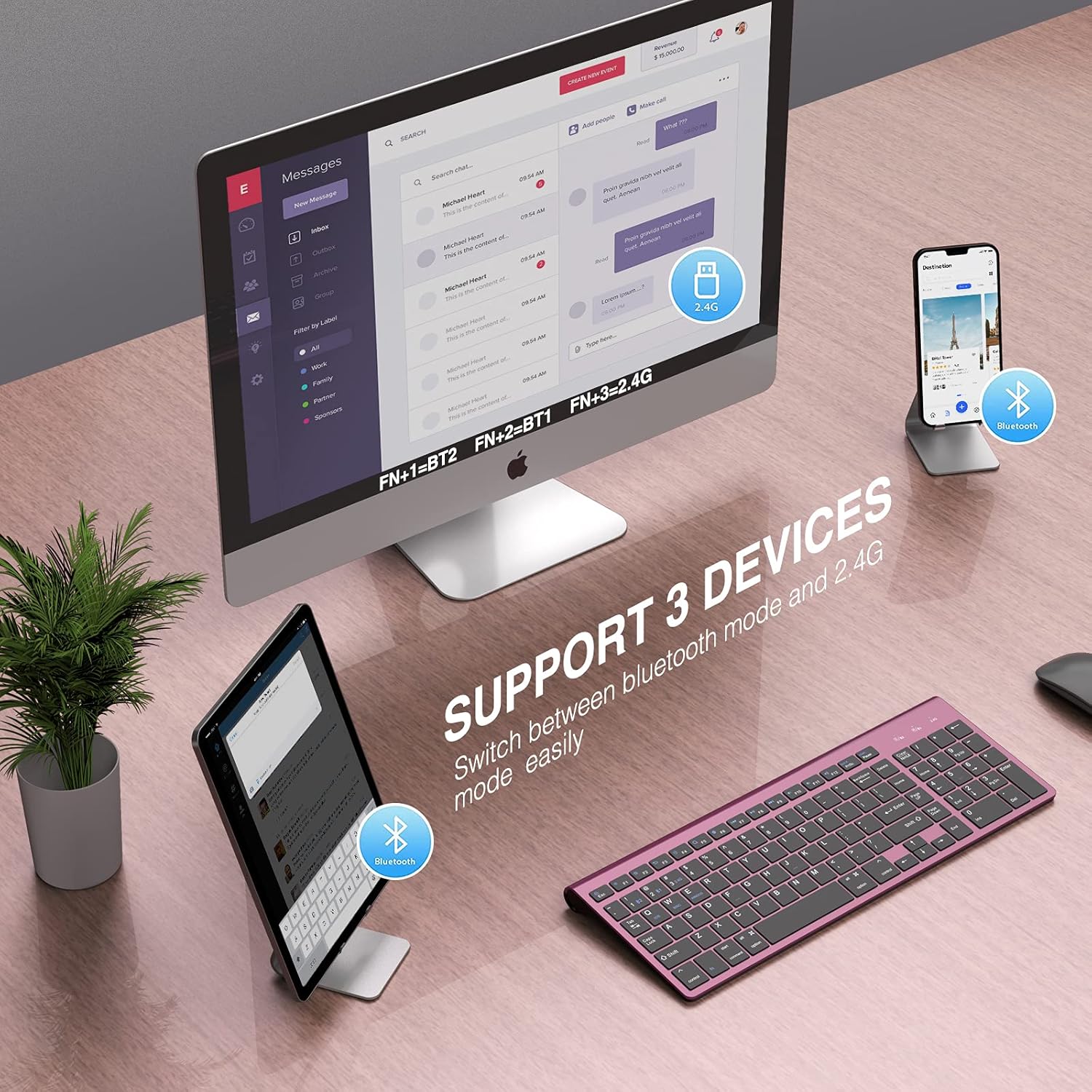
Figure 5: Keyboard supporting connection to three devices, with easy switching between Bluetooth and 2.4G modes.
3.2. Tecles multimèdia
The keyboard includes dedicated multimedia keys for convenient control:
- F1: Disminució de la brillantor
- F2: Augment de la brillantor
- F3: Tornar
- F4: Seleccioneu Tot
- F5: Cerca File
- F6: Switching Input
- F7: Pista anterior
- F8: Reprodueix i posa en pausa
- F9: Pista següent
- F10: Silenciar
- F11: Baixa el volum
- F12: Puja el volum

Figure 6: Keyboard with clearly labeled multimedia function keys.
4. Manteniment
4.1. Gestió de la bateria
The keyboard operates on two AA batteries. To maximize battery life, the keyboard features an auto-sleep mode. If there is no activity for 30 minutes, the keyboard will automatically enter a power-saving state. To reactivate, simply press any key.

Figure 7: Keyboard illustrating the auto-sleep mode feature for battery saving.
4.2. Neteja
To clean the keyboard, power it off and gently wipe the keys and surface with a soft, damp tela. Eviteu utilitzar productes químics aggressivs o humitat excessiva.
5. Solució De Problemes
5.1. Problemes de connexió Bluetooth
If you experience difficulty connecting the keyboard via Bluetooth, follow these steps:
- Verify that the batteries are charged and correctly installed, and the keyboard's power switch is in the ON position.
- Ensure the keyboard and your electronic device are in close proximity to each other.
- Confirm that your electronic device's Bluetooth signal is stable and enabled.
- On your device, delete any previously paired Bluetooth keyboard signals and attempt to re-pair the keyboard following the steps in Section 2.3.
6. Especificacions
| Característica | Detall |
|---|---|
| Dimensions del producte | 15.04 x 5.63 x 1.65 polzades |
| Pes de l'article | 1.23 lliures |
| Fabricant | JOYACCESS |
| Bateries | Es necessiten 2 piles AA |
| Dispositius compatibles | Laptop, Mac, PC, Smartphone, iPhone, iPad, Tablet |
| Tecnologia de connectivitat | Bluetooth, USB-A de 2.4 G |
| Descripció del teclat | Bluetooth/2.4G USB Dual |
| Característica especial | Keyboard with Number Pad, Multi-OS, Multi-devices, Quiet Click |
7. Garantia i Suport
For warranty information or technical support, please refer to the documentation included with your product packaging or contact JOYACCESS customer service directly. Specific warranty terms may vary by region and retailer.


