1. Introducció
This manual provides detailed instructions for the setup, operation, and maintenance of your Bytech BYMCWC101BLK PC Web Camera. Please read this manual thoroughly before using the product to ensure proper functionality and longevity.
2. Contingut del paquet
Verifiqueu que tots els elements que s'enumeren a continuació s'inclouen al paquet del producte:
- Bytech BYMCWC101BLK PC Web Càmera
- Manual d'usuari (aquest document)
- Cable USB integrat
3. Configuració
Follow these steps to set up your Bytech BYMCWC101BLK PC Web Càmera:
- Col·locació: Col·loca el webcam on top of your computer monitor, laptop screen, or a flat surface. The adjustable clip allows for secure attachment.
- Connexió a l'ordinador: Plug the integrated USB cable from the webcàmera a un port USB disponible de l'ordinador.
- Instal·lació del controlador: El webcam is typically plug-and-play. Your operating system (Windows, macOS, Linux) should automatically detect and install the necessary drivers. Wait for the installation to complete.
- Verificació: Open a video conferencing application (e.g., Zoom, Skype, Microsoft Teams) or your computer's camera application to confirm the webLa càmera es reconeix i mostra vídeo.
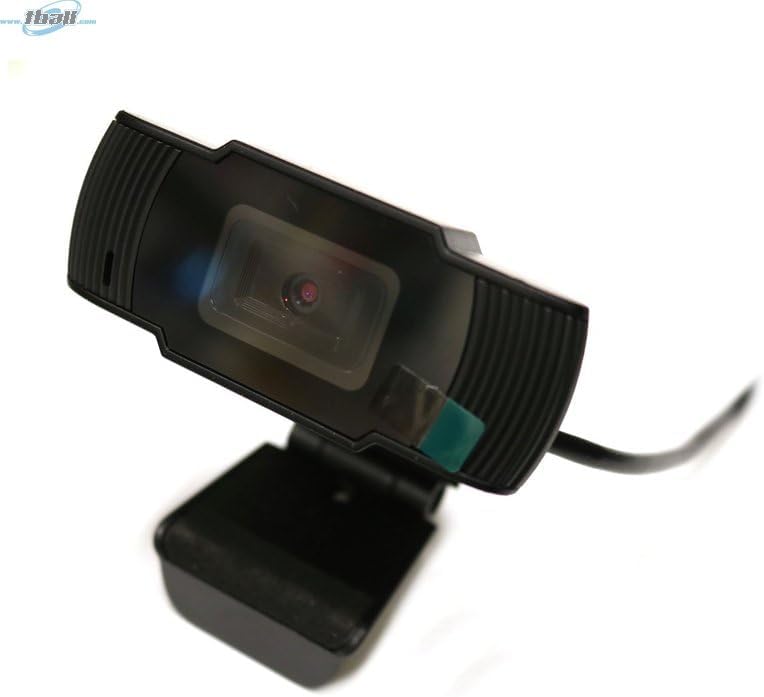
Image: The Bytech BYMCWC101BLK PC Web Camera securely mounted on top of a computer monitor, demonstrating its adjustable clip design.
4. Instruccions de funcionament
Once installed, the Bytech BYMCWC101BLK PC Web Camera can be used with various applications:
- Videoconferència: Select the Bytech webcam as your video input device within your preferred video conferencing software (e.g., Zoom, Skype, Google Meet).
- Transmissió en temps real: For live streaming platforms, configure the webcam as your primary video source in your streaming software (e.g., OBS Studio).
- Gravació: Use your computer's built-in camera application or third-party software to record video.
- Rendiment amb poca llum: El webcam features BSI CMOS photo sensor technology and is designed to perform effectively in low-light conditions, providing clear video even with limited ambient lighting.
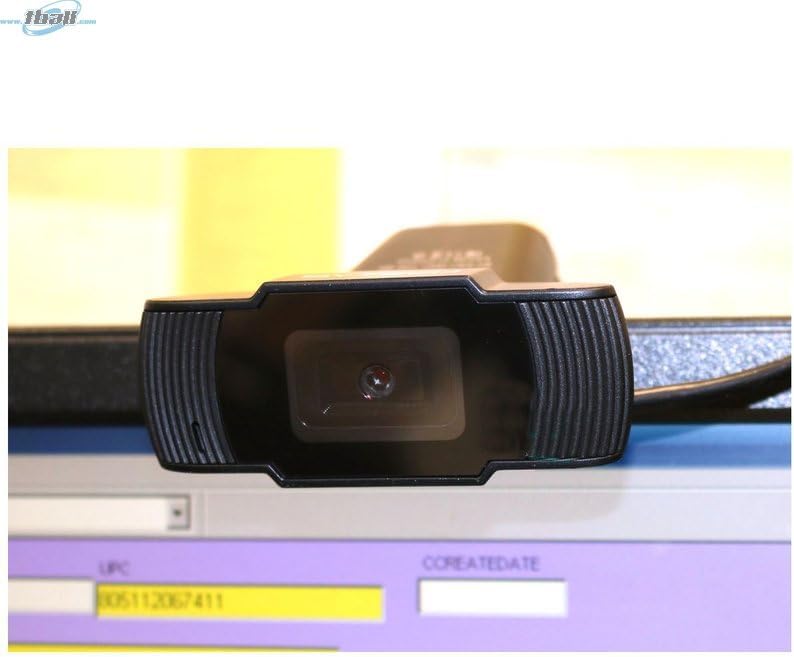
Imatge: Un primer pla view of the Bytech BYMCWC101BLK PC Web Camera's lens, highlighting its design and integrated privacy cover (if applicable, otherwise just lens).
5. Manteniment
To ensure optimal performance and extend the lifespan of your weblleva:
- Neteja: Gently wipe the lens with a soft, lint-free cloth. Avoid using harsh chemicals or abrasive materials.
- Emmagatzematge: Quan no s’utilitzi, emmagatzemeu el fitxer webcam in a clean, dry environment away from direct sunlight and extreme temperatures.
- Cura del cable: No doblegueu ni doblegueu excessivament el cable USB.
6. Solució De Problemes
Si teniu problemes amb el vostre webcàmera, consulteu els següents problemes i solucions habituals:
- Sense imatge/vídeo:
- Assegureu-vos que el cable USB estigui connectat correctament a tots dos webla càmera i el teu ordinador.
- Proveu de connectar el webcam a un port USB diferent.
- Reinicieu l'ordinador.
- Check your application settings to ensure the Bytech webLa càmera està seleccionada com a dispositiu d'entrada de vídeo.
- Poca qualitat de vídeo:
- Assegureu-vos que hi hagi una il·luminació adequada al vostre entorn.
- Netegeu el weblent de la càmera amb un drap suau.
- Check your application's video settings for resolution and frame rate.
- Microphone Not Working (if applicable):
- Comproveu que el webcam's microphone is selected as the audio input device in your computer's sound settings and within your application.
- Ensure the microphone is not muted in your system or application.
7. Especificacions
| Característica | Detall |
|---|---|
| Nom del model | BYMCWC101BLK |
| Marca | Bytech |
| Tecnologia de connectivitat | USB |
| Tecnologia del sensor fotogràfic | CMOS BSI |
| Format de captura de vídeo | MP4 |
| Característica especial | Llum baixa |
| Color | Negre |
| Pes de l'article | 4.9 unces |
| Dimensions del paquet | 7.76 x 4.65 x 2.44 polzades |
8. Garantia i Suport
For warranty information or technical support, please refer to the documentation included with your purchase or contact your retailer. Keep your proof of purchase for warranty claims.


