1. Introducció
This user manual provides detailed instructions for the AOLION Bluetooth Wireless Controller Adapter (Model 2070). This versatile adapter allows you to connect various wireless controllers to multiple platforms, enhancing your gaming experience with features like motion sensing and vibration feedback.

Image 1: The AOLION Bluetooth Wireless Controller Adapter, a compact black USB dongle.
2. Característiques clau
- Àmplia compatibilitat: Supports Switch, Switch Lite, Windows PC, Android TV Box, and Steam. Compatible with PS4, PS5, and Switch Pro controllers.
- Detecció de moviment: Retains precise motion-sensing capabilities for PS4, PS5, and Switch Pro controllers on Switch console (not on PC).
- Feedback de vibració: Enables in-game vibration transmission for PS4 and Switch Pro controllers on both PC and Switch console (excluding PS5 controller).
- Plug-and-Play: No cal instal·lar cap controlador per a una configuració ràpida.
- Disseny compacte: Portable and robust design for easy use.
- Bluetooth 5.0: Garanteix una connexió sense fil estable i de baixa latència.
- Distància de recepció de 10 m: Proporciona ample range for comfortable gaming.
- Memory Connection: Remembers previously paired devices for quick reconnection.
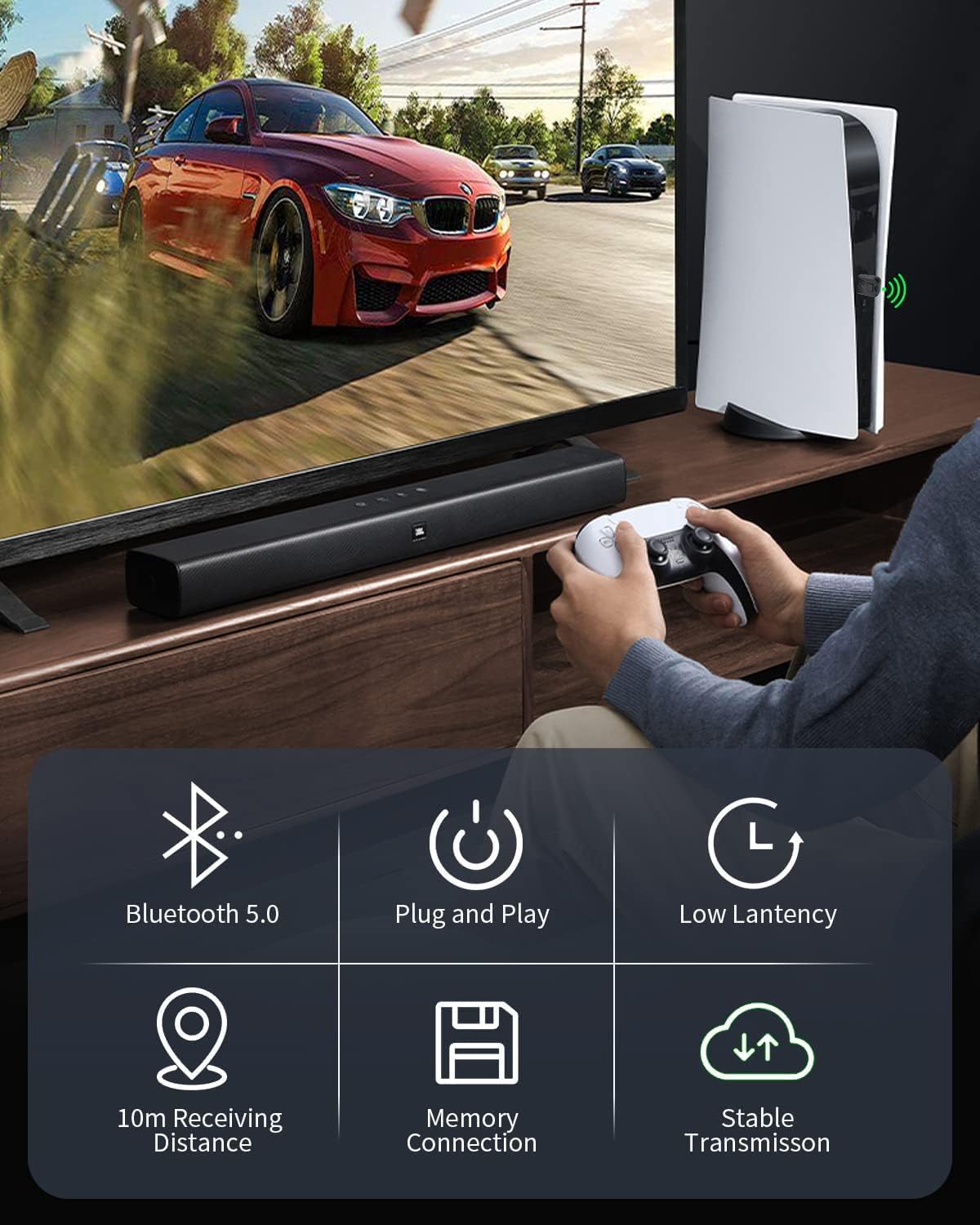
Imatge 2: acabatview of the adapter's key features, highlighting its wireless capabilities and ease of use.
3. Guia de configuració
3.1 Contingut del paquet
- 1 x AOLION Bluetooth Wireless Controller Adapter (Model 2070)
- 1 x Type-C OTG Cable (for Android TV Box/Switch Lite)
- 1 x Manual d'usuari
3.2 Connexió a l'ordinador (Windows)
- Plug the AOLION adapter into an available USB port on your Windows PC.
- The LED indicator on the adapter will blink quickly, indicating it is in pairing mode.
- Press the pairing button on your controller (e.g., PS button for PS4/PS5, Sync button for Switch Pro).
- The controller's indicator lights will blink and then become solid when successfully paired. The adapter's LED will also remain solid.

Image 3: The adapter connected to a PC, demonstrating plug-and-play functionality with a controller.
Video 1: Demonstrates how to connect a PS4 controller to a PC using the AOLION adapter. The video shows plugging the adapter into the PC and then pairing the controller.
Video 2: Illustrates the process of connecting a Switch Pro controller to a PC via the AOLION adapter. The video highlights the pairing steps for the Switch Pro controller.
Video 3: Demonstrates how to connect a PS4 controller to a PC using the AOLION adapter. The video shows plugging the adapter into the PC and then pairing the controller.
3.3 Connecting to Nintendo Switch/Switch Lite
- For Nintendo Switch (docked mode), plug the adapter into an available USB port on the dock. For Switch Lite, use the included Type-C OTG cable to connect the adapter to the console's USB-C port.
- On your Switch console, navigate to System Settings > Controllers and Sensors > Pro Controller Wired Communication and ensure it is set to "On".
- The adapter's LED will blink quickly. Press the pairing button on your controller (e.g., PS button for PS4/PS5, Sync button for Switch Pro).
- The controller's indicator lights will blink and then become solid when successfully paired. The adapter's LED will also remain solid.

Image 4: Diagram illustrating the broad compatibility of the adapter with different gaming platforms and controllers.
Video 4: Demonstrates how to connect a wireless controller to the Nintendo Switch console using the adapter. It shows the necessary settings adjustment on the Switch and the pairing process.
4. Instruccions de funcionament
4.1 Pairing a Controller
Once the adapter is plugged into your device (PC, Switch, Android TV Box), its LED will flash rapidly, indicating it's ready for pairing. Activate pairing mode on your controller (refer to your controller's manual for specific instructions, typically holding a sync or home button). The adapter and controller will automatically connect. The LED on the adapter and the controller's indicator will become solid upon successful pairing.
4.2 Reconnecting a Paired Controller
After initial pairing, the adapter remembers your controller. Simply plug the adapter into your device and turn on your controller. They should automatically reconnect within a few seconds. If not, briefly press the pairing button on the adapter and then the home/sync button on your controller to re-establish the connection.
4.3 Motion Sensing Functionality
The adapter supports motion sensing for PS4, PS5, and Switch Pro controllers when used with the Nintendo Switch console. This feature is not supported when the adapter is used with a PC.

Image 5: Visual representation of the somatosensory (motion sensing) function supported by the adapter for compatible controllers on the Switch.
4.4 Retroalimentació de vibració
Vibration feedback is supported for PS4 and Switch Pro controllers on both PC and Nintendo Switch. Please note that vibration transmission is not compatible with PS5 controllers through this adapter.

Image 6: Depiction of the vibration feedback feature, showing how in-game vibrations are transmitted to the controller.
5. Manteniment
- Mantingueu l'adaptador net i sense pols. Feu servir un drap suau i sec per netejar-lo.
- Eviteu exposar l'adaptador a temperatures extremes, humitat o llum solar directa.
- No intenteu desmuntar ni reparar l'adaptador vosaltres mateixos, ja que això anul·larà la garantia.
- Store the adapter in a safe place when not in use to prevent damage.
6. Solució De Problemes
| Problema | Causa possible | Solució |
|---|---|---|
| Adapter not recognized by PC/Switch. | Loose connection, faulty USB port, console settings. | Ensure the adapter is fully inserted into the USB port. Try a different USB port. For Switch, verify "Pro Controller Wired Communication" is enabled in System Settings. Restart your PC/console. |
| Controller not pairing with adapter. | Controller not in pairing mode, interference, adapter not in pairing mode. | Ensure your controller is in pairing mode (refer to controller manual). Briefly press the pairing button on the adapter to re-enter pairing mode. Move closer to the adapter to reduce interference. |
| Vibration not working with PS5 controller. | PS5 controller not supported for vibration. | Vibration feedback is not supported for PS5 controllers with this adapter. This is a product limitation. |
| Motion sensing not working on PC. | Motion sensing not supported on PC. | Motion sensing is exclusively available on the Switch console, not on PC. |
| El controlador es desconnecta sovint. | Out of range, interference, low controller battery. | Ensure you are within the 10m operating range. Minimize obstacles between the adapter and controller. Charge your controller's battery. |
7. Especificacions
- Marca: AOLION
- Número de model: 2070
- Dimensions del producte: 0.79 x 0.39 x 1.18 polzades (0.7" de llargada x 0.3" d'amplada x 1.38" d'alçada)
- Pes de l'article: 40 mil·ligrams
- Color: Negre
- Interfície de maquinari: USB 2.0
- Protocol d'enllaç de dades: Bluetooth
- Velocitat de transferència de dades: 3 megabits per segon
- Plataformes compatibles: Nintendo Switch, Switch Lite, Windows PC, Android TV Box, Steam
- Controladors compatibles: PS4, PS5, Switch Pro
- UPC: 765128527975
8. Garantia i Suport
AOLION stands behind its product with a 60-day money-back guarantee and a 24-month warranty. If you encounter any issues while using the adapter, please contact AOLION's dedicated support team for assistance.
For support, please refer to the contact information provided with your product packaging or visit the official AOLION weblloc.


