1. Introducció
Thank you for choosing the PRITOM Tronpad 7-inch Android 10 Tablet PC. This manual provides essential information to help you set up, operate, and maintain your new device. Please read these instructions carefully before use to ensure optimal performance and longevity of your tablet.
2. Producte acabatview
The PRITOM Tronpad tablet features a 7-inch HD IPS display, a Quad-Core processor, 32GB of internal storage, and runs on Android 10. It includes dual cameras, Wi-Fi, and Bluetooth connectivity, designed for general use and entertainment.
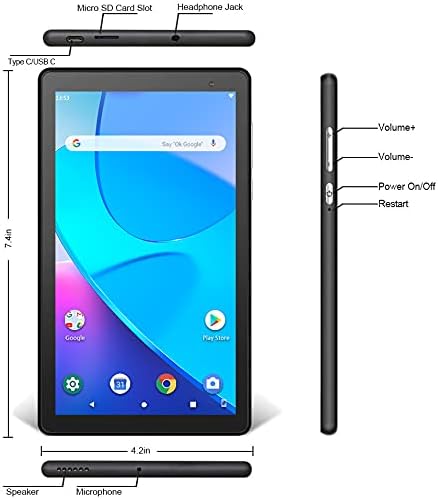
Imatge: Frontal i lateral view of the PRITOM Tronpad tablet, highlighting the location of its ports and buttons. These include the Micro SD Card Slot, Headphone Jack, Type C/USB C port, Speaker, Microphone, Volume Up and Down buttons, Power On/Off button, and a dedicated Restart button.
Components físics:
- Ranura per a targetes Micro SD: Per ampliar la capacitat d'emmagatzematge.
- Auriculars Jack: Per connectar auriculars amb cable.
- Type C/USB C Port: Per a càrrega i transferència de dades.
- Ponent: Sortida d'àudio.
- Micròfon: Per a entrada d'àudio.
- Botons de volum (+/-): Per ajustar el volum de l'àudio.
- Botó d'engegada / apagada: To power the device on or off, or to put it to sleep/wake it up.
- Botó de reinici: A dedicated button for restarting the tablet if it becomes unresponsive.
3. Configuració
3.1 Càrrega inicial
Before first use, fully charge your tablet. Connect the provided USB-C cable to the tablet's USB-C port and the other end to a compatible power adapter. The charging indicator will typically show the charging status on the screen.
3.2 Engegada/apagada
- Per encendre: Press and hold the Power On/Off button until the PRITOM logo appears.
- Per apagar: Press and hold the Power On/Off button until a power menu appears on the screen. Select "Power off" and confirm.
- Per dormir/despertar-se: Briefly press the Power On/Off button to put the tablet to sleep or wake it up.
3.3 Assistent de configuració inicial
Upon first power-on, the tablet will guide you through an initial setup process:
- Selecció d'idioma: Trieu el vostre idioma preferit.
- Connexió Wi-Fi: Seleccioneu la vostra xarxa Wi-Fi i introduïu la contrasenya per connectar-vos a Internet.
- Compte de Google: Sign in with your existing Google account or create a new one. This is necessary to download apps from the Google Play Store.
- Data i hora: Estableix la data i l'hora correctes o permet que la xarxa les estableixi automàticament.
- Seguretat: Configura un bloqueig de pantalla (PIN, patró o contrasenya) per seguretat.
4. Instruccions de funcionament
4.1 Navegació bàsica
La tauleta utilitza gestos tàctils per a la navegació:
- Toca: Per seleccionar un element o obrir una aplicació.
- Toca i mantén premut: Per accedir a menús contextuals o moure icones.
- Llisca: Per desplaçar-se per pàgines o llistes.
- Pessigar: Per ampliar o reduir les imatges i web pàgines.
4.2 Connexió Wi-Fi
- Vés a Configuració > Xarxa i Internet > Wi-Fi.
- Activa/desactiva el Wi-Fi On.
- Seleccioneu la xarxa desitjada de la llista i introduïu la contrasenya si se us demana.
4.3 Vinculació Bluetooth
- Vés a Configuració > Dispositius connectats > Bluetooth.
- Commuta el Bluetooth On.
- Ensure the device you want to pair is in pairing mode.
- Seleccioneu el dispositiu de la llista de dispositius disponibles i seguiu les instruccions que apareixen a la pantalla per completar l'emparellament.
4.4 Ús de la càmera
The tablet is equipped with dual cameras (front and rear).

Image: The PRITOM Tronpad tablet being used to capture a moment with its dual camera functionality.
- Obriu el Càmera aplicació.
- Toqueu la icona de la càmera per canviar entre la càmera frontal i la posterior.
- Toqueu el botó de l'obturador per fer una foto o iniciar/aturar la gravació de vídeo.
4.5 Gestió d'aplicacions
- Instal·lació d'aplicacions: Obriu el Google Play Store app, search for your desired app, and tap "Install".
- Desinstal·lació d'aplicacions: Tap and hold the app icon on the home screen or app drawer, then drag it to "Uninstall" or select "App info" and then "Uninstall". Alternatively, go to Configuració > Aplicacions i notificacions, select the app, and tap "Uninstall".
4.6 Gestió d'emmagatzematge
The tablet comes with 32GB of internal storage. You can expand this using a Micro SD card.
- To Insert Micro SD Card: Gently insert the Micro SD card into the designated slot until it clicks into place.
- To Manage Storage: Vés a Configuració > Emmagatzematge a view ús i gestió de l'emmagatzematge files.
4.7 Gestió de la bateria
Per optimitzar la durada de la bateria:
- Ajusteu la brillantor de la pantalla a un nivell còmode.
- Desactiva el Wi-Fi i el Bluetooth quan no els utilitzis.
- Tanca les aplicacions que no s'utilitzen i que s'executen en segon pla.
- Activa el mode d'estalvi de bateria a Configuració > Bateria.
5. Manteniment
5.1 Neteja de la tauleta
Feu servir un drap suau i sense borrissol per netejar la pantalla i el cos de la tauleta. Eviteu utilitzar productes químics agressius o materials abrasius, que poden danyar la pantalla o l'acabat.
5.2 Actualitzacions de programari
Comproveu periòdicament si hi ha actualitzacions de programari per assegurar-vos que la tauleta tingui les funcions i els pegats de seguretat més recents. Aneu a Configuració > Sistema > Actualització del sistema.
5.3 Còpia de seguretat de dades
Regularly back up important data to a cloud service (like Google Drive) or an external storage device to prevent data loss.
6. Solució De Problemes
If you encounter issues with your PRITOM Tronpad tablet, try the following solutions:
- La tauleta no respon: Press and hold the Power On/Off button for about 10-15 seconds to force a restart. Alternatively, use the dedicated Restart button if available (refer to Product Overview diagrama).
- Rendiment lent: Close unused apps, clear cache (Settings > Storage > Cached data), or restart the tablet. Consider uninstalling rarely used apps to free up storage.
- Problemes de connexió Wi-Fi: Ensure Wi-Fi is enabled. Restart your Wi-Fi router and the tablet. Forget the network and reconnect.
- La bateria no es carrega: Ensure the USB-C cable and power adapter are securely connected and functional. Try a different cable or adapter.
- Les aplicacions es bloquegen: Clear the app's cache and data (Settings > Apps & notifications > [App Name] > Storage & cache). If the issue persists, uninstall and reinstall the app.
If these steps do not resolve the issue, please contact PRITOM customer support for further assistance.
7. Especificacions
| Característica | Especificació |
|---|---|
| Marca | PRITOM |
| Nom del model | Tronpad Tablet |
| Mida de la pantalla | 7 polzades |
| Resolució de pantalla | 1024 x 600 |
| Sistema operatiu | Android 10 |
| Processador | Quad Core |
| RAM | 1 GB |
| Mida del disc dur / memòria flash | 32 GB |
| Tipus sense fil | 802.11bgn (Wi-Fi) |
| posterior WebResolució de la càmera | 2.2 MP |
| Pes de l'article | 8.8 unces |
| Dimensions del producte | 7.5 x 4.3 x 0.4 polzades |
| Durada mitjana de la bateria | 6 hores |
8. Garantia i Suport
8.1 Informació de la garantia
PRITOM products are designed for quality and reliability. For specific warranty terms and conditions, please refer to the warranty card included with your product or visit the official PRITOM weblloc.
8.2 Atenció al client
If you have any questions, issues, or require technical assistance, please contact PRITOM customer support. The PRITOM team aims to provide attentive service and will respond to inquiries promptly, typically within 24 hours.
You can often find support contact information (such as email) on the PRITOM brand store page or within the product packaging.


