Producte acabatview
The Intel NUC 11 Extreme Kit (NUC11BTMi9) is a high-performance barebone mini PC designed for gaming and demanding applications. It offers uncompromised performance within a compact form factor, allowing users to customize it with their preferred RAM, storage, and operating system.

Figura 1: Angle frontal view of the Intel NUC 11 Extreme Kit, showcasing its compact design and the illuminated skull logo.
Contingut del paquet
Verifiqueu que tots els elements siguin presents al paquet abans de continuar amb la configuració:
- Intel NUC 11 Extreme Kit (NUC11BTMi9) Barebone System
- Cable d'alimentació dels EUA
- Documentació (Guia d'inici ràpid, Informació de seguretat)
Note: Additional components such as RAM, storage drives, and operating system are sold separately and are required for full system functionality.
Guia de configuració
This section outlines the steps required to set up your Intel NUC 11 Extreme Kit. As a barebone system, it requires the installation of memory (RAM) and storage (SSD) before initial use.
1. Instal·lació de memòria (RAM)
- Unscrew and remove the top cover of the NUC chassis.
- Locate the DDR4 SO-DIMM slots on the motherboard.
- Align the notch on the SO-DIMM module with the notch in the slot.
- Insert the module at a 45-degree angle and press down firmly until the retaining clips snap into place.
- Repeat for additional memory modules if applicable.
2. Installing Storage (SSD)
The NUC 11 Extreme Kit supports M.2 NVMe SSDs.
- Localitza les ranures M.2 a la placa base.
- Inseriu l'SSD M.2 a la ranura en angle.
- Premeu suaument l'SSD cap avall i fixeu-lo amb el cargol proporcionat.
- The system also supports Serial ATA/600 interface for additional storage options.
3. Connexió de perifèrics
Connect your monitor, keyboard, mouse, and other peripherals to the appropriate ports. The system features 12 USB ports for extensive connectivity.
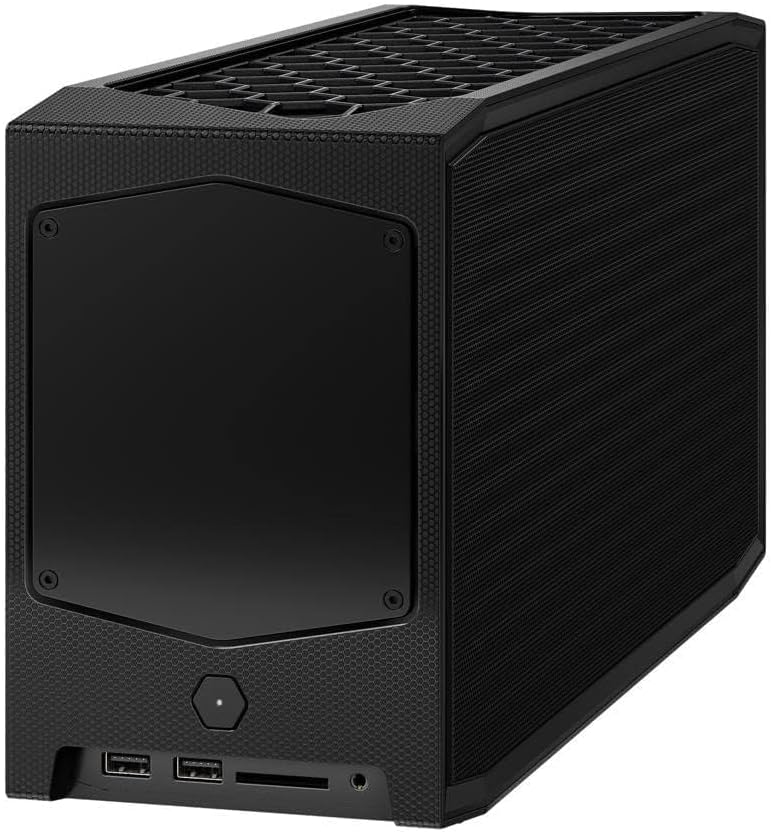
Figura 2: posterior view of the Intel NUC 11 Extreme Kit, highlighting the array of input/output ports for connecting external devices.
- Visualització: Connect your monitor using HDMI or DisplayPort.
- Dispositius USB: Use the available USB ports for keyboard, mouse, external drives, etc.
- Xarxa: Connect an Ethernet cable for wired network access, or use the integrated Wi-Fi.
- Àudio: Connect speakers or headphones to the audio jacks.
4. Connexió d'alimentació
Connect the provided power cord to the NUC and then to a power outlet.
5. Instal·lació del sistema operatiu
Once RAM and storage are installed, you will need to install an operating system (e.g., Windows 10, Linux) from a bootable USB drive or disc.
Instruccions de funcionament
This section provides basic instructions for operating your Intel NUC 11 Extreme Kit.
Encès/Apagat
- Encès: Premeu el botó d'engegada situat a la part frontal de la unitat. L'indicador lluminós d'engegada s'il·luminarà.
- Apagar:
- Standard Shutdown: Use the operating system's shutdown function.
- Apagada forçada: Press and hold the power button for 5-10 seconds until the unit powers off. Use this only as a last resort.
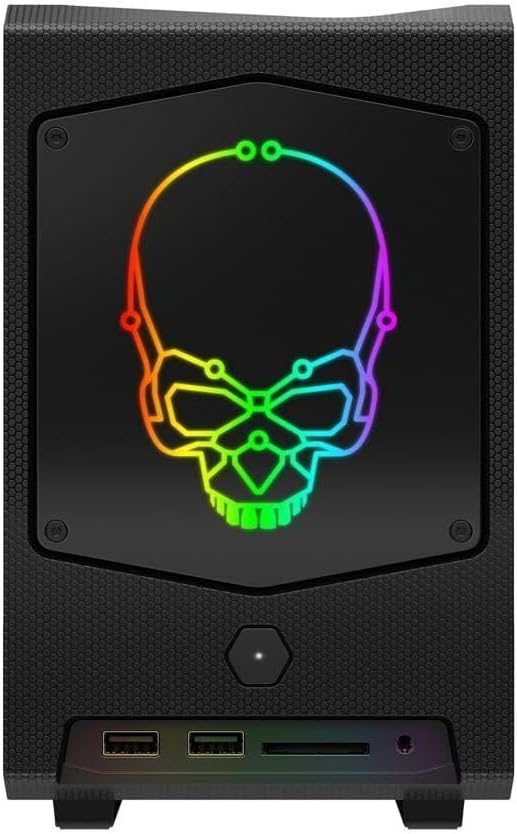
Figura 3: Frontal view of the Intel NUC 11 Extreme Kit, showing the power button and front panel connectivity options.
Connexió de dispositius USB
The NUC 11 Extreme Kit offers numerous USB ports (up to 12) for connecting various peripherals. Devices can be connected or disconnected without needing to shut down the system.
Accés a la BIOS/UEFI
To access the BIOS/UEFI settings, power on the system and repeatedly press the F2 key during startup. This allows configuration of boot order, system settings, and hardware diagnostics.
Manteniment
Proper maintenance ensures the longevity and optimal performance of your Intel NUC 11 Extreme Kit.
- Neteja: Regularly clean the exterior with a soft, dry cloth. Use compressed air to clear dust from vents and fan areas to ensure proper airflow and prevent overheating. Ensure the system is powered off and unplugged before cleaning.
- Actualitzacions de programari: Keep your operating system, drivers, and BIOS/UEFI firmware updated to the latest versions. Visit the official Intel support website for driver downloads specific to the NUC11BTMi9 model.
- Ventilació: Ensure the NUC is placed in a well-ventilated area, away from direct sunlight or heat sources. Do not block the ventilation openings.
- Còpia de seguretat de dades: Feu còpies de seguretat de les dades importants regularment en un disc dur extern o en un emmagatzematge al núvol per evitar la pèrdua de dades.
Resolució de problemes
This section provides solutions to common issues you might encounter with your Intel NUC 11 Extreme Kit.
Sense alimentació / El sistema no s'encén
- Ensure the power cord is securely connected to both the NUC and a working power outlet.
- Verifiqueu que la presa de corrent funciona connectant-hi un altre dispositiu.
- If using a power strip or surge protector, ensure it is switched on.
Sense sortida de visualització
- Check that the monitor is powered on and the video cable (HDMI/DisplayPort) is securely connected to both the NUC and the monitor.
- Prova un altre cable de vídeo o monitor si en tens.
- Ensure RAM modules are properly seated in their slots. Reseat them if necessary.
System Freezes or Crashes
- Assegureu-vos que el sistema tingui una ventilació adequada i que no s'escalfi massa.
- Actualitzeu el sistema operatiu i els controladors de dispositius a les versions més recents.
- Run a memory diagnostic tool to check for RAM issues.
- Check the health of your storage drive.
Perifèric no detectat
- Prova de connectar el perifèric a un port USB diferent.
- Assegureu-vos que els controladors del perifèric estiguin instal·lats i actualitzats.
- Reinicieu el sistema.
Especificacions tècniques
Below are the key technical specifications for the Intel NUC 11 Extreme Kit (NUC11BTMi9).

Figura 4: lateral view of the Intel NUC 11 Extreme Kit, illustrating its physical dimensions.
| Característica | Especificació |
|---|---|
| Número de model | NUC11BTMi9 |
| Processador | Intel Core i9-11900KB Octa-core (8 Core) @ 3.3 GHz |
| Memory (RAM) Type | DDR4 SDRAM (Barebone - user installable) |
| Interfície d'emmagatzematge | M.2 (SSD), Serial ATA/600 |
| Coprocessador gràfic | Gràfics Intel UHD |
| Mida RAM de la targeta gràfica | 8 GB (Integrated) |
| Connectivitat sense fil | Bluetooth, WiFi |
| Ports USB | 12 |
| Operating System (Pre-installed) | None (Supports Windows 10) |
| Pes de l'article | 5 lliures |
| Dimensions del paquet | 21.1 x 15 x 13.6 polzades |
| Color | Negre |
| Primera data disponible | 13 d'octubre de 2021 |
Garantia i Suport
Intel provides a limited warranty for its NUC products. For detailed warranty information, technical support, driver downloads, and troubleshooting resources, please visit the official Intel support weblloc.
You can typically find support by searching for "Intel NUC support" or by visiting Intel's Official Support Page.
When contacting support, please have your product model number (NUC11BTMi9) and serial number ready.


