1. Introducció
This manual provides detailed instructions for setting up, operating, and maintaining your Broadlink Smart Hub S3. The S3 Hub acts as a central controller for various BroadLink smart devices, enabling seamless integration and automation within your smart home ecosystem.

2. Característiques del producte
The Broadlink Smart Hub S3 offers the following key features:
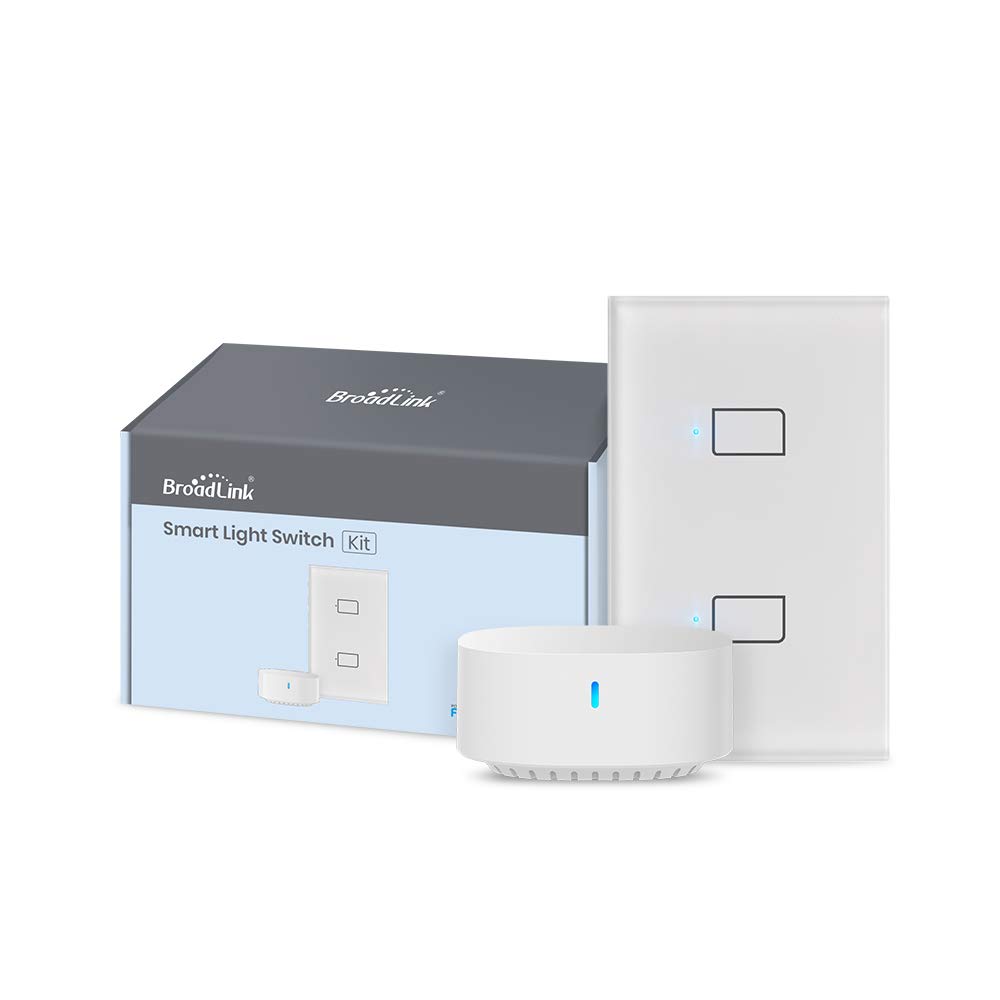
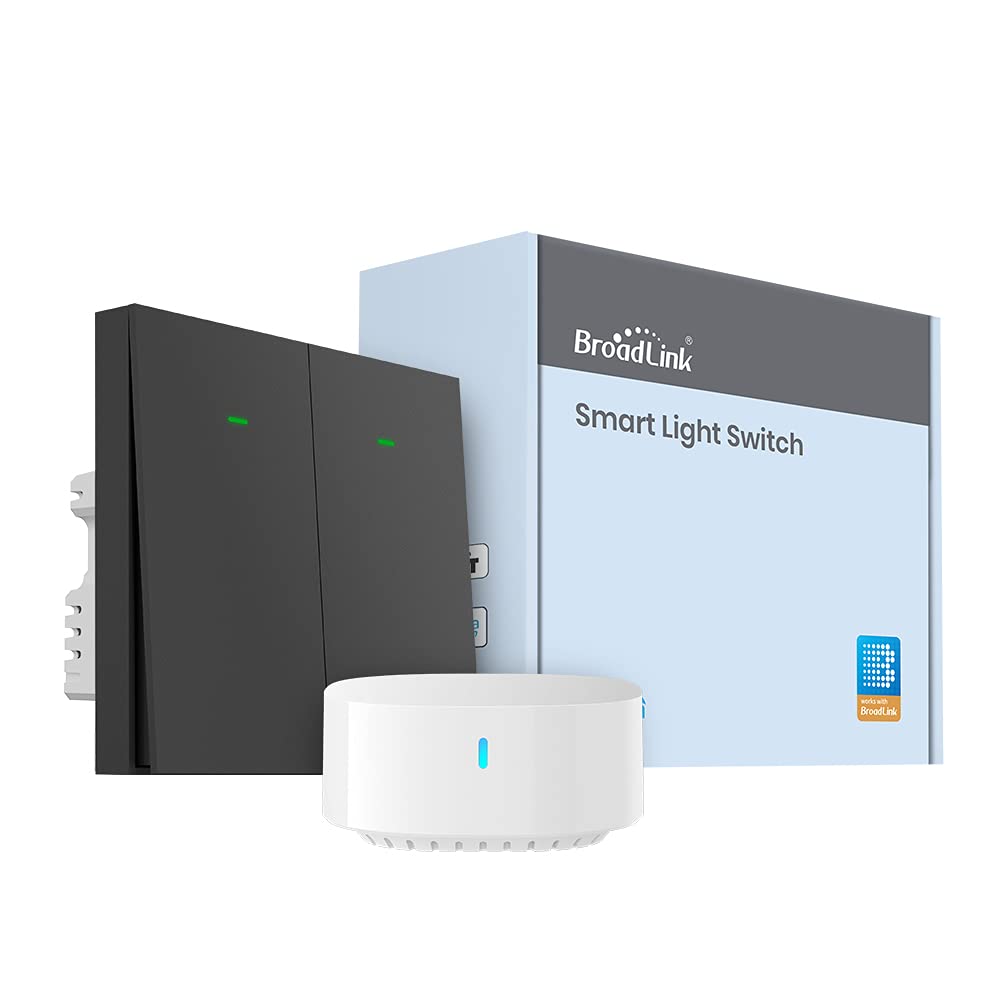
- Compatibility with BroadLink devices: PIR3-FC Motion Sensor, SR3-4KEY Smart Key, DS4 Smart Door Sensor, TC3 and LC1 Smart Light Switch.
- Requires the free "Broadlink" app for configuration and device management.
- Supports connection of up to 8 BroadLink sub-devices per S3 Hub.
- Ensures stable and wide-range communication with connected devices for fast response times.
- Lightweight and hangable design for flexible installation.
- Voice control integration with Alexa for lights and other connected devices.
- Enhanced automation capabilities through IFTTT, allowing custom routines and interoperability with other brands.
- Access to permanent technical support and community feedback via the BroadLink app.

3. Guia de configuració
3.1. Unboxing and Powering On
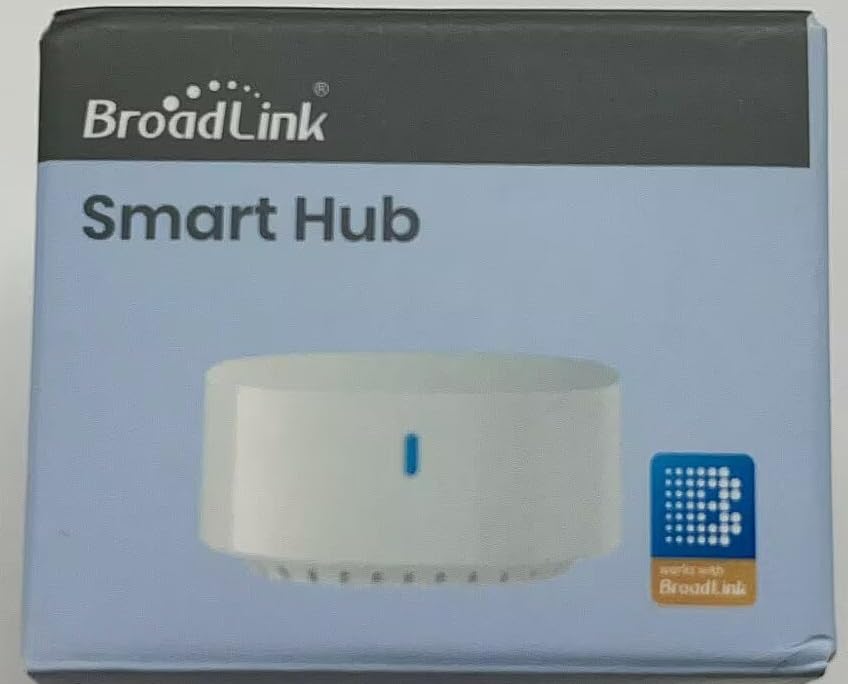
Carefully remove the Broadlink Smart Hub S3 from its packaging. Connect the hub to a power source using the provided Micro USB cable and a 5V DC/0.5A adapter (not included). The indicator light on the hub will illuminate.
3.2. Instal·lació de l'aplicació
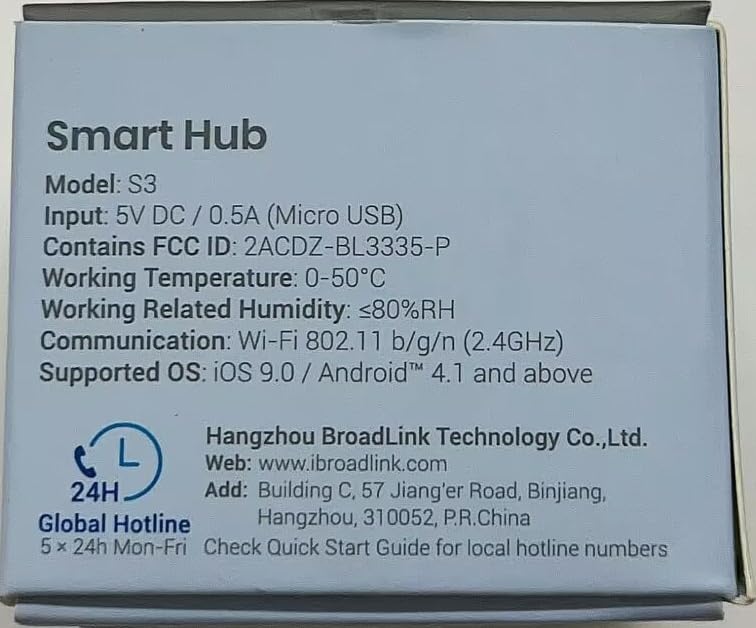
Download the free "Broadlink" application from your device's app store (available for iOS 9.0 / Android 4.1 and above). Create an account or log in if you already have one.
3.3. Adding the S3 Hub to the App
- Open the Broadlink app and follow the on-screen instructions to add a new device.
- Select the S3 Hub from the list of available devices.
- Connect the S3 Hub to your home Wi-Fi network (2.4GHz only). Ensure your smartphone is connected to the same 2.4GHz network during setup.
- Once connected, the S3 Hub's indicator light will change, confirming successful pairing.

3.4. Pairing Sub-Devices
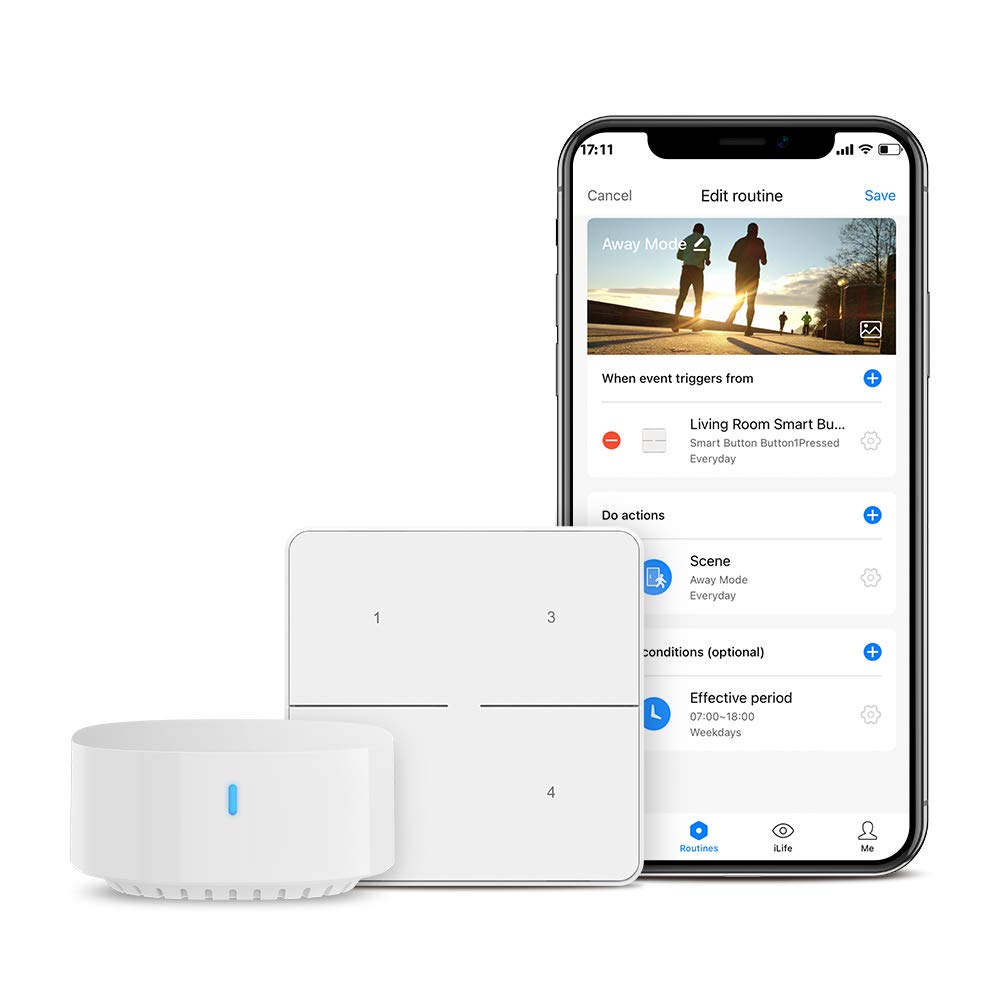
After the S3 Hub is successfully added, you can pair compatible BroadLink sub-devices (e.g., PIR3-FC Motion Sensor, SR3-4KEY Smart Key, DS4 Smart Door Sensor, TC3 and LC1 Smart Light Switch). Refer to the individual sub-device manuals for specific pairing instructions. Each S3 Hub can connect up to 8 sub-devices.
4. Instruccions de funcionament
4.1. Controlling Connected Devices
Once sub-devices are paired with the S3 Hub, you can control them directly through the Broadlink app. This includes turning lights on/off, monitoring sensor status, and activating smart buttons.

4.2. Creating Automations and Routines
The Broadlink app allows you to create custom scenes and routines to automate your smart home. For example, you can set lights to turn on when a motion sensor is triggered or activate an "Away Mode" with a smart button.
4.3. Voice Control with Alexa
Integrate your Broadlink devices with Amazon Alexa for voice control. Enable the Broadlink skill in the Alexa app and link your Broadlink account. You can then use voice commands like, "Alexa, turn on the kitchen light."
4.4. IFTTT Integration
The S3 Hub supports IFTTT (If This Then That) for advanced automation. This allows you to create applets that connect your Broadlink devices with other smart home products and services. For example, automatically turn lights on/off when you leave or arrive home.
5. Manteniment
To ensure optimal performance and longevity of your Broadlink Smart Hub S3:
- Mantingueu el dispositiu en un lloc sec, allunyat de la llum solar directa i de temperatures extremes.
- Clean the exterior with a soft, dry cloth. Avoid using liquid cleaners or abrasive materials.
- Ensure the hub has a stable power supply and is connected to a reliable 2.4GHz Wi-Fi network.
- Regularly check the Broadlink app for firmware updates for the S3 Hub and connected devices.
6. Solució De Problemes
Problemes comuns i solucions:
- Hub Disconnects from Wi-Fi:
Ensure the hub is within range of your 2.4GHz Wi-Fi router. Check for Wi-Fi interference from other devices. Restart your router and the S3 Hub. Reconfigure the Wi-Fi connection in the Broadlink app if necessary.
- Sub-Devices Disconnect from Hub:
Verify that the S3 Hub is online and functioning correctly. Check the battery status of battery-powered sub-devices. Try re-pairing the sub-device with the S3 Hub through the Broadlink app.
- El control per veu no funciona:
Confirm that the Broadlink skill is enabled in your Alexa app and your Broadlink account is linked. Ensure your voice commands are clear and match the device names configured in the Broadlink app.
- L'aplicació no respon:
Close and reopen the Broadlink app. Check your smartphone's internet connection. Ensure the app is updated to the latest version.
7. Especificacions tècniques
| Característica | Detall |
|---|---|
| Model | S3 |
| Entrada | 5V DC / 0.5A (Micro USB) |
| ID de la FCC | 2ACDZ-BL3335-P |
| Temperatura de treball | 0-50°C |
| Working Related Humidity | ≤80% HR |
| Comunicació | Wi-Fi 802.11 b / g / n (2.4 GHz) |
| Sistema operatiu compatible | iOS 9.0 / Android™ 4.1 and above |
| Dimensions del paquet | 1.97 x 1.93 x 1.65 polzades |
| Pes | 3.21 unces |
| Fabricant | Hangzhou BroadLink Technology Co., Ltd. |
| ASIN | B09H78CWQD |
| Mode d'operació | Automàtic |
| Tipus de contacte | Normalment obert |
| Tipus de connector | Terminals de cargol |
| Terminal | [Nu] |
| Tipus de circuit | 1 vies |
| Tipus d'actuador | Pulsador |
| Material de contacte | Metall |
| Classificació de protecció internacional | IP65 |
| Nombre de llocs | 8 |
8. Garantia i Suport
BroadLink provides permanent technical support for its products. For customer service and feedback, please utilize the BroadLink community within the app.
You can also visit the official BroadLink weblloc web per obtenir més informació i recursos de suport: www.ibroadlink.com
Manufacturer: Hangzhou BroadLink Technology Co., Ltd.
Address: Building C, 57 Jiang'er Road, Binjiang, Hangzhou, 310052, P.R.China
For global hotline numbers, please refer to the Quick Start Guide included with your product.


