Introducció
The Logitech Signature M650 L is a wireless computer mouse designed for enhanced comfort and productivity, particularly suited for users with larger hands. It features an adaptive SmartWheel for precise and fast scrolling, customizable side buttons, and SilentTouch technology for quiet clicks. This manual provides detailed instructions for setting up, operating, maintaining, and troubleshooting your M650 L mouse.
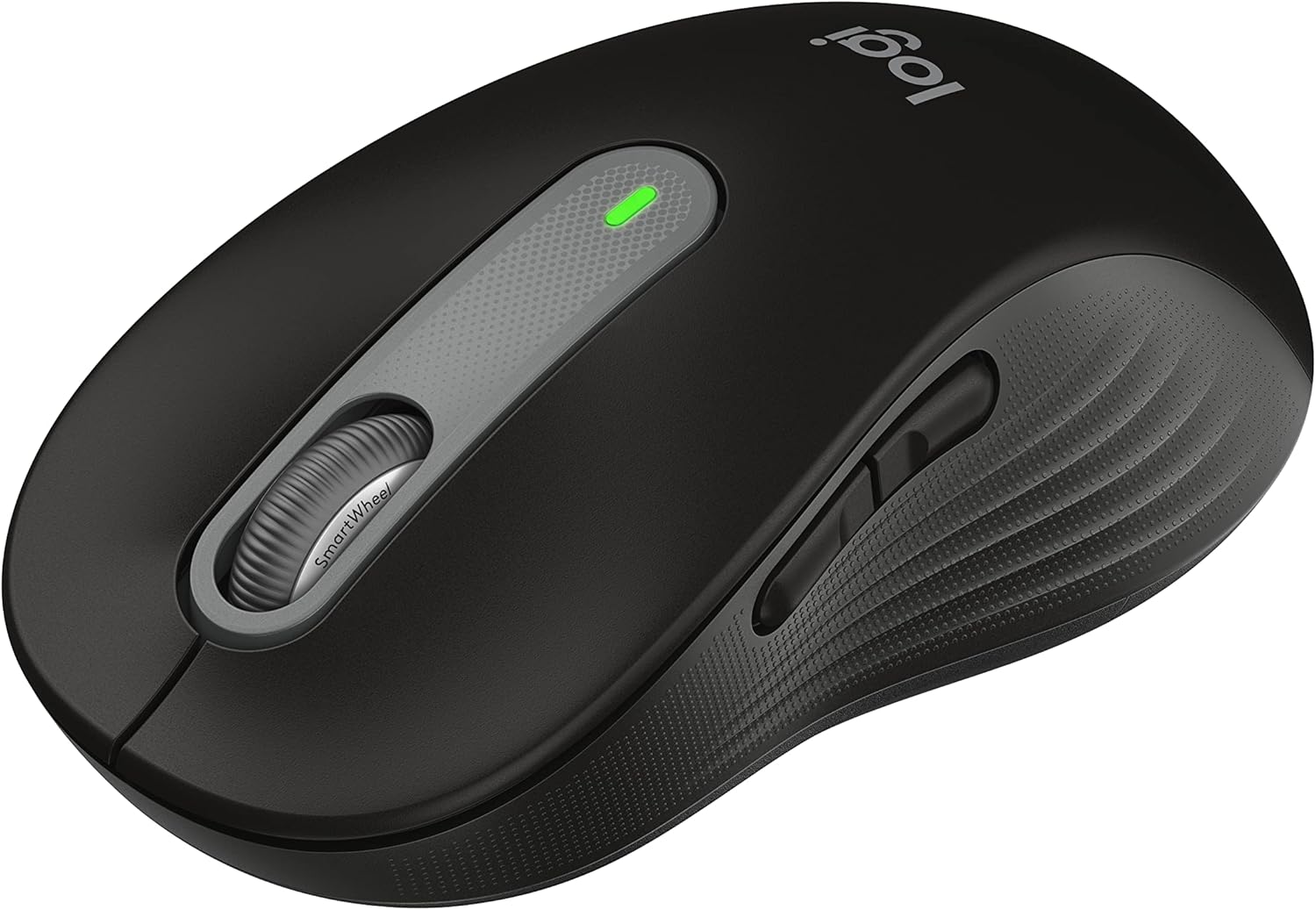
Figure 1: Logitech Signature M650 L Wireless Mouse
Configuració
1. Instal·lació de la bateria
The Signature M650 L mouse operates on a single AA battery, providing up to 24 months of battery life. The battery compartment is located on the underside of the mouse.
- Gently slide open the battery compartment cover on the bottom of the mouse.
- Inseriu una pila AA, assegurant-vos de la polaritat correcta (+/-).
- Tanqueu la tapa del compartiment de la bateria fins que encaixi correctament al seu lloc.
2. Connectar el ratolí
The M650 L offers two connectivity options: Bluetooth Low Energy or the Logi Bolt USB receiver.

Figure 2: Connectivity Options (Bluetooth and Logi Bolt USB Receiver)
Option A: Logi Bolt USB Receiver
- Locate the Logi Bolt USB receiver inside the battery compartment of your mouse.
- Traieu el receptor i connecteu-lo a un port USB disponible de l'ordinador.
- Turn on the mouse using the power switch on the bottom. The mouse should automatically connect.
Option B: Bluetooth Low Energy
- Enceneu el ratolí amb l'interruptor d'encesa a la part inferior.
- Press and hold the connection button on the bottom of the mouse until the LED light starts blinking rapidly. This indicates pairing mode.
- A l'ordinador, obriu la configuració de Bluetooth:
- Windows: Go to Settings > Devices > Bluetooth & other devices > Add Bluetooth or other device.
- macOS: Go to System Preferences > Bluetooth.
- Chrome OS/Linux: Access Bluetooth settings through your system tray or settings menu.
- Select "Signature M650 L" from the list of available devices to complete the pairing process.
Funcionament del ratolí
Desplaçament amb la roda intel·ligent
The Signature M650 L features an adaptive SmartWheel that provides two modes of scrolling:
- Precisió línia per línia: Per a una navegació detallada en documents i fulls de càlcul.
- Tirada gratuïta súper ràpida: Per desplaçar-se ràpidament per llargs web pages or documents. The wheel automatically switches to this mode with a flick of your finger.

Figure 3: SmartWheel for Precision and Speed Scrolling
Botons laterals personalitzables
The two side buttons on the M650 L mouse can be customized to perform your favorite shortcuts, such as back/forward navigation, copy/paste, or other functions. Customization is done through the Logitech Options+ software.

Figure 4: Customizing Buttons with Logitech Options+ Software
Silent Clicks (SilentTouch Technology)
The M650 L incorporates Logitech's SilentTouch technology, which reduces click noise by 90% compared to traditional mice. This feature allows for a quieter working environment, minimizing distractions for you and those around you.

Figure 5: Silent Clicks for a Quieter Workspace
Confort i Ergonomia
The mouse is designed with a comfortable shape, a soft thumb area, and rubber side grips to ensure a secure and pleasant feel during long hours of use. The M650 L is specifically sized for larger hands, providing optimal ergonomic support.

Figure 6: Comfort Shape and Rubber Side Grips

Figure 7: M650 and M650 L Size Comparison
Compatibilitat
The Logitech Signature M650 L mouse is compatible with a wide range of operating systems, ensuring versatile use across different devices.
- PC (Windows 10, 11 or later)
- Mac (macOS 10.15 or later)
- Linux
- Chromebook

Figure 8: Windows 11 Compatibility
Manteniment
Canvi de bateria
When the mouse's performance degrades or the indicator light signals low battery, it's time to replace the AA battery. Follow the battery installation steps outlined in the Setup section.
Neteja
Per mantenir un rendiment i una higiene òptims, netegeu el ratolí regularment:
- Utilitzeu un drap suau i sense pelusa lleugerament dampnetejat amb aigua o una solució de neteja segura per a electrònica.
- Wipe the surface of the mouse, paying attention to the scroll wheel and side grips.
- Eviteu utilitzar productes químics agressius o materials abrasius que puguin danyar l'acabat del ratolí.
Resolució de problemes
Problemes de connexió
- El ratolí no respon: Ensure the mouse is powered on and the battery is not depleted. Replace the battery if necessary.
- Connexió Bluetooth inestable: Move the mouse closer to your computer. Ensure no other devices are causing interference. Try re-pairing the mouse with your computer.
- Logi Bolt receiver not detected: Try plugging the receiver into a different USB port. Ensure the receiver is fully inserted.
- Switching between connections: If you switch between Bluetooth and the Logi Bolt receiver, you may need to re-pair or re-establish the connection each time.
Problemes de rendiment
- Moviment erràtic del cursor: Clean the optical sensor on the bottom of the mouse. Ensure you are using the mouse on a suitable surface (non-reflective, non-glass).
- Scroll wheel not working correctly: Ensure the scroll wheel is free of debris. If using Logitech Options+ software, check scroll settings.
- Botons que no responen: Check if the buttons are physically obstructed. If using Logitech Options+ software, ensure button assignments are correct.
Especificacions
| Característica | Detall |
|---|---|
| Model | Signatura M650 L |
| Número de model | 910-006265 |
| Connectivitat | Bluetooth de baix consum, receptor USB Logi Bolt |
| La tecnologia de sensors | Òptic |
| Tipus de bateria | 1 x bateria AA |
| Durada de la bateria | Fins a 24 mesos (pot variar segons l'ús) |
| Característiques especials | SmartWheel, SilentTouch Technology, Customizable Side Buttons |
| Dimensions (LxWxH) | 4.65 x 2.58 x 0.1 polzades (11.8 x 6.55 x 0.25 cm) |
| Pes | 3.92 unces (111 grams) |
| Plataformes compatibles | PC, Linux, Mac (Windows 10/11+, macOS 10.15+, Chrome OS) |
Suport i recursos addicionals
For further assistance or detailed documentation, please refer to the following resources:
- Manual d'usuari oficial (PDF): Descarrega el manual d'usuari
- Instruccions d'ús (IFU) (PDF): Descarrega les instruccions d'ús
- Suport Logitech Weblloc: Visit the official Logitech support page for FAQs, drivers, and software downloads.
- Logitech Options+ Software: Download the software to customize your mouse buttons and settings.


