1. Introducció
The Brook Pocket Auto Catch Plus is an advanced accessory designed to enhance your mobile gaming experience by automating the process of catching virtual creatures and collecting in-game items. This device connects wirelessly via Bluetooth to your smartphone, allowing for automatic actions without constant interaction with your phone screen. It features a vibration feedback system, an ON/OFF switch, and an exclusive companion application for settings adjustment and firmware updates.

Image 1.1: The Brook Pocket Auto Catch Plus device shown with its retail packaging.
2. Què hi ha a la caixa
Si us plau, verifiqueu que hi hagi tots els components en desembalar-los:
- 1 x Brook Pocket Auto Catch Plus Unit
- 1 x polsera
- 1 x cable de càrrega USB
3. Especificacions
| Característica | Detall |
|---|---|
| Dimensions del producte | 0.28 x 0.12 x 0.43 polzades |
| Pes de l'article | 1.13 unces |
| Número de model | Auto Catch Plus |
| Tipus de bateria | 1 bateria de polímer de liti (inclosa) |
| Capacitat de la bateria | 40 milionsamp Hores |
| Connectivitat | Bluetooth 4.0+ |
| Sistema operatiu | Custom/Proprietary OS with Bluetooth 4.0+ support |
| Característiques especials | Auto Catch, Auto Spin, Battery Capacity Display, Disconnection Reminder |
4. Instruccions de configuració
4.1 Càrrega del dispositiu
Before initial use, fully charge your Pocket Auto Catch Plus. Connect the provided USB charging cable to the device and a compatible USB power source. The device's screen will indicate charging status. A full charge typically takes approximately 1 hour.
4.2 Emparellament amb el telèfon intel·ligent
Follow these steps to connect your device to your smartphone:
- Step 1: Enable Bluetooth and Launch Game App
Turn on Bluetooth on your mobile device. Launch the game application (e.g., Pokémon Go) and navigate to the main map view. Tap the Main Menu button within the game. - Step 2: Access Game Settings
Tap 'Settings' located at the top right of the game screen. Then, select 'Pokémon Go Plus' from the settings page. - Step 3: Activate Pocket Auto Catch Plus
Press the red circle button on your Pocket Auto Catch Plus device to turn it on and make it discoverable. - Step 4: Select and Pair
Select 'Pokémon Go Plus' from the list of available devices on your phone screen and wait for pairing to complete. A successful connection will be indicated by a specific icon on the device's screen.

Image 4.1: Mobile phone screen showing Bluetooth enabled and the game's main menu.

Image 4.2: Game settings interface showing the option to select 'Pokémon Go Plus'.
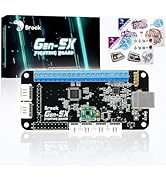
Image 4.3: The device is shown next to the game's pairing screen, indicating it's ready for connection.

Image 4.4: Confirmation of successful pairing between the device and the game application.
5. Instruccions de funcionament
5.1 Automatic Catching and Item Collection
Once paired, the Pocket Auto Catch Plus will automatically attempt to catch nearby virtual creatures and spin Pokéstops to collect items. The device uses standard Pokeballs for catching. Ensure you have a sufficient supply of Pokeballs for continuous operation.

Image 5.1: Users engaging in automatic creature catching and item collection with the device.
5.2 Device Features and Indicators
- Feedback de vibració: The device provides vibration alerts for various events, including successful catches, item collection, and disconnections.
- Interruptor ON / OFF: A physical switch allows you to power the device on or off.
- Pantalla de capacitat de la bateria: The screen displays the current battery level.
- Disconnection Reminder: The device vibrates and displays an icon when it disconnects from your smartphone.

Image 5.2: Visual representation of the device's key features.
5.3 Using the Brook Pocket Center App
The exclusive "Brook Pocket Center" application allows you to customize settings and update the device's firmware. Download the app from your smartphone's app store. Through the app, you can:
- Adjust auto-catch and auto-spin settings.
- Enable/disable vibration feedback.
- Receive offline push notifications.
- Update device firmware for improved performance and new features.

Image 5.3: The Brook Pocket Center app provides advanced control over the device's functions.
6. Manteniment
6.1 Neteja
Wipe the device with a soft, dry cloth. Avoid using harsh chemicals or abrasive materials, as these can damage the screen and casing. The device is not waterproof; avoid exposure to water or excessive moisture.
6.2 Cura de la bateria
To prolong battery life, avoid fully discharging the device frequently. Charge the device regularly, especially if it will be stored for an extended period.
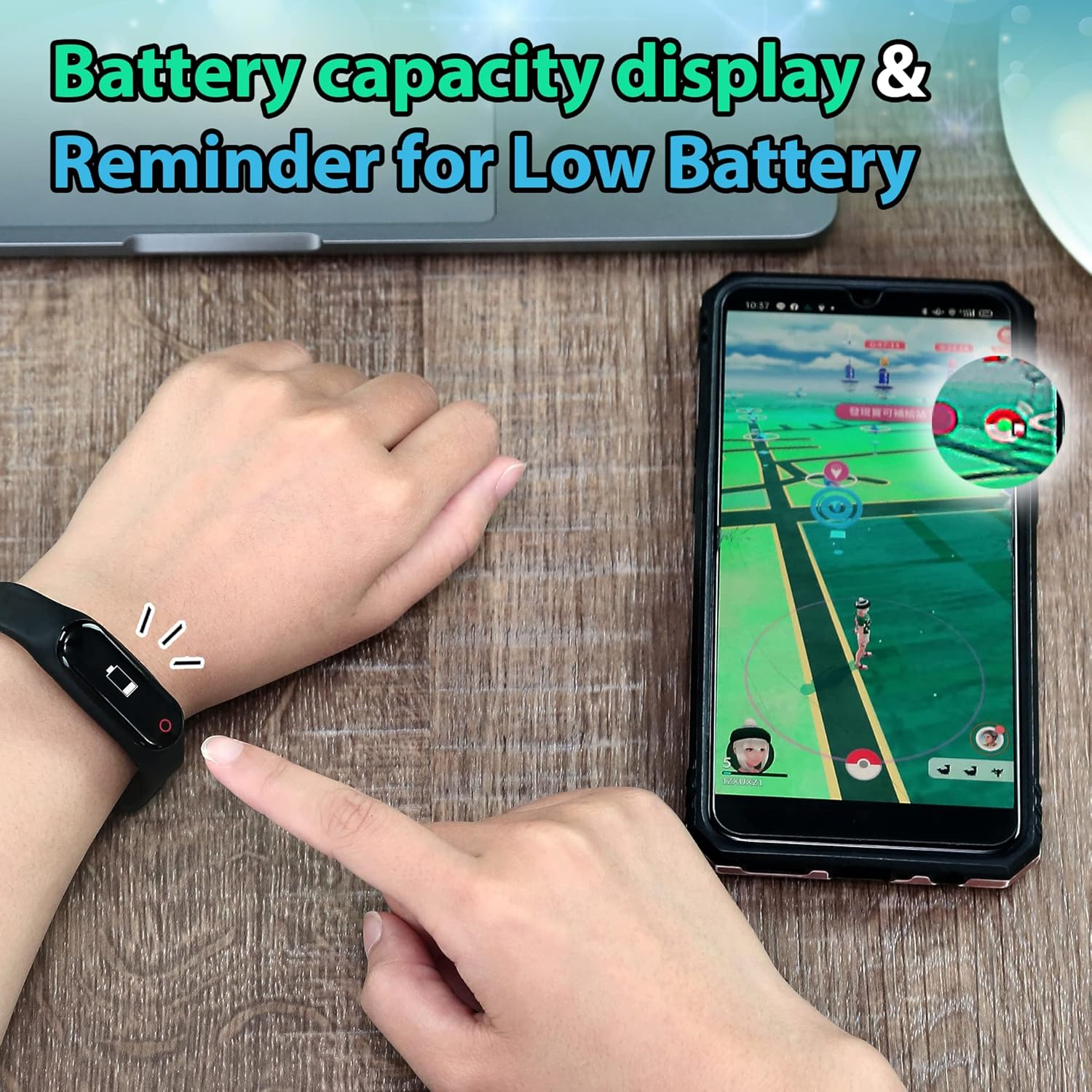
Image 6.1: The device displays battery capacity and provides low battery reminders.
7. Solució De Problemes
7.1 Device Not Connecting/Frequent Disconnections
- Assegureu-vos que el Bluetooth estigui habilitat al vostre telèfon intel·ligent.
- Verify the device is charged and powered on.
- The game application typically disconnects external devices after one hour of inactivity. Reconnect manually if this occurs.
- Maintain close proximity between the device and your smartphone (within 15 feet). Obstacles or distance can weaken the connection.
- Check the in-game settings for 'Pokémon Go Plus' to ensure it is properly configured.
- If issues persist, try restarting both the device and your smartphone.

Image 7.1: The device provides a vibration reminder and visual cues for disconnection.
7.2 Not Catching Creatures or Spinning Pokéstops
- Confirm the device is successfully paired and connected to the game.
- Ensure you have sufficient Pokeballs in your inventory for catching. The device only uses standard Pokeballs.
- Check the settings within the "Brook Pocket Center" app and the in-game 'Pokémon Go Plus' settings to ensure auto-catch and auto-spin functions are enabled.
- Verify that your in-game item bag and creature storage are not full.
- Poor internet connectivity on your smartphone can affect the device's ability to interact with the game.
8. Garantia i Suport
For warranty information and technical support, please refer to the official Brook weblloc web o contacteu directament amb el servei d'atenció al client. Conserveu el rebut de compra com a comprovant de compra per a reclamacions de garantia.
Fabricant: Rierol
Weblloc: Visit the Brook Store on Amazon


