1. Introducció
This manual provides essential information for the proper setup, operation, and maintenance of your Tibuta 10-inch Android 13 Tablet. Designed for versatility, this tablet features a 10.1-inch IPS display, a Quad-core processor, 4GB RAM, 32GB internal storage (expandable), and dual cameras, making it suitable for various daily activities from entertainment to productivity.

Image: The Tibuta 10-inch Android 13 Tablet, showcasing its sleek design and the included protective case.
2. Configuració
2.1 Desembalatge i inspecció inicial
Carefully remove all components from the packaging. Verify that the tablet and its protective case are present and undamaged. The package typically includes the tablet, a protective case, and a charging cable.

Image: The Tibuta tablet with its protective case, ready for use.
2.2 Càrrega de la tauleta
Before first use, fully charge the tablet. Connect the provided USB-C charging cable to the tablet's USB-C port and the other end to a compatible power adapter (not always included) or a computer's USB port. The battery indicator on the screen will show charging status. A full charge typically takes several hours.
2.3 Engegada/apagada
- Per encendre: Press and hold the Power button (located on the side) until the Tibuta logo appears on the screen.
- Per apagar: Premeu i manteniu premut el botó d'engegada fins que aparegui el menú d'opcions d'engegada. Seleccioneu "Apagar" i confirmeu.
- Per reiniciar: From the power options menu, select 'Restart'.
2.4 Configuració inicial
Upon first power-on, the tablet will guide you through the initial setup process. This includes selecting your language, connecting to a Wi-Fi network, setting up your Google account, and configuring basic security settings. Follow the on-screen prompts.
2.5 Connexió a Wi-Fi
- Go to 'Settings' > 'Network & internet' > 'Wi-Fi'.
- Toggle Wi-Fi 'On'.
- Seleccioneu la xarxa Wi-Fi que vulgueu de la llista.
- Introduïu la contrasenya de xarxa si se us demana i, a continuació, toqueu "Connecta".
3. Instruccions de funcionament
3.1 Navegació bàsica
The Tibuta tablet utilizes a responsive touchscreen for navigation. Common gestures include:
- Toca: Per seleccionar un element o obrir una aplicació.
- Llisca: Per desplaçar-se per pàgines o llistes.
- Pessiga per fer zoom: Per ampliar o reduir imatges o web pàgines.
- Premsa llarga: Per accedir a menús contextuals o moure icones d'aplicacions.
3.2 Ús de la càmera
Your tablet is equipped with a 5.0MP front camera and an 8.0MP rear camera for photos and video calls.
- Obre l'aplicació "Càmera".
- Tap the camera switch icon to alternate between front and rear cameras.
- Toqueu el botó de l'obturador per fer una foto o iniciar/aturar la gravació de vídeo.

Image: The tablet highlighting its dual camera capabilities for capturing moments.
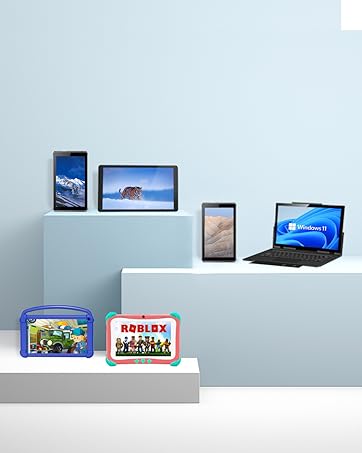
Image: The tablet being used for a video call, showcasing its front camera functionality.
3.3 Funcions d'àudio
The tablet includes built-in speakers for audio playback and a 3.5mm stereo headphone jack for private listening. Volume can be adjusted using the physical volume buttons on the side of the tablet.
3.4 Gestió d'emmagatzematge
The tablet comes with 32GB of internal storage. You can expand this storage up to 128GB using a microSD card (not included). To insert a microSD card, locate the card slot on the side of the tablet and gently push the card in until it clicks into place.

Image: Illustration of the tablet's 32GB internal storage and expandability up to 128GB, ideal for saving photos and files.
3.5 Applications and Google Mobile Services (GMS)
The tablet runs on Android 13 and is GMS certified, providing full access to the Google Play Store. You can download and install a wide range of applications, including popular social media apps like Facebook, Twitter, YouTube, and TikTok.
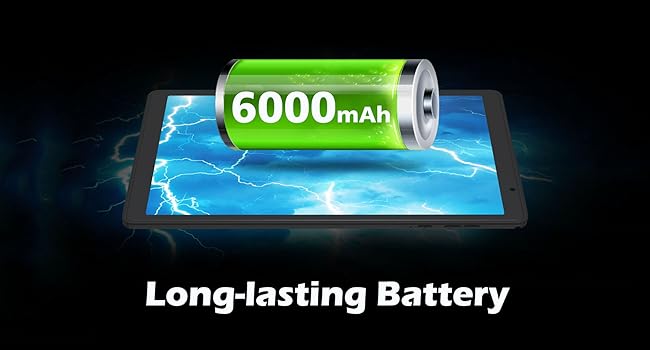
Image: The tablet displaying various GMS-certified applications, indicating broad app compatibility.
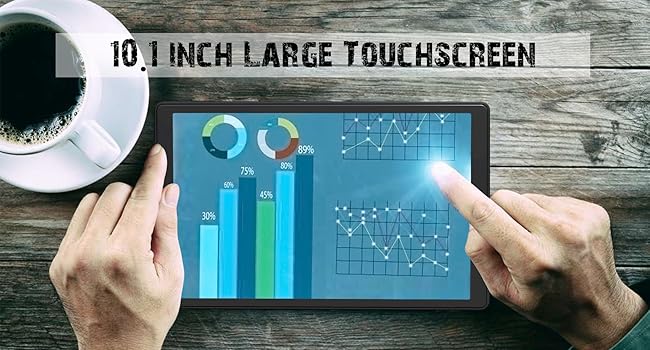
Image: The tablet in use for diverse activities such as studying, shopping, video calls, reading, and watching movies.
3.6 Durada de la bateria
The 6000mAh battery provides approximately 8 hours for video playback, 9 hours for daily use, and 10 hours for music playback. Actual battery life may vary based on usage patterns and settings.

Image: Visual representation of the tablet's large battery capacity and estimated usage times for various activities.
4. Manteniment
4.1 Neteja de la tauleta
Feu servir un drap suau i sense borrissol per netejar la pantalla i el cos de la tauleta. Per a taques difícils, fregueu lleugerament.ampNetegeu el drap amb aigua o una solució netejadora de pantalles. Eviteu utilitzar productes químics agressius o materials abrasius.
4.2 Actualitzacions de programari
Regularly check for and install system updates to ensure optimal performance, security, and access to new features. Go to 'Settings' > 'System' > 'System update' to check for available updates.
4.3 Cura de la bateria
Per allargar la vida útil de la bateria:
- Eviteu exposar la tauleta a temperatures extremes (calor o fred).
- No deixeu que la bateria es descarregui completament amb freqüència.
- Use the original charging cable or a certified equivalent.
4.4 Gestió d'emmagatzematge
To maintain smooth performance, periodically manage your tablet's storage:
- Desinstal·la les aplicacions no utilitzades.
- Clear cache data for apps in 'Settings' > 'Apps' > [App Name] > 'Storage & cache'.
- Transferència gran files (photos, videos) to external storage or cloud services.
5. Solució De Problemes
Aquesta secció tracta problemes habituals que podeu trobar amb la vostra tauleta.
5.1 El dispositiu no s'encén
- Ensure the tablet is sufficiently charged. Connect it to a power source for at least 30 minutes.
- Try a forced restart by holding the Power button for 10-15 seconds.
5.2 Rendiment lent
- Tanca les aplicacions en segon pla que no fas servir.
- Clear app cache and temporary files.
- Assegureu-vos que hi hagi prou espai d'emmagatzematge lliure.
- Reinicieu la tauleta periòdicament.
5.3 Problemes de connectivitat Wi-Fi
- Toggle Wi-Fi off and on in settings.
- Reinicieu el vostre encaminador Wi-Fi.
- Oblida't de la xarxa i torna a connectar-te.
5.4 Problemes de càrrega
- Check if the charging cable and adapter are securely connected.
- Prova un cable de càrrega o un adaptador de corrent diferent.
- Inspect the charging port for any debris.
5.5 Restabliment de fàbrica
Si els problemes persisteixen, un restabliment de fàbrica pot resoldre molts problemes relacionats amb el programari. Avís: Això esborrarà totes les dades de la tauleta. Fes una còpia de seguretat de les dades importants abans de continuar.
- Go to 'Settings' > 'System' > 'Reset options'.
- Seleccioneu "Esborra totes les dades (restabliment de fàbrica)".
- Confirma la teva decisió i segueix les instruccions que apareixen a la pantalla.
6. Especificacions
Key technical specifications for the Tibuta E100 Tablet:
| Característica | Especificació |
|---|---|
| Nom del model | E100 |
| Sistema operatiu | Android 13 |
| Mida de la pantalla | 10.1 polzades |
| Resolució de pantalla | 1280 x 800 píxels (IPS) |
| Processador | Quadrucs de 1.6 GHz |
| RAM | 4 GB |
| Emmagatzematge intern | 32 GB |
| Emmagatzematge ampliable | Fins a 128 GB (microSD) |
| Càmera posterior | 8 MP |
| Càmera frontal | 5 MP |
| Capacitat de la bateria | Ió de liti de 6000 mAh |
| Connectivitat sense fil | 2.4G WiFi (802.11n), Bluetooth 4.2 |
| Dimensions del producte (LxWxH) | 8.86 x 11.02 x 2.01 polzades |

Image: A summary of the tablet's key performance specifications and features.

Image: The tablet's 10.1-inch IPS display, highlighting its high-quality visual output.
7. Garantia i Suport
For warranty information or technical support, please refer to the documentation included with your purchase or visit the official Tibuta website. You may also contact customer service through the platform where you purchased the product.


