Introducció
The Keychron Q7 is a wired custom mechanical keyboard featuring a 70% layout, designed for versatility and performance. It supports QMK/VIA for extensive customization, includes hot-swappable Gateron G Pro Red switches, and is built with a double-gasket design for an enhanced typing experience. This manual provides instructions for setup, operation, maintenance, and troubleshooting.

Image: The Keychron Q7 Custom Mechanical Keyboard, showcasing its compact 70% layout and aluminum build.
Contingut del paquet
Verify that all items listed below are included in your Keychron Q7 package:

Image: Diagram illustrating the Keychron Q7 keyboard and its accompanying accessories.
- Teclat: 1x Fully Assembled Keychron Q7 Keyboard (includes Aluminum Case, PCB, Steel Plate, Sound Absorbing Foam, Case Foam, 10 Gaskets (6 installed, 4 in box))
- Components: 5 sets x Stabilizers, 1 set x Double-Shot PBT Keycaps, 1 set x Gateron G Pro Switches
- cables: 1x Type-C to Type-C Cable, 1x Type-A to Type-C Adapter
- Eines: 1x Switch Puller, 1x Keycap Puller, 1x Screwdriver, 1x Hex Key
Note: All tools are located at the bottom of the box.
Configuració
1. Connexió del teclat
- Locate the USB-C port on the back of the Keychron Q7 keyboard.
- Connect one end of the provided Type-C to Type-C cable to the keyboard.
- Connect the other end of the cable to your computer's USB-C port. If your computer only has USB-A ports, use the included Type-A to Type-C adapter.
- The keyboard should be recognized automatically by your operating system.
2. Switching Operating System Layout
The Keychron Q7 features a physical switch to toggle between Windows and macOS layouts. This ensures proper key mapping for your specific operating system.
Imatge: Lateral view of the Keychron Q7, showing the physical switch to select between Windows and macOS modes.
- Locate the switch on the side of the keyboard, near the USB-C port.
- Slide the switch to the 'Win' position for Windows/Linux systems.
- Slide the switch to the 'Mac' position for macOS systems.
Instruccions de funcionament
QMK and VIA Customization
The Keychron Q7 fully supports QMK and VIA open-source firmware, allowing for extensive customization of key assignments, macros, and backlighting. This functionality is compatible with Mac, Windows, and Linux operating systems.
- To customize your keyboard, download the Keychron Launcher Web App or the VIA software from the official Keychron weblloc.
- The software provides a graphical interface to remap keys, create complex macros, and adjust RGB lighting effects.
- For detailed instructions on using QMK/VIA, refer to the documentation available on the Keychron support page or the QMK/VIA official webllocs.

Image: Keychron Launcher Web App interface for key remapping and macro programming.
Interruptors intercanviables en calent
The Q7 features a hot-swappable design, allowing you to change switches without soldering. It supports both 3-pin and 5-pin MX-style mechanical switches.

Image: Keyboard PCB with keycaps removed, showing hot-swappable switch sockets and various switch types.
- Extracció d'un interruptor: Use the included switch puller tool. Gently grip the switch from the top and bottom, then pull straight up with even pressure until the switch detaches from the PCB.
- Instal·lació d'un interruptor: Align the pins of the new switch with the holes on the PCB. Ensure the switch is oriented correctly. Gently press the switch down until it clicks into place. Do not force the switch, as this can bend the pins.
Tecles PBT de doble tret
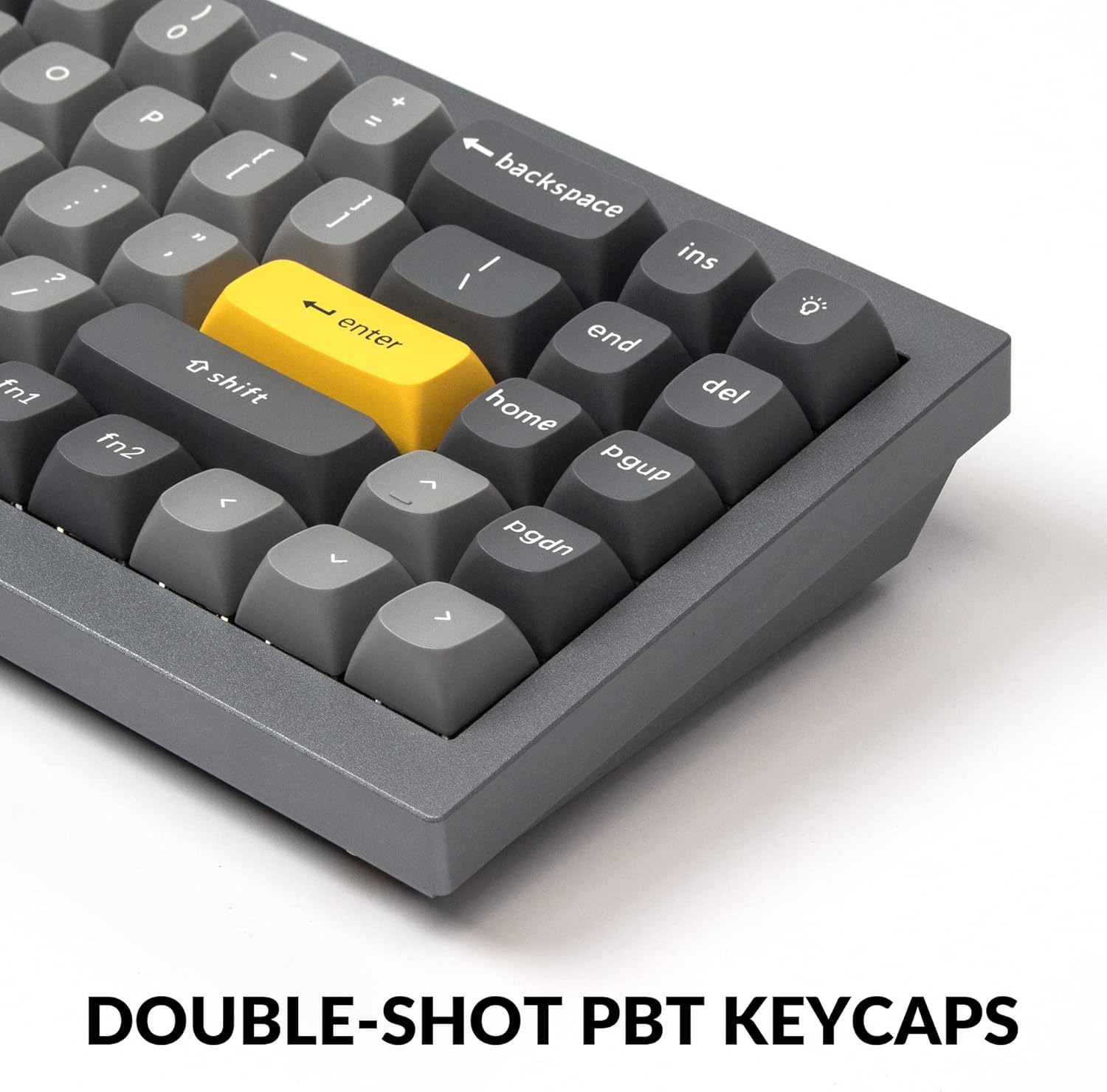
The Q7 comes with durable double-shot PBT keycaps. These keycaps are resistant to shine and wear, ensuring legends remain clear over time.

Image: Close-up of the keyboard's double-shot PBT keycaps.
South-Facing RGB Backlighting
The keyboard features south-facing RGB LEDs, which provide even backlighting and are ideal for compatibility with most custom keycap sets.

Image: Illuminated south-facing RGB switches on the Keychron Q7 keyboard.
Manteniment
Neteja del teclat
- Desconnecteu el teclat de l'ordinador abans de netejar-lo.
- Utilitzeu un drap suau i sense pelusa lleugerament dampNetegeu les tecles i la carcassa amb aigua o una solució de neteja suau. Eviteu la humitat excessiva.
- Per netejar entre les tecles, feu servir aire comprimit per eliminar la pols i les restes.
- For deeper cleaning, you may remove keycaps using the included keycap puller. Clean the keycaps separately with water and mild soap, then ensure they are completely dry before reattaching.
Cura dels interruptors i les tecles
- When removing or installing switches, apply gentle, even pressure to avoid bending switch pins or damaging the PCB sockets.
- Store spare switches and keycaps in a clean, dry place to prevent dust accumulation or damage.
Resolució de problemes
If you encounter issues with your Keychron Q7 keyboard, refer to the following common troubleshooting steps:
- El teclat no respon:
- Assegureu-vos que el cable USB-C estigui connectat correctament tant al teclat com a l'ordinador.
- Prova de connectar el teclat a un port USB diferent de l'ordinador.
- Verify that the operating system switch (Mac/Win) on the side of the keyboard is set correctly for your system.
- Prova el teclat en un altre ordinador per descartar un problema específic de l'ordinador.
- Claus que no es registren:
- Carefully remove the keycap and switch for the non-functioning key using the provided tools.
- Inspeccioneu els pins de l'interruptor per si hi ha cap doblegament o dany. Si és possible, redreceu els pins doblegats suaument amb unes pinces.
- Reinsert the switch firmly into the PCB socket. If the issue persists, try swapping it with a known working switch.
- Problemes d'il·luminació RGB:
- Check the Keychron Launcher Web App or VIA software to ensure lighting settings are configured as desired.
- Ensure no software conflicts are interfering with the lighting control.
- Actualització del firmware: If experiencing persistent issues, check the official Keychron website for any available firmware updates for the Q7 model. Follow the provided instructions carefully for firmware updates.
For further assistance, please visit the official Keychron support page.
Especificacions

Imatge: Explosió view of the Keychron Q7 keyboard's internal components.
| Característica | Detall |
|---|---|
| Model | Keychron Q7 |
| Disseny | Disseny del 70% |
| Connectivitat | Cablejat (USB-C) |
| Tipus de canvi | Hot-swappable Gateron G Pro Red Switch |
| Operating Force (Gateron G Pro Red) | 45 ± 15 gf |
| Pre-travel (Gateron G Pro Red) | 2 ± 0.6 mm |
| Travel Distance (Gateron G Pro Red) | 4 ± 0.6 mm |
| Switch Behavior (Gateron G Pro Red) | Lineal |
| Pre-lubed (Gateron G Pro Red) | Sí |
| Sound Level (Gateron G Pro Red) | Tranquil |
| Taps de claus | PBT de doble tret |
| Il·luminació de fons | RGB orientat al sud |
| Material del marc | Alumini |
| Estil de muntatge | Double Gasket Design |
| Suport de firmware | QMK/VIA Programmable |
| Sistema operatiu compatible | Mac, Windows, Linux |
| Dimensions del producte | 13.44 x 4.76 x 1.33 polzades |
| Pes de l'article | 5.17 lliures |

Image: Detailed specifications for the Gateron G Pro Red switches.
Garantia i Suport
Keychron products are designed for quality and durability. For information regarding warranty coverage, technical support, or to access additional resources such as firmware updates and software downloads, please visit the official Keychron website or their dedicated support pages.
You can find more information and contact support through the Keychron Brand Store on Amazon.


