1. Introducció
The Xiaomi Mesh System AX3000 (Pack of 2) is designed to provide comprehensive Wi-Fi 6 coverage for complex home layouts, extending up to 370 m². This system comes pre-configured from the factory, ensuring a straightforward setup process and immediate readiness for use.
2. Informació de seguretat
- Assegureu-vos que el dispositiu estigui col·locat en una zona ben ventilada per evitar el sobreescalfament.
- Feu servir només l'adaptador de corrent original que s'inclou amb el dispositiu.
- Mantingueu el dispositiu allunyat de l'aigua, el foc i les altes temperatures.
- No intenteu desmuntar ni reparar el dispositiu vosaltres mateixos. Poseu-vos en contacte amb personal de servei qualificat per obtenir ajuda.
- Eviteu col·locar el dispositiu a prop de camps electromagnètics forts.
3. Contingut del paquet
Verifiqueu que tots els elements siguin presents al vostre paquet:
- 2 x Xiaomi Mesh System AX3000 Base Units
- 2 x adaptadors de potència
- 1 x cable Ethernet
- 1 x Guia d'usuari
4. Producte acabatview
4.1. Device Appearance
The Xiaomi Mesh System AX3000 units feature a sleek, minimalist design. Each unit is equipped with status indicators and essential ports for connectivity.

Davant view of the two Xiaomi Mesh System AX3000 units included in the pack.
4.2. Ports i indicadors
Each unit includes multiple Ethernet ports, a power input, and a reset button. The front panel features an LED indicator to show the device's status.
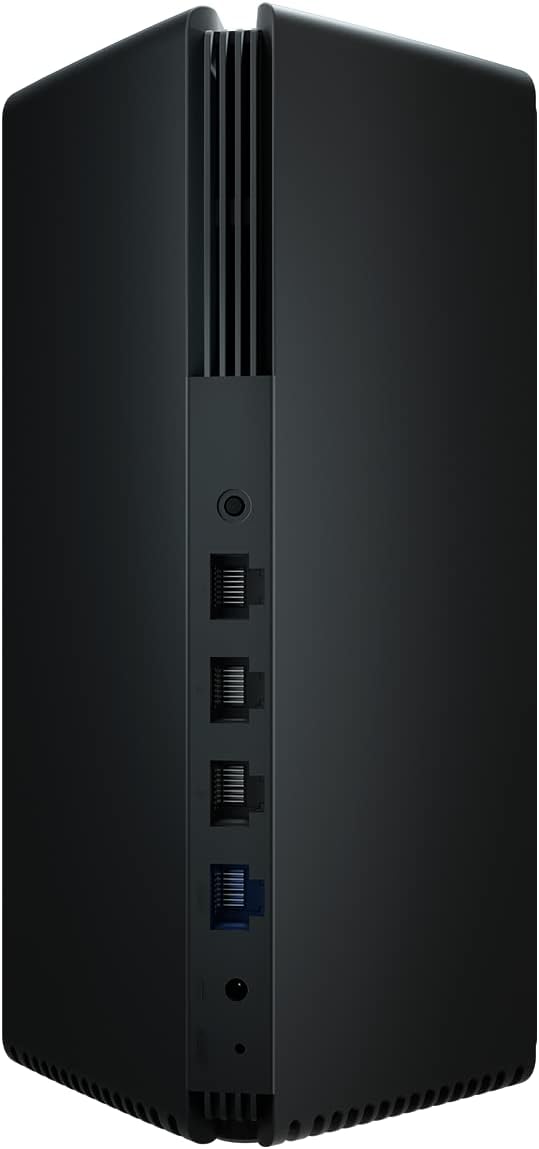
Detail of the rear panel of a Xiaomi Mesh System AX3000 unit, highlighting the Ethernet ports, power connector, and reset button.
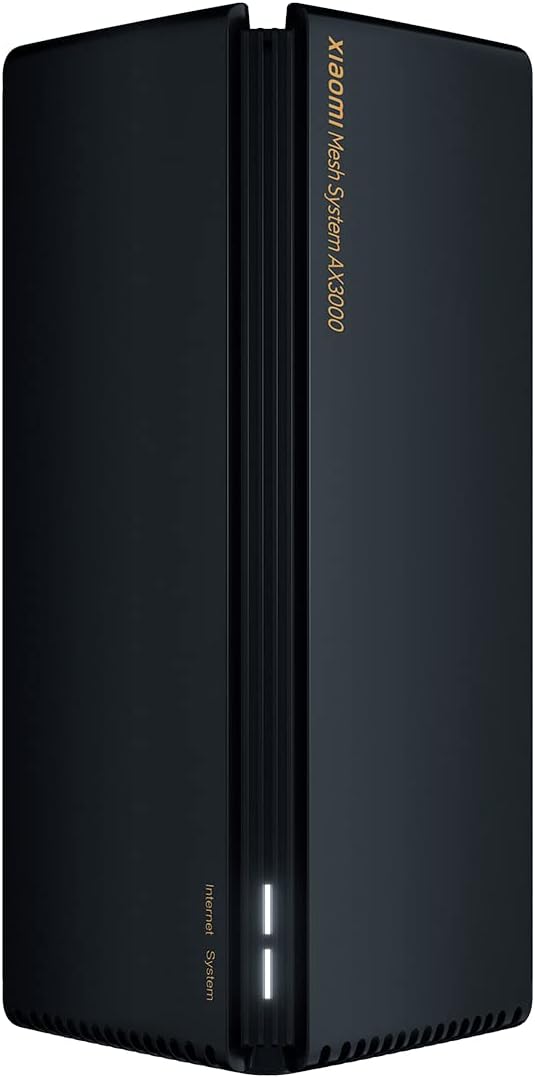
A single Xiaomi Mesh System AX3000 unit, showcasing its sleek design and front status indicator.
5. Instruccions de configuració
5.1. Initial Setup (Main Unit)
- Connect the Main Unit: Connect one of the Mesh System units to your internet modem or router using the provided Ethernet cable. Plug one end into the WAN port (usually blue) of the Mesh unit and the other end into a LAN port on your modem/router.
- Encès: Connect the power adapter to the main Mesh unit and plug it into a power outlet. Wait for the unit to power on and the indicator light to turn solid white (or blue, depending on the model, indicating a stable connection).
- Descarrega l'aplicació: Download the Xiaomi Home or Mi Home app from your smartphone's app store.
- Configure via App: Open the app, create an account if you don't have one, and follow the on-screen instructions to add your new Mesh System. The app will guide you through setting up your Wi-Fi network name (SSID) and password.
5.2. Mesh Network Setup (Secondary Unit)
- Col·locació: Place the second Mesh unit in an area where you need extended Wi-Fi coverage, ideally within range of the main unit. Avoid obstructions like thick walls or large metal objects.
- Encès: Connect the power adapter to the secondary Mesh unit and plug it into a power outlet.
- Emparellament automàtic: The secondary unit will automatically detect and pair with the main unit. The indicator light will change to reflect a successful mesh connection (e.g., solid white/blue). This process typically takes a few minutes.
- Verifica la connexió: Use the Xiaomi Home/Mi Home app to verify that both units are connected and functioning correctly within the mesh network.

The Xiaomi Home/Mi Home application interface on a smartphone, used for managing the Mesh System AX3000 network and connected devices.
6. Instruccions de funcionament
6.1. Dispositius de connexió
Once your Mesh System is set up, devices can connect to the Wi-Fi network using the SSID and password you configured. The mesh system ensures seamless roaming between units, providing a consistent signal throughout your coverage area.
6.2. Network Management via App
The Xiaomi Home/Mi Home app allows you to:
- View connected devices and their network usage.
- Change Wi-Fi settings (SSID, password, security type).
- Perform firmware updates.
- Configura controls parentals o xarxes per a convidats.
- Monitor network status and troubleshoot issues.
6.3. Funcions avançades
- OFDMA Transmission: This technology enables high-efficiency data transmission, allowing the system to process data streams from multiple devices simultaneously, improving overall network performance.
- Temps de despertador objectiu (TWT): TWT allows devices to negotiate when and how often they will wake up to send or receive data. This reduces power consumption for connected devices, especially IoT devices, by keeping them in standby mode until a transmission signal is received.
7. Manteniment
- Actualitzacions de firmware: Regularly check for and install firmware updates via the Xiaomi Home/Mi Home app to ensure optimal performance, security, and access to new features.
- Neteja: Gently wipe the exterior of the units with a soft, dry cloth. Do not use liquid cleaners or abrasive materials. Ensure ventilation slots are free from dust.
- Col·locació òptima: Periòdicament review the placement of your mesh units to ensure they are in central locations, away from major obstructions, and not too close to other electronic devices that might cause interference.
8. Solució De Problemes
8.1. Problemes comuns i solucions
- Sense connexió a Internet:
- Check if your modem/router is working correctly.
- Ensure the Ethernet cable between the main Mesh unit and your modem is securely connected.
- Restart both your modem/router and the Mesh System units.
- Senyal Wi-Fi feble:
- Relocate the secondary Mesh unit closer to the main unit or to a more central location.
- Ensure there are no major physical obstructions (e.g., concrete walls, large appliances) between the units.
- Check for sources of interference (e.g., microwaves, cordless phones).
- No es pot connectar a Wi-Fi:
- Verify that you are using the correct Wi-Fi network name (SSID) and password.
- Restart your device (smartphone, laptop, etc.).
- Try connecting to a different Wi-Fi network to rule out device-specific issues.
8.2. Restabliment de fàbrica
If you encounter persistent issues, you may need to perform a factory reset. Locate the reset button on the rear of the unit (often a small pinhole). With the unit powered on, use a paperclip to press and hold the reset button for approximately 5-10 seconds until the indicator light changes, then release. The unit will restart with factory default settings, requiring re-configuration.
9. Especificacions
| Característica | Especificació |
|---|---|
| Marca | XIAOMI |
| Nom del model | XIAOMI Mesh System AX3000 (2-pack) |
| Número de model de l'article | 33592 |
| Comunicació sense fils estàndard | 802.11ac, 802.11ax, 802.11n (Wi-Fi 6) |
| Classe de banda de freqüència | De doble banda |
| Tecnologia de connectivitat | Ethernet, Wi-Fi |
| Característica especial | WPS (configuració protegida per Wi-Fi) |
| Dispositius compatibles | Compatible with any type of internet box or router |
| Usos recomanats | Casa |
| Components inclosos | 2x Xiaomi Mesh System AX3000 Base, Power Adapter, Ethernet Cable, User Guide |
| Fabricant | XIAOMI |
10. Garantia i Suport
10.1. Garantia del fabricant
Aquest producte està cobert per a Garantia del fabricant de 24 mesos des de la data de compra. Si us plau, conserveu el comprovant de compra per a reclamacions de garantia.
10.2. Actualitzacions de programari
Software updates for this device are guaranteed until 13 d'abril de 2030. Ensure your device is connected to the internet and check the Xiaomi Home/Mi Home app regularly for available updates.
10.3. Atenció al client
For technical assistance, troubleshooting beyond this manual, or warranty inquiries, please visit the official Xiaomi support website or contact their customer service. Refer to the packaging or official weblloc web per obtenir dades de contacte específiques a la vostra regió.


