1. Introducció
Thank you for choosing the Baseus Orange Dot Wireless Presenter. This device is designed to enhance your presentations with its RF2.4GHz wireless technology, integrated laser pointer, and versatile USB/Type-C receiver. This manual provides detailed instructions for setup, operation, maintenance, and troubleshooting to ensure optimal performance.
2. Contingut del paquet
Abans de continuar, comproveu que tots els elements estiguin presents al vostre paquet:
- Baseus Orange Dot Wireless Presenter
- USB/Type-C Dual Receiver
- AAA Battery (for battery version)
- Manual d'usuari (aquest document)

Imatge: Contents of the package include the wireless presenter, a USB/Type-C receiver, and an AAA battery.
3. Instruccions de configuració
3.1 Instal·lació de la bateria
If your presenter is the battery-powered version, follow these steps:
- Open the battery compartment cover located at the rear of the presenter.
- Inseriu una pila AAA, assegurant-vos que els terminals positiu (+) i negatiu (-) s'alineïn correctament amb les marques de l'interior del compartiment.
- Tanqueu bé la tapa del compartiment de la bateria.
Imatge: Insert one AAA battery into the designated compartment. Ensure correct polarity.
3.2 Connexió del receptor
The presenter features a dual USB/Type-C receiver for broad compatibility.
- Locate the receiver stored magnetically within the presenter's body. Gently pull it out.
- Plug the receiver into an available USB-A or Type-C port on your computer or laptop. The system will automatically detect and install the necessary drivers. No additional software installation is required.

Imatge: The dual USB/Type-C receiver connects to your computer for wireless operation.

Imatge: The receiver can be stored magnetically within the presenter body when not in use.
4. Instruccions de funcionament
Familiarize yourself with the presenter's buttons for effective control during your presentation.

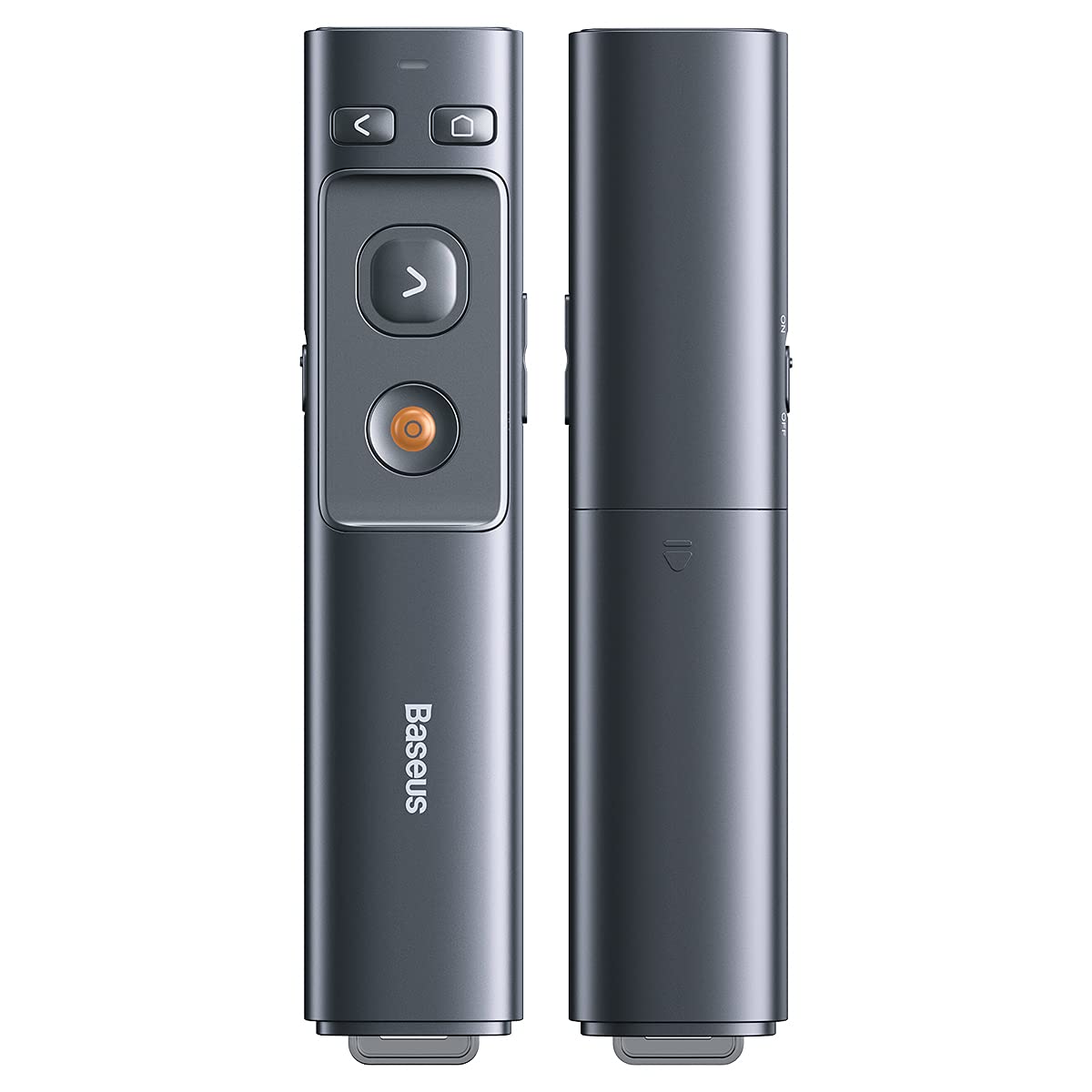
Imatge: Control buttons for page navigation, laser activation, and volume adjustment.
4.1 Encès/Apagat
The presenter typically powers on automatically when the receiver is connected and a button is pressed. To conserve battery, ensure the receiver is disconnected when not in use.
4.2 Presentation Control
- Page Up Button (<): Press to move to the previous slide or page.
- Page Down Button (>): Press to move to the next slide or page.
- Full Screen/Black Screen Button: Press to toggle between full-screen mode and black screen mode in presentation software.
4.3 Laser Pointer Function
Press and hold the dedicated laser button (usually a red dot icon) to activate the red laser pointer. Release the button to turn off the laser.

Imatge: The laser pointer function highlights content on a display.
4.4 Control de volum
Use the designated volume buttons (if present) to adjust the audio output of your computer during a presentation.
5. Manteniment
Proper care ensures the longevity of your Baseus Orange Dot Wireless Presenter.
- Neteja: Use a soft, dry cloth to clean the surface of the presenter. Avoid using harsh chemicals or abrasive materials.
- Emmagatzematge: When not in use, store the presenter and its receiver in a dry, cool place. Always store the receiver inside the presenter's magnetic compartment to prevent loss.
- Cura de la bateria: For battery-powered versions, remove the AAA battery if the presenter will not be used for an extended period to prevent leakage.
6. Solució De Problemes
If you encounter issues with your presenter, refer to the following common problems and solutions:
- Presenter is unresponsive:
- Ensure the receiver is securely plugged into a USB-A or Type-C port on your computer.
- For battery versions, check if the AAA battery is inserted correctly and has sufficient charge. Replace if necessary.
- Prova de connectar el receptor a un port USB diferent de l'ordinador.
- Reinicieu l'ordinador.
- Laser pointer is not working:
- Ensure the presenter has power (battery charged/inserted).
- Confirm you are pressing and holding the correct laser activation button.
- Slides are not advancing/going back:
- Verify that your presentation software (e.g., PowerPoint, Keynote) is active and in presentation mode.
- Ensure the receiver is properly connected and recognized by your computer.
7. Especificacions
| Característica | Detall |
|---|---|
| Marca | Baseus |
| Nom del model | Presentador sense fil Orange Dot |
| Número de model | LFZ_OrangeDotPresenter |
| Connectivitat | RF 2.4 GHz sense fil |
| Tipus de receptor | USB-A / Type-C Dual Interface |
| Tipus làser | Làser vermell |
| Distància làser | Fins a 100 metres |
| Distància de control remot | Fins a 100 metres |
| Font d'alimentació | 1 x AAA Battery (for battery version) |
| Pes de l'article | 60 g |
| Dimensions del paquet | 19.5 x 7 x 1.9 cm |
| País d'origen | Xina |
8. Garantia i Suport
Els productes Baseus estan dissenyats per a la fiabilitat i el rendiment. Per obtenir informació sobre la garantia, consulteu la targeta de garantia inclosa amb la compra o visiteu el lloc web oficial de Baseus. website. For technical support or further assistance, please contact Baseus customer service through their official channels.


