1. Producte acabatview
The EZCast Beam J4a is a compact, rechargeable Android projector designed for versatile use, including outdoor entertainment and business travel. It features built-in Android 10, a battery, and a speaker, supporting 1080P resolution and various connectivity options.

Image: The EZCast Beam J4a projector, its remote control, and product packaging, highlighting its compact size and included accessories.
2. Què hi ha a la caixa
- EZCast Beam J4a Projector
- Control remot
- Tripod Projector Stand
- Bossa de transport
- Adaptador d'alimentació
- Wireless Adapter (USB Wi-Fi dongle)

Image: A visual representation of the items included in the EZCast Beam J4a package, such as the projector unit, remote, tripod, and power accessories.
3. Guia de configuració
3.1 Encès inicial
- Connecteu l'adaptador de corrent al projector i a una presa de corrent.
- Manteniu premut el botó d'engegada del projector durant 3 segons per encendre-lo.
- Adjust the focus wheel located on the side of the projector until the image is clear.
3.2 Emparellament del control remot
The included Bluetooth air mouse remote enhances navigation. Follow these steps to pair it:
- Assegureu-vos que el projector estigui encès.
- On the projector screen, navigate to Configuració > Bluetooth.
- Turn on Bluetooth and select Cerca per als accessoris.
- On the remote, simultaneously press and hold the "Retorn" i "D'acord" buttons (located in the middle of the remote) for 10 seconds. The red light on top of the remote will blink from fast to slow.
- Once "BLE Remote" appears on the projector screen, select it to complete pairing. The mouse cursor should now appear on the screen.
Video: This video demonstrates the process of pairing the Bluetooth air mouse remote with the EZCast Beam J4a projector, showing the button presses and on-screen prompts.
3.3 Connexió Wi-Fi
- Insert the provided Wi-Fi dongle fully into the wireless kit port on the projector.
- On the projector screen, navigate to Configuració > Wi-Fi.
- Seleccioneu la xarxa Wi-Fi que vulgueu de la llista.
- Enter the Wi-Fi password using the on-screen keyboard or a connected USB keyboard.
- Confirmeu la connexió.
4. Instruccions de funcionament
4.1 Navegació per la interfície d'Android
- Use the Bluetooth remote as an air mouse to point and click on icons and navigate menus.
- Alternatively, use the directional pad on the remote for traditional menu navigation.
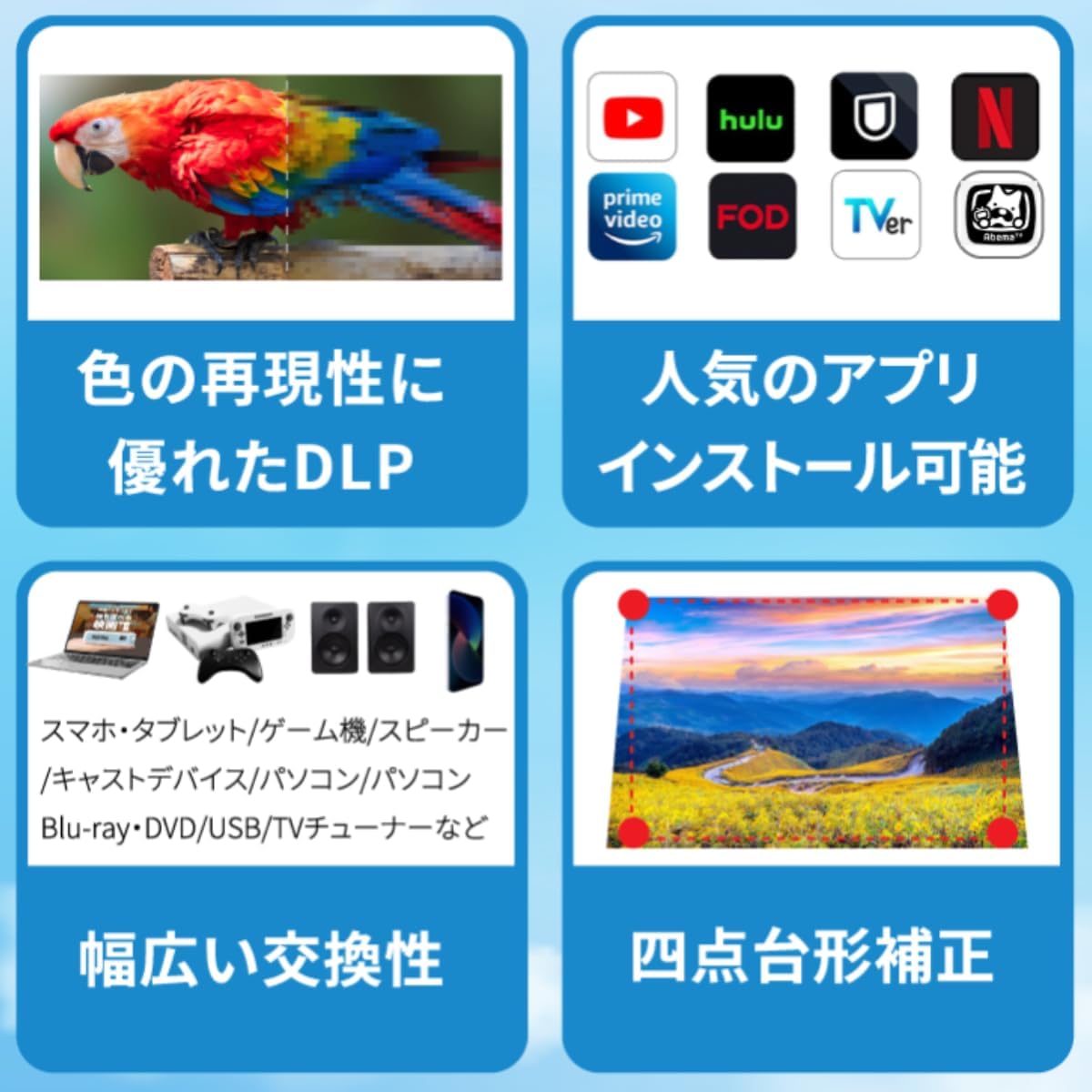
- To access streaming apps like Netflix and YouTube, navigate to the Aptoide TV app store on the home menu to download and install them.

Image: The projector's home screen displaying various application icons, including Aptoide TV for app downloads, and pre-installed streaming services.
4.2 Mirall de pantalla
The projector supports 2.4G/5G Wi-Fi for real-time screen mirroring:
- Navigate to the "Wireless Display" option on the home screen.
- Select your device type (iOS, Android, Mac, Windows).
- Follow the on-screen instructions to connect your smartphone, tablet, or laptop. The projector supports Airplay, Miracast, and DLNA protocols.
4.3 Connectivitat de dispositius externs
Connect various devices using the available ports:
- Port HDMI: Connect gaming consoles (PS5, Xbox, Switch), laptops, or other HDMI-enabled devices.
- Port USB: Play media directly from a USB drive or connect a USB keyboard/mouse for easier input.
- Jack d'àudio: Connecteu auriculars o altaveus externs.
Imatge: Un primer pla view of the projector's side, clearly showing the DC 15V power input, USB-A port, HDMI port, and audio jack for various connections.
4.4 Ajust de la imatge
- Focus: Use the manual focus wheel on the side of the projector to sharpen the image.
- Correcció Keystone: The projector features automatic vertical keystone correction for swift image adjustments, ensuring a rectangular image even when projected at an angle.
5. Manteniment
- Keep the projector lens clean using a soft, lint-free cloth. Avoid abrasive materials.
- Ensure proper ventilation around the projector to prevent overheating. Do not block air vents.
- Store the projector in its carrying bag in a cool, dry place when not in use to protect it from dust and damage.
- Regularly check for firmware updates via the "Upgrade" option in the settings menu to ensure optimal performance and new features.
6. Solució De Problemes
6.1 Remote Control Not Responding / No Mouse Cursor
- Ensure the remote batteries are fresh and correctly inserted.
- Re-pair the Bluetooth remote by following the steps in Section 3.2.
- If only directional control works, press the arrow button on the remote to activate the mouse cursor.
6.2 Imatge borrosa
- Adjust the manual focus wheel on the side of the projector.
- Ensure the projector is placed on a stable, flat surface.
- Verify the projection distance is within the recommended range for optimal clarity.
6.3 Sense so o volum baix
- Check the volume settings on the projector and the connected source device.
- If using an external Bluetooth speaker, ensure it is properly paired and its volume is adjusted.
- Confirm that the audio output is correctly configured in the projector's settings.
6.4 Problemes de connexió Wi-Fi
- Ensure the Wi-Fi dongle is securely inserted into the wireless kit port.
- Verifiqueu que la contrasenya del Wi-Fi sigui correcta.
- Reinicieu el projector i l'encaminador Wi-Fi.
7. Especificacions
| Característica | Detall |
|---|---|
| Marca | EZCast |
| Número de model | EZCast Beam J4a |
| Resolució de visualització | 1920 x 1080 (1080P Support) |
| Brillantor | 300 lúmens |
| Relació de contrast | 5000:1 |
| Sistema operatiu | Android 10 |
| CPU | ARM Quad-core Cortex-A55 |
| GPU | ARM Mali-G31 |
| Tecnologia de connectivitat | USB, HDMI, 2.4G/5G Wi-Fi, Bluetooth |
| Característiques especials | Built-in Batteries, Internet Built-In, Pico, Automatic Vertical Keystone Correction |
| Durada de la bateria | Fins a 4 hores (amb una única càrrega) |
| LED Lamp La vida | Més de 20,000 hores |
| Pes de l'article | 14.1 unces (aprox. 384 g) |
| Dimensions del producte | 4.53 x 4.53 x 1.26 polzades (aprox.) |
8. Garantia i Suport
The EZCast Beam J4a comes with a 1-year warranty. To register your product for warranty and access support, please scan the QR code provided in the user manual that came with your product. For further assistance, visit the official EZCast support weblloc o contacteu amb el servei d'atenció al client.


