1. Introducció
This manual provides comprehensive instructions for the setup, operation, and maintenance of your Epson EcoTank L8180 Multifunction A3+ Photo Printer. Please read this manual thoroughly to ensure proper use and to maximize the performance and longevity of your device. Keep this manual for future reference.
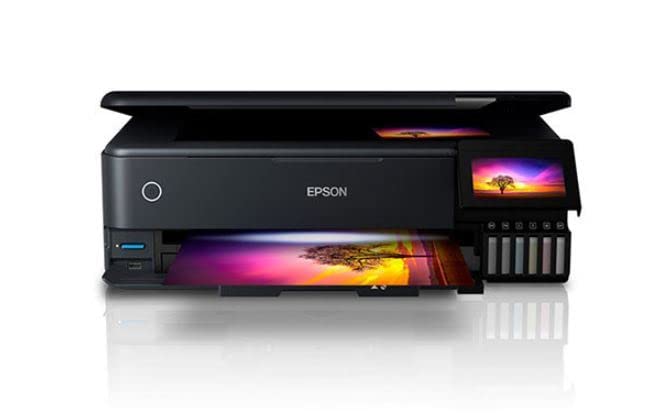
Figure 1: Epson EcoTank L8180 Printer. This image shows the front view of the Epson EcoTank L8180 printer, highlighting its compact design and front-loading paper tray.
2. Contingut del paquet
Verifiqueu que tots els elements estiguin inclosos al paquet:
- Impressora Epson EcoTank L8180
- Cable d'alimentació
- Initial Ink Bottle Set (Cyan, Magenta, Yellow, Black, Light Cyan, Light Magenta)
- Guia de configuració
- Software CD-ROM (for Windows/macOS)
- Cable USB
3. Configuració
3.1 Desembalatge i col·locació
- Remove the printer from its box and remove all protective materials, tapes, and films.
- Col·loqueu la impressora sobre una superfície plana i estable amb prou espai al seu voltant per a la ventilació i el funcionament.
3.2 Omplir els dipòsits de tinta
The EcoTank L8180 uses a cartridge-free ink tank system. Follow these steps to fill the ink tanks:
- Obriu la tapa de la unitat del dipòsit de tinta.
- Uncap the ink bottle for the corresponding color. Each bottle has a unique key to prevent incorrect filling.
- Insert the ink bottle into the filling port. The ink will automatically start flowing into the tank. Do not squeeze the bottle.
- Un cop el dipòsit estigui ple, el flux de tinta s'aturarà. Traieu l'ampolla i torneu-la a tapar.
- Repeat for all six ink colors (Cyan, Magenta, Yellow, Black, Light Cyan, Light Magenta).
- Tanqueu la tapa de la unitat del dipòsit de tinta.
3.3 Connexió d'alimentació i configuració inicial
- Connect the power cable to the printer and then to an electrical outlet.
- Premeu el botó d'engegada per encendre la impressora.
- Follow the on-screen instructions on the 10.9cm color touchscreen to select your language, date, and time.
- The printer will then initiate the ink charging process. This may take several minutes. Do not turn off the printer during this process.
- Once ink charging is complete, the printer is ready for software installation.

Figure 2: Printer Touchscreen Interface. This image displays a close-up of the printer's 10.9cm color touchscreen, showing a user interacting with the interface.
3.4 Instal·lació i connectivitat del programari
Install the printer software on your computer or mobile device to enable full functionality.
- For Computer (Windows/macOS): Insert the provided Software CD-ROM or download the latest drivers and utilities from the official Epson support weblloc. Seguiu les instruccions que apareixen a la pantalla per a la instal·lació.
- Opcions de connectivitat:
- Connexió USB: Connecteu la impressora a l'ordinador mitjançant un cable USB.
- Connexió Wi-Fi: On the printer's touchscreen, navigate to the Wi-Fi setup menu and follow the instructions to connect to your wireless network.
- Connexió Ethernet: Connecteu un cable Ethernet de la impressora al vostre encaminador o concentrador de xarxa.
- Per a dispositius mòbils: Download the Epson Smart Panel app from your device's app store. Follow the in-app instructions to connect your mobile device to the printer via Wi-Fi.

Figure 3: Wireless Printing from Mobile. This image illustrates the Epson EcoTank L8180 printer receiving a print job wirelessly from a smartphone, demonstrating its Wi-Fi connectivity.
4. Instruccions de funcionament
4.1 Càrrega de paper
The printer supports various paper types and sizes, up to A3+.
- Obriu el suport del paper i traieu la safata de sortida.
- Adjust the edge guides to the width of your paper.
- Load paper into the rear paper feed or front paper cassette, depending on the paper type and size. Ensure the print side is facing the correct direction.
- For photo paper, use the dedicated photo paper tray.
4.2 Impressió de documents i fotos
- Obriu el document o la foto que voleu imprimir a l'ordinador o al dispositiu mòbil.
- Seleccioneu Imprimeix des del menú de l'aplicació.
- Choose the Epson L8180 as your printer.
- Adjust print settings such as paper size (e.g., A3+, A4), media type (e.g., Glossy Photo Paper), print quality, and color options.
- Feu clic Imprimeix.
4.3 Escaneig de documents
The L8180 features a flatbed scanner for scanning documents and photos.
- Aixequeu la tapa de l'escàner.
- Col·loqueu el document o la foto cara avall sobre el vidre de l'escàner, alineant-lo amb la marca de la cantonada.
- Tanqueu la tapa de l'escàner suaument.
- From your computer, open the Epson Scan software or use the scan function on the printer's control panel.
- Select scan settings (e.g., resolution, color mode, destination folder) and initiate the scan.
4.4 Còpia de documents
Feu servir el tauler de control de la impressora per fer còpies.
- Place the document on the scanner glass as described in Section 4.3.
- On the printer's touchscreen, select the Còpia opció.
- Ajusteu paràmetres com ara el nombre de còpies, la mida del paper i la qualitat.
- Premeu el botó Comença botó per començar a copiar.
4.5 Direct Printing (Memory Card/USB)
The L8180 allows direct printing from memory cards and USB drives.
- Insert a memory card into the card slot or a USB flash drive into the USB port.
- On the printer's touchscreen, select the Targeta de memòria or USB opció.
- Browse and select the photos or documents you wish to print.
- Adjust print settings and press Imprimeix.
4.6 Impressió de CD/DVD
The printer supports direct printing onto printable CDs/DVDs.
- Open the CD/DVD tray cover on the printer.
- Place a printable CD or DVD onto the CD/DVD tray, ensuring it is correctly seated.
- Insert the CD/DVD tray into the printer's dedicated slot.
- Use the Epson Print CD software on your computer to design and print onto the disc.

Figure 4: CD/DVD Printing Function. This image shows a printable CD being loaded into the Epson EcoTank L8180 printer's dedicated tray for direct disc printing.
5. Manteniment
5.1 Reompliment de tinta
When an ink tank level is low, refill it using genuine Epson ink bottles. Refer to Section 3.2 for detailed ink filling instructions.
Important: Use only genuine Epson Claria ET Premium Ink to ensure optimal print quality and prevent damage to the printer.
5.2 Neteja del capçal d'impressió
Si la qualitat d'impressió disminueix (per exemple, si falten línies o impressions descolorides), netegeu el capçal d'impressió.
- A la pantalla tàctil de la impressora, navegueu fins a Manteniment or Configuració.
- Seleccioneu Neteja del capçal d'impressió.
- Seguiu les instruccions que apareixen a la pantalla. Aquest procés utilitza una petita quantitat de tinta.
- After cleaning, print a nozzle check pattern to verify improvement. If print quality is still poor, repeat the cleaning process up to three times.
5.3 Comprovació del broquet
Perform a nozzle check to diagnose print quality issues before cleaning.
- A la pantalla tàctil de la impressora, navegueu fins a Manteniment or Configuració.
- Seleccioneu Comprovació de broquets.
- The printer will print a pattern. Examine the pattern for any gaps or missing segments.
5.4 Neteja de la impressora
Netegeu regularment l'exterior de la impressora amb un drap suau i sec.amp, drap sense borrissol. No utilitzeu productes de neteja abrasius ni dissolvents.
6. Solució De Problemes
6.1 Problemes comuns i solucions
- La impressora no respon:
- Ensure the printer is powered on and connected securely (USB, Wi-Fi, Ethernet).
- Check for error messages on the printer's touchscreen.
- Reinicieu la impressora i l'ordinador/encaminador.
- Verifiqueu que la impressora correcta estigui seleccionada al quadre de diàleg d'impressió de l'aplicació.
- Mala qualitat d'impressió:
- Perform a nozzle check (Section 5.3) and print head cleaning (Section 5.2).
- Ensure ink tanks are adequately filled.
- Use genuine Epson ink and appropriate paper types for your print job.
- Check print settings in your application to ensure they match the paper type and desired quality.
- Embussos de paper:
- Turn off the printer and carefully remove any jammed paper from the paper trays or inside the printer.
- Assegureu-vos que el paper estigui carregat correctament i que no estigui arrugat ni arrugat.urled.
- Do not overload the paper trays.
- Problemes de connexió Wi-Fi:
- Assegureu-vos que la impressora estigui dins de l'abast del vostre encaminador sense fil.
- Verify the Wi-Fi password entered is correct.
- Reinicieu el router sense fil i la impressora.
- Check for any network interference.
6.2 Codis d'error
If an error code appears on the printer's screen, refer to the on-screen instructions or the Epson support website for specific solutions related to that code.
7. Especificacions
| Característica | Detall |
|---|---|
| Nom del model | L8180 |
| Dimensions del producte (P x A x A) | 37.9 x 52.3 x 16.9 centímetres |
| Pes de l'article | 14.6 kg |
| Mida màxima del suport | A3+ |
| Tecnologia d'impressió | Ink Tank (6-colour Epson Claria ET Premium Ink) |
| Ink Colours | Cyan, Magenta, Yellow, Black, Light Cyan, Light Magenta |
| Maximum Print Resolution (Color/B&W) | 5760 x 1440 ppp |
| Maximum Print Speed (Color/B&W) | 32 ppm |
| Tipus d'escàner | Llit pla |
| Maximum Copy Speed (Black and White) | 32 ppm |
| Impressió dúplex | Automàtic |
| Capacitat màxima del full d'entrada | 120 fulls |
| Mètode de control | Touch (10.9cm color touchscreen) |
| Tecnologia de connectivitat | Wi-Fi, Ethernet, USB |
| Dispositius compatibles | Laptops, PC, Tablets |
| Compatibilitat de sistemes operatius | Windows XP and later, macOS |
| Wattage | 17 watts-hora |
| Característiques especials | A3+ Borderless Photo Printing, Direct printing via memory card slot, USB port, Ethernet, CD/DVD printing |

Figure 5: Printer Dimensions. This image provides a diagram showing the physical dimensions (width, depth, height) of the Epson EcoTank L8180 printer in millimeters.
8. Garantia i Suport
8.1 Informació de la garantia
The Epson EcoTank L8180 printer comes with a Garantia limitada. For specific terms and conditions, including warranty duration and coverage details, please refer to the warranty card included with your product or visit the official Epson support weblloc.
8.2 Atenció al client
For technical assistance, troubleshooting, or service inquiries, please contact Epson customer support:
- Assistència en línia: Visita el servei d'assistència oficial d'Epson website for FAQs, drivers, manuals, and contact information.
- Suport telefònic: Refer to your product documentation or the Epson weblloc web per a números d'assistència local.
Quan contacteu amb el servei d'assistència, tingueu a mà el model de la impressora (L8180) i el número de sèrie.


