Producte acabatview
The Logitech H390 USB Headset is designed for clear audio communication and comfortable use across various applications, including video meetings, music listening, and gaming. It features a noise-cancelling microphone and convenient in-line controls for volume and mute functions. This wired headset connects via USB-A, offering a simple plug-and-play experience.

Figure 1: Logitech H390 USB Headset.
Guia de configuració
Connectant els auriculars
The Logitech H390 headset is designed for easy setup with its plug-and-play USB-A connectivity. No additional software or drivers are typically required for basic functionality.
- Locate a USB-A Port: Identify an available USB-A port on your computer (PC, Mac, or Chromebook).
- Plug In the Headset: Insert the USB-A connector of the H390 headset firmly into the USB-A port on your device.
- Reconeixement del sistema: Your operating system should automatically detect and configure the headset as an audio input and output device. This may take a few moments.
- Verifica la configuració d'àudio: After connection, it is recommended to verify your audio settings in your computer's sound preferences to ensure the Logitech H390 is selected as the default playback and recording device.

Figure 2: USB-A Plug for easy connection.

Figure 3: Headset connected to a laptop, illustrating cable length.
Instruccions de funcionament
Controls en línia
The Logitech H390 features convenient in-line controls located on the headset cable, allowing for quick adjustments without needing to interact with your computer's software.
- Botó per pujar el volum: Press the '+' button to increase the audio output volume.
- Botó per baixar el volum: Press the '-' button to decrease the audio output volume.
- Botó de silenci: Press the central button to mute or unmute the microphone. A red indicator light on the control unit signifies that the microphone is muted.

Figura 4: Detallada view of in-line controls.
Ús del micròfon
The headset is equipped with a rotating, noise-cancelling microphone designed to minimize background noise for clear voice capture.
- Posicionament: For optimal voice clarity, position the microphone boom arm so that the microphone is approximately 2-3 centimeters (about 1 inch) from your mouth.
- Cancel·lació de soroll: The noise-cancelling feature helps to filter out ambient sounds, making your voice clearer to listeners.
- Emmagatzematge: When not in use, the microphone boom arm can be rotated upwards and tucked away discreetly.

Figura 5: Micròfon giratori amb cancel·lació de soroll.
Digital Stereo Sound
The Logitech H390 delivers enhanced digital stereo audio, suitable for a wide range of applications from online meetings to multimedia consumption.

Figure 6: User experiencing digital stereo sound.
Manteniment i cura
To ensure the longevity and optimal performance of your Logitech H390 headset, follow these simple care guidelines:
- Neteja: Gently wipe the headset, including the ear cushions and microphone, with a soft, damp tela. Eviteu utilitzar productes químics aggressivs o netejadors abrasius.
- Emmagatzematge: Guardeu els auriculars en un lloc net i sec, allunyat de temperatures extremes i de la llum solar directa. Eviteu enredar el cable.
- Manipulació: Do not pull the cable forcefully when disconnecting the headset. Always grasp the USB plug. Avoid dropping the headset or subjecting it to strong impacts.
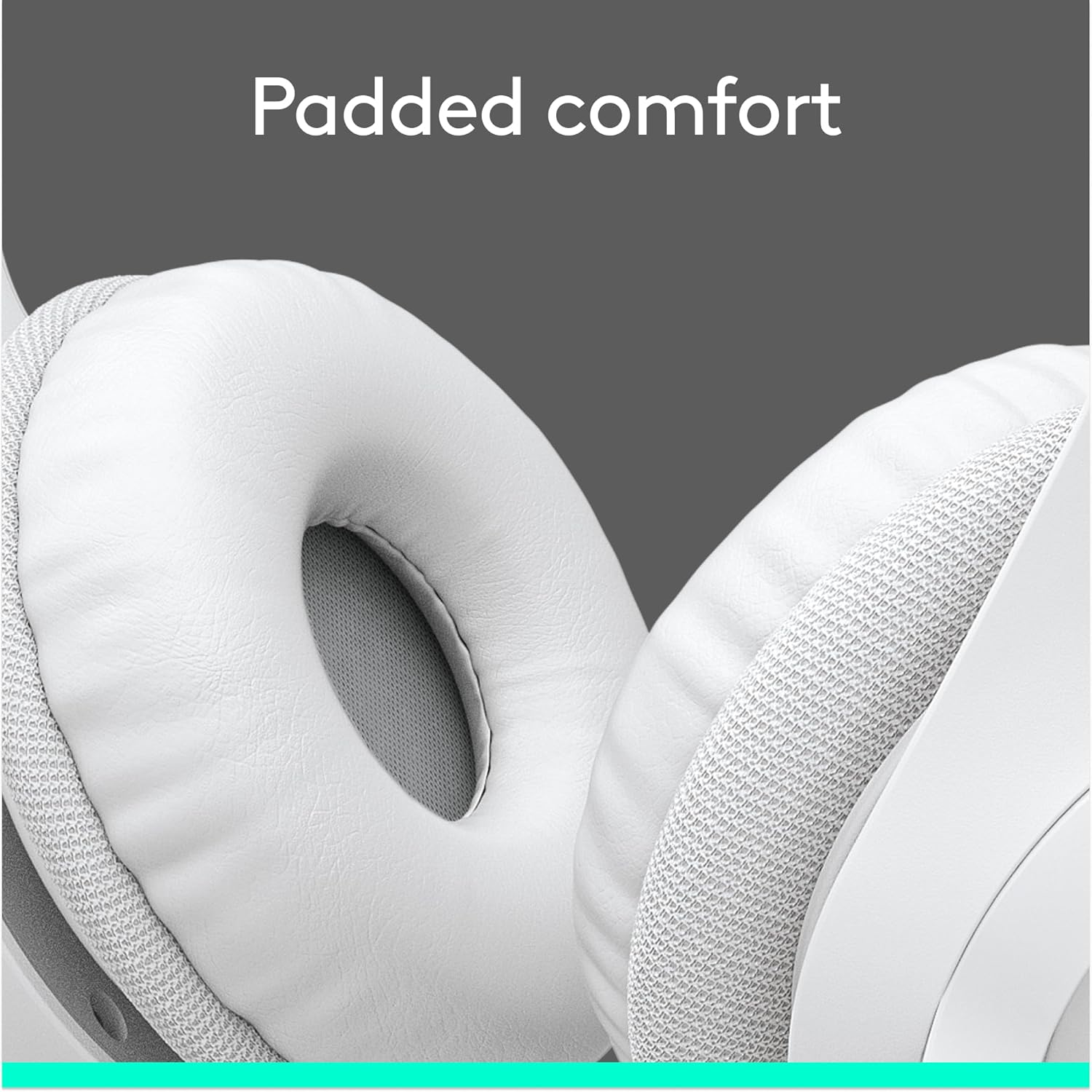
Figure 7: Padded ear cups for comfortable wear.
Resolució de problemes
If you encounter issues with your Logitech H390 headset, try the following common troubleshooting steps:
- Sense so/Micròfon no funciona:
- Assegureu-vos que el connector USB-A estigui completament inserit al port.
- Check your computer's sound settings to confirm the Logitech H390 is selected as the default playback and recording device.
- Verify that the microphone mute button on the in-line control is not activated (red light off).
- Try plugging the headset into a different USB port on your computer.
- Reinicieu l'ordinador.
- Àudio distorsionat:
- Adjust the volume using the in-line controls or your computer's volume settings.
- Assegureu-vos que no hi hagi altres dispositius d'àudio que interfereixin.
- Prova amb un port USB diferent.
- Background Noise from Microphone:
- Ensure the microphone is positioned correctly, close to your mouth.
- The H390 features noise cancellation, but excessive background noise may still be picked up. Try to use the headset in a quieter environment if possible.
For further assistance, refer to the support section or contact Logitech customer service.
Especificacions
| Característica | Detall |
|---|---|
| Nom del model | H390 |
| Número de model de l'article | 981-001285 |
| Tecnologia de connectivitat | Cablejat (USB-A) |
| Conector d'auriculars | USB |
| Control de soroll | Cancel·lació adaptativa del soroll |
| Micròfon | Included, Rotating, Noise-Cancelling |
| Controls en línia | Volume Control, Mute |
| Longitud del cable | 6.23 peus (1.9 m) |
| Col·locació de l'orella | Sobre l'orella |
| Coixinets per a les orelles | Leatherette, Padded |
| Diadema | Adjustable, Padded |
| Dispositius compatibles | Windows, macOS, ChromeOS |
| Color | Blanc |
| Pes de l'article | 6.9 unces (0.43 lliures) |
| Fabricant | Logitech |
| Data de primera disponibilitat | 18 de gener de 2023 |
Garantia i Suport
Informació de la garantia
Logitech products typically come with a limited hardware warranty. For specific warranty terms and conditions applicable to your Logitech H390 headset, please refer to the warranty documentation included with your purchase or visit the official Logitech support weblloc.
Atenció al client
If you require technical assistance, have questions about your product, or need to initiate a warranty claim, please contact Logitech customer support through their official channels. You can often find support resources, FAQs, and contact information on the Logitech weblloc.
For additional information, you may also refer to the official Manual d'usuari (PDF) proporcionat per Logitech.


