1. Introducció
This manual provides essential information for the installation, operation, and maintenance of your ASRock AMD Radeon RX 6400 Challenger ITX Graphics Card. Please read this guide thoroughly before proceeding with installation to ensure proper setup and optimal performance.
2. Informació de seguretat
- Always disconnect the computer from the power outlet before installing or removing any hardware components.
- Handle the graphics card by its edges to avoid touching sensitive components and to prevent electrostatic discharge (ESD). Consider using an anti-static wrist strap.
- Ensure your computer case has adequate ventilation to prevent overheating.
- Keep the graphics card away from moisture, dust, and extreme temperatures.
- Do not attempt to repair the card yourself. Refer to qualified service personnel.
3. Contingut del paquet
Verifiqueu que tots els elements siguin presents al vostre paquet:
- ASRock AMD Radeon RX 6400 Challenger ITX Graphics Card
- Guia d'instal·lació ràpida
- Driver CD or link to driver download (check ASRock's official website for the latest drivers)
4. Producte acabatview
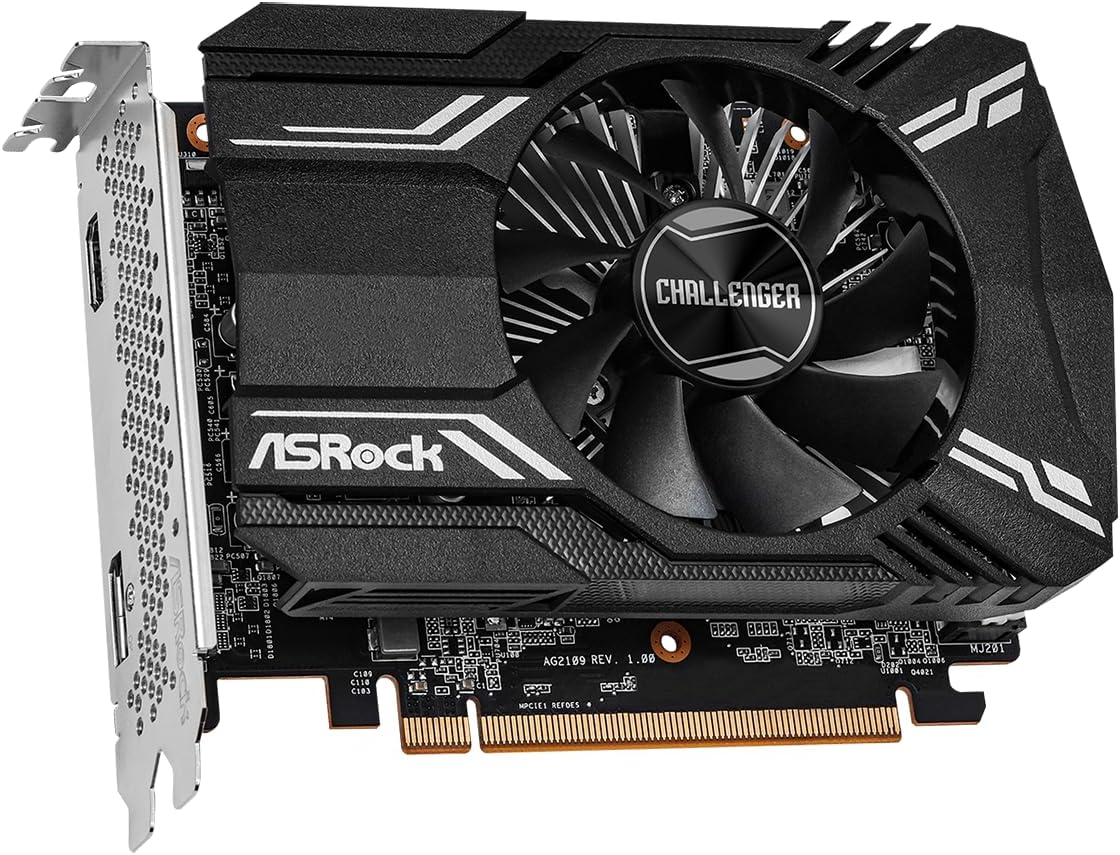
The ASRock AMD Radeon RX 6400 Challenger ITX is a compact graphics card designed for efficient performance. It features a single fan for optimized cooling, ensuring your system remains cool during operation. Built on the 6nm AMD Radeon RX 6400 GPU with RDNA 2 Architecture, it includes 4GB of GDDR6 memory and supports PCI Express 4.0 and DirectX 12 Ultimate.



5. Configuració i instal·lació
Follow these steps to install your graphics card:
- Prepareu el vostre sistema: Power off your computer and unplug the power cord from the wall outlet. Open your computer case.
- Localitza la ranura PCIe: Find an available PCI Express 4.0 x16 slot on your motherboard. Remove any expansion slot covers that may be blocking the slot.
- Inseriu la targeta gràfica: Carefully align the graphics card with the PCIe slot. Press down firmly and evenly until the card is fully seated in the slot. A click may be heard when it is properly seated.
- Assegureu la targeta: Secure the graphics card to the computer case using the screw from the expansion slot cover or the case's retention mechanism.
- Connecteu els cables de la pantalla: Close your computer case and reconnect the power cord. Connect your monitor(s) to the graphics card's HDMI or DisplayPort outputs.
- Engegar i instal·lar els controladors: Power on your computer. Once the operating system loads, install the latest graphics drivers from the ASRock or AMD official weblloc.
6. Instruccions de funcionament
- Instal·lació del controlador: After physical installation, download and install the latest AMD Radeon drivers from the official ASRock or AMD website. This ensures optimal performance and access to all features.
- Connexió de visualització: Use the HDMI or DisplayPort outputs on the graphics card to connect to your monitor. Ensure your monitor is set to the correct input source.
- Resolució i freqüència d'actualització: Adjust your display resolution and refresh rate settings within your operating system's display settings or through the AMD Radeon Software. The card supports resolutions up to 7680x4320 pixels.
- Configuració del programari: Utilize the AMD Radeon Software for fine-tuning graphics settings, monitoring performance, and updating drivers.
7. Manteniment
- Mantenir els controladors actualitzats: Regularly check for and install the latest graphics drivers from ASRock or AMD to benefit from performance improvements and bug fixes.
- Assegureu-vos un flux d'aire adequat: Keep your computer case clean and ensure that the graphics card's fan and heatsink are not obstructed. Good airflow is crucial for efficient cooling.
- Neteja de pols: Netegeu periòdicament la pols del ventilador i del dissipador de calor de la targeta gràfica amb aire comprimit. Assegureu-vos que l'ordinador estigui apagat i desendollat abans de netejar-lo.
8. Solució De Problemes
- Sense sortida de pantalla:
- Assegureu-vos que la targeta gràfica estigui completament col·locada a la ranura PCIe.
- Verifiqueu que el cable del monitor estigui connectat correctament tant a la targeta gràfica com al monitor.
- Check if your monitor is set to the correct input source (HDMI/DisplayPort).
- Si és possible, prova amb un cable de pantalla o monitor diferent.
- Problemes d'instal·lació del controlador:
- Uninstall any previous graphics drivers using a utility like Display Driver Uninstaller (DDU) in Safe Mode.
- Download the latest drivers directly from the ASRock or AMD website and perform a clean installation.
- Overheating or Fan Noise:
- Assegureu-vos que hi hagi un flux d'aire adequat dins de la caixa de l'ordinador.
- Clean any dust accumulation on the fan and heatsink.
- Monitor temperatures using AMD Radeon Software or third-party tools.
- Inestabilitat o errors del sistema:
- Assegureu-vos que la vostra font d'alimentació (PSU) compleixi amb el consum mínim d'aiguatagels requisits del vostre sistema, inclosa la targeta gràfica.
- Check for conflicting software or outdated motherboard BIOS.
9. Especificacions
| Característica | Especificació |
|---|---|
| Marca | ASRock |
| Sèrie | RX6400 CLI 4G |
| Número de model | RX6400 CLI 4G |
| Coprocessador gràfic | AMD Radeon RX 6400 |
| Xipset Brand | AMD |
| Mida de la RAM de la targeta gràfica | 4 GB GDDR6 |
| Resolució de pantalla màxima | 7680 x 4320 píxels |
| Interfície de sortida de vídeo | DisplayPort, HDMI |
| PCI Express Version | 4.0 |
| Pes de l'article | 9.7 unces |
| Dimensions del producte | 9.89 x 8.55 x 2.52 polzades |
| Solució de refrigeració | Single Fan Design (0dB Silent Cooling) |
10. Garantia i Suport
For detailed warranty information, please refer to the official ASRock website or the warranty card included with your product. ASRock provides technical support for its products. If you encounter any issues that cannot be resolved using this manual, please visit the ASRock support page or contact their customer service for assistance.
ASRock Official Weblloc: www.asrock.com