1. Introducció
This manual provides detailed instructions for the setup, operation, and maintenance of your Amcrest 4MP WiFi Indoor Pan/Tilt Camera, model ASH41-W. Please read this manual thoroughly before using the product to ensure proper functionality and safety. Keep this manual for future reference.
2. Producte acabatview
2.1 Característiques clau
- 4MP UltraHD Video: Captures video at 2560 x 1440 resolution at 25 frames per second.
- Pan and Tilt Functionality: Motorized lens offers 355° horizontal pan and 80° vertical tilt for comprehensive coverage.
- Human Detection & Smart Tracking: Built-in hardware-based AI chipset for accurate human detection and automatic tracking of moving objects.
- Àudio bidireccional: Integrated microphone and speaker enable real-time communication.
- Visió nocturna: Provides clear visibility up to 33 feet (10 meters) in absolute darkness using infrared LEDs.
- Baby Monitor Mode: Adjustable VOX audio monitoring for sound detection (e.g., baby crying, pet barking).
- Opcions d'emmagatzematge flexibles: Supports local storage via MicroSD card (up to 256GB, Class 10 recommended), Amcrest NVRs, 3rd party software (RTSP), and optional Amcrest Smart Home Cloud service.
- Connectivitat sense fils: Compatible with 2.4GHz Wi-Fi networks only. Not compatible with 5GHz networks.
- Mode de privadesa: Allows temporary disabling of camera functions for privacy.
2.2 Contingut del paquet
- Amcrest 4MP WiFi Indoor Pan/Tilt Camera (ASH41-W)
- Font d'alimentació
- Guia d'inici ràpid (no inclosa en aquest manual)
2.3 Components de la càmera

Imatge: Davant i posterior view of the Amcrest ASH41-W camera, highlighting key components such as the MicroSD card slot, reset button, LED indicator, lens, built-in microphone, built-in speaker, Ethernet port, and power port.
- Lent: 3.6mm fixed lens (4MP UltraHD).
- Indicador LED: Displays camera status.
- Micròfon integrat: Per a entrada d'àudio i conversa bidireccional.
- Altaveu integrat: For audio output and two-way talk.
- Ranura per a targeta MicroSD: For local video storage. Supports cards up to 256GB.
- Botó de restabliment: S'utilitza per restaurar la configuració predeterminada de fàbrica.
- Port Ethernet: Per a connexió de xarxa amb cable (opcional).
- Port d'alimentació: For connecting the included power supply.
3. Configuració
3.1 Engegada inicial
- Connect the included power supply to the camera's power port and plug it into a wall outlet.
- Wait for the camera to power on and perform its self-test. The LED indicator will show its status (refer to the LED indicator guide in the app for details).
3.2 Amcrest Smart Home App Installation
The Amcrest Smart Home app is required for initial setup and full functionality. Download the app from your device's app store:
3.3 Connexió a Wi-Fi
Ensure your Wi-Fi network is 2.4GHz. This camera does not support 5GHz networks.
- Open the Amcrest Smart Home app and create an account or log in.
- Toqueu la icona "+" per afegir un dispositiu nou.
- Follow the on-screen instructions in the app to connect your camera to your Wi-Fi network. This typically involves scanning a QR code generated by the app with the camera lens.
3.4 Optional: Wired Connection
For a stable connection, you can connect the camera directly to your router or network switch using an Ethernet cable (not included).
- Connecteu un extrem d'un cable Ethernet al port Ethernet de la càmera.
- Connect the other end to an available LAN port on your router or switch.
- The camera will automatically attempt to establish a wired network connection.
3.5 Muntatge de la càmera
The camera can be placed on a flat surface or mounted to a wall or ceiling. A wall mount is included for installation.
- Trieu una ubicació adequada per a un ús òptim viewcobertura.
- Use the provided mounting bracket and screws to secure the camera to the desired surface.
- Adjust the camera's angle as needed after mounting.
4. Instruccions de funcionament
4.1 Amcrest Smart Home App Interface
Once connected, access your camera's live view and settings through the Amcrest Smart Home app.

Imatge: Screenshot of the Amcrest Smart Home app displaying a history record with cloud recordings and options for live view and MicroSD card access.
4.2 Control de panoràmica i inclinació
Del directe view in the app, swipe your finger across the screen to remotely control the camera's pan (horizontal) and tilt (vertical) movements.

Imatge: The Amcrest ASH41-W camera rotating to follow movement, illustrating its smart tracking capability with arrows indicating 355° pan and 80° tilt.
4.3 Àudio bidireccional
Tap the microphone icon in the app's live view to speak through the camera's speaker. Tap the speaker icon to listen to audio from the camera's microphone.
4.4 Human Detection and Smart Tracking
Enable Human Detection in the camera settings within the app to receive alerts specifically for human presence, reducing false alarms. When Smart Tracking is enabled, the camera will automatically record and follow detected human movement.

Imatge: A family walking through a doorway with digital frames highlighting human detection, alongside the Amcrest ASH41-W camera and a phone displaying a human motion alert.
4.5 Baby Monitor Sound Alarm Mode
Activate the Baby Monitor mode from the live-view screen in the app. This allows you to set adjustable sound thresholds to receive notifications for specific sounds like a baby crying or a pet barking.

Imatge: The Amcrest ASH41-W camera next to a smartphone displaying the Amcrest Smart Home app in Baby Monitor mode, showing a live feed of a baby and sound level graphs.
4.6 Mode de privadesa
To temporarily disable video and audio recording for privacy, activate Privacy Mode within the Amcrest Smart Home app settings.
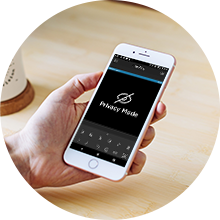
Imatge: A circular image showing a hand holding a smartphone with the Amcrest app open, displaying a 'Privacy Mode' screen with an eye icon crossed out.
4.7 Storage and Playback
Recordings can be stored locally on a MicroSD card or remotely via the Amcrest Smart Home Cloud (subscription may apply after initial free period). Access and playback recordings directly through the Amcrest Smart Home app.

Imatge: A circular image depicting icons for a MicroSD card, an Amcrest NVR, and the Amcrest Smart Home cloud, illustrating the flexible storage options available for the camera.
5. Manteniment
5.1 Neteja
To maintain optimal performance, periodically clean the camera lens and exterior with a soft, dry cloth. Avoid using harsh chemicals or abrasive cleaners.
5.2 actualitzacions de microprogramari
Amcrest regularly releases firmware updates to improve performance, add features, and enhance security. Check for and install available firmware updates through the Amcrest Smart Home app to ensure your camera is running the latest software.
6. Solució De Problemes
If you encounter issues with your Amcrest ASH41-W camera, refer to the following common troubleshooting steps:
- La càmera no es connecta a la Wi-Fi:
- Assegura't que la teva xarxa Wi-Fi sigui de 2.4 GHz. La càmera no admet la freqüència de 5 GHz.
- Verifiqueu que la contrasenya del Wi-Fi sigui correcta.
- Apropa la càmera al router Wi-Fi per millorar la intensitat del senyal.
- Reinicieu el router i la càmera.
- Frequent False Alerts:
- Adjust the motion detection sensitivity settings in the Amcrest Smart Home app.
- Utilize human detection filtering to focus on human-specific events.
- Set up custom motion detection zones to exclude areas with frequent irrelevant movement.
- Mala qualitat de visió nocturna:
- Assegureu-vos que la lent de la càmera estigui neta i lliure d'obstruccions.
- Check the night vision settings in the app to ensure it is enabled and functioning correctly.
- Avoid placing the camera directly facing reflective surfaces that could cause infrared glare.
- Camera Making Squeaking Noises:
- If the camera produces unusual mechanical noises during pan/tilt operations, ensure it is mounted securely and not obstructed.
- If the issue persists, contact Amcrest support for further assistance.
- Camera Unresponsive / Not Booting:
- Desconnecteu i torneu a connectar la font d'alimentació.
- Press and hold the reset button for 10-15 seconds to perform a factory reset. Note that this will erase all settings and require re-setup.
- If the camera remains unresponsive, contact Amcrest support.
7. Especificacions
| Característica | Especificació |
|---|---|
| Número de model | ASH41-W |
| Resolució de captura de vídeo | 4 MP (2560 x 1440) |
| Velocitat de fotogrames | 25 fps |
| Interval de panoràmica/inclinació | Panorama de 355°, inclinació de 80° |
| Zoom digital | 16x |
| Viewangle ing | 94° (diagonal) |
| Gamma de visió nocturna | Fins a 33 peus (10 metres) |
| Tecnologia de connectivitat | Wi-Fi (2.4GHz only), Wired (Ethernet) |
| Opcions d'emmagatzematge | MicroSD Card (up to 256GB), Amcrest NVR, Amcrest Smart Home Cloud, RTSP |
| Font d'alimentació | Elèctric amb cable |
| Voltage | 5 Volts |
| Wattage | 10 watts |
| Dimensions | 4.17 x 3.9 x 3.46 polzades (aproximadament) |
| Pes de l'article | 13.4 unces |
| Ús interior/exterior | Interior |
| Característiques especials | Motion Sensor, Night Vision, Human Detection, Smart Tracking, 2-Way Audio, Baby Monitor Mode |
8. Garantia i Suport
Amcrest provides a Garantia d'1 any als EUA for the ASH41-W camera. Additionally, Suport de tota la vida is available directly from Amcrest to assist with any product-related inquiries or issues.
For technical assistance, troubleshooting, or warranty claims, please visit the official Amcrest support website or contact their customer service team. Refer to the product packaging or Amcrest's official weblloc web per obtenir la informació de contacte més actualitzada.


