Introducció
The Metapen Stylus Pen M2 is designed to enhance your digital writing and drawing experience on compatible devices. Featuring advanced pressure sensitivity, a tail eraser, and palm rejection technology, it offers a natural and precise interaction with your screen. This manual provides essential information for setup, operation, maintenance, and troubleshooting.
Configuració i ús inicial
Càrrega del Stylus
Before first use, fully charge your Metapen M2. The stylus features USB-C fast charging.
- Connect the provided USB-C cable to the charging port on the stylus and a power source.
- A full charge takes approximately 1 hour, providing up to 100 hours of continuous use.
- A 5-minute charge can provide over 24 hours of standby time.
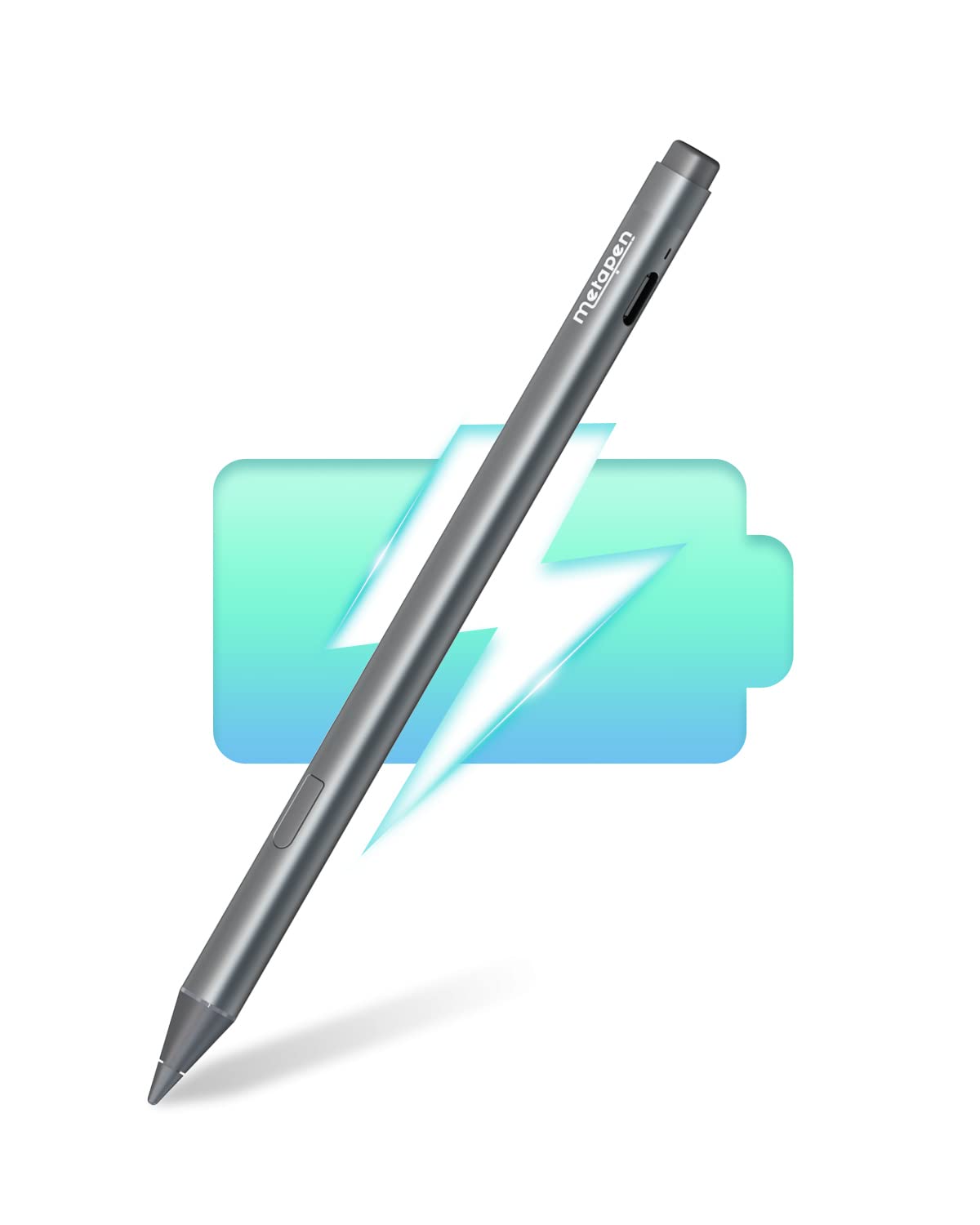
Image: The Metapen M2 Stylus Pen connected to a USB-C charging cable, with a battery icon indicating charging.
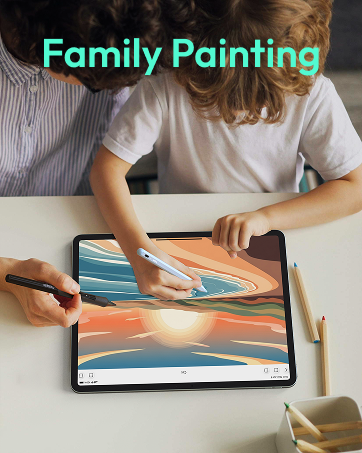
Image: Diagram illustrating USB-C fast charging, showing 1 hour charging time for 100 hours battery life, and LED indicators for charging status (orange for charging, white for fully charged, blinking orange for low power).
Instruccions de funcionament
Pressure Sensitivity (4096 Levels)
The Metapen M2 offers 4096 levels of pressure sensitivity, allowing for precise control over line thickness and opacity. Apply varying pressure to achieve different artistic effects, from fine lines to broad strokes.
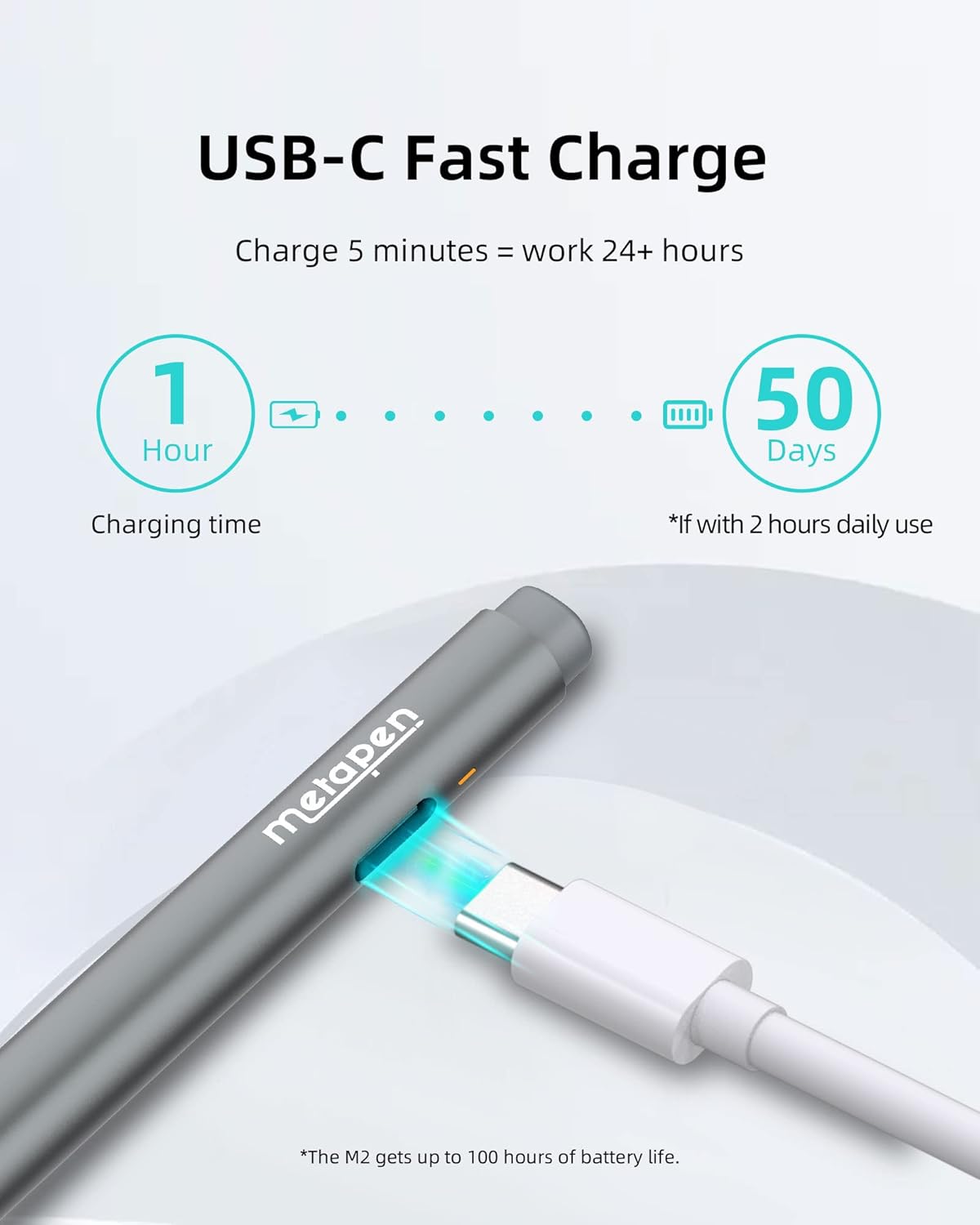
Image: A Metapen M2 Stylus Pen drawing on a tablet screen, illustrating the ability to reproduce fine lines and broad brush strokes with 4096 pressure sensitivity levels.
Tail Eraser and Right-Click Button
The tail end of the stylus functions as an eraser, similar to a traditional pencil. Simply flip the stylus over to quickly correct mistakes. A right-click button is also integrated for additional functionality within supported applications.

Image: Close-up of the Metapen M2 Stylus Pen showing the tail eraser function and the location of the right-click button.
Rebuig de palmera
With palm rejection technology, you can rest your hand naturally on the screen while writing or drawing without causing unintended marks or interference. This ensures a comfortable and uninterrupted creative process.

Image: A user's hand resting on a tablet screen while using the Metapen M2 Stylus Pen, demonstrating the palm rejection feature.
Funció d'inclinació
The M2 supports tilt functionality, allowing you to shade your drawings by tilting the stylus tip up to ±55°. This feature mimics the effect of tilting a graphite pencil, adding artistic depth to your work.
- Supported Models for Tilt Function: Surface Pro (5th Gen), Pro 6, Pro 7, Pro 7+, Pro 8, Pro 9, Pro X, Surface Laptop (all models), Laptop Studio, Book 2 (all models), Surface Book 3 (all models), Go 2, Go 3, Studio, Studio 2.
- Models not listed may not support this feature.
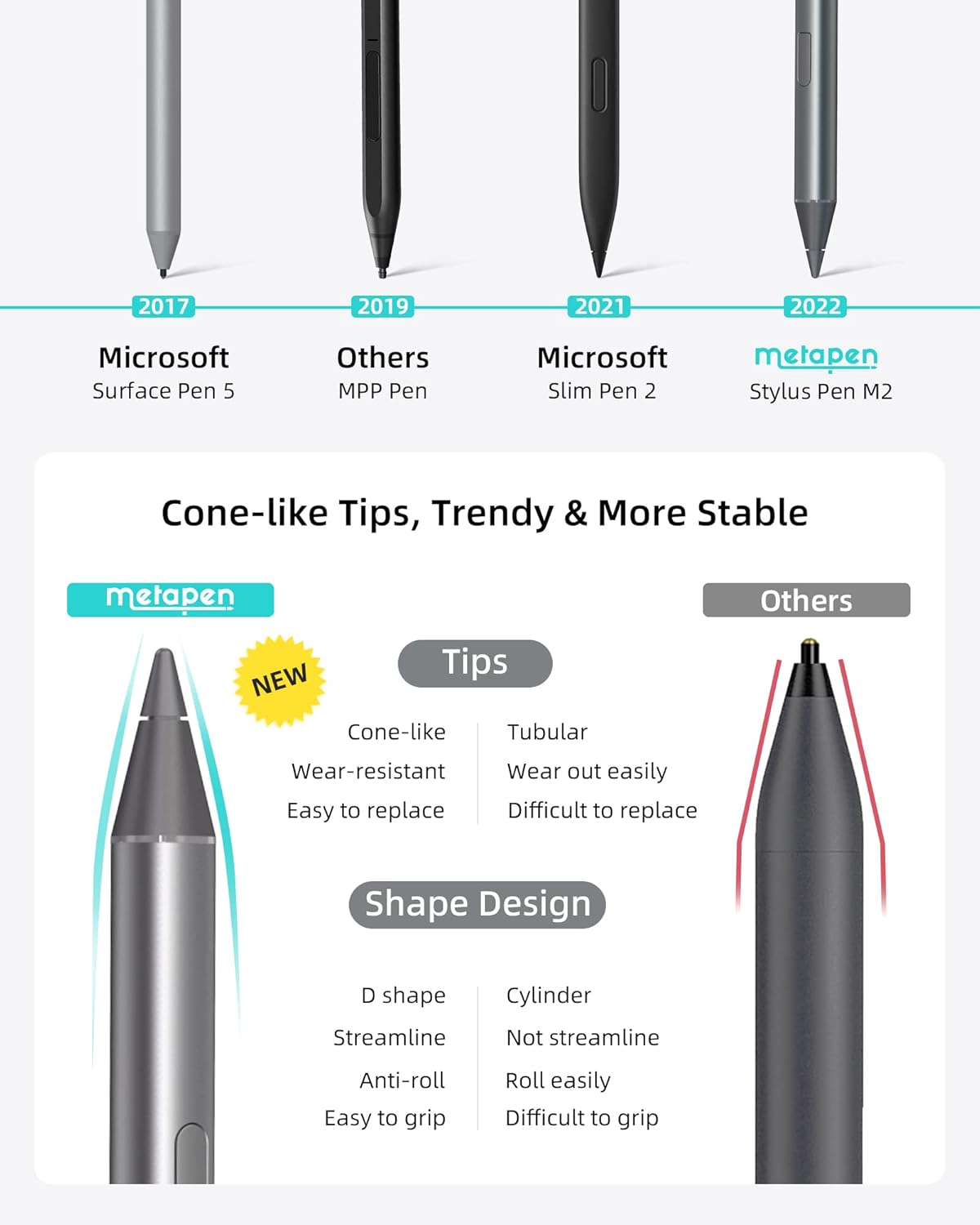
Image: Illustration showing the Metapen M2 Stylus Pen at different tilt angles (15°, 30°, 55°) to demonstrate shading capabilities.
Enganxament magnètic
The Metapen M2 features two built-in magnets for secure attachment to compatible Microsoft Surface tablets. This allows for convenient storage and quick access.
- Supported Magnetic Attachment Models: Surface Pro 3–Pro 11, Surface Book / Book 2 / Book 3, Surface 3, Surface Go / Go 2 / Go 3, Kobo Libra Colour, Kobo Sage, Kobo Elipsa, Kobo Elipsa 2E.
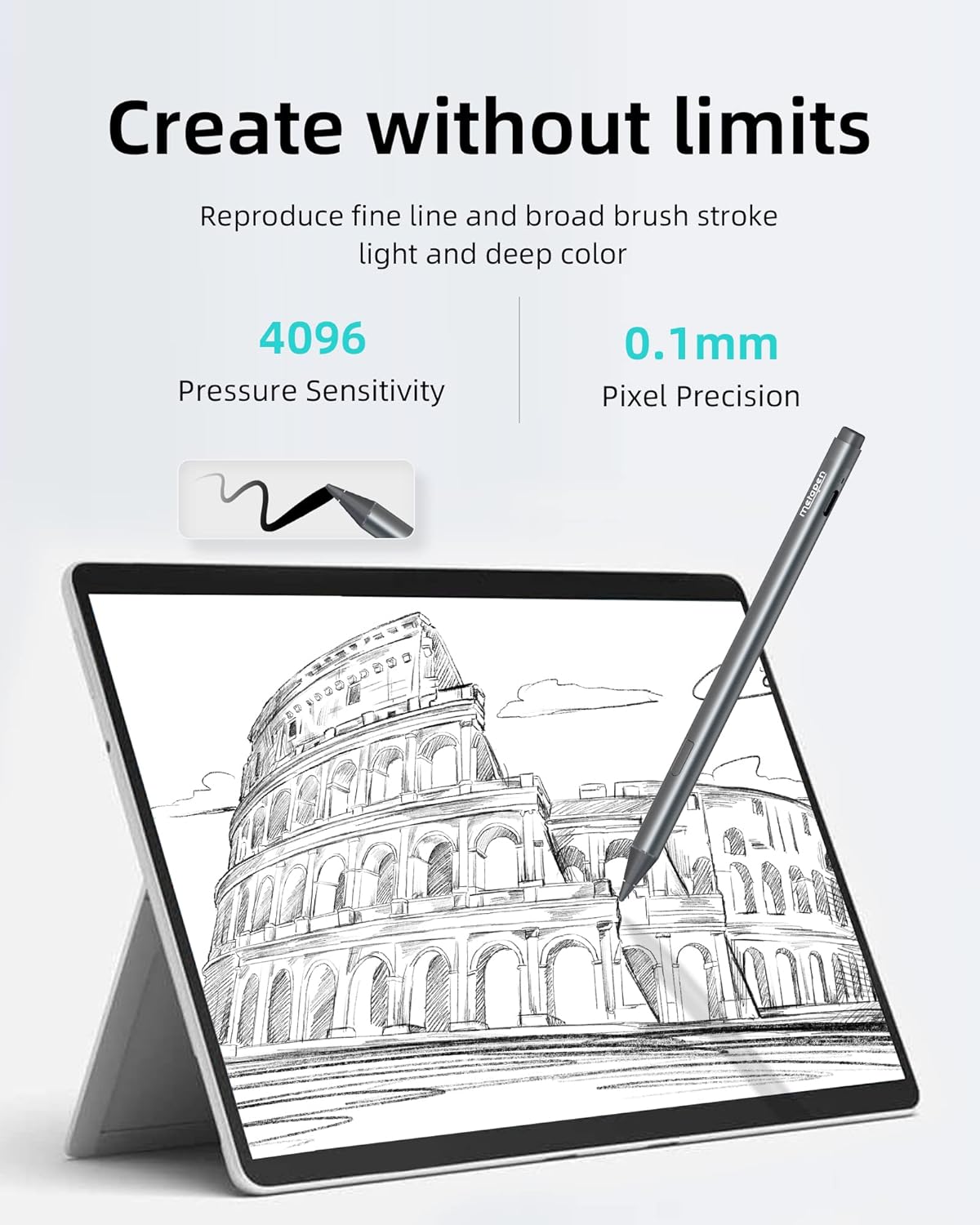
Image: The Metapen M2 Stylus Pen magnetically attached to the side of a tablet, highlighting the secure connection.
Compatibilitat
The Metapen M2 supports the MPP2.0 protocol and is compatible with a wide range of devices. Please ensure your device is MPP compliant. If your device model is not listed, contact support for verification.
Microsoft Surface Devices:
- Surface Pro: 3, 4, (5th Gen), 6, 7, 7+, 8, X
- Llibre de superfície: Book, Book 2, Book 3
- Portàtil Surface: Laptop, Laptop 2, Laptop 3, Laptop 4, Laptop Studio
- Surface Go: Go, Go 2, Go 3
- Other Surface: Surface 3, Surface Studio, Studio 2
- No compatible amb: Surface Laptop Go / Laptop Go 2 / Laptop Go 3 / Laptop SE / Surface Hub 2S / Surface Laptop 7
ASUS Devices:
- VivoBook Flip: 14 R211NA/TM420UA/TN3402/TN3402QA/TP3402/TP401NA/TP401CA/TP410UA/TP420UA/TP470EA/UN5401QA/UP5401ZA/12 R211NA/TP203NA/15 TP510UA/TP510UQ/16 TN3604YA/TP3604VA
- VivoBook Pro: X580VD
- ZenBook: UX370UA/UX461UA/UX550VE/UX550VD
- ZenBook Flip: UX560UA/UX560UQ/UX560UX/UX561UA/UX561UN/UX561UD/13 UX363J/UX363EA/14 UX461F/15 UX562UG/UX563
- ZenBook Pro Duo: 15 UX5100ZM/UX582ZM
- Transformador: 3 Pro T303UA/3 T305CA/Mini T102HA/Mini T103HA
- Transformer Pro: T304UA
- Llibreta: Q405UA/Q325UA
- Pro Art: PX13/PX16
- ROG Flow: X13/Z13/X16
HP Devices:
- ENVY: 17-aexxx/x2 12-e0xx/x2 12-g0xx/x360 13z-ag0xxx/x360 13m-bd0xxx/x360 15-ar0xxx/x360 15-bq0xx/x360 15-bp0xx/x360 15-br0xxx/x360 15-cn0xxx/x360 15-cp0xx/x360 15-dr0xxx/x360 15-ds0xxx/x360 15-ee0xxx/x360 15-ef0xxx/x360 15m-bp1xx/x360 15m-bq021dx/x360 15-ey0000/x360 15-ey0013dx
- Spectre: x360 13-ac0xx/x360 13-ae0xx/x360 13-ap0xx/x360 14-eu001xx/x360 15-bl0xx/x360 15-ch0xx/x360 15-df0xx/x360 16-f1002ns/Folio 13-ak0xx/x2 12-c0xx
- Pavilion: x360 11-ap0xxx/x360 11m-ad0xx/x360 11-ad0xx/x360 14-dh0xxx/x360 14-dy0002na/x360 14-dy0034na/x360 14-ek0033dx/x360 14m-ba0xx/x360 14-ba0xx/x360 15-br0xx/x360 15-cr0xx/x360 16-f1002ns
- OmniBook Ultra Flip: 14-fh00xxxx
Dell Devices:
- Latitud: 7220/3390/3190/3120
- Inspiron: 7600/7591/7590/7586/7573/7506/7500/7405/7415/7391/7390/7386/7373/7306/7300/5591/5582/5491/5490/5485/5482/5400*/5406*/7370*/7570*/5000*
- Note: Configurations with HD displays do not support active pen. Only models with the label "Support Active Pen" will support the stylus.
Kobo Devices:
- Kobo Libra Colour, Kobo Sage, Kobo Elipsa, Kobo Elipsa 2E
- Note: Kobo button uses the reverse setting.
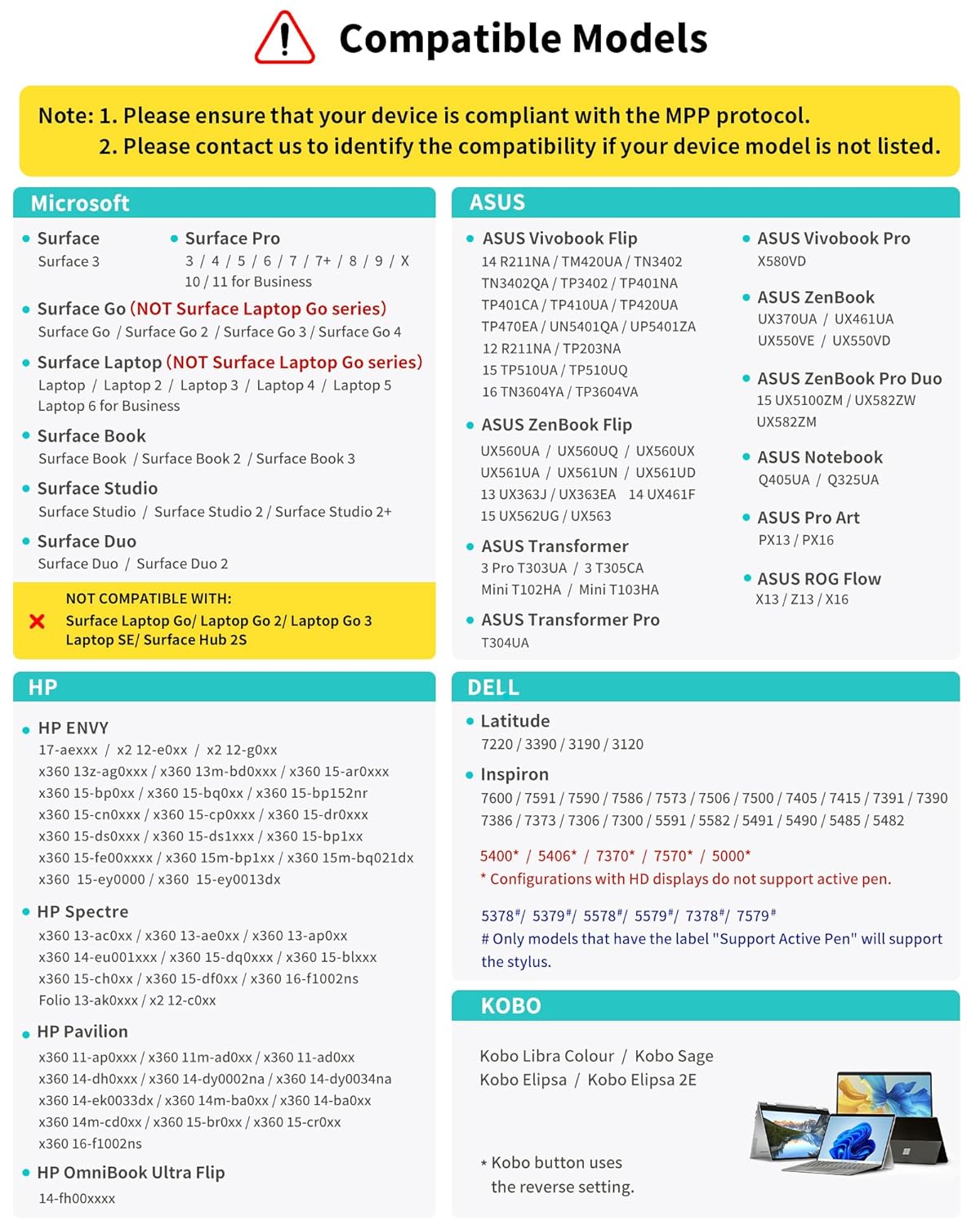
Image: A detailed chart listing compatible Microsoft, ASUS, HP, Dell, and Kobo devices for the Metapen M2 Stylus Pen.
Manteniment
Substitució de la punta del llapis
Over time, the pen tip may wear down and require replacement to maintain optimal performance. Follow these steps:
- Gently pull out the old tip from the stylus.
- Insert the new tip exactly into the thin hole until it is secure.
- Avoid repeatedly pulling out and inserting the tip to prevent damage.
Note: It is normal for the pen tip to have a slight movement or looseness to produce pressure sensitivity. This is not a defect.

Image: Visual guide demonstrating how to pull out an old pen tip and insert a new one into the Metapen M2 Stylus Pen.
Resolució de problemes
- El llapis òptic no respon: Ensure the stylus is charged. If fully charged, try restarting your device.
- Seguiment inexacte: Check if the pen tip is securely installed. Ensure your device screen is clean.
- Problemes de compatibilitat: Verify your device is listed in the compatibility section. If not, or if issues persist, contact customer support.
- Preocupacions sobre la durada de la bateria: Ensure the stylus is fully charged. Note that continuous heavy use may reduce battery life faster than typical standby time.
For further assistance, please contact Metapen customer support at support@metapen.com.
Especificacions
| Número de model | ME-MPP702 |
| Sensibilitat a la pressió | 4096 nivells |
| Temps de càrrega | Aprox. 1 hora |
| Durada de la bateria | Fins a 100 hores (ús continu) |
| Pes | 0.494 unces (aproximadament 14 grams) |
| Dimensions | 7.36 x 2.32 x 0.71 polzades (dimensions del paquet) |
| Protocol | MPP2.0 |
Garantia i Suport
Metapen offers comprehensive support for your M2 Stylus Pen:
- Garantia: 2 Years Care (contact support@metapen.com per als detalls).
- Devolucions/Substitucions: 30 Days Replacement policy.
- Atenció al client: 7x24 Hours customer support available.
Image: Graphic detailing Metapen's customer support offerings, including a 2-year care plan, 30-day replacement, and 24/7 customer service.


