1. Producte acabatview
The MikroTik CCR2004-16G-2S+PC is a powerful Cloud Core Router designed for high-performance networking environments. It features an Annapurna Labs Alpine v2 CPU with 4x ARMv8-A Cortex-A57 cores, providing robust processing capabilities for complex network tasks. This router is equipped with 16 Gigabit Ethernet ports and two 10G SFP+ cages, offering extensive connectivity options for various applications, from home labs to office networks.
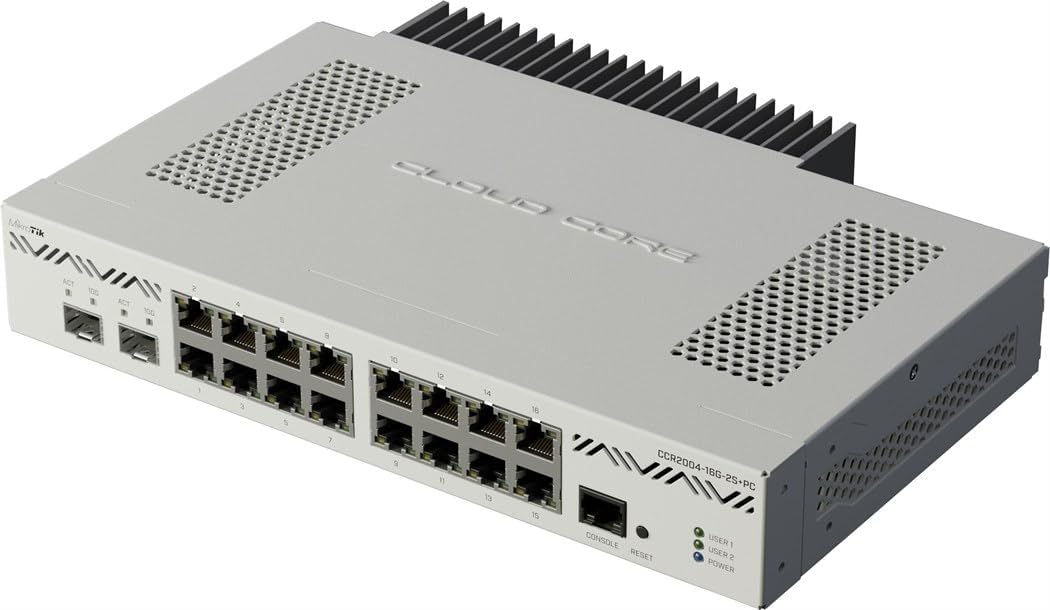
Imatge 1.1: Davant view of the MikroTik CCR2004-16G-2S+PC Ethernet Router, showcasing its 16 Gigabit Ethernet ports and two 10G SFP+ cages.
Característiques principals:
- High-Performance CPU: Annapurna Labs Alpine v2 with 4x ARMv8-A Cortex-A57 cores.
- Àmplia connectivitat: 16x Gigabit Ethernet ports for versatile network connections.
- High-Speed Uplinks: 2x 10G SFP+ cages for fiber optic or high-speed copper connections.
- Disseny compacte: Suitable for various installation environments, including desktop or rackmount setups.
- Sistema operatiu del router: Powered by MikroTik's advanced RouterOS for comprehensive network management and configuration.
Vídeos del producte:
Vídeo 1.1: Un breu producte acabatview of the MikroTik CCR2004-16G-2S+PC router, highlighting its key features and connectivity options.
Vídeo 1.2: A detailed look at the MikroTik CCR2004-16G-2S+PC, showcasing its design, ports, and internal components, emphasizing its suitability for various network setups.
2. Guia de configuració
2.1 Desembalatge i inspecció inicial
Carefully remove the router and all accessories from the packaging. Inspect the device for any signs of damage. The package should contain the CCR2004-16G-2S+PC router, a power cable, and a quick start guide.
2.2 Connexió del dispositiu
- Connexió d'alimentació: Connect the provided power cable to the router's power input and then to a suitable power outlet. The power LED indicator should illuminate.
- Connexió Ethernet: Connect an Ethernet cable from your computer to any of the Gigabit Ethernet ports (e.g., Ether1) on the router.
- Connexió a Internet: Connect your internet service provider's (ISP) modem or main network line to one of the Gigabit Ethernet ports or a 10G SFP+ cage, depending on your network configuration.
- SFP+ Module Installation (Optional): If using SFP+ modules, carefully insert them into the 10G SFP+ cages until they click into place. Then, connect the appropriate fiber optic or copper cables to the modules.
2.3 Accés a la configuració inicial
The MikroTik CCR2004-16G-2S+PC can be configured via a web navegador (WebFig) or a dedicated utility (WinBox). For initial setup, it is recommended to use WinBox or access the default IP address via a web navegador.
- Adreça IP predeterminada: 192.168.88.1
- Nom d'usuari per defecte: admin
- Contrasenya per defecte: (No password by default for new devices)
Obre el teu web navegador i navegueu a http://192.168.88.1 or use the WinBox utility to connect to the router's MAC address if IP connectivity is not yet established.
3. Instruccions de funcionament
3.1 RouterOS Basics
The CCR2004-16G-2S+PC runs MikroTik's RouterOS, a highly versatile operating system for routers. It offers extensive features for routing, firewall, VPN, QoS, and more.
- WebFiga: A web-based graphical user interface (GUI) accessible via your browser.
- Caixa de vins: A small Windows utility that provides a GUI for RouterOS configuration.
- CLI (Command Line Interface): Accessible via Telnet, SSH, or the console port for advanced users.
3.2 Configuració bàsica de xarxa
- Set a Strong Password: Immediately change the default 'admin' user password for security.
- Configure WAN Interface: Set up the internet-facing port with appropriate IP settings (DHCP client, static IP, or PPPoE) as provided by your ISP.
- Configure LAN Interface: Assign an IP address to your local network interface and enable a DHCP server to automatically assign IP addresses to connected devices.
- Firewall Setup: Configure basic firewall rules to protect your network from unauthorized access.
- Actualització del firmware: Regularly check for and install the latest RouterOS firmware to ensure optimal performance and security.
3.3 Funcions avançades
Explore the vast capabilities of RouterOS for advanced network management:
- VLAN: Create Virtual Local Area Networks for network segmentation.
- VPN: Set up various VPN protocols (IPsec, OpenVPN, L2TP, PPTP) for secure remote access or site-to-site connections.
- QoS (Qualitat de servei): Prioritzar el trànsit de xarxa per a aplicacions crítiques.
- Bonding/LAGG: Combine multiple Ethernet ports for increased bandwidth or redundancy.
- Seguiment: Utilize built-in tools for real-time network monitoring and logging.
4. Manteniment
4.1 Regular Software Updates
Keep your RouterOS firmware and packages updated to the latest stable version. This ensures you have the latest features, bug fixes, and security patches. Updates can be performed via WinBox or WebFig.
4.2 Còpia de seguretat de la configuració
Regularly back up your router's configuration. This allows for quick restoration in case of misconfiguration or hardware failure. Backups can be saved to your computer or an external storage device connected via USB.
4.3 Physical Inspection
Periodically inspect the router for dust accumulation, especially around ventilation areas. Ensure all cable connections are secure. For optimal performance, maintain the router in a well-ventilated area to prevent overheating.
4.4 Restabliment dels valors predeterminats de fàbrica
In case of severe misconfiguration or forgotten password, the router can be reset to factory defaults. Locate the reset button on the device (usually a small pinhole button). With the device powered off, press and hold the reset button, then power on the device. Continue holding the button until the USER LED starts flashing, then release. This will restore the router to its initial factory settings.
5. Solució De Problemes
5.1 Sense poder
- Ensure the power cable is securely connected to both the router and the power outlet.
- Verifiqueu que la presa de corrent funciona connectant-hi un altre dispositiu.
- Comproveu si l'adaptador de corrent presenta algun dany visible.
5.2 Sense accés a Internet
- Verify that your ISP service is active and the modem is working correctly.
- Check the WAN port connection on the router. Ensure the link light is active.
- Confirm that the WAN interface is correctly configured in RouterOS (IP address, gateway, DNS).
- Check firewall rules to ensure they are not blocking internet access.
5.3 No es pot accedir a la configuració del router
- Ensure your computer is directly connected to a LAN port on the router.
- Verify your computer's IP settings are set to obtain an IP address automatically (DHCP) or are within the router's default subnet (192.168.88.x).
- Try accessing the router via its MAC address using WinBox if the IP address is unknown or changed.
- If the password is forgotten, perform a factory reset (refer to Section 4.4).
5.4 Rendiment de xarxa lent
- Check for high CPU usage on the router via RouterOS monitoring tools.
- Ensure all network cables are in good condition and properly connected.
- Verify that your SFP+ modules and cables are compatible and functioning correctly for 10G speeds.
- Review QoS settings to ensure no unintended traffic shaping is occurring.
- Consider upgrading firmware or optimizing RouterOS configurations for your specific workload.
6. Especificacions tècniques
| Característica | Descripció |
|---|---|
| Model de producte | CCR2004-16G-2S+PC |
| Marca | MikroTik |
| CPU | Annapurna Labs Alpine v2, 4x ARMv8-A Cortex-A57 cores |
| Ports Ethernet | 16x Gigabit Ethernet (10/100/1000 Mbps) |
| SFP+ Cages | 2x 10G SFP+ |
| RAM | 4 GB |
| Sistema operatiu | RouterOS |
| Dimensions | 19.69 x 19.69 x 11.02 polzades |
| Pes | 3 lliures |
| Tecnologia de connectivitat | Ethernet |
| Ús recomanat | Home, Office, Data Centers, ISPs |
7. Garantia i Suport
7.1 Informació de la garantia
MikroTik products typically come with a limited manufacturer's warranty. Please refer to the official MikroTik website or the warranty card included in your product packaging for specific terms and conditions regarding warranty coverage, duration, and claims procedures.
7.2 Suport tècnic
For technical assistance, configuration guidance, or troubleshooting beyond this manual, please visit the official MikroTik support resources:
- Wiki de MikroTik: wiki.mikrotik.com (Comprehensive documentation and guides)
- MikroTik Forum: forum.mikrotik.com (Community support and discussions)
- Suport oficial: Refer to the "Support" section on the main MikroTik website for contact information and support ticket submission.
When contacting support, please have your device's model number (CCR2004-16G-2S+PC) and serial number ready.


