1. Introducció
This manual provides essential information for the safe and efficient use of your HUAWEI PixLab B5 Multifunction Laser Printer. Please read it thoroughly before operating the device and keep it for future reference.
The HUAWEI PixLab B5 is a versatile 3-in-1 device, offering high-speed printing, copying, and scanning functionalities. It features automatic duplex printing, a user-friendly one-step toner replacement system, and multiple connectivity options including USB, Wi-Fi, and LAN.
2. Informació de seguretat
Seguiu sempre les precaucions de seguretat bàsiques quan utilitzeu aquest producte per reduir el risc d'incendi, descàrrega elèctrica i lesions a les persones.
- No col·loqueu la impressora sobre un carretó, suport o taula inestable.
- No bloquegeu ni tapeu les ranures i obertures de la impressora.
- Use only the power cord and power source indicated in this manual.
- No intenteu fer la reparació de la impressora vosaltres mateixos. Envieu totes les tasques de reparació a personal de servei qualificat.
- Mantingueu la impressora allunyada de l'aigua i la humitat.
- Assegureu-vos d'una ventilació adequada al voltant de la impressora.
3. Contingut del paquet
Verifiqueu que tots els elements estiguin inclosos al paquet:
- HUAWEI PixLab B5 Multifunction Laser Printer
- Cable d'alimentació
- Cable USB
- HUAWEI F-1500BZ Toner Cartridge
- HUAWEI X-15000BZ Drum Unit
- Manual d'usuari (aquest document)
4. Producte acabatview
Familiarize yourself with the main components of your HUAWEI PixLab B5 printer.

Figura 4.1: Davant view of the HUAWEI PixLab B5 printer, showing the HUAWEI logo on the front panel.

Figura 4.2: De dalt a baix view of the HUAWEI PixLab B5 printer, illustrating a document exiting the output tray after printing.
5. Configuració
5.1 Desembalatge
- Traieu amb cura la impressora de l'embalatge.
- Traieu totes les cintes protectores i els materials d'embalatge de l'exterior i l'interior de la impressora.
5.2 Instal·lació de la unitat de tòner i tambor
The HUAWEI PixLab B5 features an innovative drawer-type toner cartridge for easy replacement.
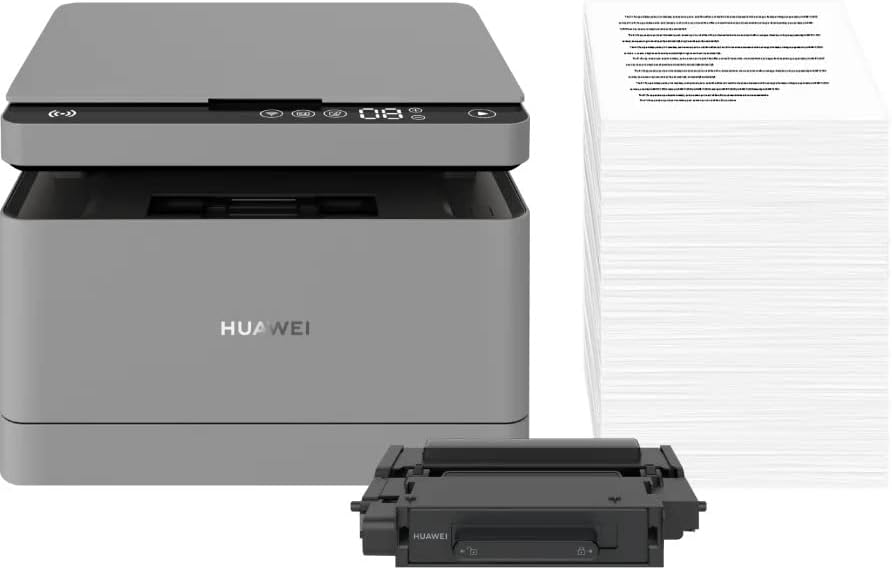
Figura 5.1: The HUAWEI PixLab B5 printer shown alongside a replacement toner cartridge and a stack of paper, highlighting the separate components.

Figura 5.2: A diagram illustrating the toner cartridge detached from the drum unit, demonstrating the modular design for replacement.
- Obriu la coberta frontal de la impressora.
- Gently pull out the toner cartridge drawer.
- Insert the HUAWEI F-1500BZ toner cartridge into the HUAWEI X-15000BZ drum unit until it clicks into place.
- Slide the assembled toner and drum unit back into the printer until it is securely seated.
- Tanqueu la coberta frontal.
5.3 Càrrega de paper
- Obriu la safata de paper.
- Ajusteu les guies del paper a la mida de paper correcta (per exemple, A4).
- Load paper into the tray, ensuring it is not overfilled (maximum capacity: 150 sheets).
- Tanqueu la safata de paper.
5.4 Connexió d'alimentació
- Connecteu el cable d'alimentació al port d'alimentació de la impressora.
- Connecteu l'altre extrem del cable d'alimentació a una presa de corrent amb connexió a terra.
- Premeu el botó d'engegada per encendre la impressora.
5.5 Instal·lació i connectivitat del programari
The HUAWEI PixLab B5 supports multiple connection methods for seamless integration with various devices.
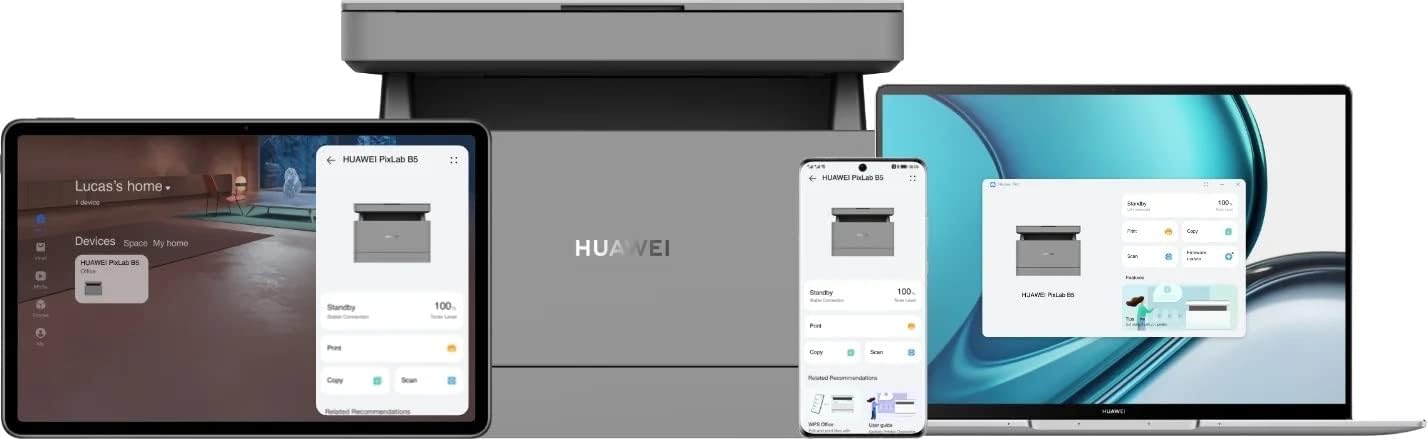
Figura 5.3: The HUAWEI PixLab B5 printer demonstrating its versatile connectivity by being linked to a tablet, a smartphone, and a laptop, all displaying the printer's interface.

Figura 5.4: An illustrative image depicting various devices such as a tablet, smartphone, and laptop connected to the printer, emphasizing multi-device compatibility.


Figura 5.5: Icons representing various connectivity options: USB, LAN, Wi-Fi, and Printer Hotspot.
- Connexió USB: Connect the printer to your computer using the provided USB cable. The necessary drivers should install automatically.
- Connexió LAN: Connect an Ethernet cable from your router or network switch to the LAN port on the printer.
- Connexió Wi-Fi:
- Download and install the HUAWEI AI Life app on your smartphone or tablet.
- Follow the in-app instructions to connect your printer to your Wi-Fi network.
- For PC/laptop, ensure your device is on the same Wi-Fi network as the printer and add the printer through your operating system's printer settings.
- Connexió NFC: For compatible devices, tap your device to the NFC tag on the printer to establish a quick connection.
6. Instruccions de funcionament
6.1 Impressió
The HUAWEI PixLab B5 offers high-speed monochrome printing at up to 30 pages per minute.

Figura 6.1: An image highlighting the printer's capability of printing 30 pages per minute for single-sided documents.
- Open the document you wish to print on your connected device.
- Seleccioneu l'opció d'impressió (normalment File > Imprimeix).
- Choose the HUAWEI PixLab B5 from the list of available printers.
- Ajusteu la configuració d'impressió segons calgui:
- Impressió a doble cara: The printer supports automatic double-sided printing. Select this option in your print settings to save paper.
- Qualitat: The printer uses Q14 grayscale for clear and layered black and white prints.
- Feu clic a "Imprimeix".
6.2 Còpia
The printer can make up to 100 copies in a single series.

Figura 6.2: A person placing a smart card on the scanner bed of the HUAWEI PixLab B5, demonstrating the Smart Card Copy function.

Figura 6.3: An image showing a user placing a card on the scanner glass, indicating the process for copying or scanning small items like ID cards.
- Place the document face down on the scanner glass or face up in the automatic document feeder (if available).
- Al tauler de control de la impressora, seleccioneu la funció "Còpia".
- Adjust settings such as number of copies, darkness, or paper size.
- Smart Card Copy: This feature automatically corrects the position and orientation of cards for perfect copies, even if not perfectly aligned.
- Premeu el botó "Inici" per començar a copiar.
6.3 Escaneig
The HUAWEI PixLab B5 functions as a photo and sheet-fed scanner.
- Col·loqueu el document al vidre de l'escàner o a l'alimentador de documents.
- On your connected computer or mobile device, open the scanning software (e.g., HUAWEI AI Life app or your operating system's scanning utility).
- Select the HUAWEI PixLab B5 as your scanner.
- Choose scan settings such as resolution, color mode (monochrome), and destination folder.
- Inicia l'escaneig.
6.4 Remote Printing
The HUAWEI AI Life app allows for flexible remote printing.

Figura 6.4: The HUAWEI PixLab B5 printer positioned on a desk next to a computer monitor, which displays the printer's software interface, indicating remote management capabilities.
- Ensure your HUAWEI PixLab B5 is connected to the internet via Wi-Fi or LAN.
- Open the HUAWEI AI Life app on your smartphone or tablet.
- Select your PixLab B5 printer from the device list.
- You can now send print jobs to your printer remotely, even when you are away from your office.
7. Manteniment
7.1 Substitució del cartutx de tòner
The HUAWEI PixLab B5 uses separate toner and drum units, allowing for independent replacement and cost savings.

Figura 7.1: An image displaying the maximum page yield for the drum cartridge (15,000 pages) and the toner cartridge (1,500 pages).
- When the toner low indicator appears, prepare a new HUAWEI F-1500BZ toner cartridge.
- Obriu la coberta frontal de la impressora.
- Traieu el calaix del cartutx de tòner.
- Remove the empty toner cartridge from the drum unit.
- Unpack the new toner cartridge and insert it into the drum unit until it clicks.
- Slide the assembled unit back into the printer and close the front cover.
7.2 Drum Unit Replacement
The HUAWEI X-15000BZ drum unit has a yield of up to 15,000 pages.
- When the drum unit needs replacement, open the front cover of the printer.
- Pull out the toner cartridge drawer, which contains the drum unit.
- Remove the toner cartridge from the old drum unit.
- Insert the toner cartridge into the new HUAWEI X-15000BZ drum unit.
- Slide the new assembled unit back into the printer and close the front cover.
7.3 Neteja
- Apagueu la impressora i desconnecteu el cable d'alimentació.
- Utilitzeu un drap suau i sense pelusa dampRenteu amb aigua per netejar l'exterior de la impressora.
- For the scanner glass, use a glass cleaner applied to a cloth (not directly to the glass) to clean any smudges or dust.
- No utilitzeu netejadors abrasius ni dissolvents.
8. Solució De Problemes
This section addresses common issues you might encounter with your HUAWEI PixLab B5 printer.
8.1 La impressora no respon
- Check if the printer is powered on and the power cable is securely connected.
- Verify the USB, LAN, or Wi-Fi connection. For Wi-Fi, ensure the printer is connected to the correct network.
- Restart both the printer and your connected device.
- Assegureu-vos que els controladors de la impressora estiguin correctament instal·lats i actualitzats.
8.2 Problemes de qualitat d'impressió
- Check the toner level and replace the toner cartridge if it is low.
- Ensure the drum unit is not worn out (check its page yield).
- Clean the printer's internal components as per the maintenance section.
- Use recommended paper types and ensure paper is loaded correctly.
8.3 Embussos de paper
- Apagueu la impressora i desconnecteu-la.
- Obriu amb cura totes les cobertes i traieu el paper encallat, estirant en la direcció de la ruta del paper.
- Assegureu-vos que no quedin trossos petits de paper a l'interior.
- Tanqueu totes les cobertes, connecteu la impressora i engegueu-la.
9. Especificacions
| Característica | Especificació |
|---|---|
| Marca | HUAWEI |
| Nom del model | HUPIXLABB5 |
| Tipus de producte | Copy, Scan, Print |
| Tecnologia d'impressió | Làser |
| Sortida de la impressora | Monocrom |
| Velocitat màxima d'impressió monocroma | 30 pàgines per minut |
| Resolució màxima d'impressió | 600 x 600 DPI |
| Impressió dúplex | Sí (Automàtic) |
| Tipus d'escàner | Photo, Sheet-fed |
| Còpies màximes per sèrie | 100 |
| Tecnologia de connectivitat | Ethernet, NFC, USB, Wi-Fi |
| Ports USB totals | 1 |
| Dispositius compatibles | Desktop Computer, Laptop, Smartphone, Tablet |
| Suport del sistema operatiu | OS X 10.9 Mavericks, Windows 10 |
| Mida màxima del suport | A4 |
| Mida del full | 210×297 mm |
| Capacitat màxima d'alimentació de fulls | 150 |
| Capacitat de memòria | 512 MB |
| Consum d'energia | 410 watts |
| Power (Operating) | 240 watts |
| Pes de l'article | 12.3 quilos |
| Dimensions del producte | 10P x 20A x 10H centímetres |
| Color | Negre |
| Característiques especials | Versatile connectivity (USB, LAN, Wi-Fi), Stable Wi-Fi, High print quality (Q14 grayscale), Remote printing (AI Life app), Print history erase for privacy. |
10. Garantia i Suport
Per obtenir informació sobre la garantia i assistència tècnica, consulteu el lloc web oficial de HUAWEI. website or contact your local HUAWEI customer service center. Keep your purchase receipt as proof of purchase.
La informació sobre la disponibilitat de recanvis i les actualitzacions de programari garantides no està disponible en aquest moment.


