1. Introducció
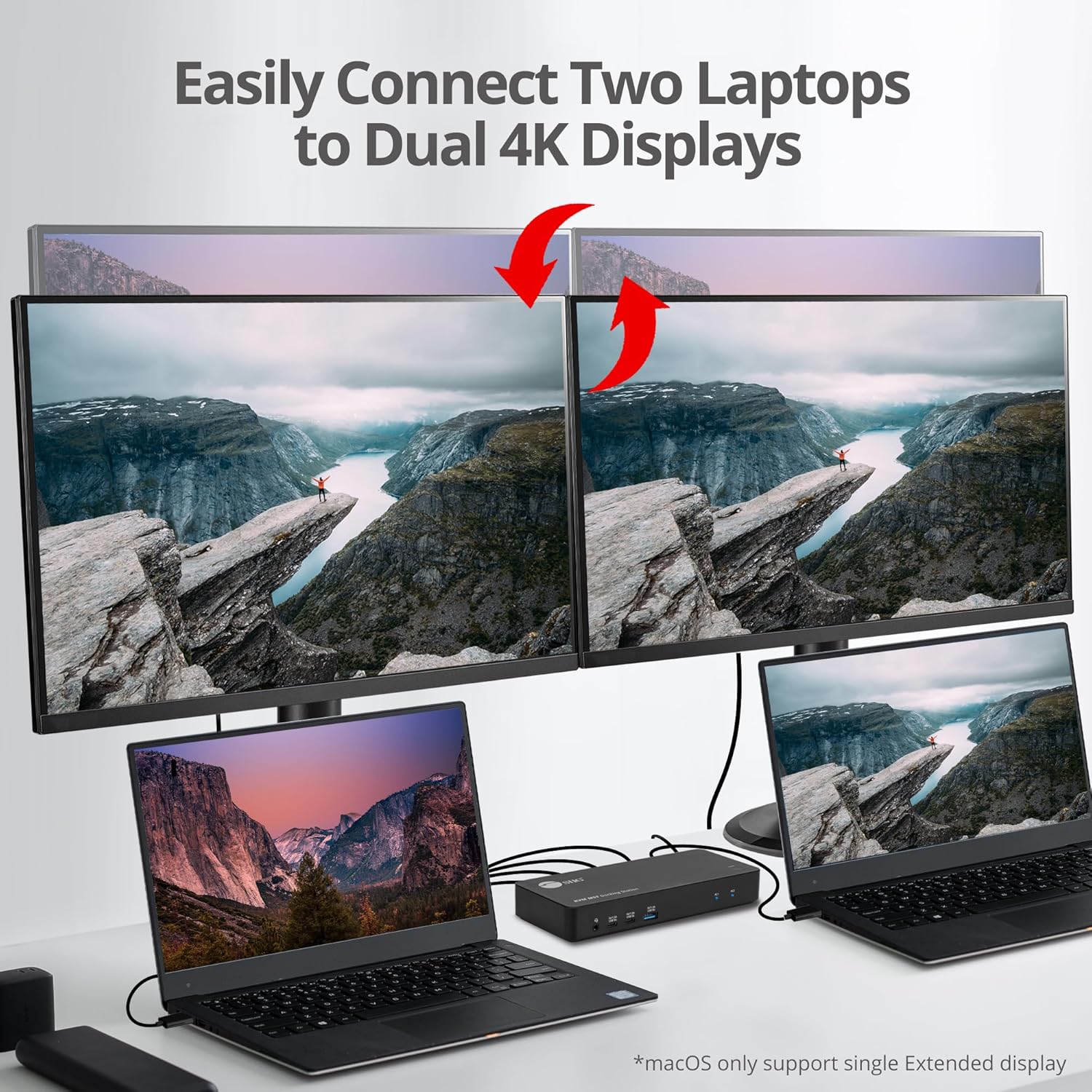
This manual provides detailed instructions for the installation, operation, and maintenance of your SIIG 2-Port USB-C KVM Docking Station (Model: CE-DK0111-S1). This device allows you to connect two laptops (Windows, macOS, or ChromeOS) to multiple displays and shared peripherals, enhancing productivity by enabling seamless switching between systems.

Davant view of the SIIG 2-Port USB-C KVM Docking Station, highlighting its compact design and front-facing ports.
Official product video demonstrating the features and setup of the SIIG 2-Port USB-C KVM Docking Station.
2. Contingut del paquet
Si us plau, verifiqueu que el vostre paquet contingui els elements següents:
- SIIG 2-Port USB-C KVM Docking Station (CE-DK0111-S1)
- Adaptador d'alimentació
- USB-C to USB-C Cables (x2)
- 3.5mm Switch Cable
- Manual d'usuari (aquest document)
3. Producte acabatview i Interfície
Familiarize yourself with the ports and indicators on your KVM docking station.

Diagrama que mostra la part superior view of the KVM docking station with labels for the 3.5mm headset jack, USB-A 5Gbps ports, USB-C 5Gbps ports, PC1/PC2 link LEDs, and power/switch button.
Detailed diagram illustrating the front and back ports of the KVM docking station, including USB-C host ports, DisplayPort, HDMI, RJ45 Ethernet, USB-A, and power input.
Ports del panell frontal:
- Conector per a auriculars de 3.5 mm: Per connectar auriculars o altaveus.
- USB-C 5Gbps (5V/1.5A): Two ports for data transfer and fast charging.
- USB-A 5Gbps (5V/1.5A): One port for data transfer and fast charging.
- PC1/PC2 Link LEDs: Indicate which computer is currently active.
- Power/Switch Button: Long press to power On/Off, short press to switch between PC1 and PC2.
Ports del panell posterior:
- Presa d'alimentació DC 20V: For connecting the power adapter (up to 65W for PC2 charging).
- USB-C Host (PC2): Connects to your second computer.
- USB-C Host (PC1): Connects to your first computer.
- 3.5mm Switch Input: For connecting the external switch cable.
- Sortida DisplayPort: Connects to a monitor for video output.
- Sortida HDMI: Connects to a monitor for video output.
- RJ45 Gigabit Ethernet: Per a la connexió de xarxa amb cable.
- USB-A 5Gbps: Two ports for connecting peripherals like keyboards and mice.
- USB-C PD Input (100W for PC1): For connecting your laptop's power adapter to charge PC1.
4. Instruccions de configuració
Follow these steps to set up your KVM docking station:
- Connectar l'alimentació: Plug the provided power adapter into the DC 20V Power Jack on the rear of the KVM and then into a wall outlet.
- Connectar monitors: Connect your primary monitor to the DisplayPort output and your secondary monitor to the HDMI output on the KVM.
- Connecteu els perifèrics: Connect your keyboard, mouse, and other USB devices to the available USB-A and USB-C ports on the KVM.
- Connecta la xarxa (opcional): For a stable wired internet connection, connect an Ethernet cable from your router/modem to the RJ45 Gigabit Ethernet port on the KVM.
- Connectar ordinadors:
- Connect your first laptop (PC1) to the USB-C Host (PC1) port using a USB-C to USB-C cable. If your laptop supports Power Delivery, you can connect its power adapter to the USB-C PD Input (100W for PC1) on the KVM to charge it.
- Connect your second laptop (PC2) to the USB-C Host (PC2) port using a USB-C to USB-C cable. The KVM will provide up to 65W charging to PC2 via the DC 20V power jack.
- Connect Switch Cable (Optional): If desired, connect the 3.5mm switch cable to the 3.5mm Switch Input port on the KVM for remote switching.
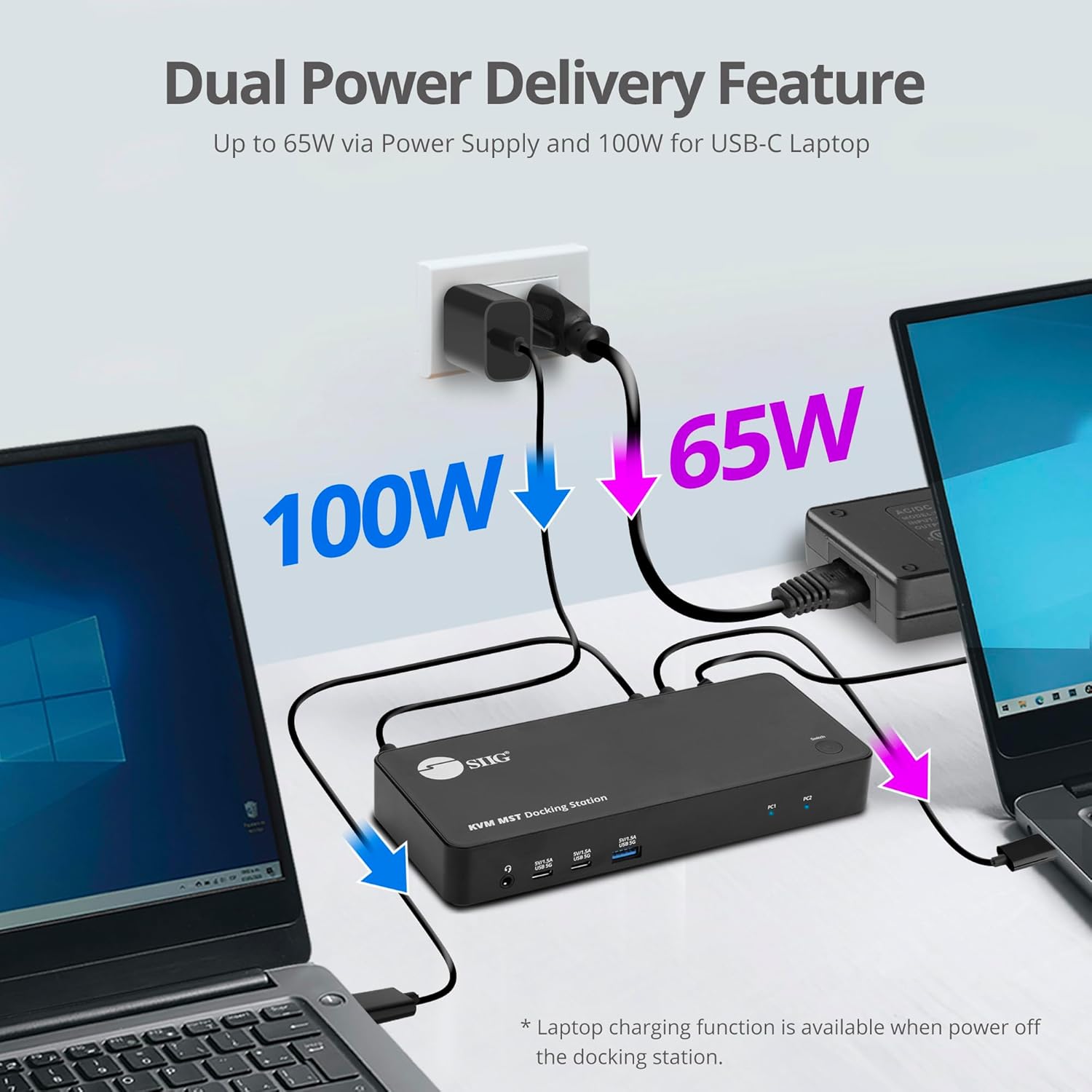
The KVM docking station provides power delivery, supplying up to 100W to PC1 (via PD Input) and up to 65W to PC2 (via DC 20V charging port).
Notes importants de compatibilitat:
- Ensure your laptops have an available USB-C port with DP 1.4 Alt mode or Thunderbolt 3/4 port for full functionality.
- Mac M1/M2/M3 Pro/Max systems are compliant with ONLY SINGLE extended video output. Dual extended displays are not supported on these specific Mac models.
- Only one computer can be displayed on the monitors simultaneously.
5. Instruccions de funcionament
Once setup is complete, you can begin using your KVM docking station.
Canviar entre ordinadors:
Podeu canviar entre els dos ordinadors connectats mitjançant un d'aquests dos mètodes:
- Power/Switch Button: Briefly press the Power/Switch button on the front panel of the KVM. The PC1 or PC2 LED will illuminate to indicate the active computer.
- External Switch Cable: Press the button on the connected 3.5mm switch cable.

This image shows how to switch between two connected laptops using either the physical button on the docking station or the included 3.5mm switch cable for convenience.
Modes de visualització:
The KVM docking station supports various display configurations depending on your operating system and laptop capabilities.

This diagram illustrates the supported display modes for both Windows and macOS systems, detailing how single and dual monitors can be configured. Note that Mac M1/M2/M3 Pro/Max systems support only single extended video output.
6. Manteniment
To ensure the longevity and optimal performance of your KVM docking station, follow these maintenance guidelines:
- Neteja: Feu servir un drap suau i sec per netejar l'exterior del dispositiu. Eviteu netejadors líquids o materials abrasius.
- Ventilació: Assegureu-vos que el dispositiu estigui col·locat en una zona ben ventilada per evitar el sobreescalfament. No bloquegeu cap obertura de ventilació.
- Emmagatzematge: Quan no l'utilitzeu durant períodes prolongats, guardeu el dispositiu en un lloc fresc i sec, allunyat de la llum solar directa i de temperatures extremes.
- Gestió de cables: Mantingueu els cables organitzats i lliures de doblegaments o doblegaments excessius per evitar danys.
7. Solució De Problemes
If you encounter issues with your KVM docking station, refer to the following common problems and solutions:

Important information regarding system requirements, compatibility with various operating systems (Windows, macOS, MS Surface), DisplayPort version, video drivers, and limitations concerning bandwidth and the number of displays supported.
Problemes comuns i solucions:
- Sense sortida de pantalla:
- Ensure all video cables (HDMI, DisplayPort) are securely connected to both the KVM and your monitors.
- Verifiqueu que heu seleccionat la font d'entrada correcta als monitors.
- Check if your laptop's USB-C port supports DP Alt Mode or is a Thunderbolt 3/4 port.
- Update your laptop's video drivers to the latest version.
- For Mac M1/M2/M3 Pro/Max systems, remember that only a single extended video output is supported.
- Cannot Switch Between Computers:
- Ensure both laptops are powered on and properly connected to the KVM's USB-C Host ports.
- Verify that the KVM is powered on (check the power LED).
- Try pressing the switch button firmly or using the external switch cable if connected.
- Els perifèrics (teclat/ratolí) no responen:
- Ensure USB devices are securely plugged into the KVM's USB ports.
- Try connecting the peripheral directly to the laptop to confirm it functions independently.
- Restart the KVM and the connected computers.
- Sense subministrament/càrrega d'energia:
- Confirm the KVM's power adapter is correctly connected and receiving power.
- Assegureu-vos que el port USB-C del vostre portàtil sigui compatible amb Power Delivery.
- For PC1, ensure your laptop's power adapter is connected to the KVM's USB-C PD Input.
- Intermittent Connection/Flickering Displays:
- Check all cables for damage or loose connections. Replace if necessary.
- Ensure your system meets the recommended DisplayPort version (1.4 or later).
- Reduce the display resolution or refresh rate to see if the issue persists, indicating a potential bandwidth limitation.
8. Especificacions
| Número de model | CE-DK0111-S1 |
| Dimensions del producte | 7.28 cm de llargada x 3.11 cm d'amplada x 1.1 cm d'alçada |
| Pes de l'article | 9 unces |
| Interfície del maquinari | HDMI, USB, USB Type C |
| Ports USB totals | 5 |
| Ports HDMI totals | 1 |
| Total DisplayPort Outputs | 1 |
| Wattage (PC2 Charging) | 65 watts |
| Wattage (PC1 PD Input) | Fins a 100 watts |
| Dispositius compatibles | Desktop or laptop with an available USB-C with DP 1.4 Alt mode or Thunderbolt 3/4 port, Windows® 11 / 10, macOS® 12 / 11 / 10.15 to 10.13, Compliant with Mac® M1, M2, M3 Pro, & Max systems for single extend video output. |
9. Garantia i Suport
SIIG stands by the quality of its products. This KVM docking station comes with a manufacturer warranty. For any issues, technical assistance, or warranty claims, please contact SIIG customer support through Amazon or visit the official SIIG store for more information.
Visita el Botiga SIIG a Amazon.


