1. Introducció
This manual provides detailed instructions for the setup, operation, and maintenance of your Bisofice ZJ-5810 58mm Thermal Receipt Printer. Please read this manual thoroughly before using the printer to ensure proper functionality and to extend the product's lifespan.
2. Producte acabatview
2.1 Característiques clau
- Mètode d'impressió: Impressió tèrmica directa
- Amplada del paper: 58 mm
- Amplada d'impressió efectiva: 48 mm
- Velocitat d'impressió: Fins a 90 mm/s
- Resolució: 203 ppp (8 punts / mm)
- Connectivitat: USB, Bluetooth 2.0/4.0
- Bateria: 2000mAh 7.4V Rechargeable Lithium Battery
- Compatibilitat: iOS, Android, Windows, Linux
- Suport de codis de barres: 1D (UPC-A/E, EAN13/8, CODE39/93/128, ITF, CODABAR), 2D (QR Code)
2.2 Contingut del paquet
Verifiqueu que tots els elements siguin presents al paquet:
- 1 x Bisofice ZJ-5810 Thermal Receipt Printer
- 1 x Rotlle de paper tèrmic
- 1 x cable USB
- 1 x Manual d'usuari

Image: Package contents including the printer, manual, USB cable, and a thermal paper roll.
3. Especificacions
| Característica | Especificació |
|---|---|
| Model | ZJ-5810 |
| Dimensions (L x A x A) | 11.2 x 8.4 x 5 cm (4.4 x 3.3 x 2 polzades) |
| Pes | 254 g (9 oz) |
| Mètode d'impressió | Impressió de línia tèrmica |
| Vida útil del capçal d'impressió | 100 million pulses/dot, or 100 km |
| Resolució | 203 ppp (8 punts / mm) |
| Amplada d'impressió efectiva | 48 mm (384 punts) |
| Available Paper Width | 58 ± 1 mm |
| Diàmetre del rotllo de paper | Max. ≤ 50 mm |
| Velocitat d'impressió | ≤ 90 mm/s |
| Bateria | 2000mAh 7.4V Rechargeable Lithium Battery |
| Mètode de càrrega | External Charger (5V-2A) |
| Interfície de comunicació | USB, Bluetooth 2.0/4.0 |
| Sistemes operatius | iOS, Android, Windows (9X/2000/2003/XP/Vista/7/8/10), Linux |

Image: Physical dimensions of the ZJ-5810 printer.
4. Configuració
4.1 Engegada i càrrega
- Ensure the printer is fully charged before first use. Connect the printer to the external charger using the provided USB cable. The charge indicator light will illuminate.
- Press and hold the power button to turn the printer on or off.

Image: The printer's battery compartment, showing the 2000mAh lithium battery. The product label indicates Model: ZJ-5810, Paper Width: 58mm, Power Supply: 9V/1.5A, and a serial number: 345276248958.
4.2 Installing the Thermal Paper Roll
- Open the printer's top cover by gently lifting it.
- Insert the thermal paper roll into the compartment, ensuring the printing side of the paper faces the print head.
- Pull a small amount of paper out past the print head.
- Tanqueu la coberta superior fermament fins que encaixi al seu lloc.
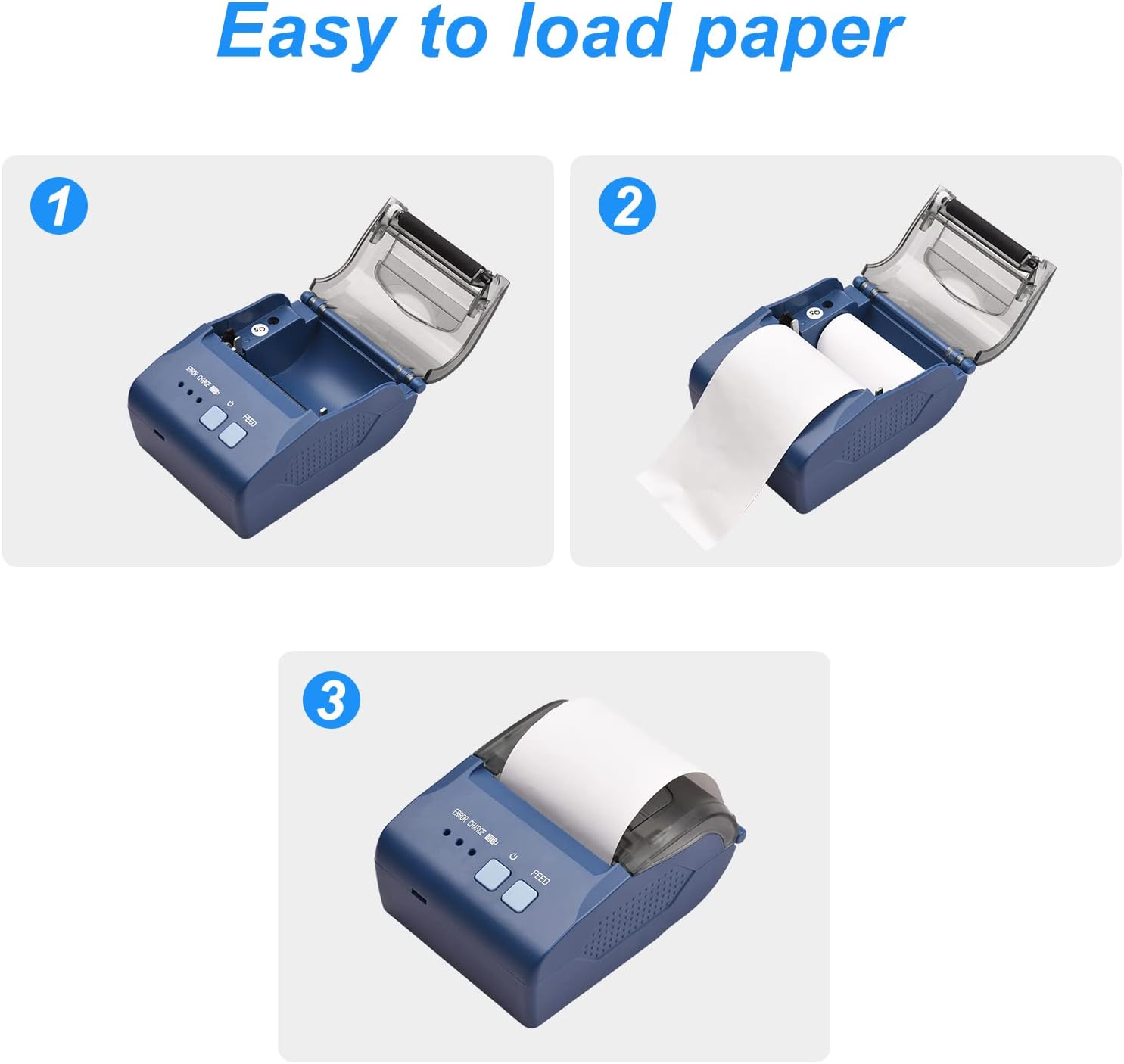
Image: Visual steps demonstrating how to open the cover, insert the paper roll, and close the cover.
4.3 Driver Installation (Windows/Linux)
For Windows and Linux operating systems, download the printer driver from the official weblloc:
- Visita: http://www.cnfujun.com/d/41
- Seguiu les instruccions que apareixen a la pantalla per instal·lar el controlador.
4.4 Connexió Bluetooth (iOS/Android)
To connect the printer via Bluetooth to a mobile device:
- Ensure the printer is powered on and Bluetooth is enabled on your mobile device.
- Per a iOS: Download the "POS-PrinterV1.0" application from the Apple App Store. Open the app and follow its instructions to connect to the printer.
- Per a Android: Scan the QR code provided in the physical user manual to download the DEMO APP. Alternatively, you may find the app at https://www.pgyer.com/Z59z?sign=&auSign=&code=. Follow the in-app instructions to complete the installation and connection.

Image: The printer connected to a smartphone via Bluetooth for mobile printing.
4.5 Connexió USB
Connect the printer to your computer using the provided USB cable. After driver installation (Section 4.3), the printer should be recognized by your system.
5. Instruccions de funcionament
5.1 Impressió bàsica
Once the printer is connected and drivers/apps are installed, you can initiate printing from your application. The printer will automatically feed and cut the receipt after printing.

Image: The Bisofice ZJ-5810 printer with a samps'està imprimint el rebut.
5.2 Barcode and QR Code Printing
The ZJ-5810 supports various 1D and 2D barcode formats. Ensure your printing software or application is configured to send barcode data in a compatible format for optimal results.

Image: The printer's internal mechanism, illustrating its high-speed printing capability of up to 90mm/s.
6. Manteniment
6.1 Neteja del capçal d'impressió
Regular cleaning of the print head ensures clear print quality and extends the printer's life.
- Apagueu la impressora i desconnecteu el cable d'alimentació.
- Obriu la coberta superior.
- Feu servir un bastonet de cotó lleugeramentampened with isopropyl alcohol to gently wipe the print head surface.
- Deixeu que el capçal d'impressió s'assequi completament abans de tancar la tapa i engegar la impressora.
6.2 Cura de la bateria
- Eviteu descarregar completament la bateria amb freqüència.
- If storing the printer for an extended period, charge the battery to approximately 50% and store in a cool, dry place.
- Use only the provided charger or a compatible 5V-2A charger.
7. Solució De Problemes
- Sense energia: Ensure the printer is charged and the power button is pressed firmly. Check the USB cable and charger connection.
- Mala qualitat d'impressió: Clean the print head (Section 6.1). Ensure you are using high-quality thermal paper.
- Embús de paper: Turn off the printer, open the cover, carefully remove any jammed paper, and re-install the paper roll correctly (Section 4.2).
- No es pot connectar per Bluetooth: Ensure Bluetooth is enabled on both devices. Restart the printer and your mobile device. Re-pair the devices. Verify the correct app is installed for your operating system.
- Printer Not Recognized (USB): Ensure the USB cable is securely connected. Reinstall the printer drivers (Section 4.3). Try a different USB port or cable.
8. Garantia i Suport
Information regarding specific warranty terms and conditions for the Bisofice ZJ-5810 printer is not available in this manual. For warranty claims, technical support, or service inquiries, please refer to the documentation provided at the time of purchase or contact your retailer.


