1. Introducció
The Novastar TB40 is a next-generation multimedia player designed for LED displays. It integrates playback and sending functions, allowing users to manage programs and control LED screens via various terminals such as PCs, mobile phones, and tablets. The TB40 also supports cloud publishing and monitoring platforms for efficient cross-regional cluster management of LED displays. This device is engineered for safety, stability, simplicity, and intelligent control, making it suitable for a wide range of commercial LED display applications.
2. Informació de seguretat
Si us plau, llegiu i comprengui totes les instruccions de seguretat abans de fer servir el dispositiu. Si no segueix aquestes instruccions, es poden produir descàrregues elèctriques, incendis o danys al producte.
- Assegureu-vos que la font d'alimentació voltage matches the device's requirements (100-240V, 50/60Hz).
- No exposeu el dispositiu a l'aigua ni a una humitat excessiva.
- Eviteu col·locar el dispositiu a prop de fonts de calor o sota la llum solar directa.
- No obriu el dispositiu casing. Demaneu totes les tasques de manteniment a personal qualificat.
- Utilitzeu només accessoris especificats pel fabricant.
- Desconnecteu l'alimentació durant tempestes amb llamps o quan no es faci servir durant períodes prolongats.
3. Contingut del paquet
Verifiqueu que tots els elements siguin presents al paquet:
- Novastar TB40 Multimedia Player Unit
- Adaptador d'alimentació
- Manual d'usuari (aquest document)

Figure 3.1: Contents of the Novastar TB40 package, showing the main unit, power adapter, and documentation.
4. Producte acabatview
4.1 Tauler frontal
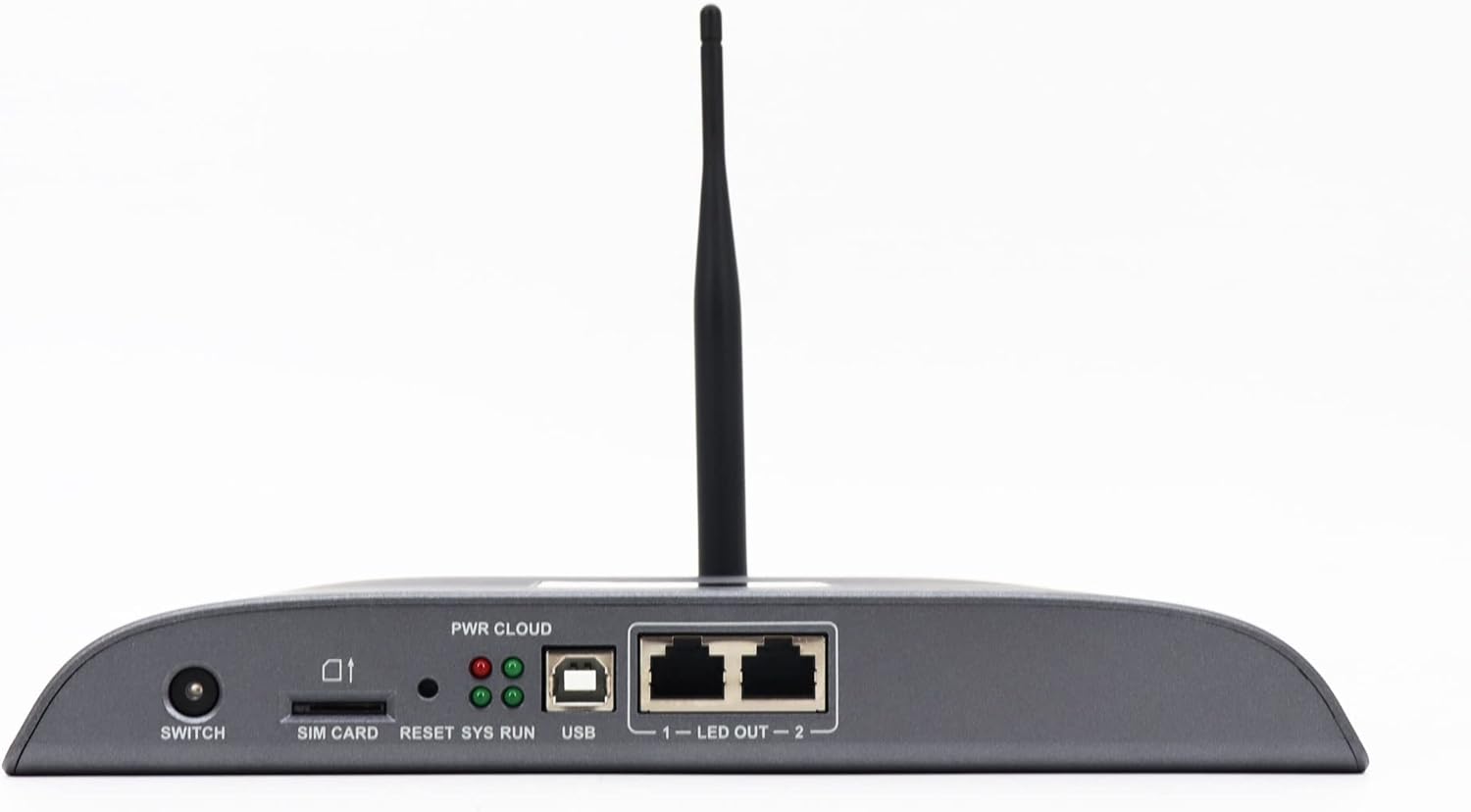
Figure 4.1: Front panel of the Novastar TB40, detailing the various ports and indicator lights.
- INTERRUPTOR: Interruptor d'alimentació per al dispositiu.
- TARGETA SIM: Slot for inserting a 4G SIM card (if 4G module is installed).
- RESET: Button to reset the device.
- SYS RUN: System running indicator light.
- PWR CLOUD: Power and Cloud connection indicator light.
- USB: USB port for connecting external devices or for system updates.
- LED OUT 1-2: Two Gigabit Ethernet output ports for connecting to LED display receiving cards.
4.2 Panell posterior

Figure 4.2: Rear panel of the Novastar TB40, showing the power input, audio, USB, and network ports.
- 12V 2A: Port d'entrada d'alimentació.
- SORTIDA D'ÀUDIO: Presa de sortida d'àudio de 3.5 mm.
- COM 1, COM 2: Serial communication ports.
- USB 3.0: High-speed USB 3.0 port.
- ETHERNET: Gigabit Ethernet input port for network connection.
- Entrada HDMI: Port d'entrada HDMI.
- SORTIDA HDMI: Port de sortida HDMI.
- SORTIDA: Additional output ports (likely for specific control signals).
5. Configuració
5.1 Connexió de potència
- Connecteu l'adaptador de corrent proporcionat a 12V 2A power input port on the rear panel of the TB40.
- Connecteu l'adaptador d'alimentació a una presa de corrent adequada.
- Premeu el botó CAMBIAR button on the front panel to power on the device. The PWR CLOUD indicator should light up.
5.2 Connexió de xarxa
The TB40 supports both wired Ethernet and optional 4G connectivity.
- Ethernet per cable: Connect an Ethernet cable from your network router or switch to the ETHERNET port al panell posterior.
- 4G (opcional): If a 4G module is installed, insert a valid SIM card into the TARGETA SIM slot on the front panel. Ensure the antenna is securely attached.
5.3 Connecting to LED Display
- Connect one or two Ethernet cables from the SORTIDA LED 1 i SORTIDA LED 2 ports on the front panel to the receiving cards of your LED display.
- Ensure the LED display is powered on and configured correctly to receive signals from the TB40.
5.4 Connexió de perifèrics
- Àudio: Connect speakers or an audio system to the SORTIDA D'ÀUDIO port.
- Dispositius USB: Connect USB storage devices or other peripherals to the USB or USB 3.0 ports.
- Entrada HDMI: If using an external video source, connect it to the Entrada HDMI port.
6. Instruccions de funcionament
The Novastar TB40 can be controlled and managed through various user terminals and cloud platforms.
6.1 Configuració inicial
Upon first power-on or after a factory reset, the device may require initial network and display configuration. Refer to the Novastar software documentation (e.g., NovaLCT-Mars or ViPlex Express) for detailed steps on setting up network parameters, screen resolution, and display mapping.
6.2 Program Release and Playback
Content for your LED display can be created and scheduled using Novastar's dedicated software applications. These applications allow you to upload videos, images, text, and other media to the TB40 for playback.
- Control local: Connect a PC to the same network as the TB40 or directly via USB for local program management and updates.
- Mobile/Tablet Control: Use the Novastar mobile application (e.g., ViPlex Handy) to manage content and settings wirelessly.
- Cloud Platform: For cross-regional management, connect the TB40 to the Novastar cloud publishing and monitoring platform. This enables remote content updates, scheduling, and device status monitoring.
The TB40 supports 1080P video hardware decoding and 4K*2 output, ensuring high-quality content delivery to your LED display.
6.3 Ajust de brillantor
The device includes a brightness sensor interface, supporting automatic and timed dual-mode intelligent brightness adjustment. This feature helps optimize display visibility and power consumption based on ambient light conditions or predefined schedules.
7. Manteniment
- Neteja: Feu servir un drap suau i sec per netejar l'exterior del dispositiu. No utilitzeu netejadors líquids ni aerosols.
- Ventilació: Assegureu-vos que hi hagi una ventilació adequada al voltant del dispositiu per evitar el sobreescalfament. No bloquegeu les obertures de ventilació.
- Actualitzacions de firmware: Periodically check the Novastar official website for firmware updates to ensure optimal performance and access to new features. Follow the provided instructions carefully during updates.
- Emmagatzematge: If storing the device for an extended period, disconnect power and store it in a cool, dry place away from direct sunlight.
8. Solució De Problemes
| Problema | Causa possible | Solució |
|---|---|---|
| El dispositiu no s'encén. | L'adaptador de corrent no està connectat o està defectuós; problema amb la presa de corrent. | Check power adapter connection. Try a different power outlet. Ensure the power switch is ON. |
| No display on LED screen. | LED OUT cables disconnected; incorrect display configuration; LED screen not powered. | Verify Ethernet cable connections to LED display. Check display settings in Novastar software. Ensure LED screen is powered and functional. |
| Network connection drops frequently (Wi-Fi/4G). | Weak signal; interference; incorrect network settings; faulty module. | Ensure the device is within range of the Wi-Fi router or has good 4G signal. Check network settings. If using 4G, verify SIM card is active. Consider a wired Ethernet connection for stability. |
| Content not playing or updating. | Network connectivity issue; incorrect content schedule; insufficient storage. | Verify network connection. Check content schedule and upload status in the control software. Ensure sufficient storage space on the device. |
If the problem persists after attempting these solutions, please contact Novastar technical support.
9. Especificacions
| Nom del model | TB40 |
| Processador | 1.8GHz A55 Four-core Processor |
| Descodificació de vídeo | Support for 1080P Video Hardware decoding |
| Operating Memory | 1 GB |
| Memòria d'emmagatzematge | 16 GB |
| Resolució de sortida | 4K*2 output |
| Capacitat de càrrega | 1,300,000 pixels (max width 4096, max height 4096) |
| Ports de xarxa | 2 x 1000M Ethernet output, 1 x 1000M Ethernet input |
| Tecnologia de connectivitat | USB, Ethernet, 4G (optional module) |
| Entrada de potència | 100-240V AC, 50/60Hz |
| Consum màxim d'energia | 18W |
| Dimensions (L*W*H) | 274 mm * 139 mm * 40 mm |
| Pes | 1250 g |
| Característiques especials | Brightness sensor interface, automatic/timed brightness adjustment, multi-screen synchronous playback |
10. Garantia i Suport
For warranty information and technical support, please refer to the official Novastar weblloc web o poseu-vos en contacte amb el vostre distribuïdor autoritzat. Conserveu el rebut de compra com a comprovant de compra per a reclamacions de garantia.
Novastar Official Weblloc: www.novastar.tech