1. Introducció
This manual provides comprehensive instructions for the PANTUM M6500NW Multifunction Laser Printer. It covers setup, operation, maintenance, and troubleshooting to ensure optimal performance of your device. The PANTUM M6500NW is designed for small home offices, offering print, copy, and scan functionalities with Ethernet, Wi-Fi, and USB 2.0 connectivity.

Image: The PANTUM M6500NW Multifunction Laser Printer, a compact black device with an open scanner lid, control panel, and paper tray.
2. Configuració
2.1 Desembalatge i preparació inicial
Carefully unpack the printer and all accessories from the box. Remove all protective packaging materials, including tapes and foam inserts, from the exterior and interior of the printer.
Video: This video demonstrates the unboxing process, removal of protective materials, and initial setup steps for the PANTUM M6500 Series printer.
2.2 Instal·lació del cartutx de tòner
- Obriu la coberta frontal de la impressora.
- Locate the toner cartridge slot.
- Gently shake the new toner cartridge horizontally 5-6 times to distribute the toner evenly.
- Remove the protective seal and any orange protective covers from the toner cartridge.
- Introduïu el cartutx de tòner a la impressora fins que encaixi al seu lloc.
- Tanqueu la coberta frontal.

Image: A PANTUM PA-210 toner cartridge next to printed documents, illustrating print quality and toner compatibility.
2.3 Càrrega de paper
- Open the paper tray located at the bottom front of the printer.
- Ajusteu les guies del paper perquè coincideixin amb la mida del paper que carregueu.
- Fan the paper stack to prevent jams.
- Load the paper into the tray, ensuring it is aligned with the guides.
- Tanqueu la safata de paper.
2.4 Instal·lació del controlador
To use your PANTUM M6500NW printer, you need to install the appropriate drivers on your computer. There are two primary methods:
- Using the included CD-ROM: Insert the driver CD into your computer's CD drive and follow the on-screen instructions.
- Downloading from the official PANTUM weblloc: Visita global.pantum.com/support/download/driver/, search for "M6500NW", and download the latest driver for your operating system.

Image: Visual guide for installing the printer driver on a PC, showing options for USB connection, wired network, and Wi-Fi.
2.5 Opcions de connectivitat
The PANTUM M6500NW offers versatile connectivity:
- USB 2.0: Connecteu la impressora directament a l'ordinador mitjançant un cable USB.
- Ethernet: Connect the printer to your network router using an Ethernet cable for shared access.
- Wi-Fi: Connect wirelessly to your network for convenient printing from multiple devices.

Image: Diagram illustrating USB, Ethernet, and Wi-Fi connectivity options for the PANTUM M6500NW printer.
2.6 Mobile App Setup (Wi-Fi)
For mobile printing, download the Pantum APP from your device's app store or the official Pantum website. Follow these steps to connect via Wi-Fi:
- Assegureu-vos que la impressora estigui engegada.
- Open the Pantum APP on your mobile device.
- Select "Add a printer" and follow the on-screen prompts to connect to the printer's Wi-Fi hotspot (e.g., "DIRECT-bc-Pantum M6500NW Series").
- Enter the default password if prompted (check printer's network configuration report for details).
- Once connected to the printer's hotspot, the app will guide you to connect the printer to your home Wi-Fi router.
- After successful connection, you can print directly from your mobile device.

Image: Steps for connecting the PANTUM M6500NW printer to a Wi-Fi router via the mobile app.
3. Instruccions de funcionament
3.1 Impressió
- Des d'un ordinador: After driver installation, select the PANTUM M6500NW from your printer list in any application and choose your desired print settings.
- Des d'un dispositiu mòbil: Use the Pantum APP to select documents or images for printing. Ensure your device is connected to the same Wi-Fi network as the printer.
- The printer supports monochrome printing at speeds up to 22 pages per minute.
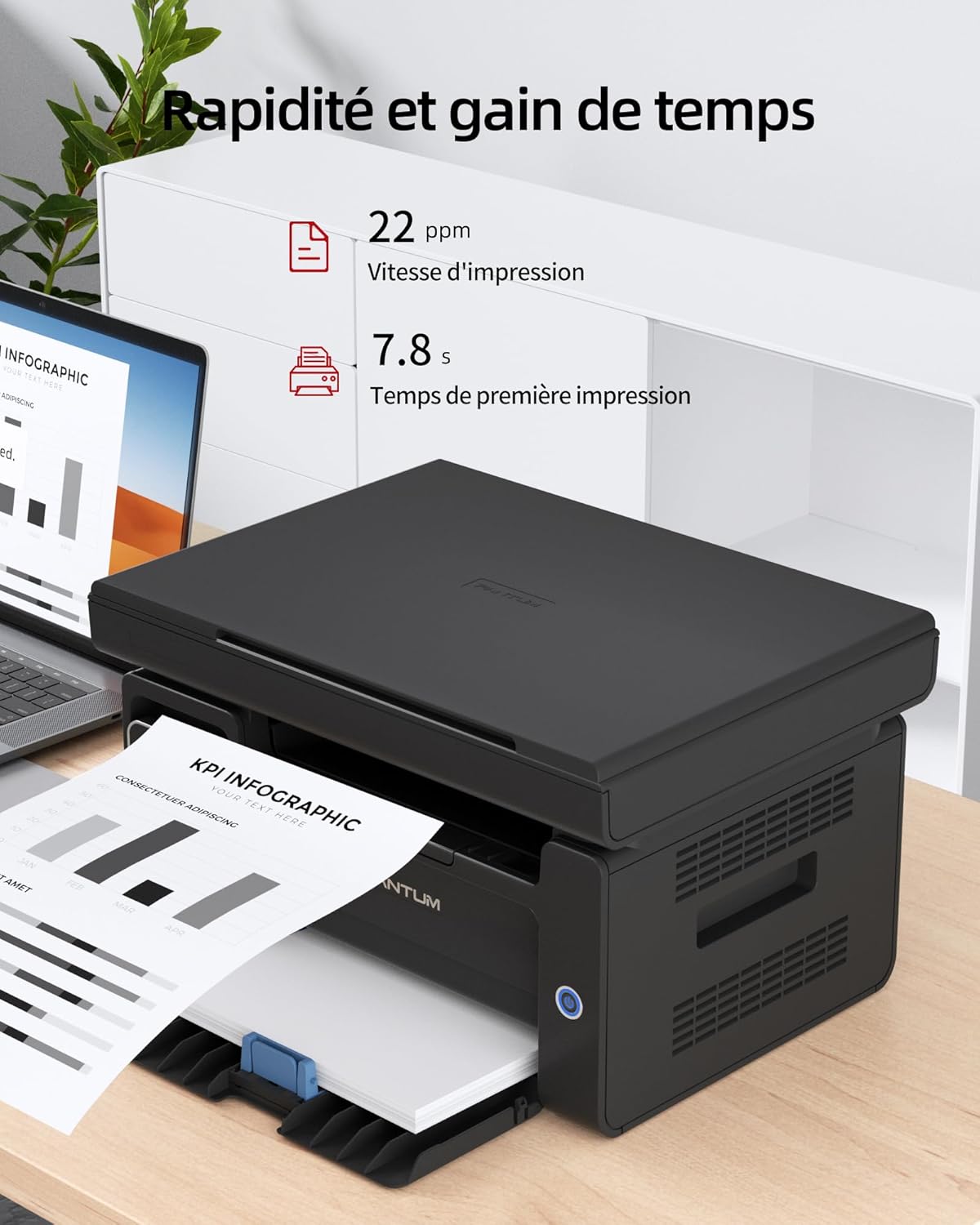
Image: Illustration highlighting the printer's speed, with 22 ppm print speed and 7.8 seconds first page out time.
3.2 Còpia
Per fer una còpia:
- Col·loqueu el document cara avall sobre el vidre de l'escàner o cara amunt a l'alimentador automàtic de documents (ADF) si n'hi ha.
- Use the control panel to select the number of copies and other settings (e.g., lighten/darken).
- Press the "Copy" button to start the process.

Image: A person placing a document on the scanner glass of the PANTUM M6500NW for copying or scanning.
3.3 Escaneig
Per escanejar un document:
- Col·loqueu el document cara avall sobre el vidre de l'escàner.
- From your computer, open the scanning software (usually installed with the printer driver) or use the Pantum APP on your mobile device.
- Select scan settings such as resolution, color mode (monochrome), and destination.
- Initiate the scan. The scanned document will be saved to your specified location.
3.4 Impressió manual a doble cara
The PANTUM M6500NW supports manual duplex (two-sided) printing. To use this feature:
- A la configuració d'impressió, seleccioneu l'opció d'impressió manual a doble cara.
- Imprimeix primer les pàgines senars.
- When prompted, reload the printed pages into the paper tray according to the on-screen instructions to print the even-numbered pages on the reverse side.
4. Manteniment
4.1 Substitució del cartutx de tòner
When the toner is low or depleted, the printer will indicate this. Replace the toner cartridge with a genuine PANTUM PA-210 (1,600 pages) or compatible cartridge. Follow the installation steps outlined in Section 2.2.
Nota: Using non-original consumables may void your warranty and affect print quality.
4.2 Neteja de la impressora
Una neteja regular ajuda a mantenir la qualitat d'impressió i allarga la vida útil de la impressora.
- Exterior: Netegeu l'exterior de la impressora amb un drap suau i sense borrissol.
- Vidre de l'escàner: Utilitzeu un drap suau dampened with glass cleaner to clean the scanner glass. Avoid spraying cleaner directly onto the glass.
- Interior: Refer to the detailed cleaning instructions in the full user manual for internal components.
5. Solució De Problemes
If you encounter issues with your PANTUM M6500NW printer, consider the following common solutions:
- La impressora no respon:
- Comproveu les connexions d'alimentació i assegureu-vos que la impressora estigui engegada.
- Verifiqueu les connexions USB o del cable de xarxa.
- For Wi-Fi, ensure the printer is connected to the correct network and your device is also connected.
- Reinicieu la impressora i l'ordinador/dispositiu mòbil.
- Embussos de paper:
- Open all covers and carefully remove any jammed paper.
- Assegureu-vos que el paper estigui carregat correctament i que no estigui massa ple.
- Mala qualitat d'impressió:
- Check toner levels and replace the cartridge if low.
- Assegureu-vos que feu servir el paper adequat per a la vostra tasca d'impressió.
- Clean the printer's internal components as per the full user manual.
- Problemes del controlador:
- Reinstall the printer drivers from the official PANTUM weblloc.
- Assegureu-vos que el vostre sistema operatiu estigui actualitzat.
For more detailed troubleshooting, refer to the comprehensive user manual available on the PANTUM support weblloc.
6. Especificacions
| Característica | Especificació |
|---|---|
| Nom del model | M6500NW |
| Tecnologia d'impressió | Làser |
| Funcions | Imprimir, copiar, escanejar |
| Velocitat d'impressió (monocrom) | Fins a 22 ppm |
| Resolució màxima d'impressió | 1200 x 600 ppp |
| Connectivitat | Ethernet, USB 2.0, Wi-Fi |
| Impressió dúplex | Manual |
| Mida màxima del suport | A4 |
| Capacitat d'entrada de paper | 150 fulls |
| Tòner compatible | PA-210 (1,600 pages) |
| Dimensions del producte (P x A x A) | 30.5 x 41.7 x 24.4 cm |
| Pes de l'article | 4.8 quilos |
| Sistemes operatius | Android, iOS (for mobile app) |

Image: The PANTUM M6500NW printer showcasing its compact design and dimensions (24.4cm H x 30.5cm D x 41.7cm W).
7. Garantia i Suport
The PANTUM M6500NW Multifunction Laser Printer comes with a standard one-year warranty against manufacturing defects from the date of purchase. A manufacturer's warranty of 2 years is also mentioned in the specifications.
For customer service and technical support, please visit the official PANTUM website or contact their online customer service. Information regarding spare parts availability and software updates is not readily available in the provided product details.


