Introducció
Thank you for choosing the cellularline Stand Keyboard Universal. This Bluetooth® keyboard is designed to enhance your productivity by providing a comfortable typing experience for your smartphone or tablet, complete with an integrated stand. Please read this manual carefully before using the product to ensure proper operation and maintenance.
Contingut del paquet
- cellularline Stand Keyboard Universal
- Cable de càrrega USB
- Manual d'instruccions
Producte acabatview
The cellularline Stand Keyboard Universal combines a full-sized keyboard with a convenient integrated stand, allowing you to position your device at an optimal viewing angle for typing, video calls, or media consumption. It connects wirelessly via Bluetooth, offering broad compatibility with various smartphones and tablets.

Image: The cellularline Stand Keyboard Universal with a smartphone securely placed in its integrated stand, demonstrating its primary use for typing and viewing.
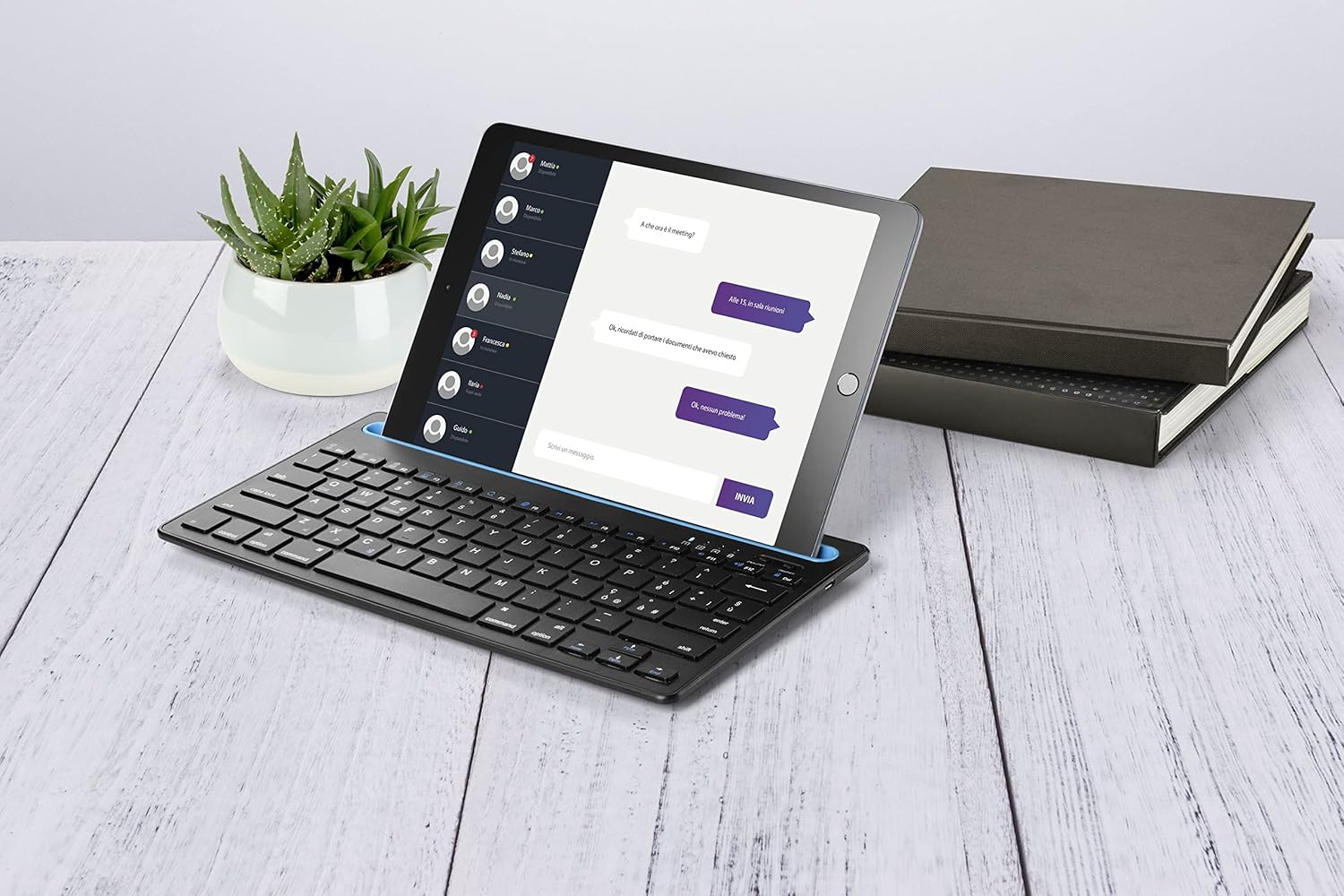
Image: The keyboard in use with a tablet, showcasing its versatility for larger devices and a typical desk setup.
Configuració
1. Càrrega del teclat
Before first use, ensure the keyboard is fully charged. Locate the charging port (usually Micro-USB or USB-C) on the side or back of the keyboard. Connect the provided USB charging cable to the keyboard and the other end to a USB power source (e.g., computer USB port, USB wall adapter).
- A charging indicator light will typically illuminate during charging and turn off or change color when fully charged.
- Charging time may vary, but usually takes 2-4 hours for a full charge.
2. Pairing with Your Device (Bluetooth Connection)
- Turn on the Keyboard: Locate the power switch (often on the side or back) and slide it to the "ON" position. A power indicator light may briefly flash.
- Activa el mode de vinculació: Press and hold the Bluetooth pairing button on the keyboard. This button is often labeled with a Bluetooth symbol or "Connect". The Bluetooth indicator light will start blinking, indicating it's in pairing mode.
- Activa el Bluetooth al teu dispositiu: On your smartphone or tablet, go to Settings > Bluetooth and ensure Bluetooth is turned "ON".
- Select the Keyboard: Your device will scan for available Bluetooth devices. Look for "cellularline Keyboard" or a similar name in the list of devices. Tap on it to connect.
- Confirmeu l'aparellament: Some devices may prompt you to enter a code displayed on your screen using the keyboard, then press Enter. Follow the on-screen instructions. Once connected, the Bluetooth indicator light on the keyboard will stop blinking and remain solid or turn off.
The keyboard should now be successfully paired and ready for use with your device. It will typically reconnect automatically to the last paired device when turned on and within range.
Instruccions de funcionament
Using the Integrated Stand
The integrated stand is designed to securely hold your smartphone or tablet in landscape or portrait orientation (depending on device size and stability). Simply place your device into the groove at the top of the keyboard.
- Ensure your device is stable in the stand before typing.
- The stand is suitable for devices up to a certain thickness and size. Refer to product specifications for maximum compatibility.
Funcions del teclat
The keyboard features standard QWERTY layout keys, along with function keys (F1-F12) that often have secondary multimedia or system control functions when pressed in combination with the "Fn" key. Specific functions may vary slightly depending on your device's operating system (iOS, Android, Windows).
| Combinació de tecles | Funció |
|---|---|
| Fn + F1 | Pantalla d'inici |
| Fn + F2 | Cerca |
| Fn + F3 | Seleccioneu Tot |
| Fn + F4 | Còpia |
| Fn + F5 | Enganxa |
| Fn + F6 | Tallar |
| Fn + F7 | Pista anterior |
| Fn + F8 | Reproduir/Pausa |
| Fn + F9 | Pista següent |
| Fn + F10 | Silencia el volum |
| Fn + F11 | Baixa el volum |
| Fn + F12 | Puja el volum |
Note: Some function keys may require specific operating system support or app compatibility.
Manteniment
Neteja
- Apagueu el teclat abans de netejar-lo.
- Utilitzeu un drap suau i sense pelusa lleugerament dampesbandit amb aigua o una solució de neteja suau i no abrasiva.
- No utilitzeu productes químics agressius, aerosols ni netejadors abrasius.
- Eviteu que entri humitat a cap obertura.
Emmagatzematge
- Guardeu el teclat en un lloc fresc i sec, allunyat de la llum solar directa i de temperatures extremes.
- If storing for an extended period, ensure the keyboard is fully charged before storage and recharge it every few months to preserve battery life.

Image: The keyboard's compact design allows for easy portability, making it convenient for on-the-go use and storage.
Resolució de problemes
| Problema | Possible causa/solució |
|---|---|
| El teclat no s'encén. |
|
| El teclat no es connecta per Bluetooth. |
|
| Les tecles no responen o s'escriuen incorrectament. |
|
| Device does not fit in the stand. |
|
If you continue to experience issues, please refer to the support section or contact customer service.
Especificacions
| Característica | Detall |
|---|---|
| Nom del model | KEYBSTANDHOMEITAK |
| Marca | línia cel·lular |
| Connectivitat | Bluetooth |
| Dispositius compatibles | Smartphones, tauletes |
| Disposició del teclat | QWERTY |
| Stand integrat | Sí |
| Font d'alimentació | Bateria recarregable |
| Interval d'operació | Fins a 10 metres (33 peus) |
Note: Specifications are subject to change without notice. For the most up-to-date information, please refer to the product packaging or manufacturer's weblloc.
Garantia i Suport
Informació de la garantia
cellularline products are covered by a limited warranty from the date of purchase. Please retain your proof of purchase for warranty claims. The warranty typically covers defects in materials and workmanship under normal use. It does not cover damage caused by misuse, accidents, unauthorized modifications, or normal wear and tear.
For specific warranty terms and conditions, please refer to the warranty card included with your product or visit the official cellularline weblloc.
Atenció al client
If you encounter any issues not covered in the troubleshooting section or require further assistance, please contact cellularline customer support. You can usually find contact information (phone number, email, or support portal) on the product packaging, the official cellularline website, or by searching for "cellularline support" online.
When contacting support, please have your product model number (KEYBSTANDHOMEITAK) and proof of purchase ready.


