1. Introducció
The ZTE ZXHN H196A Mesh Router 2 Pack provides a high-performance, dual-band Wi-Fi 5 (802.11ac) solution designed to deliver seamless and reliable internet connectivity throughout your home. With combined speeds up to 1200Mbps and Gigabit Ethernet ports, this system is ideal for demanding applications such as HD video streaming and online gaming. The H196A integrates with NetSphere technology to create a unified whole-home Wi-Fi network, ensuring consistent coverage and a single SSID for effortless roaming.
2. Informació de seguretat
Si us plau, llegiu i seguiu atentament totes les instruccions de seguretat per evitar lesions o danys al dispositiu.
- No exposeu el dispositiu a l'aigua ni a la humitat.
- No obriu ni intenteu reparar el dispositiu vosaltres mateixos. Envieu totes les tasques de manteniment a personal qualificat.
- Utilitzeu només l'adaptador d'alimentació subministrat amb el dispositiu.
- Place the device in a well-ventilated area, away from direct sunlight and heat sources.
- Mantingueu el dispositiu allunyat dels nens i de les mascotes.
3. Contingut del paquet
Verifiqueu que tots els elements siguin presents al vostre paquet:
- 2 x ZTE ZXHN H196A Mesh Routers
- 2 x adaptadors de potència
- 1 x cable Ethernet
- 1 x Guia d'inici ràpid
4. Producte acabatview
Familiarize yourself with the components and indicators of your ZTE ZXHN H196A Mesh Router.

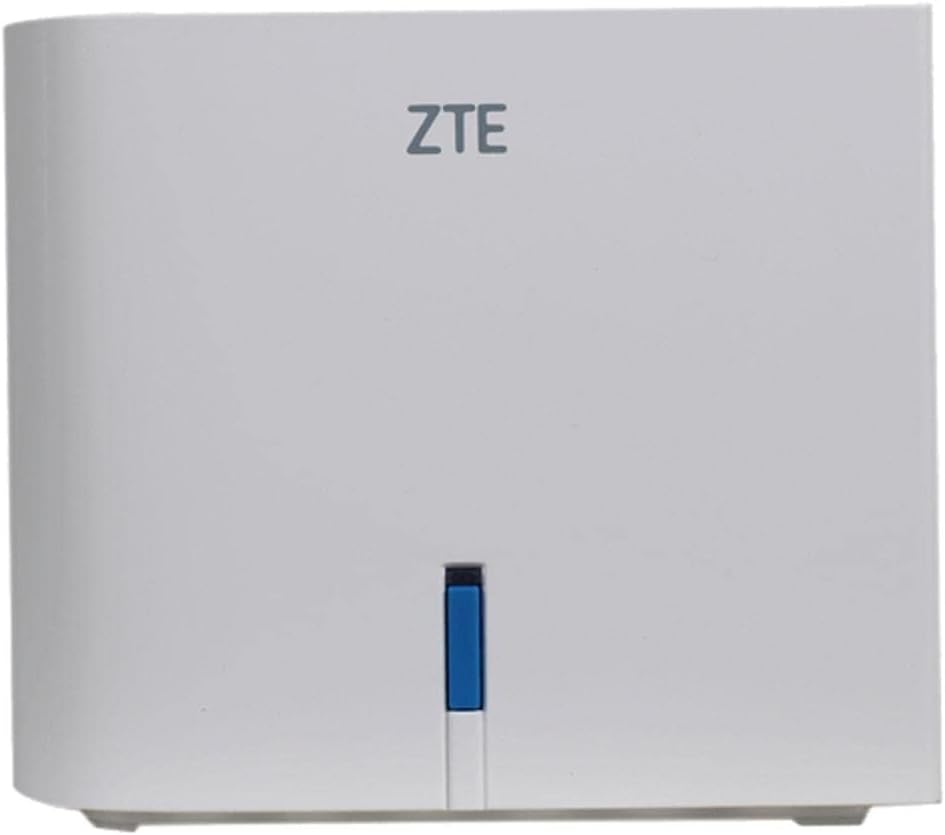


Indicadors LED
- Blau sòlid: Internet connection is active and working normally.
- Blau parpellejant: Device is starting up or connecting to the internet.
- Vermell sòlid: No internet connection or a system error.
- Apagat: El dispositiu està apagat.
Ports i botons
- Port d'alimentació: Es connecta a l'adaptador de corrent.
- Port WAN: Connects to your modem or main internet source.
- Ports LAN (x2): Connects to wired devices like computers, gaming consoles, or smart TVs.
- Botó de restabliment: Used to restore factory default settings. Press and hold for 5-10 seconds while the device is powered on.
5. Configuració
5.1 Initial Router Placement
For optimal performance, place your primary mesh router in a central location in your home, away from obstructions, large metal objects, and other electronic devices that may cause interference.
5.2 Connecting the Primary Router
- Connect one end of the provided Ethernet cable to the WAN port of one ZTE ZXHN H196A router.
- Connect the other end of the Ethernet cable to a LAN port on your existing modem or optical network terminal (ONT).
- Connect the power adapter to the Power port of the router and plug it into an electrical outlet.
- Wait for the LED indicator on the router to turn solid blue, indicating a successful internet connection.
5.3 Setting Up the Mesh Network (Secondary Router)
The ZTE ZXHN H196A routers are designed to automatically form a mesh network. Follow these steps to add the second router:
- Place the second ZTE ZXHN H196A router in an area where you need extended Wi-Fi coverage, ideally within range of the primary router.
- Connect the power adapter to the Power port of the second router and plug it into an electrical outlet.
- Wait for the LED indicator on the second router to turn solid blue. This indicates it has successfully connected to the primary router and joined the mesh network.
- If the LED does not turn solid blue, try moving the secondary router closer to the primary unit or refer to the troubleshooting section.
6. Funcionament del router
6.1 Connexió de dispositius a la Wi-Fi
Locate the Wi-Fi network name (SSID) and password printed on the label at the bottom of your router. Use these credentials to connect your wireless devices (smartphones, tablets, laptops) to the mesh network.
6.2 Connexió de dispositius amb cable
Use an Ethernet cable to connect devices such as desktop computers, gaming consoles, or smart TVs to the LAN ports on either of your mesh routers.
6.3 Accessing Router Settings (Web Interfície)
To manage advanced settings, you can access the router's web interfície:
- Assegureu-vos que el dispositiu estigui connectat a la xarxa Wi-Fi del router o mitjançant un cable Ethernet.
- Obre a web navegador (per exemple, Chrome, Firefox, Edge).
- Type the default IP address (usually
192.168.1.1or192.168.0.1) into the address bar and press Enter. Refer to the router's label for the exact IP address. - Enter the default username and password when prompted. These are typically found on the router's label.
- Once logged in, you can configure settings such as Wi-Fi name (SSID), password, guest networks, and parental controls.
6.4 Dual-Band Operation and Access Point Mode
The ZXHN H196A operates as a dual-band router, supporting both 2.4 GHz and 5 GHz Wi-Fi frequencies for optimal performance and compatibility. It also supports Access Point Mode, allowing it to extend an existing wired network wirelessly.
7. Manteniment
7.1 actualitzacions de microprogramari
Periodically check for firmware updates through the router's web interfície. Les actualitzacions de firmware poden millorar el rendiment, afegir noves funcions i augmentar la seguretat.
7.2 Neteja
Clean the router's exterior with a soft, dry cloth. Do not use liquid cleaners or aerosols. Ensure ventilation holes are free from dust and debris.
7.3 Restabliment de l'encaminador
If you encounter persistent issues or wish to restore all settings to their factory defaults, you can perform a factory reset:
- With the router powered on, use a paperclip or a thin object to press and hold the recessed Reset button on the back of the router for approximately 5-10 seconds.
- Release the button when the LED indicator blinks rapidly or changes color.
- The router will restart with factory default settings. You will need to reconfigure your internet connection and Wi-Fi settings.
8. Solució De Problemes
8.1 No Internet Connection (LED is Red)
- Check if the Ethernet cable from your modem is securely connected to the WAN port of the primary router.
- Ensure your modem is powered on and working correctly.
- Restart both your modem and the router by unplugging them from power for 30 seconds and then plugging them back in.
- Poseu-vos en contacte amb el vostre proveïdor de serveis d'Internet (ISP) per confirmar que no hi ha cap servei fora de servei.tagés a la teva zona.
8.2 Velocitat Wi-Fi lenta
- Ensure your devices are connected to the 5 GHz band if they support it, as it offers faster speeds.
- Relocate the routers to minimize interference from other electronic devices or physical obstructions.
- Comproveu si hi ha aplicacions o dispositius en segon pla que consumeixin un ample de banda significatiu.
- Fes una prova de velocitat per verificar la velocitat d'Internet del teu proveïdor d'Internet.
8.3 Devices Cannot Connect to Wi-Fi
- Verifiqueu que esteu introduint la contrasenya Wi-Fi correcta.
- Ensure the router's Wi-Fi is enabled (check via the web interfície).
- Restart the router and the device you are trying to connect.
- Si el problema persisteix, proveu de restablir el router als valors predeterminats de fàbrica (vegeu la secció 7.3).
9. Especificacions
| Característica | Descripció |
|---|---|
| Marca | ZTE |
| Model | ZXHN H196A |
| Color | Blanc |
| Components inclosos | 2 encaminadors |
| Característiques especials | Access Point Mode, Dual-band |
| Pes del producte | 800 g |
| Dimensions del paquet | 5 x 5 x 5 cm |
| Classe de banda de freqüència | Doble banda |
| Comunicació sense fils estàndard | 802.11ac |
| Dispositius compatibles | Ordinador portàtil, tauleta, telèfon intel·ligent |
10. Garantia i Suport
Per obtenir informació sobre la garantia i assistència tècnica, consulteu la targeta de garantia inclosa al paquet del producte o visiteu el lloc web oficial de ZTE. website. You can also contact ZTE customer service for assistance with product setup, troubleshooting, and general inquiries.
Conserveu el vostre comprovant de compra per a reclamacions de garantia.


